Posts Tagged ‘desktop linux’

Why modern Linux systems feel Slow and how to Speed it up. Common RAM, CPU, and performance Linux problems in 2026 explained

Monday, May 18th, 2026

For years Linux we the Linux users proudly mocked Windows for bloated resource usage and that was a reason for many enthusiasts like me to start in the Linux realm.
There used to be the good old times where, lightweight distributions running comfortably inside 128MB of RAM were once common, and old computers and the hackers good old ThinkPads series were perfect for becoming a computer professional.

Fast-forward trip to 2026 and many modern GNU / Linux desktop's resource hunger has topped UP and a typical GUI environment such as Gnome is consuming as minimum 2 GB of RAM and often  4GB of RAM immediately after enters through the Login manager and machine. So many of the old computers if even running for 7-8 years and served well once updated or reused with Linux on a fresh install  prformance feels really bad. There of course work arounds to that as there are distributions such PuppyLinux / Tiny Core Linux / Linux Lite / Lubutuntu and even multiple articles online suggesting on how to place an ordinary Debian on Ubuntu and optimize it to work better on older hardware but still this article might be of help not only for old school Linux fans who install on old harware but also for sysadmins who has to deploy and install brand new Linux distributions and want to squeeze best of performance from the machine and make it as minimimalistic as possible in order to reduce the number of problems that might occur for system management.

So What happened, to make Linux performance degrade so dramatically over last 15 years ?

Old Hardware feels Slower Even With Linux

People often install Linux expecting miracles on ancient hardware.

Modern workloads assume:

  • SSD storage
  • multiple CPU cores
  • AVX instructions
  • GPU acceleration
  • large memory pools

Even lightweight Linux distributions struggle when rendering modern web applications on decade-old CPUs.

A 2007 machine browsing modern JavaScript-heavy websites experiences a fundamentally different workload than it did originally.

Web site use became computationally expensive.


Modern Linux Is Carrying the Weight of the development of Tech and Internet industry

A contemporary Linux desktop is no longer just:

  • X11
  • a window manager
  • a browser
  • a terminal emulator

Modern systems now run dozens of background services (as people run into complexity more and more instead of minimalism). Even a basic Linux install often runs by default things such as:
telemetry collectors, hardware abstraction layers, sandboxing frameworks, package management daemons, web server management platforms, indexing systems, GPU compositors, browser engines that resemble miniature operating systems and even with some specific distros embedded containers.

A typical desktop session environment on Linux today often includes as a base a bunch of software that is not always necessery such as:

  • systemd
  • dbus-daemon
  • pipewire
  • wireplumber
  • NetworkManager
  • xdg-desktop-portal
  • gvfsd
  • tracker-miner
  • udisksd
  • polkitd
  • bluetoothd
  • ModemManager
  • cupsd
  • flatpak-session-helper

Many younger users won't  never notice the burden of having those services running all time on the hardware as hardware today is mostly powerful and modern PC and notebooks often ship with 16GB or even some gaiming machines have 32 GB of memory.

As the default amount of memory on a laptop PC has become so abundant as 16GB RAM has become  "normal / standard ",  so software developers stopped aggressively optimizing memory consumption, plus the inclusing of AI vibe coding today and the abundant resource makes things with program optimization even more bloated.

The result of all this is more and more software entropy (the tendency of software systems to become more disorganized, complex, and harder to maintain over time).

The older UNIX philosophy no longer remembered by newer developers is completely forgotten. The old unix thinking was "Do one thing well.",
the new is "use everything no matter the efficiency if that would save you time"

As a result modern desktop applications instead ship entire browser engines for  simple things as displaying buttons.
This is exactly where Linux desktop gets heavily loaded and cause for whole system to work sluggish even on newer hardware. 
Very large part of those ineffiicient developed is caused by Electron:

Electron Framework for building Desktop apps worsened Linux performance

One of the largest reasons modern Desktop Linux / Windows systems is Electron (a framework for building desktop applications using JavaScript, HTML, and CSS).

Electron bundles essentially with:

  • Chromium
  • Node.js
  • V8 JavaScript engine
  • application runtime
  • UI rendering engine

and this is used in …inside many of the third party applications, which unfurtunately has to be used also on Linux, few examples that has heavy electron use are:

  • Discord client
  • Slack client
  • VS Code
  • Element 
  • Spotify
  • Visual Studio Code
  • Discord
  • Signal Desktop
  • Postman
  • Countless App launchers part of extra packages that one needs to use on Linux Desktop

…are frequently separate Chromium instances or use large part of chromium libs pretending to be native applications.

1. Finding top resource hungry Apps on Linux

To get a list of most memory heavy Apps on a Linux system:

# ps aux –sort=-%mem | head


You may discover that “lightweight desktop apps” and background services are consuming much more RAM than imagined.

Measuring Real Resource Usage Properly

Many users misunderstand Linux memory reporting.

Linux aggressively uses RAM for:

  • filesystem cache
  • buffers
  • inode caching

Note! Unused RAM is wasted RAM.

# free -h

Focus on:

  • available memory
  • swap activity
  • sustained pressure

Better command tools to optimize OS include:

htop
btop
smem
iotop
vmstat

Systemd  Useful but running default unused services

Mentioning systemd still starts wars on Linux forums.

Reality is nuanced.

Systemd solved real problems:

  • dependency management
  • predictable service startup
  • cgroup integration
  • journal logging
  • parallel boot
  • service supervision

However, it also dramatically expanded the scope of PID 1 responsibilities.

Leading to many Linux-es to now launch numerous services laying around, not known by the users and never (intially needed).

If you want to check and optimize systemd ecosystem to improve performance

2. Check systemd OS boot chain and disable unnecessery services

# systemd-analyze blame

And inspect active systemd units:

# systemctl list-units –type=service

Many Linux distributions has by default setup of unused:

  • printer services on systems without printers
  • modem services on desktops without modems
  • Bluetooth stacks on machines without Bluetooth devices
  • indexing daemons nobody uses

Disable unnecessary services carefully:

sudo systemctl disable –now ModemManager
sudo systemctl disable –now bluetooth
sudo systemctl disable –now cups


This alone will reduce memory usage and boot time.
A common set of unused Apps on Desktop and servers goes like this:
 

# Printing system (disable if you never use printers)

# systemctl disable –now cups.service cups-browsed.service

# Bluetooth support (disable if you don’t use Bluetooth devices)

# systemctl disable –now bluetooth.service

# Mobile broadband / modem support (disable if no 4G / 5G dongles)

# systemctl disable –now ModemManager.service

# Network discovery (AirPrint, LAN service discovery; disable if not needed)

# systemctl disable –now avahi-daemon.service

# Location services for apps/browser geolocation (disable if not used)

# systemctl disable –now geoclue.service

# Ubuntu crash reporting services (safe to disable for privacy/no reporting)

# systemctl disable –now apport.service whoopsie.service

# Desktop search indexing (GNOME file search; disable if you don’t use fast search)

# systemctl disable –now tracker-miner-fs.service tracker-extract.service tracker-store.service


For deeper analysis check out systemd cg groups use:

# systemd-cgtop

Or inspect slab allocator usage:

slabtop


3. Avoid using Flatpak and Snap for extra Apps

Flatpak and Snap Increase Isolation, provides many modern Apps that are not default shipped by Debian / Ubuntu / Fedora OS  etc (Deb / RPM) repos and keeps packages easily at latest but also puts great worthless overhead on system.
 

a) Modern packaging systems like Flatpak and Snap (Pros) prioritize:

  • sandboxing
  • dependency isolation
  • reproducibility
  • cross-distribution compatibility

This is good for security, however it comes at a cost.

b) Use of Flatpak and Snap pack. managers downsides

Flatpak applications frequently duplicate:

  • runtimes
  • libraries
  • graphics stacks
  • helper services

Snap packages compress applications into loop-mounted filesystem images which increase startup overhead and general memory fragmentation.

Inspect mounted Snap filesystems

# mount | grep snap


Inspect Flatpak runtimes:

# flatpak list


Considering that, traditional native packages remain significantly leaner in many cases.

4. Use Minimalistic GUI Desktop environment to reduce resource and use of complexity on Linux

Being mimimalist nowadays in a world of abundancy is considered wrong. However minimalism has its well known provent benefits. 

Wayland Is Efficient,  but X11 env with Minimalist GUI is better

Wayland itself is not inherently bloated.

However, modern compositors increasingly rely on:

  • GPU acceleration
  • animation pipelines
  • texture buffering
  • fractional scaling
  • HDR rendering
  • Vulkan / OpenGL abstractions

This improves:

  • smoothness
  • latency
  • security
  • multi-monitor support

…but increases baseline GPU and memory usage and still for performance cautious desktop users it is most likely not the best option.

For example, try to compare CPU / Mem / Disk use of:

  • Openbox on X11
  • KDE Plasma on Wayland with effects enabled

The performance difference is dramatic.


If you want to be a Linux Minimalist (benefit) and get astonishingly low resource usage try:

  • dwm
  • i3
  • bspwm
  • Openbox
  • Wmaker
  • XFCE
  • IceWM

Switching to one of those Linux ecosystem instead of the default heavy GNOME or KDE permits even further optimizations on Graphical environment level,  if users intentionally choose it. The downsides of that is twitching it will take you usually longer but if you setup one and the same desktop with the basic minimalist environment and you keep using it for daily work / development for years, invested time is worth.

5. Use browser extensions, habits or a lightweight  browser. 

Web browser a common source of slowness 

Web Browsers, became nowadays a fully featured Operating Systems. On many machines they are the largest consumers of RAM on Linux systems and on old computers main source of slowness. On older PCs try to use other small browser alternatives

A single browser tab may include:

  • isolated sandbox process
  • JavaScript runtime
  • GPU process
  • extension subsystem
  • video decoder
  • site isolation sandbox
  • service workers

a) Inspect Chromium process trees

# ps -ef | grep chromium

b) Inspect Firefox process trees

about:processes


A few “simple” tabs can easily consume several gigabytes.

The modern web itself is bloated:

  • gigantic JavaScript frameworks
  • endless analytics
  • autoplay video
  • AI scripts
  • tracking engines
  • real-time rendering

Shamefully, many websites today consume more RAM than entire operating systems from the early 2000s.

If you have to work on a PC with 4 or 8 GB with Linux maybe you can try to use a GUI browser only when necessery and for general reading and stuff use a minimalist version of browsers such as using a text / console web  browser and ones that are capable to support ncurses and javascript partially, a good candidate for a real console maniac or an old school hacker will be some of below:

  • Lynx (lightest, pure text)
  • w3m (text browser but supports javascripts partially)
  • Links / Links2 (fast, ultra-lightweight web browser works in both text and gui modes)
    NetSurf (graphical web browser built from scratch with its own independent layout and rendering engine, performs poor with javascript)
  • Browsh (can be often used instead of fully functional browser but buggy)

xlinks2-graphical-mode-lightweight-browser-linux

c) Use Lightweight Browsing Habits

Extensions matter enormously.

Block:

  • ads
  • trackers
  • autoplay
  • unnecessary scripts

uBlock Origin (free and open source browser block extension) alone can dramatically reduce CPU and RAM consumption.

Final words; the modern computing efficiency degredal

What a paradox, Modern hardware is unbelievably powerful, yet modern software consumes resources at almost the same rate hardware improves.

This phenomenon is partially explained by:abstraction layers, developer convenience, use of cross-platform frameworks, increased security isolation, the web technologies heaviness and reduced optimization pressure.

Even though the degredal in perforamance on old hardware, Linux itself remains extremely efficient at the kernel level.

The bloat largely exists and widens though in:

  • userland
  • desktop ecosystems
  • browser-centric software culture
     

The computing as we know it changed.

What once was: terminal-centric, native, lightweight,locally optimized, inter-dependent

turned over  last 10 years: browser-centricm, all time cloud-connected, sandboxed, abstraction-heavy, outer dependent

The good news is that GNU / Linux still gives users freedom, even though the freedom has reduced.

Even though the performance reduced,  Linux still remains one of the few environments where users retain meaningful control over their data and system complexity in the AI, Clouds era


Analyze disk space usage in Linux / BSD with du / find and filelight /qdirstat / baobab GUI disk usage analyzers to check what takes up your disk space on Unix like OSes

Friday, April 21st, 2023

linux-how-to-find-out-what-files-and-directories-has-occupied-all-your-disk-space-partition-from-console-and-GUI_du-find-filelight-baobab-qdirstat-duff-linux-450x450

If you're a Desktop Linux or BSD UNIX user and your hard disk / external SSD / flash drive etc. space starts to be misteriously disapper due to whatever reaseon such as a crashing applications producing rapidly log error / warning messages leading quickly to filling up the disk or out of a sudden you have some Disk space lost without knowing what kind of data filled up the disk or you're downloading some big sized bittorrent files forgotten in your bittorrent client or complete mirroring a large website and you suddenly get the result of root directory ( / ) getting fully or nearly filled up, then you definitely would want to check out what has disk activity has eaten up your disk space and leaing to OS and Aplication slow responsiveness.

For the Linux regular *nix user finding out what is filling the disk is a trivial task with with find / du -hsc * but as people have different habits to use find and du I'll show you the most common ways I use this two command line tools to identify disk space low issues for the sake of comparison.
Others who have better easier ways to do it are very welcome to share it with me in the comments.
 

1. Finding large files on hard disk with find Linux command tool
 

host:~# find /home -type f -printf "%s\t%p\n" | sort -n | tail -10
2100000000    /home/hipo/Downloads/MameUIfx incl. ROMs/MameUIfx incl. ROMs-6.bin
2100000000    /home/hipo/Downloads/MameUIfx incl. ROMs/MameUIfx incl. ROMs-7.bin
2100000000    /home/hipo/Downloads/MameUIfx incl. ROMs/MameUIfx incl. ROMs-8.bin
2100000000    /home/hipo/Downloads/MameUIfx incl. ROMs/MameUIfx incl. ROMs-9.bin
2815424080    /home/hipo/.thunderbird/h3dasfii.default\
/ImapMail/imap.gmail.com/INBOX
2925584895    /home/hipo/Documents/.git/\
objects/pack/pack-8590b069cad26ac0af7560fb42b51fa9bfe41050.pack
4336918067    /home/hipo/Games/Mames_4GB-compilation-best-arcade-games-of-your-14_04_2021.tar.gz
6109003776    /home/hipo/VirtualBox VMs/CentOS/CentOS.vdi
23599251456    /home/hipo/VirtualBox VMs/Windows 7/Windows 7.vdi
33913044992    /home/hipo/VirtualBox VMs/Windows 10/Windows 10.vdi

I use less rarely find on Desktops and more when I have to do some kind of data usage analysis on servers, of course for my Linux home computer and any other Linux desktop machines, or just a small incomprehensive analysis du cmd is much more appropriate to use.


2. Finding large files Megabyte occupying space files sorted in Megabytes and Gigas with du
 

  • Check main 10 files sorted in megabytes that are hanging in a directory

pcfkreak:~# du -hsc /home/hipo/*|grep 'M\s'|sort -rn|head -n 10
956M    /home/hipo/last_dump1.sql
711M    /home/hipo/hipod
571M    /home/hipo/from-thinkpad_r61
453M    /home/hipo/ultimate-edition-themes
432M    /home/hipo/metasploit-framework
355M    /home/hipo/output-upgrade.txt
333M    /home/hipo/Плот
209M    /home/hipo/Work-New.tar.gz
98M    /home/hipo/DOOM64
90M    /home/hipo/mp3

  • Get 10 top larges files in Gigabytes that are space hungry and eating up your space

pcfkreak:~# du -hsc /home/hipo/*|grep 'G\s'|sort -rn|head -n 10
156G    total
60G    /home/hipo/VirtualBox VMs
37G    /home/hipo/Downloads
18G    /home/hipo/Desktop
11G    /home/hipo/Games
7.4G    /home/hipo/ownCloud
7.1G    /home/hipo/Документи
4.6G    /home/hipo/music
2.9G    /home/hipo/root
2.8G    /home/hipo/Documents


If you want to still work on the console terminal but you don't want to type too much you can use ncdu (ncurses) text tool, install it with

# apt install –yes ncdu
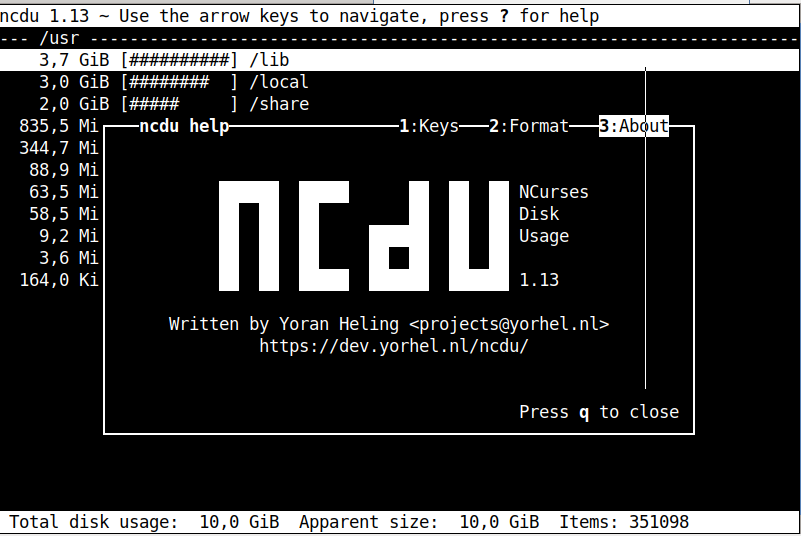

https://www.pc-freak.net/images/ncdu-gnu-linux-debian-screenshot.png

 For the most lazy ones or complete Linux newbies that doesn't want to spend time typing / learing or using text commands or softwares you can also check what has eaten up your full disk space with GUI tools as well.

There are at least 3 tools to use to check in Graphical Interface what has occupied your disk space on Linux / BSD, I'm aware of:

3. Filelight GUI disk usage analysis Linux tool

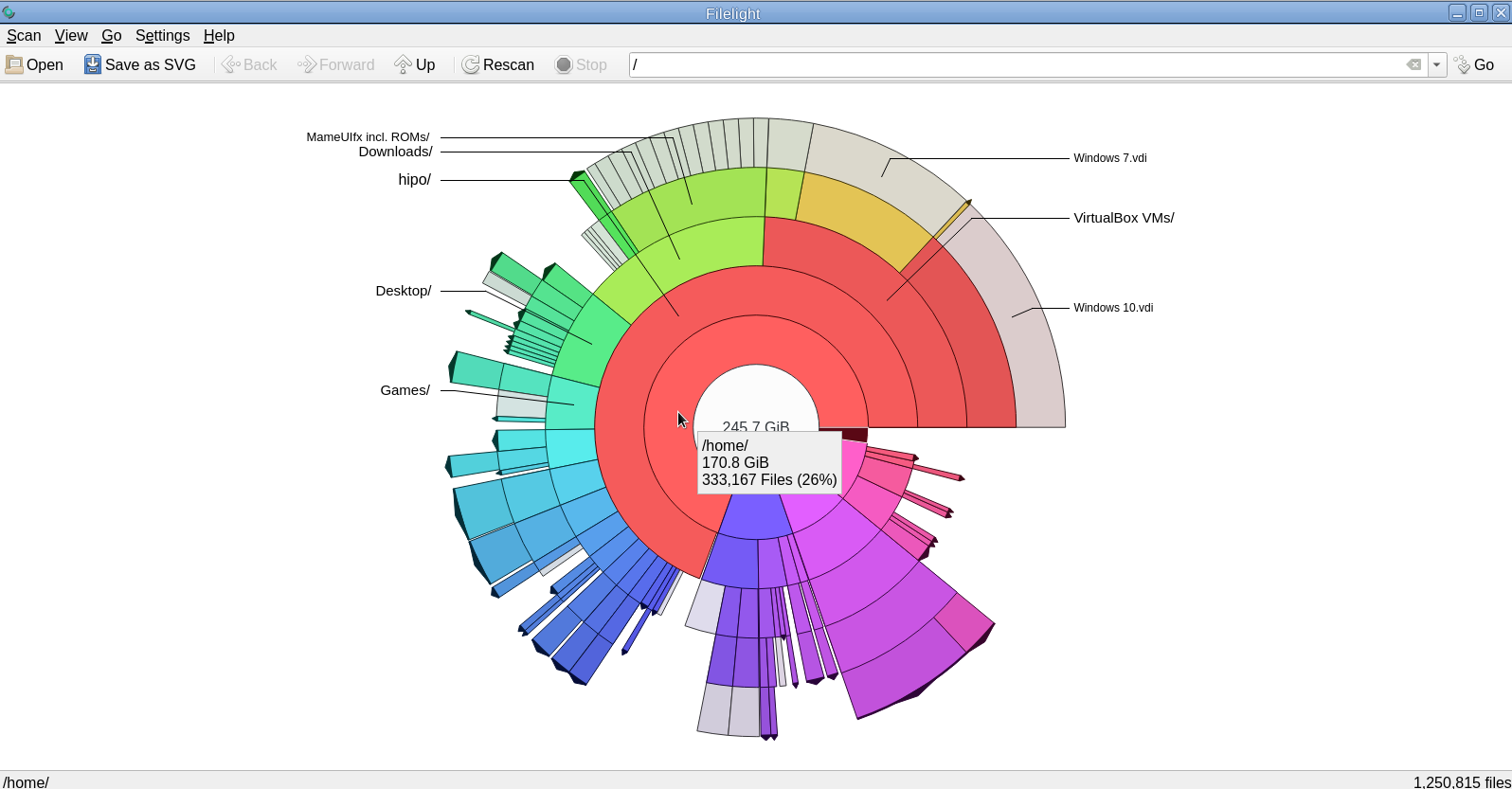
For those using KDE or preferring a shiny GUI interface that will capture the eye, perhaps filelight would be the option of choice tool to get analysis sum of your directory sturctures and file use on the laptop or desktop *unix OS.

unix-desktop:~# apt-cache show filelight|grep -i description-en -A 7
Description-en: show where your diskspace is being used
 Filelight allows you to understand your disk usage by graphically
 representing your filesystem as a set of concentric, segmented rings.
 .
 It is like a pie-chart, but the segments nest, allowing you to see both
 which directories take up all your space, and which directories
 and files inside those directories are the real culprits.
Description-md5: 397ff9a469e07a772f22460c66b66875


To use it simply go ahead and install it with apt or yum / dnf or whatever Linux package manager your distro uses:

unix-desktop:~# apt-get install –yes filelight

filelight-show-where-disk-space-is-being-used-graphically-tool-linux

4. GNOME DIsk Usage Analyzer Baobab GUI tool

For those being a GNOME / Mate / Budgie / Cinnamon Graphical interface users baobab shold be the program to use as it uses the famous LibGD library.

unix-desktop:~# apt-cache show baobab|grep -i description-en -A10
Description-en: GNOME disk usage analyzer
 Disk Usage Analyzer is a graphical, menu-driven application to analyse
 disk usage in a GNOME environment. It can easily scan either the whole
 filesystem tree, or a specific user-requested directory branch (local or
 remote).
 .
 It also auto-detects in real-time any changes made to your home
 directory as far as any mounted/unmounted device. Disk Usage Analyzer
 also provides a full graphical treemap window for each selected folder.
Description-md5: 5f6072b89ebb1dc83433fa7658814dc6
Homepage: https://wiki.gnome.org/Apps/Baobab
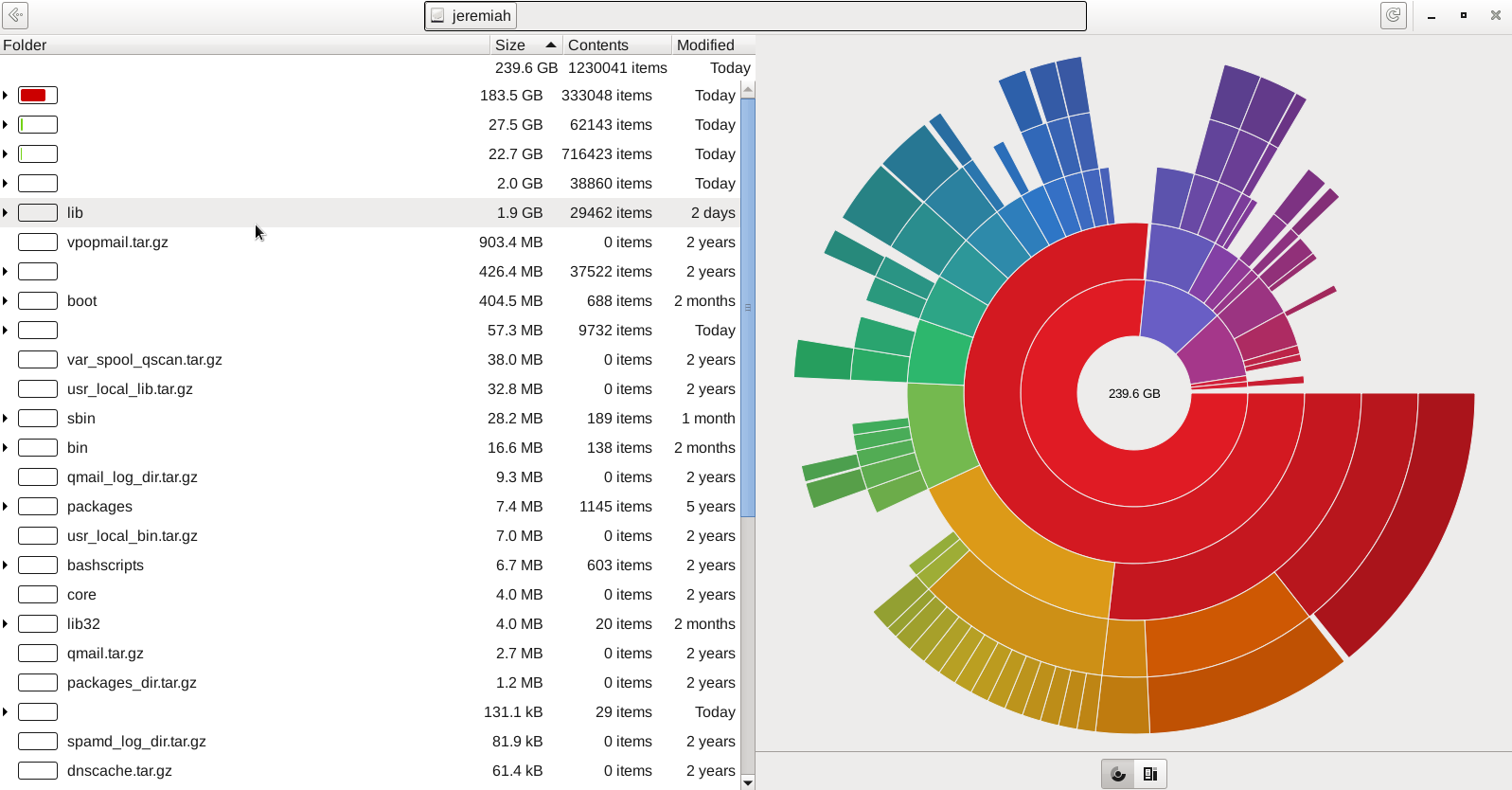
 

gnome-disk-analyzer-baobab-tool-screenshot-of-hard-disk-directory-locations-sorted-by-size

5. Qdirstat graphical application to show where your disk space has gone on Linux

Qdirstat is perhaps well known tool to track disk space issues on Linux desktop hosts, known by the hardcore KDE / LXDE / LXQT / DDE GUI interface / environment lovers and as a KDE tool uses the infamous Qt library. I personally don't like it and don't put it on machines I use because I never use kde and don't want to waste my disk space with additional libraries such as the QT Library which historically was not totally free in terms of licensing and even now is in both free and non free licensing GPL / LGPL and QT Commercial Licensing license.

unix-desktop:~# apt-cache show qdirstat|grep -i description-en -A10
Description-en: Qt-based directory statistics
 QDirStat is a graphical application to show where your disk space has gone and
 to help you to clean it up.
 .
 QDirStat has a number of new features compared to KDirStat. To name a few:
  * Multi-selection in both the tree and the treemap.
  * Unlimited number of user-defined cleanup actions.
  * Properly show errors of cleanup actions (and their output, if desired).
  * File categories (MIME types) and their treemap color are now configurable.
  * Exclude rules for directories are easily configurable.
  * Desktop-agnostic; no longer relies on KDE or any other specific desktop.
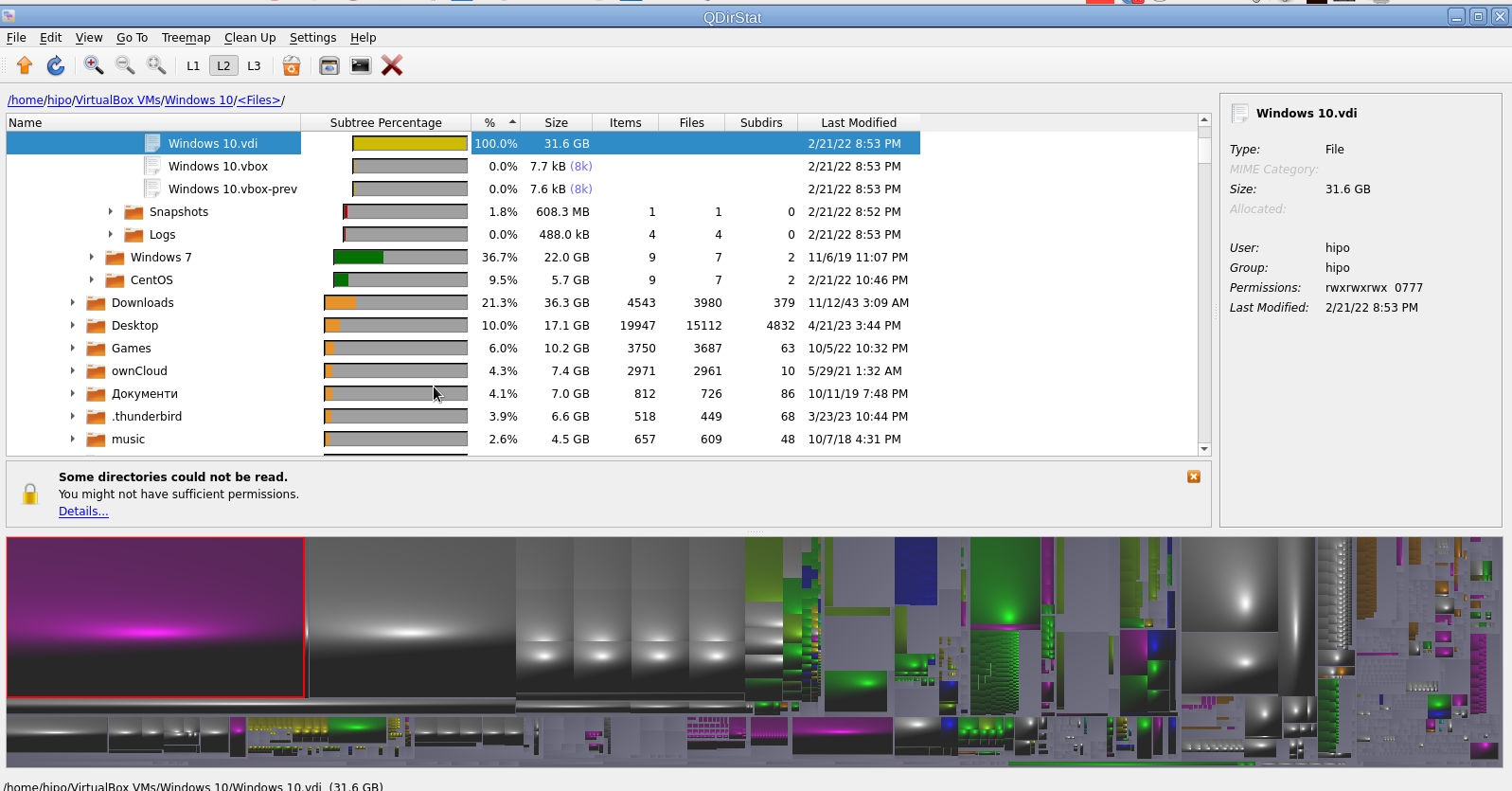

qdirstat-linux-screenshot-show-what-directory-uses-most-hard-disk-space

That shiny fuzed graphics is actually a repsesantation of all directories the bigger and if one scrolls on the colorful gamma a text with directory and size or file will appear. Though the graphical represantation is really c00l to me it is a bit unreadable, thus I prefer and recommend the other two GUI tools filelight or baobab instead.

6. Finding duplicate files on Linux system with duff command tool

Talking about big unknown left-over files on your hard drives, it is appropriate to mention one tool here that is a console one but very useful to anyone willing to get rid of old duplicate files that are hanging around on the disk. Sometimes such copies are produced while copying large amount of files from place to place or simply by mistake while copying Photo / Video files from your Smart Phone to Linux desktop etc. 

This is where the duff command line utility might be super beneficial for you.

unix-desktop:~# apt-cache show duff|grep -i description-en -A3
Description-en: Duplicate file finder
 Duff is a command-line utility for identifying duplicates in a given set of
 files.  It attempts to be usably fast and uses the SHA family of message
 digests as a part of the comparisons.

Using duff tool is very straight forward to see all the duplicate files hanging in a directory lets say your home folder.

unix-desktop:~#  duff -rP /home/hipo

/home/hipo/music/var/Quake II Soundtrack – Kill Ratio.mp3
/home/hipo/mp3/Quake II Soundtrack – Kill Ratio.mp3
2 files in cluster 44 (7913472 bytes, digest 98f38be49e2ffcbf90927f9357b3e24a81d5a649)
/home/hipo/music/var/HYPODIL_01-Scakauec.mp3
/home/hipo/mp3/HYPODIL_01-Scakauec.mp3
2 files in cluster 45 (2807808 bytes, digest ce9067ce1f132fc096a5044845c7fac73e99c0ed)
/home/hipo/music/var/Quake II Suondtrack – March Of The Stoggs.mp3
/home/hipo/mp3/Quake II Suondtrack – March Of The Stoggs.mp3
2 files in cluster 46 (3506176 bytes, digest efcc401b4ebda9b0b2367aceb8e334c8ba1a357d)
/home/hipo/music/var/Quake II Suondtrack – Quad Machine.mp3
/home/hipo/mp3/Quake II Suondtrack – Quad Machine.mp3
2 files in cluster 47 (7917568 bytes, digest 0905c1d790654016c2ecf2949f78d47a870c3822)
/home/hipo/music/var/Cyberpunk Group – Futureshock!.mp3
/home/hipo/mp3/Cyberpunk Group – Futureshock!.mp3

-r (Recursively search into all specified directories.)

P (Don't follow any symbolic links.  This overrides any previous -H or -L option.  This is the default.  Note that this only applies to directories, as sym‐
             bolic links to files are never followed.)

7. Deleting duplicate files with duff

If you're absolutely sure you know what you're doing and you have a backup in case if something messes up during duplicate teletions, to get rid of lets say any duplicate Picture files found by duff run sommething like:

# duff -e0 -r /home/hipo/Pictures/ | xargs -0 rm

!!! Please note that using duff is for those who absolutely know what they're doing and have their data recent data. Deleting the wrong data by mistake with the tool might put you in the first grade and you'll be the only one to blame  🙂 !!!

Wrap it Up

Filling up the disk with unknown large files is a task to resolve that happens often. For the unlazy on Linux / BSD / Mac OS and other UNIX like OS-es the easiest way is to use find or du with some one liner command. For the lazy Windows addicted Graphical users filelightqdirstat or baobab GUI disk usage analysis tools are there.
If you have a lot of files and many of thems are duplicates you can use duff to check them out and remove all unneded duplicates and save space. 
Hope this article, was helpful for someone.
That's all folks, enjoy your data profilactics, if you know any other good easy command or GUI tools or hints for drive disk space profilactics please share.

Universal way to configure a static IP address on ethernet lan (eth0) interface in Linux

Friday, April 29th, 2011

One of the most precious commands I ever learned to use in Linux is ifconfig and route .

They have saved my life in configuring the static IP based internet of numerous Desktop Linux computers & notebooks.

Though the usage is very much known by most of the people who are into Linux, I believe it’s likely that the newer people who entered the world of Linux or some Unix system administrators are still lacking the knowledge on how to manually configure their eth0 lan card, thus I thought it might be handy for someone to share it, I know that for most unix users & admins especially the advanced ones this post might be funny, so if you’re an advanced administrator just skip the post and don’t laught at it 😉

Now the universal commands (works on each and every Linux host) to configure manually static IP internet connection on Linux are:

linux:~# /sbin/ifconfig eth0 192.168.0.3 netmask 255.255.255.0
linux:~# /sbin/route add default gw 192.168.0.1
linux:~# echo 'nameserver 192.168.0.1' >> /etc/resolv.conf

I’ve used this simple commands on thousands ot Linux hosts and it’s still handy 🙂

In above example 192.168.0.3 is the static IP address provided by the ISP, netmask is the netmask and the second /sbin/route add default gw would set the default gateway to the example ip 192.168.0.1

The third final line would add up a resolver nameserver the Linux host would use.

Cheers 😉