Posts Tagged ‘desktops’

How to Optimize Debian Linux on old Computers to Get improved overall Speed, Performance and Stability

Tuesday, December 30th, 2025

tuning-debian-linux-to-work-quickly-and-smooth-on-old-pc-laptop-hardware


How to optimize Debian version 12.12 Linux OS to work responsive on Old ThinkPad laptops like from year 2008 Thinkpad R61 with Window Maker, zram, SSD etc.

Old computers aren’t obsolete but most worthy if you dont want to spend on extra hardware.

With the right setup, Debian Linux can run smoothly on hardware that’s more than a decade old. This article walks through a real-world, proven configuration using a classic ThinkPad R61 (Core 2 Duo, 4 GB RAM, SSD), but the principles apply to many older PCs as well.

Why use Debian Linux on old hardware?

Debian Stable is ideal for old hardware because it offers:

  • Low baseline resource usage
  • Long-term stability
  • Minimal background activity
  • Excellent support for lightweight desktops
  • Flexible and well organized and relatively easy to tune

Paired with a minimal window manager, Debian easily outperforms many “lightweight” distros that still ship heavy defaults.

Hardware Baseline PC setup

Test system:

  • Laptop: ThinkPad R61
  • CPU: Intel Core 2 Duo
  • RAM: 4 GB
  • Storage: SATA SSD
  • Graphics: Intel X3100 / NVIDIA NVS 140M
  • Desktop: Window Maker

This is a common configuration for late-2000s business laptops.

1. Desktop Environment: Keep It Simple

Heavy desktop environments is the main factor to slow down an old PC.
Where possible dont use the Desktop environment at all and stick to console.

Recommended:

  • Window Maker (used by myself)
  • Openbox
  • Fluxbox
  • IceWM

Avoid:

  • GNOME
  • KDE Plasma
  • Cinnamon

Window Maker is especially effective: no compositing, no animations, minimal memory usage.

2. Terminal Choice Matters

For console-based applications (games, tools, system utilities), use a terminal that correctly reports its size. Lets say you use xterm:

$ xterm

You can force a usable terminal size like this:

$ xterm -geometry 80×32 &

This avoids common issues with console applications failing due to incorrect terminal dimensions.

Install urxvt (best choice for terminal productivity)

Open a terminal and run:

apt update
# apt install rxvt-unicode

Optional (if you want tabbed terminal use suckless):

# sudo apt install suckless-tools

  • rxvt-unicode-256color → main terminal (n/a in debian) have to install third party  
  • rxvt-unicode-256color-perl → Perl extensions (tabs, URL click, etc.) (n/a in debian, installable via third party)
  • suckless-tools → includes tabbed, can be used as an alternative for tabs

a. Configure .Xresources

Create or edit ~/.Xresources:

$ vim~/.Xresources

Example for beautiful setup with tabs, transparency, and fonts:

! Basic appearance
! URxvt.font: xft:FiraCode Nerd Font Mono:size=12
 URxvt.background: [90]#1c1c1c
 URxvt.foreground: #c0c0c0
! URxvt.cursorColor: #ff5555
! URxvt.saveLines: 10000
! URxvt.scrollBar: false
! URxvt.borderLess: true

! Enable tabs using built-in tabbed extension
URxvt.perl-ext-common: default,tabbed

! Tab colors
URxvt.tabbed.tabbar-fg: 15
URxvt.tabbed.tabbar-bg: 0
URxvt.tabbed.tab-fg: 2
URxvt.tabbed.tab-bg: 8

! Keybindings for tabs
! Ctrl+Shift+N → new tab
URxvt.keysym.Control-Shift-N: perl:tabbed:new_tab
! Ctrl+Shift+W → close tab
URxvt.keysym.Control-Shift-W: perl:tabbed:close_tab
! Ctrl+Tab → next tab
URxvt.keysym.Control-Tab: perl:tabbed:next_tab
! Ctrl+Shift+Tab → previous tab
URxvt.keysym.Control-Shift-Tab: perl:tabbed:prev_tab
! Tabs keybindings
URxvt.keysym.Control-N: perl:tabbed:new_tab
URxvt.keysym.Control-W: perl:tabbed:close_tab


b. Apply .Xresources changes

Run:

$ xrdb ~/.Xresources

Then launch urxvt:

$ rxvt

  • Ctrl+Shift+T → new tab
  • Ctrl+Shift+W → close tab

c. Optional: Make it even cooler

  1. Install powerline fonts or Nerd Fonts (for fancy prompt icons):

# apt install fonts-firacode

  1. Enable URL clicking and clipboard (already enabled above)

  2. Combine with tmux for extra tabs/panes, session management, and more shortcuts.

3. Retain only last 500MB from journald

Retain only the past 500 MB:

# journalctl –vacuum-size=500M

This is exteremely useful as sometimes failing services might generate ton of unnecessery logs and might flood up the old machine hard disk.

4. Reduce journal memory footprint

# vim /etc/systemd/journald.conf

Set Storage=volatile
Set RuntimeMaxUse=50M

# systemctl restart systemd-journald

5. Trim services boot times

# systemd-analyze blame
# systemd-analyze critical-chain

This tells you which services slow down your boot the most.

6. Disable Unnecessary Services

Old systems benefit massively from disabling unused background services.

Check what’s enabled:

# systemctl list-unit-files –state=enabled

Common candidates to disable (if not needed):

# systemctl disable bluetooth
# systemctl disable cups
#systemctl disable avahi-daemon

#systemctl disable ModemManager

Each disabled service saves RAM and CPU cycles.

7. Dirty Page Tuning (Reduces Freezes)

Defaults favor servers, not laptops.

Edit:

vim /etc/sysctl.conf

Add:

vm.dirty_background_ratio=5
vm.dirty_ratio=10

This forces writeback earlier, preventing sudden stalls.

8. Memory Tuning: zram Done Right

Does zram make sense with 4 GB RAM and an SSD?

Yes it could, but only in moderation.

zram compresses memory in RAM and acts as fast swap. On a Core 2 Duo, compression overhead is small and the benefit is smoother multitasking.

Recommended zram configuration

Install zram-tools deb package:

# apt install zram-tools

Edit:

# vim /etc/default/zramswap

Set:

PERCENT=15

This creates ~600 MB of compressed swap — enough to absorb memory spikes without wasting RAM.

9. Keep Disk Swap (But Small)

Even with zram, disk swap is useful as a fallback.

Recommended:

  • 1–2 GB swap on SSD
  • zram should have higher priority than disk swap

Check:

# swapon –show

10. Swappiness and Cache Pressure

Tune the kernel to prefer RAM and zram first:

# vim /etc/sysctl.conf

Add:

vm.swappiness=10
vm.vfs_cache_pressure=50

Apply:

# sysctl -p

This prevents early swapping and keeps the system responsive.

11. CPU Governor: A Hidden Performance Win

Older ThinkPads often run conservative CPU governors.

Install tools:

# apt install cpufrequtils

Set a balanced governor:

# echo 'GOVERNOR="ondemand"' | sudo tee /etc/default/cpufrequtils

# systemctl restart cpufrequtils

This allows the CPU to ramp up quickly when needed.

12. Power and Thermal Management (ThinkPad-Specific)

Install TLP:

# apt install tlp
# systemctl enable tlp
# systemctl start tlp

TLP improves:

  • Battery life
  • Thermal behavior
  • SSD longevity

Defaults are usually perfect – no heavy tuning required.

13. Disable Watchdogs (If You Don’t Debug Kernels)

Watchdogs waste cycles on old CPUs.

Check:

# lsmod | grep watchdog

Disable:

# vim /etc/modprobe.d/blacklist.conf

Add:

blacklist iTCO_wdt
blacklist iTCO_vendor_support

Reboot.

14. Reduce systemd Noise

systemd logs aggressively by default.

Edit:

#vim/etc/systemd/journald.conf

Set:

Storage=volatile
RuntimeMaxUse=50M

Then:

#systemctl restart systemd-journald

Less disk I/O, faster boots.

15. Use tmpfs for caching and Volatile Junk

Put garbage in RAM, not SSD.

Edit:

# vim /etc/fstab

Add:

tmpfs /tmp tmpfs noatime,nosuid,nodev,mode=1777,size=256M 0 0

Optional:

tmpfs /var/tmp tmpfs noatime,nosuid,nodev,size=128M 0 0
# mount -a

16. IRQ Balance: Disable It (might slow down machine)

On single-socket old laptops, irqbalance can hurt.

Disable:

# systemctl disable irqbalance

Test performance; re-enable if needed.

17. Reduce systemd Timeout Delays

Old laptops often wait forever on dead hardware.

Edit:

# vim /etc/systemd/system.conf

Set:

DefaultTimeoutStartSec=10s
DefaultTimeoutStopSec=10s

18. Strip Kernel Modules You Don’t Use

If you don’t use:

  • FireWire
  • Bluetooth
  • Webcam

Blacklist them:

# vim /etc/modprobe.d/blacklist-extra.conf

Example:

blacklist firewire_ohci
blacklist firewire_core
blacklist uvcvideo
blacklist bluetooth


Faster boot, fewer interrupts.

19. X11 Performance Tweaks (Intel Graphics)

Create:

# vim/etc/X11/xorg.conf.d/20-intel.conf

Add:

Section "Device"
Identifier "Intel Graphics"
Driver "intel"
Option "TearFree" "false"
Option "AccelMethod" "sna"
EndSection

20. Disable IPv6 (if not used)

Saves a little RAM and startup time.

Edit:

# vim/etc/sysctl.conf

Add:

net.ipv6.conf.all.disable_ipv6=1
net.ipv6.conf.default.disable_ipv6=1

21.Lower Kernel Log Level verbosity

Stop kernel spam.

# dmesg -n 3

Make permanent:

# vim/etc/sysctl.conf

Add:

kernel.printk=3 4 1 3

22.Scheduler Latency (Advanced)

For desktop interactivity:

# vim/etc/sysctl.conf

Add:

kernel.sched_autogroup_enabled=1

Helps UI responsiveness under load.

23.Kill Browser Bloat (Biggest Win)

For Firefox ESR:

  • Disable telemetry
  • Enable tab unloading

browser.sessionstore.interval = 300000

No kernel tweak beats this.


a. Enable tab unloading (automatic tab discard)

  1. Open Firefox ESR
    Type

  2. about:config

  3. in the address bar.
  4. Accept the warning: “This might void your warranty.”

  5. Search for the following preference:

browser.tabs.unloadOnLowMemory

  • Default: false
  • Set to: true
     

This enables Firefox to unload inactive tabs automatically when memory is low.

b. Optional tuning

Some other preferences you can tweak:

Preference

Description

Suggested value


browser.tabs.maxSuspendedTabs


Maximum number of tabs that can be suspended

10–20


browser.tabs.autoHide


Auto-hide tabs while suspended (older ESR versions)

true


browser.tabs.loadInBackground


Background tabs load in suspended state

true


browser.sessionstore.interval


How often session is saved (ms)

15000

These may vary slightly depending on ESR version.

24. Graphics Considerations

ThinkPad R61 models typically have:

  • Intel X3100 → works well out of the box
  • NVIDIA NVS 140M → use nouveau driver

Recommendations:

  • Avoid proprietary legacy NVIDIA drivers
  • No compositing
  • Simple themes only

25. Extremely for Geeks, Build a Custom Kernel (Optional)

Only if you have plenty of time and you have a developers background and maniacal tendencies 🙂

Benefits:

  • Smaller kernel
  • Faster boot
  • Fewer interrupts

Cost:

  • Maintenance burden

26. Application Choices Matter More Than Tweaks

Keep in mind the application choices matter more than tweeks.
Even the best-tuned system can be ruined by heavy applications.

Recommended software:

  • Browser: Firefox ESR
  • File manager: PCManFM
  • Terminal: xterm, rxvt
  • Editor: nano, geany

Limit browser tabs and disable unnecessary extensions.

27. Things Not to Do

Avoid:

  • Huge zram sizes (50%+)
  • Do not Disable swap entirely
  • Beware of Aggressive kernel “performance hacks”
  • Disable any Heavy desktop effects if choosing to run MATE or alike GUI environment

Stability beats micro-optimizations.

Final Recommended Configuration

For a ThinkPad R61 with 4 GB RAM and SSD perhaps the best Linux configuration would be:

  • Debian Stable
  • Window Maker
  • zram: 15%
  • SSD swap: 1–2 GB
  • swappiness: 10
  • TLP enabled
  • No compositor
     

This setup would deliver:

  • Smooth multitasking
  • No UI lag
  • Minimal CPU overhead
  • Long-term stability

Conclusion

Old PCs don’t need to be fast necessery, but can be made work slightly faster, though the limits if used in a proper way with the right software and without out the eye candy nonse of today, they be still fully functionally used.

With Debian, a lightweight window manager, and sensible memory tuning, even 15-year-old + old hardware remains useful today for common daily tasks, and makes it not only useful but fun and different especially if you are a sysadmin or a developer who needs mostly console and a browser.

It gives you another perspective on how to do your computing in a simplier and more minimalistic way.

Of course do not expect the Old Hardware PC to be the perfect station for youtube maniacs, heavy gamers or complete newbies, who dont honor the old PC limited resources and don't want to have a bit of experimental approach to the PC.

Anyways by implementing before mentioned tweaks, they will reward you with reliability and simplicity  – something modern over complicated OS and Apps often lack.

Enjoy and Happy Christmas 2025 and Happy New Year 2026 soon ! 🙂

Useful abbreviations for people working in Corporations like HP, IBM and Dell – Things New Comer should know on company onboarding time

Friday, January 23rd, 2015

useful-abbreviations-for-new-comers-things-to-know-on-onboarding-period-in-huge-corporations-as-HP-IBM-Apple
If you have worked in a small or middle sized company and you're offered work into some of the top 100 world corporations, prepare yourself for some shocking 3 to 6 months depending on the company. This period in which you will be introduced to the company's field of business and way of work is called in corporate terms OnBoarding period.  Even if everything looks to complicated and obscure, don't be quick to loose yourself or desperate as this is just a new beginning and as any new beginning it is hard. However once you're acquainted with basics it will be much easier for you.

After all most of the new things you will learn in Corporate Environment are just the good old ones you know already packaged under a different wrapper. You will be introduced to many portals, client names, have to watch a lot of  "brain-dead" trainings, which told you basics on Corporation and its client essentials, be offered ways to advance, have to request Accounts and Credentials to servers via some obscure procedures, which change all the time, so it is likely the procedures you have to follow to get the necessery network / server accesses will be a procedure different from the one your colleagues followed few years ago, thus probably you will have to do account requests for a first time.  In this on-boarding time you will deal with a lot of trainings teaching you to be ethical, respect your co-workers, learn basics of inter-cultural awareness and learn to get responsibility for your actions and some specific training regarding the job position (job description) you have.

onboarding-color-diagram-yellow-red-green-blue-onboarding-corporation-best-pracices-and-advises

You have to be patient and non-judgemental and ready to accept situation as it is and not be angry that so many people doesn't have idea on what is happening. Also it is a good start-up corporate advice to respect people's knowledge, don't thing that you're too knowledgable, as you will be amazed that there are a lot of people in huge companies which have better understanding and knowledge on tech than you. Also realize, the confusion that is taking place in Huge companies "The Right hand doesn't know what the left hand is doing", as our CCL Kalin used to say. The corporate world is a world where way of work is very different from tiny companies, you will have a chain of managers on top of you. The huge companies world is a world of big fish players ..
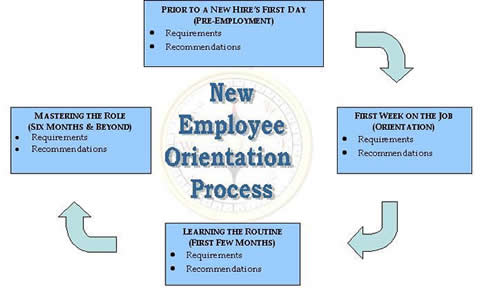
onboarding_to-big-company-howto-cycle_diagram

It is normal that in the first weeks / months you feel overwhelmed because of too much information and all looks too difficult, however just don't worry and go on. Now all is hard but in a few months everything comes to place and you realize in reality all is easy and it just seems hard in the beginning.

It is a good thing that you use the "Induction" / Onboarding period of first few months to find to make as many contacts as possible as this will be of a great help in your later job time. Get in contact with people from Database / Database and Storage / Load Balancers / Networking / Firewall Teams / Managers / Delivery Leads – the rule here is the more, the better.  If you want to grow in the company's scale making social contacts is even more important than being a hard-worker. If you have friends in management of company and you do your work well and try to be proactive, sooner or later your managers will notice this and will recommend you for some kind of manager position.

employee_onboarding_process-in-large-companies-visualized-pic

Here's few abbreviation meanings, you will have to learn if you will have to work some kind of system administration or support work for a Hewlett Packard.

Microsoft Products – For people coming from Linux / UNIX background, the induction (onboarding) period into a large corporation is even more complicated because if you have been accustomed to using Open Source OS and tools in large corporations you will probably have to do a lot of things with proprietary tools which are hard to run on Linux / *nix, therefore it is good practice if you intend to work for Biggest Organizations in the world to get used to either running a MS Windows 7 / 8 into a Virtualbox or VMWare or get used to using Windows as a Desktop environment. Once you enter the huge organization it is likely you're handed in with your working notebook, shipped with a Customized Windows install to work well with the corporation where you're onboarding. However companies like HP did a great job, because they offer Ubuntu / Debian / Scientific Linux distributions tailored with most tools you will need for normal daily work, so it is not necessery to use Windows (though I find it personally much easier) to use Windows as  desktop nowadays.
I really don't like running 20% of applications in Virtual Machines and doing occasional work-arounds to make things work. After all life is complex enough …


Microsoft Lync Communicator – This is the defacto standard program still used in corporation for internal VoIP / Video communication , One of coolest Lync feature is Sharing Screen. At any time you can share your screen (thing like you have installed teamviewer), give-control to remote party, you can share screen between multiple people and it is pretty much like a shared desktop conference, really useful! However sometimes when Internet is slow or network is failing occasionally MS Lync gives worse results than TeamViewer, so having TeamViewer just in case is useful too. Lync works making the VoIP connection by using some Exchange Mail server integration.

MS (Outlook) Calendar – Calendar is one of the top things you have to know to organize meetings with clients and colleagues to discuss various project aspects, server problems or just ask a question your Solution Designer regarding some server Environment designed by him .

MS Outlook – All mail communication is primary using Outlook Express, you can add Tasks, Contacts and set Calendar meetings with it. If you're like me and coming from UNIX world and get used too much to Mozilla Thunderbird, you will be in big shock until you get used to work with Outlook, not that it is difficult but it is quite different from Thunderbird. For efficient work with Outlook Mail you will have to learn creating Outlook Filters and Outlook Mail backups as often mailbox is just 1 or2G  and mailbox fills in for a year time.

Monitoring Software IBM Netcool or something a like – Servers and services will be monitored with some kind of tool whose basics you will have to learn, if you have worked with Monit / Nagios or Munin you will quickly grasp the basic concept

MS Office / MS Project – You need Word and Excel quite often and for sysadmins this is very irritating. All office and client documents will be exchanged in Word and Excel format, if you're a Project Manager you will need heavily use of Microsoft Project too which needs to be installed additionally as it does not ship by default with most MS Office / Windows installs.

MS OneNote – is a software like notepad supporting tabs and allowing to make notes which are stored to a SharePoint

SharePoint (SP) – in large companies they like placing things into Sharepoints so a lot of the documentation is found on some random sharepoints (this is like a Directory Listing Apache server) – very annoying as it is really chaotic – I don't like it.

CMO – Chief Marketing Officer

CMO – Current Mode of Operations

FMO – Future Mode of Operations

SMO – Separation Management Office / Separation Management Officer

WFH – Work From Home, mail header message aiming to report someone is going to work from his home during the day

CFO – Chief Financial Officer

CEO – Chief Execute Officer

PM – Project Manager

FCR – Firewall Change Request (Any new or old firewall rule nr. which has to be created / modified / deleted)

RTPA – Ready to Production

ORT – Operational Readiness Test (some basic tests to be made and documented), before a server is handed in to RTPA

HPSM – HP Service Manager (a ticket / change web desktop frontend)

Change – a ticket like ID and system which has to be used necessery to describe any server config / file / service modification

Ticket – A support ticket oped in case of some emergency with some server service happens

CI = Configuration Item
Instance – Any service that is running more than once on a server lets (say 2 MySQL and 2 Apache servers) running on same server on different port numbers will be 4 instances

LB = Load Balancer (Load Balancers include capabilities of Intelligent Switches are in essence routers which can balance load ovr number of hosts running different services in order to ensure traffic received to a service is balanced between members of a cluster most often they're Active and Standby. Different methods to load balance traffic exist round-robin etc., traffic to Apache / MySQL / PostgreSQL and virtually any service could be load balanced.

SD – Solution Design / Solution Designer (The person preparing the graphics and documentation for how a combination of servers environment will be operating)

MTR – Maximum Time to Repair (Maximum time to repair client service or env, lets say 2 hours / 5 / 10 hrs)

SLA = Service Level Agreement (Agreement document between Company Corporation and End customer about services / servers or any work to  be provided under what conditions and cost and time interval. In short SLA is a contract document between Corporation and customer.

Service Window – Mon – Fri 08:00 – 17:00 (The time in which server is on active support and will has to be repaired by a support team promptly if emergency occurs)

TOP Process – Turn to Production (The processes which PM follows, before project turns to production TTP).

Top Approver – The list of people involved in project which has to approve the Top process until set as completed.

DL / CCL – Delivery Lead / Collaboration Capability Lead / Client

Capability Lead – This is a job position one step behind a Team Manager. DL's goals are to help teams manage internal issues and deal with clients requests, next to doing some minor technical job. In short this position is like a Junior Manager (or a position which is held before), people emerge to Team Managers.

TDL – Technical Delivery Lead

Prod or just P env – Production environment (if many servers) or P server if it is single one

QA env – Quality Assurance (something like a testing environment or server)

UAT (User Acceptance Testing) / Test server, env – UAT is the last phase of software testing process.
During UAT, actual software users test the software to make sure it can handle required tasks in real-world scenarios, according to specifications.  UAT is also known as beta testing
Test server usually same configuration as Prod whose purpose is to test new releases before deployed to Prod environment

DNS Internal / External record – (Whether DNS is seen only in a client local network (from Internal DNS only) – its called Internal record, External record is when a hostname is resolved from all the Internet)

EMEA – Common Abbreviation for: Europe, Middle East Asia sometimes to mean Europe Middle East, Africa

DC – Data Center (location) in some address room / rack numbers etc.

SN – Serial Number (Serial number of server or hardware  component

DB – Server Database (DataGuard is Oracle Db special solution for synchronization of databases for higher Db protection)

Security Class – The levels of security of access to a server (Different countries and Unions legislation world-wide require different rules and regulations on server security).
Examples of Server security classes are: White, Grey, Black (servers). For example according to EU legislation Black servers
can only be administrated / managed by people originating from
same country as where server is physically located.

Digital Key / (Digital Certificate) / Active Identity – This is a Flash drive USB (storage) with installed digital certificate which is used to authenticate you to internel corporate network
 

PC COE – PC COE –  is a set of services and tools that has helped HP reduce its desktop computing costs by $200 million per year. HP also establishes a new organization within the HP OpenView division to market TCO solutions. From PC-COE you can install almost all proprietary software for free and use them for your daily work. The software comes with free Licensing for internal HP Use.

Junos Pulse / Remote Access to HP Network – Dynamic SSL VPN Connectivity at most companies  to access a corporate network you connect via some encrypted VPN client, some companies probably use OpenVPN.

Citrix Receiver – Citrix Receiver is the easy-to-install client software that provides access to your XenDesktop and XenApp installations. With this free download you can access applications, desktops and data easily and securely from any device, including smartphones, tablets, PCs and Macs


Above terminology is specific to HP however, most of the terminology and procedures during onboarding time (period) should be very similar or even the same for other of the Top 100 Largest Companies by Revenue such as:

IBM, Dell, E.ON, Apple, Samsung, Toyota, Daimler, Gazprom, RosNeft, Volkswagen Group, Honda, AT&T, General Motors, Allianz, LukOil, Carrefour, Siemens, BASF, Philips, Ford Motor Company, Koch Industries, Tesco, Royal Dutch Shell, BP, Chevron, Vitol,  SK Group, Verizon, General Electric, Wal-Mart Stores, Nestle etc.

Probably there are things I'm missing so, if there is something else you have learned understand during onboarding, please share it in comments!

That's it, Happy Onboarding !!! 🙂
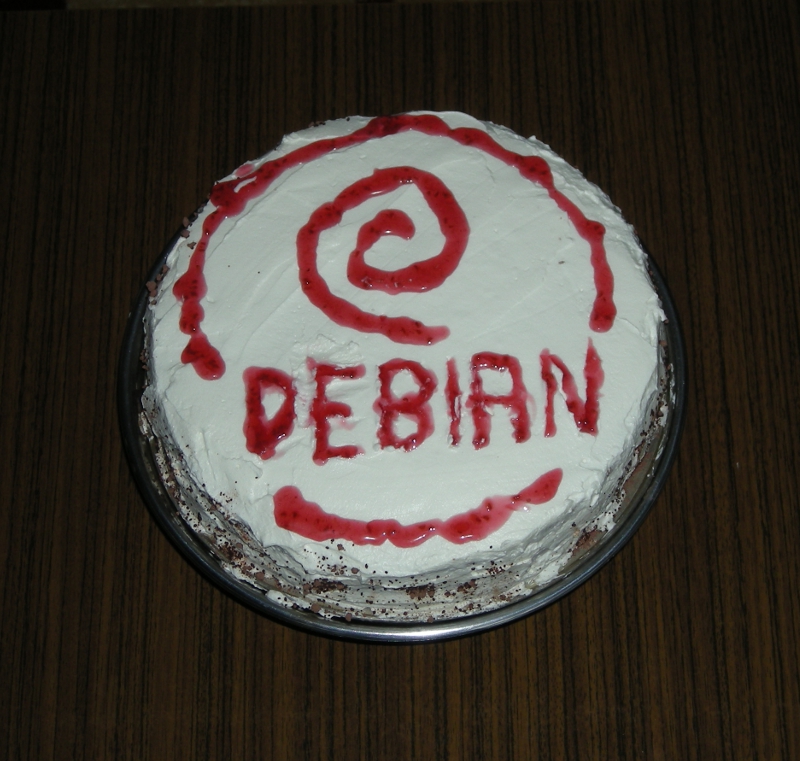
Happy Birthday Debian! – Rejoice, Debian GNU / Linux turns 20 :)

Wednesday, August 28th, 2013

Debian Happy birthday cake with debian logo spiral - Debian Linux becomes 20 years old

 A bit outdated news but still worthy to mention as Debian GNU / Linux is important part of my life. On 16 of August this year Debian turned 20 years! I'm actively using Debian Linux for servers and Desktops over the past 13 years and for this time I've seen right before my eyes how debian grow and from buggy hobbyinst Linux distribution became a robust and rock-solid OS. Moreover Debian is now practically the most important Linux distribution around. Thanks to it currently a thousands of other world changing distributions like Ubuntu, Arch Linux, Knoppix Linux LiveCD, Linux Mint etc. Debian is truly multi platform as of time of writting supports 10 hardware architecture (platforms) – in this number Embedded devices like ARM processors, has translation of most shipped software to 73 languages and comes with about 20 000 installable software packages. Contribution of Debian GNU Linux for Free software community is immerse, hundreds of millions or even billion Debian servers or some kind of Debian based OSes are running all around the net. Besides that Debian is one of the largest if not the biggest and most influential Open Source Project. By its essence existing of Debian is just a miracle. 
Though out of date again,  lets great each other with Happy Debian Anniversary and Wish Debian a many and healthy years of successful development!

Cloud Computing a possible threat to users privacy and system administrator employment

Monday, March 28th, 2011

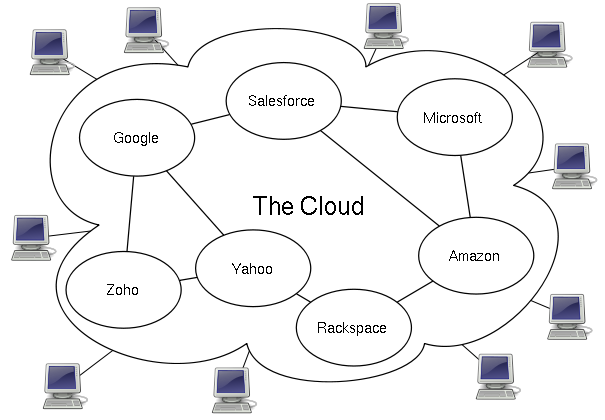
Cloud Computing screenshot

If you’re employed into an IT branch an IT hobbyist or a tech, geek you should have certainly heard about the latest trend in Internet and Networking technologies the so called Cloud Computing

Most of the articles available in newspapers and online have seriously praised and put the hopes for a better future through cloud computing.
But is really the cloud computing as good as promised? I seriously doubt that.
Let’s think about it what is a cloud? It’s a cluster of computers which are connected to work as one.
No person can precisely say where exactly on the cluster cloud a stored information is located (even the administrator!)

The data stored on the cluster is a property of a few single organizations let’s say microsoft, amazon etc., so we as users no longer have a physical possession of our data (in case if we use the cloud).

On the other hand the number of system administrators that are needed for an administration of a huge cluster is dramatically decreased, the every day system administrator, who needs to check a few webservers and a mail server on daily basis, cache web data with a squid proxy cache or just restart a server will be no longer necessary.

Therefore about few million of peoples would have to loose their jobs, the people necessary to administrate a cluster will be probably no more than few thousands as the clouds are so high that no more than few clouds will exist on the net.

The idea behind the cluster is that we the users store retrieve our desktops and boot our operating system from the cluster.
Even loading a simple webpage will have to retrieve it’s data from the cluster.

Therefore it looks like in the future the cloud computing and the internet are about to become one and the same thing. The internet might become a single super cluster where all users would connect with their user ids and do have full access to the information inside.

Technologies like OpenID are trying to make the user identification uniform, I assume a similar uniform user identication will be used in the future in a super cloud where everybody, where entering inside will have access to his/her data and will have the option to access any other data online.

The desire of humans and business for transperancy would probably end up in one day, where people will want to share every single bit of information.
Even though it looks very cool for a sci-fi movie, it’s seriously scary!

Cloud computing expenses as they’re really high would be affordable only for a multi-national corporations like Google and Microsoft

Therefore small and middle IT business (network building, expanding, network and server system integration etc.) would gradually collapse and die.

This are only a few small tiny bit of concerns but in reality the problems that cloud computing might create are a way more severe.
We the people should think seriously and try to oppose cloud computing, while we still can! It might be even a good idea if a special legislation that is aming at limiting cloud computing can be integrated and used only inside the boundary of a prescribed limitations.

Institutions like the European Parliament should be more concerned about the issues which the use of cloud computing will bring, EU legislation should very soon be voted and bounding contracts stop clouds from expanding and taking over the middle size IT business.