Posts Tagged ‘emulation’

How to install BASH and use shell scripting on Windows ?

Thursday, June 26th, 2025

install-bash-on-windows-run-and-use-shellscripting-on-windows-howto

Bash (Bourne Again SHell) is definitely a technology that will stay for years to come its simplicity and multi-platoformness is a factor that will definitely continue for many years thus even though it is mostly used on Linux / BSD / Unix, its application on Windows OS-es nowadays is perhaps increasing. Hence since so many people use Winodws nowdays (for work) it is really useful to have Bash set-up on Windows host machine.
In this article, I'll shortly explain how this is done, the article will not have anything too much interesting for the advanced admin or dev ops guy, but I hope people who are entering the business of system administration and high level computing and still orienting might benefit from it.

To install and use Bash shell terminal in Windows there are at least 3 ways:

  • Use Git Bash (Download and install it directly precompiled on WIndows)
  • Use Windows WSL emulation (install some Linux distro)
  • Use Virtualbox / Vagrant / VMware / Hyper-V emulation and install VM from public ISO image.

As a Free Software Lover, I would recommend and  always prefer to use the Free Software alternative if that is possible and thanksfully usually I use and install Git Bash or completely install Cygwin (Full set of Linux tools to run like native on Windows together with  Mobaxterm) together.


1. Installing Git Bash on Windows (uses MinGW Minimalist GNU for Windows)

Some might prefer to not use Microsoft for managing their bash especially the more freedom in mind people who like GNU and Free software and people.

MinGW is well known among free and open source enthusiasts.
It includes a port of the GNU Compiler Collection (GCC), GNU Binutils for Windows (assembler, linker, archive manager), a set of freely distributable Windows specific header files and static import libraries which enable the use of the Windows API, a Windows native build of the GNU Project's GNU Debugger, and miscellaneous utilities.

MinGW does not rely on third-party C runtime dynamic-link library (DLL) files, and because the runtime libraries are not distributed using the GNU General Public License (GPL), it is not necessary to distribute the source code with the programs produced, unless a GPL library is used elsewhere in the program.


MinGW can be run either on the native Microsoft Windows platform, cross-hosted on Linux (or other Unix), or "cross-native" on Cygwin.


To install Bash via Git, you can use Git for Windows, which includes Git Bash — a lightweight Bash emulator.


Steps to Install Git Bash on Windows
 

a. Download Git for Windows

Go to the official Git website:

https://git-scm.com/download/win

The download should start automatically.

b. Run the Installer

  • Open the downloaded .exe file
  • Follow the installation prompts

Recommended Settings:

  • Select components: Keep default
  • Editor: Choose your preferred text editor (e.g., Notepad++ or Vim)
  • Adjust PATH environment: Choose “Git from the command line and also from 3rd-party software”
  • Choose SSH executable: Use Built-in OpenSSH
  • Choose HTTPS transport backend: Use the default (OpenSSL)
  • Configure line endings: Select “Checkout Windows-style, commit Unix-style line endings”
  • Terminal emulator: Choose “Use MinTTY (the default terminal)”

Click Next through the remaining steps and then Install.

c. Launch Git Bash

After installation:

  • Press Windows key, type "Git Bash"
  • Click to launch the terminal

Now you're using a Bash shell on Windows.

Perhaps most common way is to use Windows Subsystem for Linux (WSL), people follow. WSL is a technology which is native Windows but gives MS Windows the opportunity to act in a way similar to docker containers. WSL lets you run a full Linux environment (including Bash) directly on Windows without using a virtual machine and is really fast and easy on Machine system resources. 


 2. Installing WSL bash easy from Windows 10 / 11 using  Win GUI menus


Steps to install WSL on Windows 10 / 11

Microsoft has since only continued to improve its Windows Subsystem for Linux, and an update in a Windows 10 preview build back in mid-2020 made it easier to install Bash.

That method also works the same as on Win 10 as well as on Win 11.
To install Bash shell emulation, hence open Windows Terminal as an admin user. You can do this by right-clicking the Windows icon and selecting “Windows Terminal (Admin)” from the power user menu.

(If you’re on Windows 10, you should see it listed as “Windows Powershell (Admin)” in the menu.)


windows-run-powershell-from-start-menu-screenshot


To complete WSL install with Virtualized Ubuntu OS

In Windows Terminal, run this command:

PS C:\Users\MyUser> wsl –install

Once everything is downloaded needed to run WSL emulation and Ubuntu Linux distribution,  Restart the PC.

Once your PC rebooted, installation will continue automatically.

After Ubuntu installed successfully, you’ll next be prompted to create a username and password and Ubuntu will fire up, and you will have your bash in Windows


Install-WSL-linux-subsystem-for-windows-from-powershell-prompt-screenshot


a. Enabling and Intalling BASH via command line (if WSL Linux subsystem for Windows is not enabled on Windows


It might be your Windows has no configured Windows Subsystem for Linux, hence if that is the case you will need to enable it following below few steps.

b. Enable WSL via dism.exe cmd

Open PowerShell as Administrator and run:

Powershell

PS C:\Users\MyUser> wsl –install

This installs WSL 2 and a default Linux distribution (like Ubuntu).

If you're on Windows 10 or on a PC where whoever installed the OS has not installed the Win Subsystem for Linux, you may need to manually enable WSL:

Launch Powershell

PS C:\Users\MyUser> dism.exe /online /enable-feature /featurename:Microsoft-Windows-Subsystem-Linux /all /norestart

PS C:\Users\MyUser> dism.exe /online /enable-feature /featurename:VirtualMachinePlatform /all /norestart

Then restart your computer and run:

from the Windows Magnifier run Powershell and type in PS1 prompt:

PS C:\Users\MyUser> wsl –set-default-version 2

c. Installing other Linux Distribution (different from Ubuntu)

If not already installed during wsl –install, open the Microsoft Store and search for:

  • Ubuntu
  • Debian
  • Kali Linux
  • etc.

Click Install on the one you want.

d. Launching WSL / Bash terminal

Once installed:

  • Open Start Menu
  • Search for your Linux distro you just installed (e.g., “Ubuntu”)
  • Launch it

This opens a Bash shell where you can run Linux commands, like in regular Linux but on your Microsoft Windows OS.
 

Sum it up

What we learned is how to install bash via Bash Git and start using it to have more hybrid environment Windows / Linux. The article explained the two main methods using GIt Bash and using embedded Windows emulator WSL with an emulated Linux distro.

Enjoy ! 🙂


What is VT-x (Intel Virtualization) and AMD V (AMD Virtualization)

Wednesday, June 4th, 2014

what-is-vt-x-inel-amd-virtualization-amd-v
As I'm lately educating myself in field of Virtualziation and Virtual Machines, the interesting question poped up What is Virtualization on a Hardware Level and what are Intel's and AMD technologies supporting it?


  • Intel Virtualialization (Vt-x)

Is Intel's hardware assistance for processors running virtualization platforms. Intel's Virtualization for short is know as VT-x. Intel VT-x extensions are probably the best recognized extensions, adding migration, priority and memory handling capabilities to a wide range of Intel processors.
Intel VT includes series of extensions for hardware virtualization adding virtualization support to Intel chipsets, so that Virtual Machines could assign specific I/O Devices. Intel VT includes a series of extensions for hardware virtualization Intel Virtualization is better described here.
 

  • AMD-V (AMD virtualization)


Is a set of hardware extensions for the X86 processor architecture. Advanced Micro Dynamics (AMD) designed the extensions to perform repetitive tasks normally performed by software and improve resource use and virtual machine (VM) performance. Early virtualization efforts relied on software emulation to replace hardware functionality. But software emulation can be a slow and inefficient process. Because many virtualization tasks were handled through software, VM behavior and resource control were often poor, resulting in unacceptable VM performance on the server. AMD Virtualization (AMD-V) technology was first announced in 2004 and added to AMD's Pacifica 64-bit x86 processor designs. By 2006, AMD's Athlon 64 X2 and Athlon 64 FX processors appeared with AMD-V technology, and today, the technology is available on Turion 64 X2, second- and third-generation Opteron, Phenom and Phenom II processors. Just like with Intel Virtualization AMD-V Technology enables extra hardware support for assignment of specifics I/O on per virtualized OS. AMD V Virtualization is described more thoroughly here


The day, Today

Tuesday, May 20th, 2008

The day started a bit normal. I did my morning excercise, then I prayed. I spoke with Dzemil (A macedonian colleague of mine) and we set up a meeting for 12:30, I ate. I received few calls from the office with requests to do few little things. At 12:30 I met Dzemil at the College restaurant. We spend some time talking with him and another turkish colleague. Then we went to speak with Bozhidar Bozhkov about the applications for Holland, what is the procedure of transfering from the college here to Arnhem Business School etc. Laters I went home and did some work on the servers and red and did my fourth cisco test. I went to my cousin and after that went to Javor, we went out with Ina and Javor for a coffee to Kukla. Afterwards I went home and played with Dynamips. For all that wonder what the hack Dynamips is. Well Dynamics is a Cisco emulator just like VMWare is an OS emulator with the exception that Dynamics is builded to run only Cisco’s IOS. I found that nice Video tutorial Cisco Router Emulation Software Dynamips Video Tutorial, check it out here Here . Since I needed a Cisco IOS image and I’m not a Cisco customer I used torrents to download a collection of Cisco ISO’s and used one of the isos to make it work on my Windows Vista. I have problems running it because of lack of permissions, caused by the famous UAC ( User Access Control ). The solution for me was to use a privileged command prompt and start, both the Dynamips sever and my custom configured simple1.net which connected to the server and loaded the cisco image. There is also a very nice and extended tutorial on the topic of Dynamips it’s located Here . Alto today tested the previously installed Wireshark. Wireshark is a very nice substitute for iptraf for windows it has a nice and easy to use graphical interface, supports capturing and has lot of traffic analysis possibilities I strongly recommend it to anyone coming from a Linux/BSD background like me and searching for a nice Windows substitute for iptraf. Check out wireshark on the following URL . Now I’m going to change the topic and say a few words for my spiritual state. Today it was a hard day. I was tempted by the devil to think bad thoughts and did sinned for which I search forgiveness. Life it so hard I realize it more and more day by day. Very often old spirits which tormented me for a long time are trying to come back. I haven’t smoked today also and again thanks for that should fly to God who delived me from this terrible vice. As a conclusion I should say that for everything I should thanks to God and pray for him to forgive my unfaithfulness. END—–

How to mount ISO image files in Graphical Environment (GUI) on Ubuntu and Debian GNU/Linux

Saturday, January 14th, 2012

Mounting ISO files in Linux is easy with mount cmd, however remembering the exact command one has to issue is a hard task because mounting ISO files is not a common task.

Mounting ISO files directly by clicking on the ISO file is very nice, especially for lazy people uninitiated with the command line 😉

Besides that I'm sure many Windows users are curious if there is an equivallent program to DaemonTools for Linux / BSD*?

The answer to this question is YES!
There are two major programs which can be used as a DaemonTools substitute on Linux:

These are FuriousISOMount and AcetoneISO
AcetoneISO is more known and I've used it some long time ago and if I'm correct it used to be one of the first ISO Mount GUI programs for Linux. There is a project called GMount-ISO / (GMountISO) which of the time of writting this article seems to be dead (at least I couldn't find the source code).

Luckily FuriousISOMount and AcetoneISO are pretty easy to install and either one of the two is nowdays existing in most Linux distributions.
Probably the programs can also be easily run on BSD platform also quite easily using bsd linux emulation.
If someone has tried something to mount GUIs in Free/Net/OpenBSD, I'll be interesting to hear how?

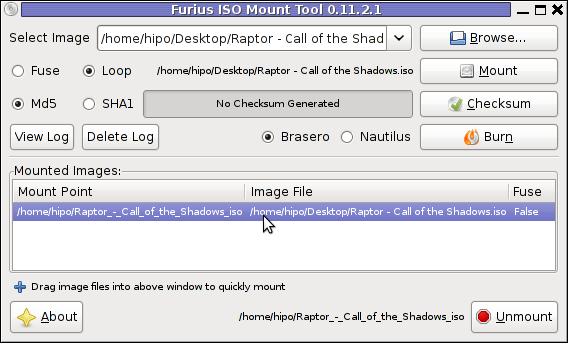
1. Mount ISO files GUI in GNOME with Furius ISO Mount

FuriousISOMount is a simple Gtk+ interface to mount -t iso9660 -o loop command.

To start using the program on Debian / Ubuntu install with apt;

debian:~# apt-get install furiusisomount
The following extra packages will be installed:
fuseiso fuseiso9660 libumlib0
The following NEW packages will be installed:
furiusisomount fuseiso fuseiso9660 libumlib0

To access the program in GNOME after install use;

Applications -> Accessories -> Furious ISO Mount

Screenshot ISO Mount Tool Debian GNU/Linux Screenshot
 

When mounting it is important to choose Loop option to mount the iso instead of Fuse

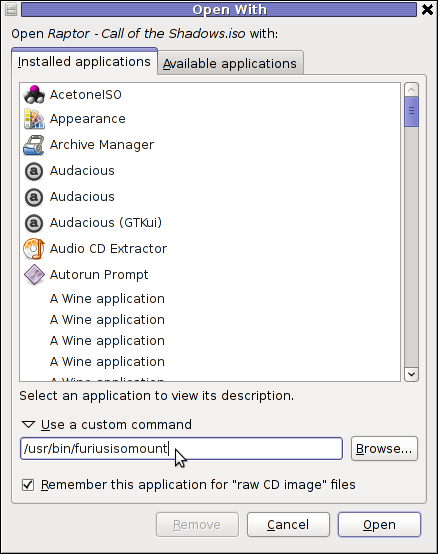
After the program is installed to associate the (.iso) ISO files, to permanently be opened with furiusisomount roll over the .iso file and choose Open With -> Other Application -> (Use a custom command) -> furiusisomount

GNOME Open with menu Debian GNU / Linux

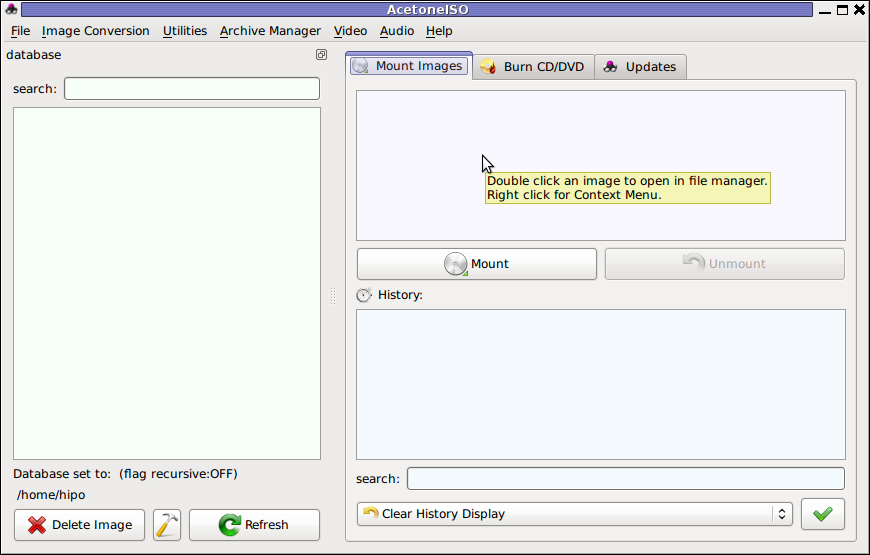
2. Mount ISO Files in KDE Graphical Environment with AcetoneISO

AcetoneISO is build on top of KDE's QT library and isway more feature rich than furiousisomount.
Installing AcetoneISO Ubuntu and Debian is done with:

debian:~# apt-get install acetoneiso
The following NEW packages will be installed:
acetoneiso gnupg-agent gnupg2 libksba8 pinentry-gtk2 pinentry-qt4
0 upgraded, 6 newly installed, 0 to remove and 35 not upgraded.
Need to get 3,963 kB of archives.
After this operation, 8,974 kB of additional disk space will be used.
...

Screenshot Furius ISO Mount Tool Debian GNU/Linux ScreenShot

AcetoneISO supports:
 

  • conversion between different ISO formats
  • burn images to disc
  • split ISO image volumes
  • encrypt images
  • extract password protected files

Complete list of the rich functionality AcetoneISO offers is to be found on http://www.acetoneteam.org/viewpage.php?page_id=6
To start the program via the GNOME menus use;

Applications -> Accessories -> Sound & Video -> AcetoneISO

I personally don't like AcetoneISO as I'm not a KDE user and I see the functionality this program offers as to rich and mostly unnecessery for the simple purpose of mounting an ISO.

3. Mount ISO image files using the mount command

If you're a console guy and still prefer mounting ISO with the mount command instead of using fancy gui stuff use:

# mount -t iso9660 -o loop /home/binary/someiso.iso /home/username/Iso_Directory_Name


Upgrading Skype 2.0 to Skype 2.2 beta on Debian GNU / Linux – Skype Mic hell

Saturday, December 31st, 2011

Making Skype work with Alsa on Debian GNU / Linux

Though, I'm GNU / Linux user for many years now. I have to say, everything is not so perfect as many people present it.
Configuring even simple things related to multimedia on Linux is often a complete nightmare.
An example, today I've decided to upgrade my 32 bit Skype version 2.0 beta for Linux to 64 bit Skype 2.2 beta .
The reason I was motivated to upgrade skype was basicly 2.

a) My Skype run through 32 bit binary emulation with /usr/bin/linux32

b) I had issues with my skype if someone give me a Skype Call, while I have a flash video or some other stream in Browser (let's say Youtube).
Actually being unable to receive a skype call or initiate one while I have some kind of music running in the background or just some kind of Youtube video paused was really annoying. Hence until now, everytime I wanted to speak over skype I had to close all Browser windows or tabs that are using my sound card and then restart my Skype program ….

Just imagine how ridiculous is that especially for a modern Multimedia supporting OS as Linux is. Of course the problems, I've experienced wasn't directly a problem of Linux. The problems are caused by the fact I have to use the not well working proprietary software version of Skype on my Debian GNU / Linux.
I would love to actually boycott Skype as RMS recommends, but unfortunately until now I can't, since many of my friends as well as employers use Skype to connect with me on daily basis.
So in a way I had to migrate to newer version of skype in order to make my Linux experience a bit more desktop like …

Back to the my skype 2.0 to 2.2. beta upgrade story, the overall Skype upgrade procedure was easy and went smootlhy, setting correct capturing later on however was a crazy task ….
Here is the step by step to follow to make my upgraded skype and internal notebook mic play nice together:

1. Download 64 bit Skype for Debian from skype.com

For the sake of preservation in case it disappears in future, I've made a mirror of skype for debian you can download here
My upgrade example below uses directly the 64 bit Skype 2.2beta binary mirror:

Here are the cmds once can issue if he has to upgrade to 2.2beta straight using my mirrored skype:

debian:~# wget https://www.pc-freak.net/files/skype-debian_2.2.0.35-1_amd64.deb
...

2. Remove the old version of skype

In my case I have made my previous skype installation using .tar.bz2 archive and not a debian package, however for some testing I also had a version of skype 2.0beta installed as a deb so for the sake of clarity I removed the existing skype deb install:

debian:~# dpkg -r skype
...

3. Install skype-debian_2.2.0.35-1_amd64.deb downloaded deb

debian:~# dpkg -i skype-debian_2.2.0.35-1_amd64.deb
...

After installing skype, I installed pavucontrol A volume control for the PulseAudio sound server

4. Install pavucontrol

debian:~# apt-get install pavucontrol
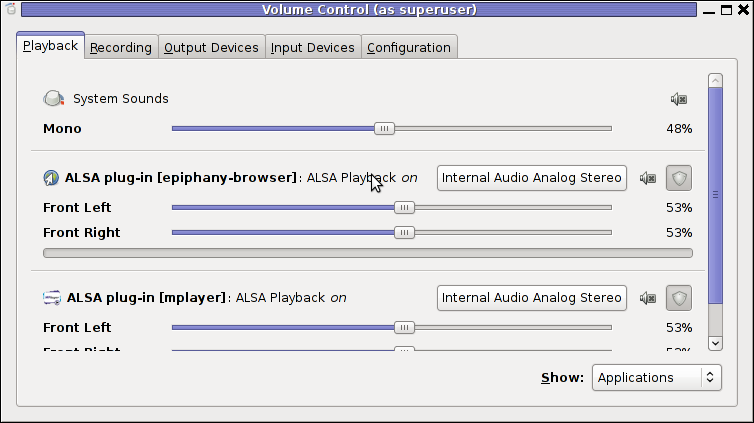
PavUcontrol PulseAudio mixer screenshot

Pavucontrol has plenty of sound configurations and enables the user to change many additional settings which cannot be tuned in alsamixer

pavucontrol was necessery to play with until I managed to make my microphone able to record.

5. Build and install latest Debian (Testing) distribution alsa driver

debian:~# aptitude install module-assistant
debian:~# m-a prepare
debian:~# aptitude -t testing install alsa-source
debian:~# m-a build alsa
debian:~# m-a install alsa
debian:~# rmmod snd_hda_intel snd_pcm snd_timer snd soundcore snd_page_alloc
debian:~# modprobe snd_hda_intel
debian:~# echo 'options snd-hda-intel model=auto' >> /etc/modprobe.d/alsa-base.conf

In my case removing the sound drivers and loading them once again did not worked, so I had to reboot my system before the new compiled alsa sound modules gets loaded …
The last line echo 'options snd-hda-intel model=auto' … was necessery for my Thinkpard r61 Intel audio to work out. For some clarity my exact sb model is:

debian:~$ lspci |grep -i audio
00:1b.0 Audio device: Intel Corporation 82801H (ICH8 Family) HD Audio Controller (rev 03)

For other notebooks with different sound drivers echo 'options snd-hda-intel model=auto' … should be omitted.

6. Tune microphone and sound settings in alsamixer

debian:~$ alsamixer
Alsamixer Select Soundcard Debian Linux Screenshot
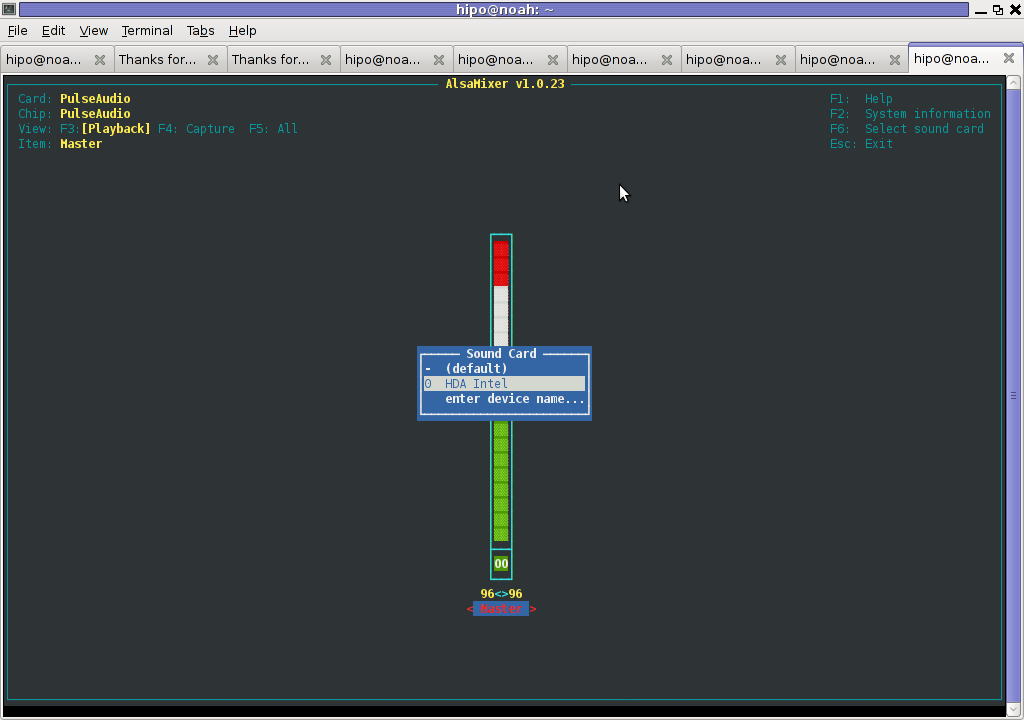
Right after launching alsamixer I had to press F6: Select Sound Card and choose my sound card (0 HDA Intel).

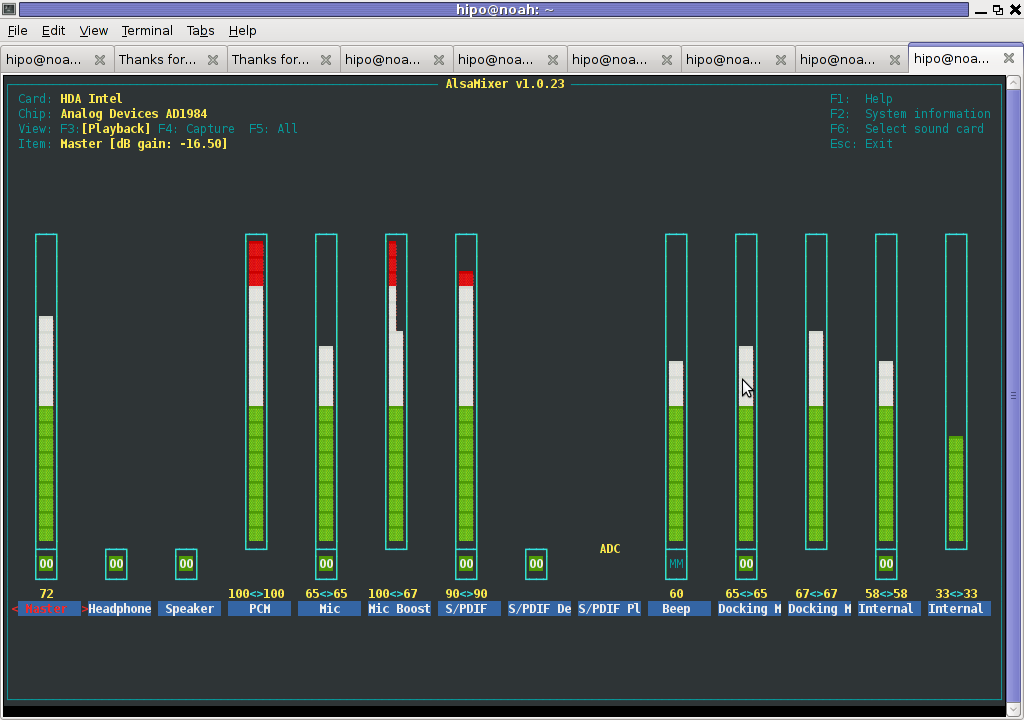
Following my choice I unmuted all the microphones and enabled Microphone Boost as well as did some adjustments to the MIC volume level.
Alsamixer My Intel SoundCard Debian Linux

Setting proper MIC Volume levels is absolutely necessery, otherwise there is a constant noise getting out of the speakers …

7. Use aumix to set some other sound settings

For some unclear reasons, besides alsamixer , I often had to fix stuff in aumix . Honestly I don't understand where exactly aumix fits in the picture with Alsa and my loaded alsa sound blaster module?? If someone can explain I'll be thankful.

Launch aumix to further adjust some sound settings …

debian:~$ aumix
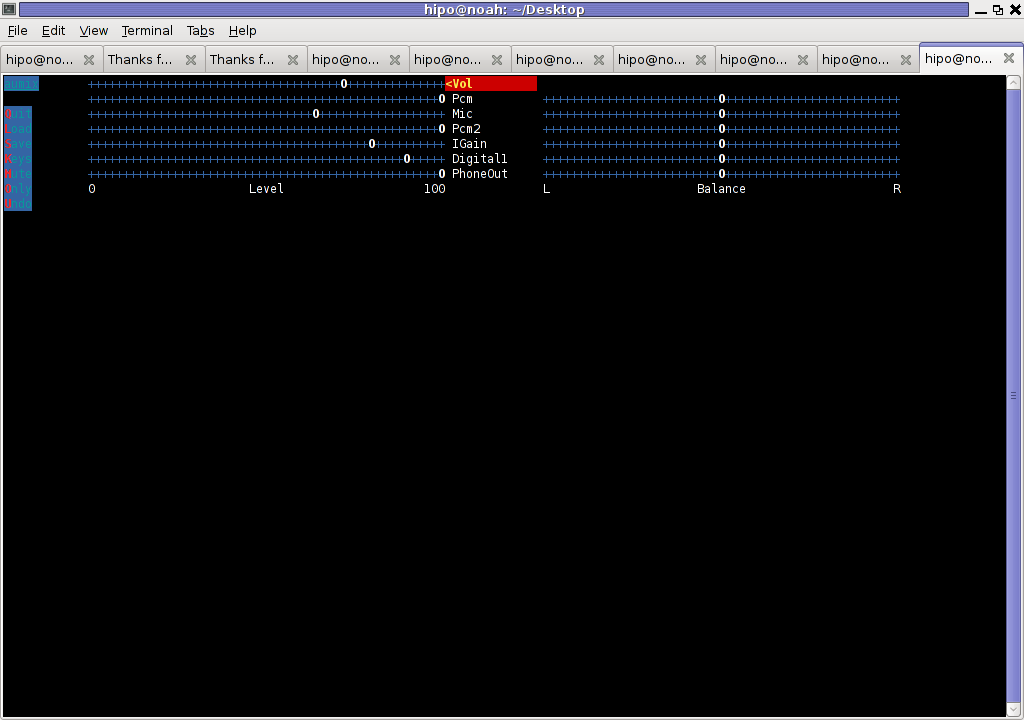
Aumix Debian GNU Linux Squeeze Screenshot

In above screenshot you see, my current aumix settings which works okay with mic and audio output.

9. Test Microphone the mic is capturing sounds correctly

Set ~/.asoundrc configuration for Skype

Edit ~/.asoundrc and put in:

pcm.pulse {
type pulse
}
ctl.pulse {
type pulse
}
pcm.!default {
type pulse
}
ctl.!default {
type pulse
}
pcm.card0 {
type hw
card 0
}
ctl.card0 {
type hw
card 0
}
pcm.dsp0 { type plug slave.pcm "hw:0,0" }
pcm.dmixout {
# Just pass this on to the system dmix
type plug
slave {
pcm "dmix"
}
}
pcm.skype {
type asym
playback.pcm "skypeout"
capture.pcm "skypein"
}
pcm.skypein {
# Convert from 8-bit unsigned mono (default format set by aoss when
# /dev/dsp is opened) to 16-bit signed stereo (expected by dsnoop)
#
# We cannot just use a "plug" plugin because although the open will
# succeed, the buffer sizes will be wrong and we will hear no sound at
# all.
type route
slave {
pcm "skypedsnoop"
format S16_LE
}
ttable {
0 {0 0.5}
1 {0 0.5}
}
}
pcm.skypeout {
# Just pass this on to the system dmix
type plug
slave {
pcm "dmix"
}
}
pcm.skypedsnoop {
type dsnoop
ipc_key 1133
slave {
# "Magic" buffer values to get skype audio to work
# If these are not set, opening /dev/dsp succeeds but no sound
# will be heard. According to the ALSA developers this is due
# to skype abusing the OSS API.
pcm "hw:0,0"
period_size 256
periods 16
buffer_size 16384
}
bindings {
0 0
}
}
I'm not 100% percent if putting those .asoundrc configurations are necessery. I've seen them on archlinux's wiki as a perscribed fix to multiple issues with Skype sound in / out.

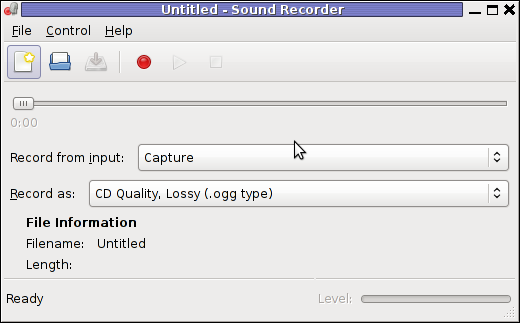
Onwardds, for the sake of test if my sound settings set in pavucontrol enables the internal mic to capture sound I used two programs:

1. gnome-sound-recorder
2. arecord
gnome-sound-recorder GNU / Linux Screenshot
gnome-sound-recorder

gnome-sound-recorder is probably used by most GNOME users, though I'm sure Linux noviced did not play with it yet.

arecord is just a simple console based app to capture sound from the microphone. To test if the microphone works I captured a chunk of sounds with cmd:

debian:~$ arecord cow.wav
Recording WAVE 'cow.wav' : Unsigned 8 bit, Rate 8000 Hz, Mono

Later on I played the file with aplay (part of alsa-utils package in Debian), to check if I'll hear if mic succesfully captured my voice, e.g.:

debian:~$ play cow.wav
cow.wav:
File Size: 22.0k Bit Rate: 64.1k
Encoding: Unsigned PCM
Channels: 1 @ 8-bit
Samplerate: 8000Hz
Replaygain: off
Duration: 00:00:02.75
In:100% 00:00:02.75 [00:00:00.00] Out:22.0k [-=====|=====-] Clip:0
Done.

By the way, the aplay ASCII text equailizer is really awesome 😉 aplay is also capable of playing (Ogg Vorbis .ogg) free sound format.

Further on, I launched the new installed version of skype and tested Skype Calls (Mic capturing), with Skype Echo / Sound Test Service
I'll be glad to hear if this small article, helped anybody to fix any skype Linux related issues ?. I would be happy to hear also from people who had similar issues with a different fixes for skype on Linux.
Its also interesting to hear from Ubuntu and other distributions users if following this tutorial had somehow helped in resolving issues with Skype mic.