Posts Tagged ‘help menu’

Unlocking the Power of lnav: Logfile Navigator – ncurses text based tool guide to mutiple Logs on multiple servers easy analysis on Linux

Saturday, September 13th, 2025

lnav-syslog-screenshot-linux-virtual-machine

If you've ever found yourself buried under a mountain of log files, tailing multiple outputs, or grepping through endless lines trying to spot an error, it's time to meet your new best friend: lnav, the Logfile Navigator.

Lightweight, terminal-based, and surprisingly powerful, lnav is one of the most underrated tools for developers, sysadmins, and anyone who regularly digs into logs. It turns your chaotic logs into something that’s not only readable—but genuinely useful.

What is lnav and why use it ?

lnav (Logfile Navigator) is a command-line tool for viewing and analyzing log files. It goes beyond tail, less, or grep by:

  • Automatically detecting and merging log formats.
  • Highlighting timestamps, log levels, and errors.
  • Providing SQL-like queries over your logs.
  • Offering interactive navigation with a UI inside the terminal.

And yes, all of that without needing to set up a database or a server.

1. Installing lnav on Linux

Installation is straightforward. On most systems, you can install it via package managers:

On Ubuntu/Debian:

# apt install lnav

On Fedora:

# dnf install lnav

On Arch Linux:

# pacman -S lnav

Or build from source via GitHub if you want the latest version.

2. Use lnav Instead of Tail / Grep why?

Traditional tools are powerful, but they require manual work to chain together functionality. lnav gives you:

  • Automatic multi-log parsing: Drop multiple logs in, and it merges them chronologically.
  • Syntax highlighting: Errors and warnings stand out.
  • SQL querying: Run queries like SELECT * FROM syslog_log WHERE log_level = 'error';
  • Filtering and searching: Use intuitive filters and bookmarks to highlight specific entries.

3. Basic tool Usage is simple

Let’s say you want to inspect a system log:

# lnav /var/log/syslog

You'll immediately get:

  • Color-coded output (timestamps, levels, messages).
  • Scrollable view (arrow keys, PgUp, PgDn).
  • Real-time updates (like tail -f).
  • Search with /, filter with :filter-in, and even SQL queries.

Lets say you need to analyze Apache webserver logs recursively including the logs already rotated and gunzipped with *.gz extension on CentOS / Fedora / RHEL, you can do it with:

# lnav -r /var/log/httpd

You can parse the log file and get additional information about requests as well as you can print overall summary of log file.

Choose the line you want to parse. The selected line is always the one at the top of the window. Then press 'p' and you should see the following result:

https://pc-freak.net/images/lnav-get-extra-information-about-apache-query-with-P-press-key-screenshot-linux

Now, if you want to see a summary view of the logs by date and time, simply press 'i'.

lnav-linux-apache-log-review-summary-of-errors-warnings-normal-screenshot

To quit a screen you have chosen press 'q'.

4. LNAV helpful options and hotkeys

Once you've opened a log file/s for analyze you can use few hotkeys that will allow us to move through the output of lnav and the available views more easily:

e or E to jump to the next / previous error message.
w or W to jump to the next / previous warning message.
b or Backspace to move to the previous page.
Space to move to the next page.
g or G to move to the top / bottom of the current view.

To take a closer look at the way lnav operates, use -d option, the debug information is to be spit inside a .txt file:

# lnav /var/log/httpd -d lnav.txt

In this example, the debug information that is generated when lnav starts will be written to a file named lnav.txt inside the current working directory.

5. Real-World Use Cases

a. Troubleshooting application or system process Crashes

Open all relevant logs in one go:

# lnav /var/log/*.log

Errors are highlighted, and you can jump between them with n / N kbd keys.

b. Combining Multiple Logs

Working with an app that logs to different files and you need to combine:

# lnav /var/log/nginx/access.log /var/log/nginx/error.log


Or lets say you want to combine Apache Webserver with Haproxy log and get log summaries or filter out stuff:

lnav /var/log/apache2/access.log /var/log/haproxy.log


Now you will get a single, chronological timeline of events.


If you want to Search for a concrete occurance of Error / Warning or IP address inside a bunch of loaded combined logs you can do it with the same command like in simple vim by pressing / (slash) from kbd and type out what you want to filter out to get shown.

c. Analyze SQL Queries Logs

Yes, you can actually do this by passing it query in its command prompt :

:.schema
:SELECT log_time, log_level, log_message FROM syslog_log WHERE log_level = 'error';

You get a table of filtered logs, sortable by columns.
 

6. lnav more usage command tips

  • :help — Opens the help menu.
  • :filter-in <string> — Show only lines matching <string>.
  • :filter-out <string> — Hide lines matching <string>.
  • :export-to <filename> — Export current view to a file.
  • :tag <tagname> — Tag lines for later reference.
  • q — Quit (but why would you want to?).


7. Using lnav as a pager for systemd-journald

journalctl | lnav
# journalctl -f | lnav
# journalctl -u ssh.service | lnav

https://pc-freak.net/images/lnav_sshservice-log-view-screenshot-linux
 

8. Use lnav to review remote ssh logs

Newer versions after 0.10 supports ssh protocol as well and theoretically should work:

# lnav user@server-name-here:/var/log/file.log


To read all logs inside /var/log

# lnav root@server-name-here:/var/log/
# lnav root@server-name-here:/var/log/*.err

9. Using lnav to view docker container logs

# docker logs 811ab84aa95l | lnav
# docker logs -f application | lnav

The latest version of lnav supports even the following  simplified docker:// URL syntax:

# lnav docker://{container_id_or_name}/dir_path/to/log/file
# lnav docker://{container_id_or_name}/var/dir_path/log
# lnav docker://application/var/log/
# lnav docker://applcation/var/log/nginx/nginx.app.log

10. Monitoring compilation and command output useful for developers
 

Compilation from archived tar balls with ./configure && make etc. generate lot of outputs and logs while working. 
Here is where the tool can come handy. 
For example, here is how to watch the output of make command when compiling something:

# lnav -e './configure && make'

 11. Learning lnav tool through online ssh service availability via lnav.org

f you're lazy to install it and want to test it anyways:
 

# Start The Basic Tutorial:
ssh -o PubkeyAuthentication=no -o PreferredAuthentications=password tutorial1@demo.lnav.org


# Playground:
ssh -o PubkeyAuthentication=no -o PreferredAuthentications=password playground@demo.lnav.org


Closure

While tools like Kibana, Grafana, and ELK stacks are powerful, they can be overkill for many use cases—especially when you're SSHed into a box and just need to get answers fast. That’s where lnav shines as it is fast, lightweight, visual and can be used offline.

If you’re a developer, sysadmin, SRE (Site Reliability Engineer), or just someone who cares about logs, give lnav a spin. It might just become among your favorite sysadm tools on Linux and safe you pretty much of time if you have to do log reading and analyzing on daily basis (for example if you're admining 20+ or more Linux servers.


Fix “Secure Connection Failed” – An error occured SSL received a record that exceeded the maximum permissible length howto

Monday, September 14th, 2015

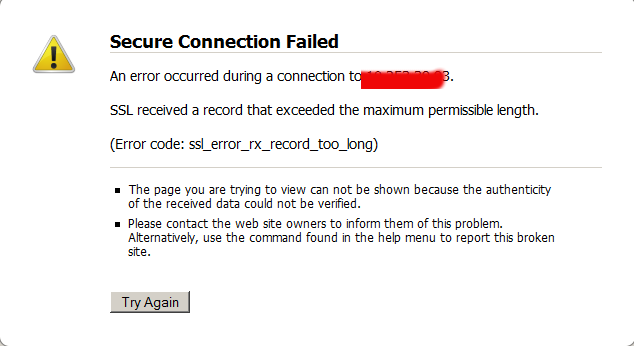
secure-connection-failed-an-error-occured-during-connection-ssl-received-a-record-that-exceeds-the-maximum-permissible-length-fix-howto
When I was trying to establish a new Internal Business SSL certificate on one of the 6 months planned SPLIT projects (e.g. duplicate a range systems environment to another one), I've stumbled a very odd SSL issue. Once I've setup all the virtualhost SSL configurations properly (identical SSL configuration directives and Apache Webserver version to another host and testing in a browser I was getting the following error:
 

Secure Connection Failed

An error occurred during a connection to 10.253.39.93.

SSL received a record that exceeded the maximum permissible length.

(Error code: ssl_error_rx_record_too_long)


Below is a screenshot:
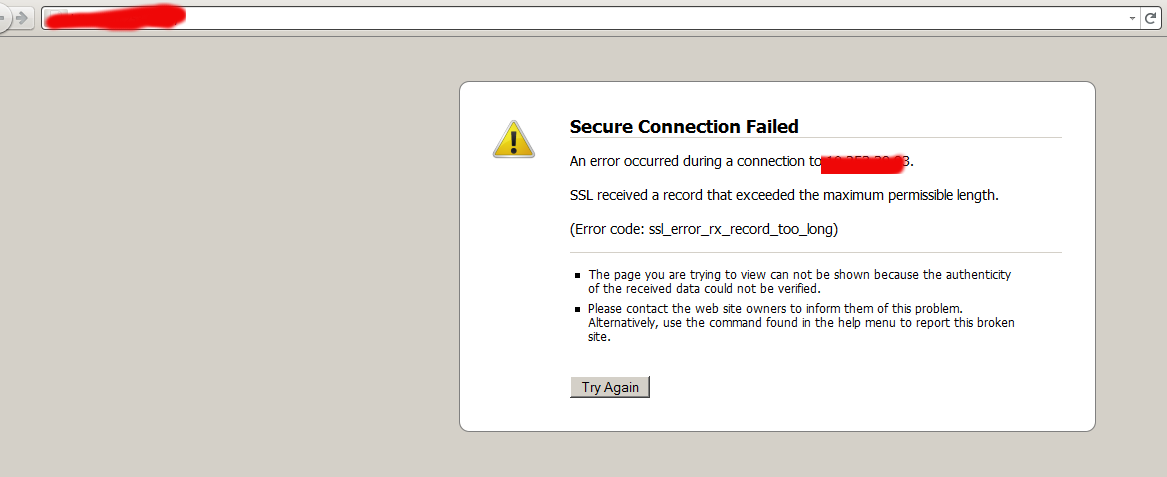
https://www.pc-freak.net/images/secure-connection-failed-an-error-occured-during-connection-ssl-received-a-record-that-exceeds-the-maximum-permissible-length.png

The page you are trying to view can not be shown because the authenticity of the received data could not be verified. Please contact the web site owners to inform them of this problem. Alternatively, use the command found in the help menu to report this broken site.

The first logical thing to do was to check the error.log but there was no any errors there that point me to anything meaningful, besides that the queries I was making to the Domain doesn't show off as requests neither in Apache access.log nor in error.log so this was puzzling.
I thought I might have messed up something during Key file / CSR generation time so I revoked old certificate and reissued it.


$ openssl x509 -text -in test-pegasusgas-eon.intranet.eon-vertrieb.com.crt |less ertificate: Data: Version: 3 (0x2) Serial Number:

Shows that all is fine with certificate Then when trying to test remote certificate with SSL command:


openssl s_client -CApath test-pegasusgas-eon.intranet.eon-vertrieb.com.crt -connect test-pegasusgas-eon.intranet.eon-vertrieb.com:443


: There was an error After plenty of research in Google I come to conclusion something is either wrong with Listen httpd.conf directive or NameVirtualHost is binded to port 80 or some other port different from 443, however surprisingly I did not used the NameVirtualHost at all in my apache config. After a lot of pondering I finally spot it. The whole certificate isseus were caused by:

< – Less than sign

which I missaw and forget to clean up from template during IP paste (obtained from /sbin/ifconfig |grep -i xx.xx.xx.xx). So finally in order to fix the SSL error I had to just delete <, e.g.:
 

<VirtualHost <10.253.39.35:443>

had to become:


<Virtualhost 10.253.39.35:443>

Such a minor thing took me 3 hours of pondering to resolve and thanksfully it is finally fixed! Then of course had to restart Apache to make fixed Vhost settings working:
 

# apachectl stop; sleep 2; apachectl start

So now the SSL works again, thanks God!
Getting around “Secure Connection Failed Peer’s, Certificate has been revoked., (Error code: sec_error_revoked_certificate)

Friday, April 8th, 2011

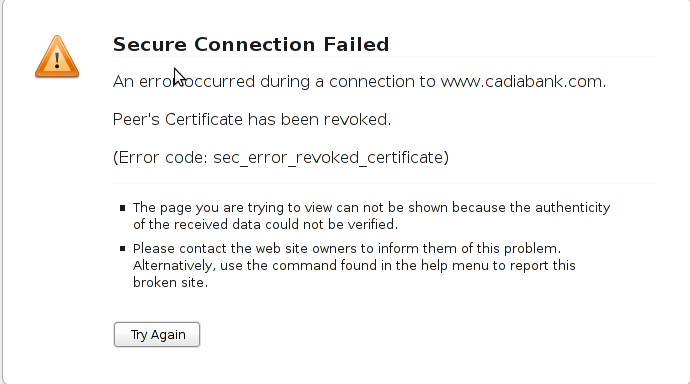
Certificate has been revoked, sec_error_revoked_certificate screenshot

One of the SSL secured websites (https://) which I have recently accessed couldn’t be opened with an error message showing up:

Secure Connection Failed

An error occurred during a connection to www.domain.com.

Peer’s Certificate has been revoked.

(Error code: sec_error_revoked_certificate)

* The page you are trying to view can not be shown because the authenticity of the received data could not be verified.
* Please contact the web site owners to inform them of this problem. Alternatively, use the command found in the help menu to report this broken site.

That error catched my attention so I digged further in what the message means. Here is what I found as an explanation to what is certificate revocation online

What is a SSL Certificate revocation

Revocation of a certificate means that the Certificate Authority (CA) that issuer of the certificate for a website have decided that the certificate is no longer valid, even if it has not expired.

The information about revocation can be distributed in two ways: Certificate Revocation Lists (CRLs), or by using the Online Certificate Status Protocol (OCSP).

CRLs are (usually) large files that contain a list with information about all the currentely active (unexpired) certificates that are no longer valid. This file has to be downloaded from the CA by the client at regular intervals (usually at least a week apart), and may be quite large.

OCSP, on the other hand, means that the client asks the CA “Is this particular certificate still valid?”, and the server responds “Yes” or “No”. This method can usually be fairly well up to date, meaning the information is at most a few days old, as opposed to at least a week for CRLs.

All the major browsers support OCSP, but some (like Opera) does not currently support CRLs.

By this time most of the modern browsers (Firefox, Chrome, Opera and Internet explorer does support revocation lists and all of the aforementioned hsa enabled at least OCSP by default.

Why SSL revocation error might occur:

A CA can revoke a certificate due to a number of reasons:

– A new certificate has been issued to the website, meaning the old one is not going to be used anymore.
– The website with the certificate is being used for purposes that are not accepted by the CA.
– The certificate was issued based on incorrect information.
– The owner is no longer able to use the private key associated with the certificate, for example the password is lost, the key storage was destroyed somehow, etc.
– The private key has been compromised or stolen, which means traffic to the site is no longer secure.
– The certificate and key have been stolen and is actually being used for fraud while posing as a legitimate website …

Now after all above being said the error:

Secure Connection Failed Peer's, Certificate has been revoked., (Error code: sec_error_revoked_certificate)

is a sure indicator that the website which had the certificate problem as a one you could not trust to make money transactions or do any operation that has a direct relation to your personal private date.

However as there are still websites which use an SSL encryption and are entertainment websites or just a news websites, sometimes getting around the ssl revocation issue to check this website is a necessity.

Therefore to enable your Firefox 3.5 / Iceweasel browser with a website which has ssl certificate revocation issue you need to do the following:

Edit -> Preferences -> Advanced -> Encryption -> Validation

After you see the Certificate Validation screen remove the tick set on:

Use the Online Certificate Status Protocol (OCSP) to confirm the current validity of certificates

Now refresh the website and you will skip the certificate revocation issue error and the webpage will open up.
Note that even though this will work, it’s not recommended to use this work around!