Posts Tagged ‘internet time server’

Check and Fix: “w32tm /query /source – The service has not been started” (Windows Time Service Error)

Thursday, February 12th, 2026

windows-logo-fix-windows-time-server-synchronization-error-w32tm

Some people are still forced to run Windows 10 due to hardware limitations on Legacy desktop PCs and Laptops as Windows 11 does not support all hardware. Hence the Windows Automatic Time Synchronization service might not have been started properly (is failing) and due to that the system clock might be slowing down or up from the actual time. This is a rare issue you might encounter but if you're physically situated on a place with very slow internet connection and / or on an 10 years+ old Gamer PC with Windows 10 you might encounter it under some specific unlucky circumstances combination, like very slow internet or using some kind of damaged windows due to failed Windows updates or due to running some unlicensed copy of Windows (which you should not!) etc.
Perhaps Windows time synchronization issues miight be caused  due to BIOS / UEFI time setting misconfiguration causing the PC clock to be back in time with minutes / hours  or in future mis-synchronized.
This perhaps could could happen even on more modern 356 Domain connected PCs / notebooks running on modern Windows 11?

In this article I'll give you an easy way how to resolve Windows Clock (Timing) issues by running few standard Windows commands in
Windows Administrator Prompt (elevated) cmd.exe line:

Run cmd.exe as Administartor: and try to get information on the configured time server:

sc query w32time

Usually that won't produce a good result if your clock is not properly synching with Windows Time server via the w32time service, to further debug run cmd:

w32tm /query /source

If you run the command:

and receive the error:

The following error occurred: 
The service has not been started. (0x80070426)

it means the Windows Time (W32Time) service is not running on your system.

This service is responsible for synchronizing your computer’s clock with an internet time server or domain controller. Without it, time sync will not work properly.

Why This Error Happens

The error usually appears when:

  • The Windows Time service is disabled

  • The service was stopped manually

  • System policies disabled time synchronization

  • The PC was recently restored or cloned

Below is how to fix it quickly.

Solution 1 : Start the Windows Time Service

Open Command Prompt as Administrator and run:

net start w32time

After it starts successfully, verify the time source:

 
w32tm /query /source

Solution 2: Set the Service to Start Automatically

If the problem keeps happening after reboot, set the service startup type to Automatic:

sc config w32time start= auto
net start w32time

Note: There must be a space after start= .

Solution 3: Re-register the Windows Time Service

If the service fails to start, try re-registering it:

w32tm /unregister
w32tm /register
net start w32time

Then force time synchronization:

w32tm /resync

Solution 4: Configure an NTP Server Manually

If no time source is configured, set one manually:

w32tm /config /manualpeerlist:"time.windows.com,0x8" \
/syncfromflags:manual /update
net stop w32time
net start w32time
w32tm /resync

You can also use other NTP servers such as for example:

  • pool.ntp.org

  • time.google.com

Alternative: Start the Service via Services Console services.msc

  1. Press Win + R

  2. Type services.msc

  3. Find Windows Time

  4. Set Startup type to Automatic

  5. Click Start

Finally Check time server syncs fine

After fixing the issue, confirm everything works:

 w32tm /query /status 
w32tm /query /source

If a valid NTP server or domain controller is displayed, the issue is resolved.

How to fix clock on Slackware / Slackware and this old incorrect BIOS time troubles

Friday, February 24th, 2012

There two main reasons which cause incorrect clock settings on Slackware Linux.
One common reason for incorrectly set time is improper clock and timezone settings during Slackware install.

On install, one of the ncruses install menus asks an ambigious dialog question reading

HARDWARE CLOCK SET TO UTC?
Is the hardware clock set to Coordinated Universal Time (UTC/GMT)?

Some newbie Slackware users make the mistake to choose YES here, resulting in incorrectly set clock.

Second possibility for improper time is incorrect time on BIOS level. This is not so common among laptop and modern desktop PCs. However in the past impoper system BIOS hardware clock was usual.
In any case it is a good practice to check the system PC BIOS clock settings.

To check BIOS battery hardware clock from command line use:

bash-4.1# hwclock --show
Fri 24 Feb 2012 01:24:18 AM EET -0.469279 seconds

The system clock on Slackware is set via a script called timeconfig. To fix slack's incorrect host time run:

bash-4.1# timeconfig
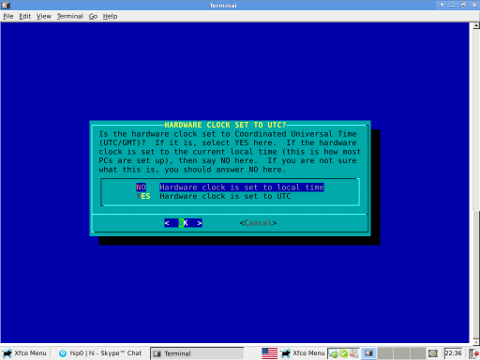
Slackware Linux timeconfig set to UTC ncurses dialog clock setting

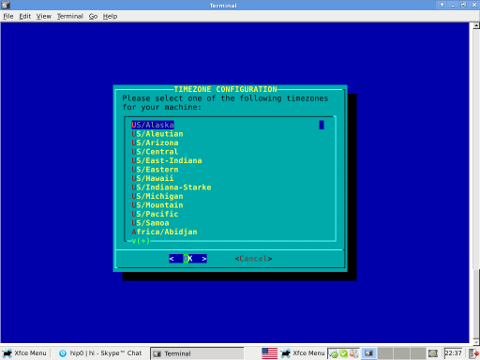
Slackware Linux timeConfig Country Selection dialog

Running timeconfig once should configure a proper timezone to be set on next system reboot, however the system time will probably still be not ok.
To manually set time to right time, use date command. To set manually the system wide time to 12:00:00 with date:

bash-4.1# date -s "12:00:00"

Anyways for time accuracy the ntpdate should be used to feth time from NTP internet time server:

bash-4.1# ntpdate time.nist.gov
...

Finally to make the new set right time permanent also for the BIOS battery clock issue:

bash-4.1# hwclock --systohc

By the way its curious fact Slackware Linux is the oldest still existent GNU / Linux based distribution. Its up and running since the very day GNU and Linux came to merge at one Free OS 😉