Posts Tagged ‘snapshots’

Building a 10-Server FreeBSD Jail Cluster Running a LAMP (Linux / Apache / MySQL / Perl / PHP / Python) Stack

Wednesday, March 25th, 2026

building-freebsd-jails-cluster-running-linux-apache-10-cluster-high-availability-with-mariadb-perl-php-howto

Virtualization and workload isolation are foundational to modern infrastructure.
While most teams today default to container platforms like Docker and orchestration systems such as Kubernetes, an older and highly capable alternative exists in the form of jails from FreeBSD.

FreeBSD jails provide lightweight OS-level isolation, allowing multiple independent userland environments to run on a single host. Introduced long before containers became mainstream, jails were designed with a strong focus on security, simplicity, and performance.
Despite their maturity and robustness, they are less commonly used today, largely due to the rapid rise of container ecosystems and cloud-native tooling.

Choosing between jails and containers is not simply a matter of “old vs new,” but rather a trade-off between control and simplicity versus portability and ecosystem support.

Short Comparison of FreeBSD jails and Containers ( Pros and Cons )

Advantages of FreeBSD Jails

a. Strong, simple isolation

Jails provide a clear and tightly integrated security boundary within the FreeBSD kernel. Their design is straightforward, reducing the risk of misconfiguration compared to layered container security models.

freebsd_jails_infographic_diagram

b. High performance

Because jails operate very close to the base system, they deliver near-native performance with minimal overhead—especially beneficial for networking and I/O-heavy workloads.

c. Operational simplicity

There are fewer component moving parts (easier to maintain and debbug):

  • No separate container runtime
  • No image layers
  • No complex orchestration requirements

This makes jails appealing for stable, long-running systems.

d. Predictability and stability

FreeBSD’s conservative, design philosophy results in systems that are highly stable over long periods, that is ideal for infrastructure roles like: storage or networking.

Disadvantages of FreeBSD Jails

a. Limited portability

Not neceserry a huge disadvantage but still,
Jails are tied to FreeBSD. Unlike containers, they cannot be easily moved across different operating systems or cloud platforms.


b. Smaller ecosystem

FBSD Jails is not full equivallent to:

  • Container registries (like Docker Hub)
  • Massive orchestration ecosystems (similar things has to be done with scripts and customizations)
  • Broad third-party integrations

This can slow down a bit development and deployment workflows. Though for a matured Applications that are once well tuned with jails that can be not a real probblem.

Note that though a con, this can also be a pros, as once you tune up an App for it becomes easier to maintain.

c. Less automation tooling

While tools exist, they are not as standardized or widely adopted as container-based CI/CD pipelines.

d. Harder to find people for it
 

Most developers and DevOps engineers are trained in container technologies, making hiring and collaboration easier in container-based environments. However for senior hard core sysadmins and system engineers that could be also advantage as not so many people have an indepth insight with both freebsd and fbsd jails.

This guide walks through a practical, production-style setup: 10 FreeBSD servers, each running isolated jails that host a classic LAMP stack (Linux, here replaced by FreeBSD, Apache, MySQL/MariaDB, PHP).
However still the use of companies or individuals who choose freebsd jails aim to better focus is on repeatability, clean architecture, and operational sanity, not just getting it to run once.

Architecture Overview of sample FBSD Cluster

Our Goal:

  • 10 physical or virtual servers
  • Each server runs multiple jails
  • Each jail runs a LAMP app instance
  • Load balancing across nodes (to have a High Availability Cluster like setup)

Host Setup:

  • 2 × load balancer nodes (nginx or HAProxy)
  • 6 × application nodes (Apache + PHP in jails)
  • 2 × database nodes (MariaDB primary/replica)

All systems run FreeBSD, using native jails for isolation.

1. Base FreeBSD Installation (All 10 Servers)

Install FreeBSD on each machine (minimal install is fine).

Update system:

# freebsd-update fetch install
# pkg update && pkg upgrade -y

Install base tools:

# pkg install -y sudo vim bash git

2. Install Jail Management tool (iocage)

We’ll use iocage, a modern jail manager.

# pkg install -y iocage
# sysrc iocage_enable="YES"
# service iocage start

Activate ZFS (recommended):

# zpool create zroot /dev/da0

Initialize iocage:

# iocage activate zroot
# iocage fetch

3. Create a Reusable Jail Template

Instead of building each jail manually, create a golden template.

# iocage create -n lamp-template -r 13.2-RELEASE ip4_addr="vnet0|10.0.0.10/24" boot=off
# iocage start lamp-template
# iocage console lamp-template

4. Install LAMP Stack Inside the Jail

Inside the jail:

4.1. Install Apache

# pkg install -y apache24
# sysrc apache24_enable="YES"

4.2. Install MariaDB

# pkg install -y mariadb106-server
# sysrc mysql_enable="YES"

Initialize DB:

service mysql-server start
mysql_secure_installation

4.3. Install PHP pre-compiled ports

# pkg install -y php82 php82-mysqli php82-mbstring php82-opcache


Configure Apache to use PHP:

# echo 'LoadModule php_module libexec/apache24/libphp.so' >> /usr/local/etc/apache24/httpd.conf
# echo 'AddType application/x-httpd-php .php' >> /usr/local/etc/apache24/httpd.conf

5. Test LAMP Stack works OK

Create a test file:

# echo "<?php phpinfo(); ?>" > /usr/local/www/apache24/data/index.php

Start services:

service apache24 start

Visit the jail IP and confirm PHP (page output) works in Firefox / Chrome Browser.

6. Convert Template into Clones

Stop Jail and snapshot:

iocage stop lamp-template
iocage snapshot lamp-template@base

Clone for production:

iocage clone lamp-template -n app01 ip4_addr="vnet0|10.0.0.21/24"
iocage clone lamp-template -n app02 ip4_addr="vnet0|10.0.0.22/24"

Repeat across servers and once working create a small shell script to run as a cron job to create backups automated.

Each server might run 5 up to 20 jails depending on resources.

7. Networking Between Jails

Use VNET for proper isolation:

Enable bridge on host:

# ifconfig bridge0 create
# ifconfig bridge0 addm em0 up

Assign jail interfaces automatically via iocage.

8.  Load Balancing Layer

On 2 dedicated nodes, install nginx:

# pkg install -y nginx
# sysrc nginx_enable="YES"

Example config:

http {
    upstream backend {
        server 10.0.0.21;
        server 10.0.0.22;
        server 10.0.1.21;
        server 10.0.1.22;
    }

    server {
        listen 80;

        location / {
            proxy_pass http://backend;
        }
    }
}

9. Database Strategy

You have few options to choose from:

a. Use Centralized DB

  • Dedicated DB jails on 2 nodes
  • Primary + replica

b. Use Per-node DB (simpler)

  • Each jail has its own MariaDB
  • Use app-level replication if needed

10. Automation Across 10 Servers

Use tools like:

  • Ansible
  • SSH scripts
  • ZFS replication

Example (simple parallel execution loop) or use a set of scripts to handle updating with some Ansible Playbooks or Puppet:

# for host in server{1..10}; do
  ssh $host "pkg update"
done

Few more Operational Tips to consider

a. Tune up setup / Do Resource management

  • Limit jail CPU/memory using rctl
  • Avoid overcommitting RAM

b. Use Centralized Logging

c. Do regular jail Backups

  • Use ZFS snapshots to backup each of the Jails:

# zfs snapshot zroot/iocage/jails/app01@backup

d. Tighten Security

  • Disable root SSH
  • Use PF firewall on host
  • Keep jails minimal

e. Do a Further Scaling Strategy

  • Add more servers -> replicate template
  • Add more jails -> clone snapshots
  • Scale horizontally via load balancer

Summary and Last Thoughts

When Choose FBSD Jails and when Containers

  • Use jails when you control the infrastructure, need maximum efficiency, and value simplicity (e.g., appliances, CDNs, storage systems).
  • Use containers when portability, scalability, and integration with modern DevOps workflows are critical.

This setup plays to the strengths of FreeBSD jails:

1. Performance: near-native speed
2.Isolation: strong and predictable
3. Simplicity: fewer layers than container stacks

FreeBSD jails remain a powerful and efficient isolation mechanism, particularly well-suited for controlled, performance-sensitive environments. Containers, however, dominate in modern application deployment due to their flexibility and ecosystem. The choice ultimately depends on whether you prioritize system-level control or platform-level convenience.

You won’t get the ecosystem of tools like Docker or Kubernetes, but you gain control, stability, and efficiency, which is exactly why companies like Netflix still rely on this model in critical infrastructure.


How to Make Easy Backups on Linux Using a GUI tools Deja Dup, TimeShift, BackinTime, Grsync, Vorta

Monday, February 2nd, 2026

Backing up your data on Linux doesn’t have to involve complex terminal commands or custom scripts. While the command line is powerful, many users prefer a simple graphical interface (GUI) that just works.

Luckily, Linux offers several excellent GUI-based backup tools that are easy, reliable, and beginner-friendly.

In this article, we’ll look at why backups matter, and then walk through some of the best GUI backup tools for Linux, along with basic setup tips.

Why Backups Are Important (Even on Linux)

Linux systems are known for stability, but unfortunately, no system is immune to:

  • Hard drive failures
  • Accidental file deletion
  • System updates gone wrong
  • Malware or ransomware
  • Laptop theft or damage

A proper backup ensures you can restore your files or even your entire system in minutes instead of losing everything.

What Makes a Good GUI Backup Tool?

For most desktop users, a good backup tool should :

  • Be easy to use (no terminal required)
  • Supports automatic scheduled backups
  • Allow restoring individual files
  • Work with different types of external drives or network storage
  • Be relatively actively maintained
     

Let’s look at the few tools to create backups with lesser effort.

1. Déjà Dup – The Simplest Backup Tool

Best for: Beginners and home users
Available on: Ubuntu, Linux Mint, Fedora, and others

Déjà Dup is one of the most user-friendly backup tools on Linux. It comes preinstalled on Ubuntu and integrates perfectly with the GNOME desktop.

Key Features

  • Very simple interface
  • Automatic scheduled backups
  • Supports local drives, external USB disks, and network locations
  • Optional encryption for security

# apt info deja-dup
Package: deja-dup
Version: 44.0-2
Priority: optional
Section: utils
Maintainer: Debian GNOME Maintainers <pkg-gnome-maintainers@lists.alioth.debian.org>
Installed-Size: 4,851 kB
Depends: duplicity (>= 0.7.14), dconf-gsettings-backend | gsettings-backend, libadwaita-1-0 (>= 1.2), libc6 (>= 2.34), libglib2.0-0 (>= 2.70.0), libgpg-error0 (>= 1.14), libgtk-4-1 (>= 4.0.0), libjson-glib-1.0-0 (>= 1.5.2), libpackagekit-glib2-18 (>= 1.1.0), libpango-1.0-0 (>= 1.18.0), libsecret-1-0 (>= 0.18.6), libsoup-3.0-0 (>= 3.0.3)
Recommends: gvfs-backends, packagekit, policykit-1
Suggests: python3-pydrive2
Homepage: https://launchpad.net/deja-dup
Tag: admin::backup, implemented-in::c, interface::graphical, interface::x11,
 role::program, scope::application, suite::gnome, uitoolkit::gtk,
 x11::application
Download-Size: 693 kB
APT-Sources: http://ftp.debian.org/debian bookworm/main amd64 Packages
Description: Backup utility
 Déjà Dup is a simple backup tool. It hides the complexity of backing up the
 Right Way (encrypted, off-site, and regular) and uses duplicity as the
 backend.
 .
 Features:
  * Support for local, remote, or cloud backup locations such as Nextcloud
  * Securely encrypts and compresses your data
  * Incrementally backs up, letting you restore from any particular backup
  * Schedules regular backups
  * Integrates well into your GNOME desktop

How to Use Déjà Dup

Using it is generally simplistic, you select the data folders to be backupped and then the media where to backup it. The program supports also encryption with a password which is nice if you want to keep the backed-up data secret (especially if you want to store the backup on Google Cloud or Microsoft Azure)

Open “Backups” from your application menu

  1. Choose folders to back up (e.g., Home folder)
  2. Select a backup location (external drive recommended)
  3. Enable automatic backups


Click on Back Up Now button

That’s it. Déjà Dup runs quietly in the background after setup.

Note ! that it is not a good idea to try to backup the whole Linux installation ! with deja-dup, as you will get a lot of issues with improper permissions errors and stuff and the OS backup won't get consistent, however for a basic backups of User Homes, Cictures and some Personal data situated within a single directory it is simple as it is easy to initially setup and run.

# apt install deja-dup

$ sudo deja-dup


deja-dup-backup-gui-tool-linux-screenshot

deja-dup-backup-gui-tool-linux-screenshot2

2. Timeshift – System Snapshots Made Easy

Best for: System recovery
Available on: Most Linux distributions

Timeshift focuses on system backups, not personal files. It creates restore points similar to Windows System Restore.

Key Features

  • Snapshot-based backups
  • Perfect for rolling back failed updates
  • Supports RSYNC and BTRFS
  • Clean and simple GUI
     

When to Use Timeshift

  • Before major system updates
  • After fresh OS installation
  • To recover from broken packages or configs

# apt info timeshift
Package: timeshift
Version: 22.11.2-1+deb12u1
Priority: optional
Section: utils
Maintainer: Yanhao Mo <yanhaocs@gmail.com>
Installed-Size: 3,231 kB
Depends: cron-daemon | cron, pkexec, psmisc, rsync, libc6 (>= 2.34), libcairo2 (>= 1.2.4), libgdk-pixbuf-2.0-0 (>= 2.22.0), libgee-0.8-2 (>= 0.8.3), libglib2.0-0 (>= 2.39.4), libgtk-3-0 (>= 3.16.2), libjson-glib-1.0-0 (>= 1.5.2), libvte-2.91-0, libxapp1 (>= 1.0.4)
Breaks: util-linux (<< 2.37.2~)
Replaces: timeshift-btrfs
Homepage: https://github.com/linuxmint/timeshift
Tag: uitoolkit::gtk
Download-Size: 617 kB
APT-Manual-Installed: yes
APT-Sources: http://ftp.debian.org/debian bookworm/main amd64 Packages
Description: System restore utility
 Timeshift is a system restore utility which takes snapshots
 of the system at regular intervals. These snapshots can be restored
 at a later date to undo system changes. Creates incremental snapshots
 using rsync or BTRFS snapshots using BTRFS tools.

# apt install timeshift

$ sudo timeshift-gtk


https://www.pc-freak.net/images/linux-gui-backup-tools-screenshot/timeshift-rsync-backup-gui-tool-linux-screenshot4

timeshift-rsync-backup-gui-tool-linux-screenshot5

timeshift-rsync-backup-gui-tool-linux-screenshot6

3. Use Timeshift alongside a file backup tool like Déjà Dup as a backup solution for OS and data

a. Set up Timeshift (system snapshots)

What to include

Snapshot type:

  • RSYNC → works on any filesystem (recommended)
  • BTRFS → if your root is BTRFS


timeshift-rsync-backup-gui-tool-linux-screenshot1

Include:

  • / (root filesystem)

Exclude home directories (important!)

In Timeshift settings:

  • Keep /root excluded
  • Do NOT include /home/youruser

timeshift-rsync-backup-gui-tool-linux-screenshot2

Timeshift is not meant to back up your personal files.

Schedule (typical)

  • Daily: 3–5 snapshots
  • Weekly: 2–3 snapshots
  • Monthly: optional

Store snapshots on:

A separate drive or partition if possible

b. Set up Deja Dup (personal backups)

Deja Dup is perfect for:

  • Home directory backups
  • Encryption
  • External drives, NAS, cloud (Google Drive, SFTP, etc.)

Folders to back up

Usually:

~/Documents
~/Pictures
(or similar)
Optional: ~/.config (only if you know why)
~/Videos
~/Projects

In Deja Dup:

Folders to back up → select what you actually care about

Folders to ignore → add

~/.cache
~/.local/share/Trash
~/Downloads
(optional)

Schedule

Daily or weekly backup is usually fine

Keep backups for “forever” or at least several months

c. Prevent overlap (this matters)

To avoid wasting space and time:

Tool

Should back up

Should NOT back up

Timeshift

/, system configs

/home

Deja Dup

/home/youruser

/, system files

Never:

  • Use Deja Dup to back up /
  • Use Timeshift to back up /home

That’s the #1 mistake you could do

d. Real-world recovery scenarios

Scenario 1: Bad update / system won’t boot

  1. Boot from live USB

  2. Restore with Timeshift

  3. System is back exactly as before

  4. Files untouched

Scenario 2: Deleted or corrupted files

  1. Open Deja Dup

  2. Restore specific files/folders

  3. Done

Scenario 3: New machine / fresh install

  1. Install OS

  2. Restore system apps/settings manually or via Timeshift (if compatible)

  3. Restore home data with Deja Dup

e. Optional pro tips (to avoid data loss)

  • Test restores once (seriously)
  • Label backup drives clearly
  • Keep Deja Dup backups offsite if possible
  • After major distro upgrades:
  • Make a Timeshift snapshot
  • Don’t restore old Timeshift snapshots across major versions unless you know it’s safe
     

4. Back In Time – More Control features tool to create GUI-Based backups on Linux

Best for: Advanced users who want flexibility

Available on: Most Linux distributions

Back In Time uses RSYNC but wraps it in a friendly GUI.

Key Features

  • Scheduled snapshots
  • Exclude files and folders easily
  • Restore files from any snapshot
  • Supports local and remote backups
     

# apt-cache search backintime


backintime-common – simple backup/snapshot system (common files)
# apt info backintime-qt
Package: backintime-qt
Version: 1.3.3-4
Priority: optional
Section: utils
Source: backintime
Maintainer: Jonathan Wiltshire <jmw@debian.org>
Installed-Size: 416 kB
Depends: backintime-common (= 1.3.3-4), libnotify-bin, pkexec, polkitd, python3-dbus.mainloop.pyqt5, python3-pyqt5, x11-utils, python3:any
Recommends: python3-secretstorage
Suggests: meld | kompare
Conflicts: backintime-kde4
Breaks: backintime-qt4 (<< 1.2.1-0.1~)
Replaces: backintime-kde4, backintime-qt4 (<< 1.2.1-0.1~)
Homepage: https://github.com/bit-team/backintime
Download-Size: 73.8 kB
APT-Sources: http://ftp.debian.org/debian bookworm/main amd64 Packages
Description: simple backup/snapshot system (graphical interface)
 Back In Time is a framework for rsync and cron for the purpose of
 taking snapshots and backups of specified folders. It minimizes disk space use
 by taking a snapshot only if the directory has been changed, and hard links
 for unmodified files if it has. The user can schedule regular backups using
 cron.
 .
 This is the graphical interface for Back In Time.

backintime-qt – simple backup/snapshot system (graphical interface)

# apt install backintime-qt

$ sudo backintime-qt

backintime-linux-backup-gui-easy-tool-screenshot-options

linux-gui-backup-tools-screenshot/backintime-linux-backup-gui-easy-tool-screenshot-options

backintime-linux-screenshot-options-menu

backintime-linux-screenshot-options3

linux-gui-backup-tools-screenshot

It’s slightly more complex than Déjà Dup, but still very manageable.
 

5. Backing Up your Data on Linux with Grsync (rsync GUI frontend backup tool interface)

Grsync is a simple yet powerful graphical tool for backing up data on Linux. It acts as a front-end for rsync, one of the most trusted file synchronization utilities in the Linux world, but removes the need to remember long command-line options. This makes Grsync ideal for users who want reliable backups without extra complexity.

grsync-gui-backup-rsync-tool-linux-screenshot1

With Grsync, you can easily select a source and destination folder, such as backing up your home directory to an external drive or a network location. It supports incremental backups, meaning only changed files are copied after the first run, which saves both time and disk space. Useful options like preserving file permissions, deleting obsolete files, and excluding specific directories (for example, cache or temporary files) can be enabled with simple checkboxes.

Another advantage of Grsync is its safety features. You can perform a dry run to preview what will be copied or deleted before actually starting the backup. This reduces the risk of accidental data loss and makes it easier to fine-tune your backup settings. For Linux users looking for a practical and dependable backup solution, Grsync offers a great balance between power and ease of use.
 

Best Backup Strategy for Desktop Linux Users

For most users, Deja Dup + TimeShift  combo should works perfectly:

  • Déjà Dup → Personal files (documents, photos, videos)
  • Timeshift → System snapshots

This way, you’re protected from both data loss and system failure.

Final Thoughts

Linux gives you freedom – and that includes freedom to choose how you protect your data.

With modern GUI backup tools, there’s no excuse not to back up regularly. Whether you’re a casual user or a hardcore PC freak, setting up backups takes just a few minutes and can save you hours (or days) of frustration later.

If you’re serious about your Linux system data,
backup early, backup often and you this 

will pay you back.

The Celebration of the feast of the temple Holy Trinity

Thursday, June 25th, 2009

Just few weeks ago it was the feast of our temple here in Dobrich the holy triniy. For this event a lot of priests either from Dobrich and the district as well as the Metropolit Kiril of Varna. Father Veliko has insisted to ordain me with a church rank. The church rank I received grants me oportunity to enter the holy altar and help in the church services (the holy liturgies). My sister has captured a couple of snapshots both video and pictures the pictures I’ve upload and can be seen

luckyBackup Linux GUI back-up and synchronization tool

Wednesday, May 14th, 2014
luckybackup_best-linux-graphical-tool-for-backup_linux_gui-defacto-standard-tool
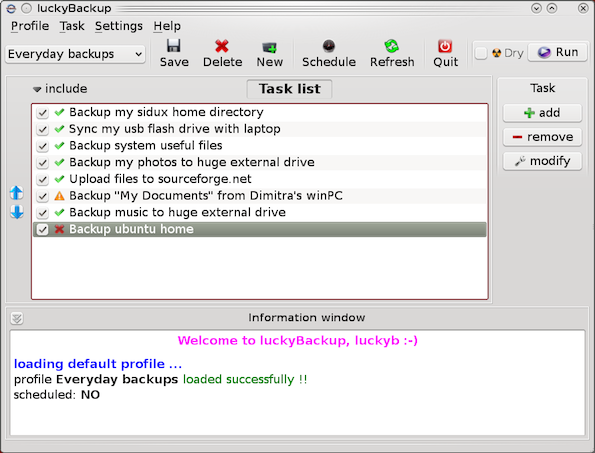
If you're a using GNU / Linux  for Desktop and you're already tired of creating backups by your own hacks using terminal and you want to make your life a little bit more easier and easily automate your important files back up through GUI program take a look at luckyBackup.

Luckibackup is a GUI frontend to the infamous rsync command line backup  tool. Luckibackup is available as a package in almost all modern Linux distributions its very easy to setup and can save you a lot of time especially if you have to manage a number of your Workplace Desktop Office Linux based computers.
Luckibackup is an absolute must have program for Linux Desktop start-up users. If you're migrating from Microsoft Windows realm and you're used to BackupPC, Luckibackup is probably the defacto Linux BackupPC substitute.

The sad news for Linux GNOME Desktop users is luckibackup is written in QT and it using it will load up a bit your notebook.
It is not installed by default so once a new Linux Desktop is installed you will have to install it manually on Debian and Ubuntu based Linux-es to install Luckibackup apt-get it.

debian:~# apt-get install --yes luckibackup
...

On Fedora and CentOS Linux install LuckiBackup via yum rpm package manager

[root@centos :~]# yum -y install luckibackup
.

Luckibackup is also ported for OpenSuSE Slackware, Gentoo, Mandriva and ArchLinux. In 2009 Luckibackup won the prize of Sourceforge Community Choice Awards for "best new project".

luckyBackup copies over only the changes you've made to the source directory and nothing more.
You will be surprised when your huge source is backed up in seconds (after the first backup).

Whatever changes you make to the source including adding, moving, deleting, modifying files / directories etc, will have the same effect to the destination.
Owner, group, time stamps, links and permissions of files are preserved (unless stated otherwise).

Luckibackup creates different multiple backup "snapshots".Each snapshot is an image of the source data that refers to a specific date-time.
Easy rollback to any of the snapshots is possible. Besides that luckibackup support Sync (just like rsync) od any directories keeping the files that were most recently modified on both of them.

Useful if you modify files on more than one PCs (using a flash-drive and don't want to bother remembering what did you use last. Luckibackup is capable of excluding certain files or directories from backupsExclude any file, folder or pattern from backup transfer.

After each operation a logfile is created in your home folder. You can have a look at it any time you want.

luckyBackup can run in command line if you wish not to use the gui, but you have to first create the profile that is going to be executed.
Type "luckybackup –help" at a terminal to see usage and supported options.
There is also TrayNotification – Visual feedback at the tray area informs you about what is going on.


Linux webcam take pictures from tty console or terminal / How to make pictures of yourself using plain console and web-camera

Saturday, December 15th, 2012

how to take webCAM console / terminal pictures on gnu linux (Debian, Ubuntu, Fedora)

I'm a great command line enthusiast, I share the believe of many other command line geeks thinking keyboard is the quickest way to access a computer. Historically keys were first and mouse second and I think there is definitely a good reason for that. Thus today I was curious if it is possible to take pictures from my external web-camera on my Debian GNU / Linux? I did a quick research and this little article springed out as result.

The answer is YES! It is possible and besides that there are many ways to take a webcamera picture using the console; Lastly it is very easy to achieve even for novice Linux buddies 😉 My little research on the topic show me there are 4 straightforward ways one can use to use his extended or embedded WebCam to take pictuers – using (vlc, mplayer, camshot, fswebcam and ffmpeg).

1. Taking a webcam picture using vlc

Invoke vlc with following arguments:

# vlc -I dummy v4l2:///dev/video0 --video-filter scene --no-audio --scene-path /home/hipo --scene-prefix webcam-taken-picture-prefix --scene-format png vlc://quit --run-time=1

I've prepared a little wrapper script, for the sake of simplifying the long and hard to remember vlc options. Below is the script;

#!/bin/sh
# This little script will take picture whilst in gnome-terminal / mlterm or any console tty
# As program uses vlc you need to have vlc properly configured and installed
# as well as the webcam video be properly working (detected by Linux kernel)
# licensed under GPLv2 script modified by hip0 14.12.2012
# Path where to store taken snapshots
STORE_PATH=/home/hipo
# Device locatation of webcam many webcams have default device in /dev/video0
WEBCAM_DEV=/dev/video0
# Stored grabbed picture filename prefix
FILE_NAME_PREF=image_prefix
# gets the current date and adds to set filename prefix
date_cur=$(date +%k_%d_%m_%Y|sed -e 's/^ *//');
vlc -I dummy v4l2://$WEBCAM_DEV --video-filter scene --no-audio --scene-path $STORE_PATH --scene-prefix $FILE_NAME_PREF.$date_cur --scene-format png vlc://quit --run-time=1
echo "WebCam picture taken and stored in $STORE_PATH/$FILE_NAME_PREF.$date_cur*.png";
echo '';
echo "To view picture in Gnome with Eye of GNOME type: eog $STORE_PATH/$FILE_NAME_PREF.$date_cur*.png";

You can also download copy of the webcam_take_picture_from_console.sh script here.

As you see the script uses, vlc's (dummy interface), and –video-filter-scene option to make the snapshot. The script can be stored in let's say /usr/local/bin/webcam_take_picture.sh and aliased through ~/.bashrc with some short alias, i.e.:

alias console-picture='/usr/local/bin/webcam_take_picture.sh'

Then at any time, when you run console-picture you will have a short way to make pictures of your room, your friends or whatever needed. One good application of script is whether you're in coffee with friends and you want to take a snapshot of them without them realizing (assuming, the webcam is embedded) 🙂

Another great application is whether you want to take a snapshot of the WebCam, from another shell script or little application using dialog ncurses interfaces etc.

Even just for the sake of fun it is so nice to take a picture from webcam, whether in plain tty console bash shell 🙂

One small note to make here is webcam_take_picture_from_console.sh should be run as non-root user (for security reasons vlc developers made smartly VLC this way), running it as root drops an err:

>VLC is not supposed to be run as root. Sorry.
If you need to use real-time priorities and/or privileged TCP ports
you can use /usr/bin/vlc-wrapper (make sure it is Set-UID root and
cannot be run by non-trusted users first).
 

By default, vlc resolution used is the automatically set to the maximum supported to the camera, with mine this is 640×480 SRGB
The quality of pictures taken is a bit low but my camera is a cheap one and even with some GUI program snapshot taking programs like GNOME's cheese, taken pictures are with low quality (though I think the brightnes of the ones taken with vlc is a bit poorer than the ones done with cheese).

Happily it is possible to correct picture brightness and lightning with v42l-ctl (v42l-ctl is not installed by default and on Debian you will have to install deb pack v4l-utils), e.g.:

apt-get install --yes v4l-utils
....

Further, check out the possible options available with:

v4l2-ctl -L - (list all possible options)

and to set a concrete option do:

v4l2-ctl -c <options>=<value> (set an option)
 

I don't have a BSD (FreeBSD, NetBSD, OpenBSD) at hand, but with a working supported Webcam, correct location to the webcam /dev/  and installed VLC from ports :

vlc -I dummy v4l2:///dev/video0--video-filter scene --no-audio --scene-path $STORE_PATH --scene-prefix $FILE_NAME_PREF.$date_cur --scene-format png vlc://quit --run-time=1

should be working fine as well.
If someone has access to a BSD with a working installed webcam, please test it and drop a comment to confirm if working …

2. Creating pictures from WebCamera using mplayer cmd

Theoretically mplayer, should be able to take snapshots from the Cam with:

mplayer -vo png -frames 1 tv://

There is possibility to pass output webcam picture (resolution) dimensions too:

mplayer tv:// -tv driver=v4l:device=/dev/video0:width=320:height=240:outfmt=rgb24 -frames 1 -vo jpeg


With my "NoName" (Eltron Technology) webcam the produced images were filled up with solid green color  (maybe due to bug of my webcam used driver). Normally it should be working; I've seen many posts around claiming using both of above cmd lines to produce pictures normally, but not for me.

3. Making pictures with WebCamera (camshot) console tool

I've seen around also another tiny tool (camshot) especially written to take pictures from webcam. The tool is available only to be compiled from source (whether source is fetched through Subversion repo (SVN)). I took a minute to test it as well, e.g.:


hipo@noah:~Desktop$ svn checkout http://camshot.googlecode.com/svn/trunk/ camshot-read-only

hipo@noah:~/Desktop/camshot-read-only$ make
....
hipo@noah:~/Desktop/camshot-read-only$ ls
arguments.c  arguments.o  camera.h  camshot  image.h  main.c  Makefile  shmem.h  shmem_test.c
arguments.h  camera.c     camera.o  image.c  image.o  main.o  shmem.c   shmem.o

hipo@noah:~Desktop/camshot-read-only$ ./camshot
Letting the camera automaticaly adjust the picture:..........Done.
Command (h for help): h

Commands:
    x    Capture a picture from camera.
    h    Prints this help.
    q    Quits the program.

Command (h for help): x
Command (h for help): q


Don't know why, but for me camshot did not produce, any output picture from webcam. Maybe my Webcam which is a cheap (all OS) compatible one is not detected fine by the tool? As you see from above help output there are not many options so it is definitely something with webcam detection or just it needs some kind of little "hack" in the source to make it working, I was lazy to further investigate so I leave it.

4. Making pictures from terminal using fswebcam

fswebcam is not so popular as vlc and mplayer, but is existent from default repostiries on both Debian and Ubuntu Linuces. Here is it how it is described when pkg info requested with apt-cache:

apt-cache show fswebcam | grep -i descrip -A 8
Description: Tiny and flexible webcam program
 Fswebcam is a tiny and flexible webcam command-line program for capturing
 images from a V4L1/V4L2 device. It accepts a number of formats, can skip
 the first (possibly bad) frames before performing the actual capture, and
 can perform simple manipulation on the captured image, such as resizing,
 averaging multiple frames or overlaying a caption or an image.
Homepage: http://www.firestorm.cx/fswebcam/
Tag: implemented-in::c, role::program

To use it first install it with apt-get or yum (yes it is available also for RedHat based Linux distros via yum).
Depending whether on Debian or Fedora etc. do:

apt-get install --yes fswebcam
.....

or

yum -y install fswebcam
....

fswebcam's syntax is much easier than all of rest cmd tools available around; to create picture from webcam;

# fswebcam -r 640x480 --jpeg 85 -D 1 web-cam-shot.jpg
--- Opening /dev/video0...
Trying source module v4l2...
/dev/video0 opened.
No input was specified, using the first.
Delaying 1 seconds.
--- Capturing frame...
Captured frame in 0.00 seconds.
--- Processing captured image...
Setting output format to JPEG, quality 85
Unable to load font 'luxisr': Could not find/open font
Disabling the the banner.
Writing JPEG image to 'web-cam-shot.jpg'.

I liked supports, saving in multiple formats, can set resolution and is probably the number 1 choice for anyone looking for high level of customization of cam taken picture.. Saying this I think fswebcam is definitely the tool of choice as it is written with the one and only aim to take webcam pictures from console.

5. Capturing picture from Webcam using ffmpeg

With ffmpeg, there are plenty of things possible;
Just to mention few interesting ones, I've written about earlier, ffmeg is capable of;

convert .OGG vorbis to MP3 
convert .FLV to .AVI and .AVI to .FLV
convert .AVI .MP4 and .FLV to OGG Vorbis (Free Format)
convert .OGG video to .FLV Video
extract sounds / music from .FLV to a MP3 / MP4
Add .SRT and .SUB files subtitles to Flash Videos

Along with all this, interestingly ffmpeg can get content using command line from WebCamera (nomatter if it's a VIDEO stream or just a Picture snapshot).

The syntax to take a picture with it is:

ffmpeg -f video4linux2 -i /dev/v4l/by-id/usb-Etron_Technology__Inc._USB2.0_Camera-video-index0 -vframes 1 output-picture.jpeg

The precise /dev/(v4l – video 4 linux) assigned to different cameras will differ so in order to find what kind of /dev, to use ls it:

# ls -al /dev/v4l/by-id/*

lrwxrwxrwx 1 root root 12 Dec 14 22:40 /dev/v4l/by-id/usb-Etron_Technology__Inc._USB2.0_Camera-video-index0 -> ../../video0

The picture resolution taken on my Eltron Technology Webcam is same like with vlc – the cam optimum 640×480, the quality and brightness gamma is also identical to pics taken using VLC.
 
Therefore if you're wondering if one tool, might make a better pictures from command line than the other the answer, according to my tests is they produce identical quality and all can be customized easily for different set of resolution. It is possible thought, this is not so with other Web Cam models, if you happen to read this post and take the time to try taking pictures with 5 methods and some of the 5 progs is making superior pictures, please drop a comment with the tool you used and the WebCam exact version as detected in dmesg or lsusb

As a sort of Outtro, from purely functional / usability point of view I think fswebcam is probably be the tool of choice for mostly all as it is most simple, easily customizable and especially crafted for creating webcam console shots. That's all Enjoy, taking pics from GUI terminal or console 🙂 

P.S. – I know there are plenty of people who have written on the topic, so this article is nothing new under the sun, but as I couldn't find a post synthesizing in one all of the 5 methods I've come up with this little article. Feedback is mostly welcome
Happy picturing 😉

Create PDF file from (png, jpg, gif ) images / pictures in Linux

Tuesday, September 14th, 2010

I’ve recently received a number of images in JPEG format as a feedback on a project plan that was constructed by a team I’m participating at the university where I study.

Somebody from my project group has scanned or taken snapshots of each of the hard copy paper feedback and has sent it to my mail.

I’ve received 13 images so I had to open them one by one to get each of the Project Plan to read the feedback on the page this was really unhandy, so I decided to give it a try on how to generate a common PDF file from all my picture files.

Thanksfully it happened to be very easy and trivial using the good old Image Magick

In order to complete the task of generating one PDF from a number of pictures all I did was.1. Switch to the directory where I have saved all my jpeg images

debian:~# cd /home/hipo/Desktop/my_images_directory/

2. Use the convert binary part of imagemagick package to generate the actual PDF file from the group of images

debian:~# convert *.jpg outputpdffile.pdf

If the images are numbered and contain many scanned pages of course you can always pass by all the images to the /usr/bin/convert binary, like for instance:

debian:~# convert 1.jpg 2.jpg 3.jpg 4.jpg 5.jpg outputpdffile.pdf
Even though in my case I had to convert to PDF from multiple JPEG (JPG) pictures, convertion with convert is not restricted to convert only from JPEG, but you can also convert to PDF by using other graphical file formats.

For instance to convert multiple PNG pictures to a single PDF file the command will be absolutely the same except you change the file extension of the graphic files e.g.:

debian:~# convert 1.PNG 2.PNG 3.PNG 4.PNG 5.PNG OUTPUT-PDF-FILE.PDF

I was quite happy eventually to know Linux is so flexible and such a trivial things are able to be completed in such an easy way.

Recovering long lost website information (data) with wayback machine

Monday, May 9th, 2011

Wayback machine, see 2 years old website from cache service

I needed a handy way to recover some old data of an expired domain containing a website, with some really imprtant texts.
The domains has expired before one year and it was not renewed for the reason that it’s holder was not aware his website was gone. In the meantime somebody registered this domain as a way to generate ads profit from it the website was receiving about 500 to 1000 visitors per day.
Now I have the task to recover this website permanently lost from the internet data. I was not able to retrieve anything from the old domain name be contained via google cache, yahoo cache, bing etc.
It appears most of the search engines store a cached version of a crawled website for only 34 months. I’ve found also a search engine gigablast which was claimed to store crawled website data for 1 year, but unfortunately gigablast contained not any version of the website I was looking for.Luckily (thanks God) after a bit of head-banging there I found a website that helped me retrieve at least some parts from the old lost website.

The website which helped me is called WayBack Machine

The Wayback Machine , guys keeps website info snapshots of most of the domain names on the internet for a couple of years back, here is how wayback machine website describes its own provided services:

The Internet Archive's Wayback Machine puts the history of the World Wide Web at your fingertips.

Another handy feature wayback machine provides is checking out how certain websites looked like a couple of years before, let’s say you want to go back in the past and see how yahoo’s website looked like 2 years ago.

Just go to web.archive.org and type in yahoo and select a 2 years old website snapshot and enjoy 😉

It’s really funny how ridiculous many websites looked like just few years from now 😉





