Posts Tagged ‘suspend’

Automatically Re-plug all USB devices on system resume on Debian Linux using systemd

Thursday, March 26th, 2026

automatically-replug-all-usb-devices-on-system-resume-on-Debian-Ubuntu-Linux
Lets say you’re like me and you have an old but gold USB device like USB joystick Maxfire G-08XU (i've described how to configure Joystick / Gamepad on Debian Ubuntu easily), an USB flash drive stick or even some obscure USB keyboard model, that are not among the most compatible device on earth for linux. The result is in device plug and Sleeping the system or Hibernating it for a while (when go to bed) you end up with USB device being undetected by the system. Once you recover the Laptop / PC from being in Sleep mode / hibernate, the device becomes undetected by system, even though, even though the Linux kernel recognizes in lsusb. That weirdity continues until you do the manual hard workaround, which is to manually unplug the device cable and replug it again.
Though Linux has advanced much with this stuff over last years still this problems can occur every now and then. Thanksfully there is a quick fix to that. You can create a small script that reloads all the USB devices on PC
want the script to run automatically after your Debian laptop wakes up from suspend/hibernate. On Linux, the way to do this is using systemd sleep hooks. Here’s how to do it properly by using a small script + systemd.

1. Create a systemd sleep script

Create a new directory and file:

# mkdir -p /etc/systemd/system-sleep
# vim /etc/systemd/system-sleep/usb-replug.sh

Add this content:

#!/bin/bash
# Only run on resume (wake up)
case "$1" in
post)
# Replace '1-3' with your USB bus-port ID
echo '1-3' | tee /sys/bus/usb/drivers/usb/unbind
sleep 2
echo '1-3' | tee /sys/bus/usb/drivers/usb/bind
;;
esac
If 


If you need script logging use instead this small script:


#!/bin/bash

case $1/$2 in
pre/*)
# before suspend: you can put commands here if needed
;;
post/*)
# after resume: run your USB replug commands
echo "$(date) – Running USB replug script" >> /var/log/usb-replug.log
# Example command: trigger USB rescan
for bus in /sys/bus/usb/devices/*/authorized; do
echo 0 | sudo tee $bus
echo 1 | sudo tee $bus
done
;;
esac

2. Make it executable and reload systemd services

# chmod +x /etc/systemd/system-sleep/usb-replug.sh

Once you’ve created the script in /etc/systemd/system-sleep/ and made it executable, systemd will automatically call it on suspend/resume.

To make sure everything is recognized, you can:

  1. Reload systemd units (optional but recommended)

# systemctl daemon-reload
  1. Test it manually by suspending and resuming your machine

# systemctl suspend

After resuming, your script should run automatically and you should see the missing devices that you had to physically unplug and plug back to normal.
Hooray ! 🙂

3. How it works (systemd respawn)

  • systemd runs scripts in /etc/systemd/system-sleep/ on suspend and resume.

  • $1 is either pre (before sleep) or post (after wake).

  • The script unbinds and rebinds your USB device right after the system resumes.

Tip: You can also use usbreset instead of unbind/bind if you prefer, just replace the echo lines with:

# usbreset /dev/bus/usb/001/005

Alternatively you can use one time a simple one liner script that does the job like this:
 

# cat replug_usbs_linux.sh
#!/bin/bash

# one liner script to replug all USB devices like you have physically replugged all USBs useful if for example some of USB devices stuck after linux computer sleep

# for example my old maxfire g-08 usb joystick does mess up and i have to physically replug it (to work around this i simply run this script

d=$(lsusb -t | grep -m1 'Driver=' | sed -E 's|.*Port ([0-9]+):.*Bus ([0-9]+).*|\2-\1|') && echo $d | sudo tee /sys/bus/usb/drivers/usb/unbind && sleep 2 && echo $d | sudo tee /sys/bus/usb/drivers/usb/bind


Make Laptop Sleep on LID (Monitor) close in Linux Debian and Ubuntu systemd Linux

Monday, June 22nd, 2020

make-laptop-auto-sleep-on-lid-close-in-Linux-Ubuntu-Debian-Linux


I need to make my laptop automatically sleep on LID Screen close but it doesn't why?

If have used your laptop for long years with Windows or any Windows user is used to the default beavrior of Windows to automatically sleep the computer on PC close. This default behavior of automatically sleep on LID Close has been Windows standard for many years
and the reason behind that usually laptop is used for mobility and working on a discharging battery so a LID screen close puts the laptop in (SLEEP) BATTERY SUSPEND MODE aiming to make the charged battery last longer. However often for Desktop use in the Office LID close 
trigger of laptop sleep mode is annoying and undesired I've blogged earlier on that issue and how to make laptop not to sleep on LID close on M$ Windows 10 here.

This bahavior was copied and was working in many of the Linux distributions for years however in Debian GNU / Linux and Ubuntu 16.X this feature is often not properly working due to a systemd bug. Of course closing the notebook LID screen without putting
the PC in sleep mode is not a bug but a very useful feature for those who use their laptop as a Desktop machine that is non-stop running, however for most ppl default behavior to auto-suspend the computer on Laptop Monitor close is desired.

Here is how to  force the close of the laptop lid to go to suspend/sleep mode and when open the lid, it wake it up.


1. First requirement is to make sure the laptop has installed the package pm-utils, if it is not there install it with:


# apt-get install –yes pm-utils


2. Next we need to edit logind.conf and append 3 variables


# vim /etc/systemd/logind.conf


Normally the file should have a bit of commented informative lines as well as a commented variables that could be enabled like so:


[Login]
#NAutoVTs=6
#ReserveVT=6
#KillUserProcesses=no
#KillOnlyUsers=
#KillExcludeUsers=root
#InhibitDelayMaxSec=5
#HandlePowerKey=poweroff
#HandleSuspendKey=suspend
#HandleHibernateKey=hibernate
#HandleLidSwitch=suspend
#HandleLidSwitchExternalPower=suspend
#HandleLidSwitchDocked=ignore
#PowerKeyIgnoreInhibited=no
#SuspendKeyIgnoreInhibited=no
#HibernateKeyIgnoreInhibited=no
#LidSwitchIgnoreInhibited=yes
#HoldoffTimeoutSec=30s
#IdleAction=ignore
#IdleActionSec=30min
#RuntimeDirectorySize=10%
#RemoveIPC=yes
#InhibitorsMax=8192
#SessionsMax=8192


These entries are usually the files that are used by default as a systemd settings.
Before starting make a copy just you happen to mess systemd.conf, e.g.:


cp -rpf /etc/systemd/logind.conf /etc/systemd/logind.conf_bak


To make the PC LID close active append in the end of file below 3 lines:


HandleSuspendKey=suspend
HandleLidSwitch=suspend
HandleLidSwitchDocked=suspend
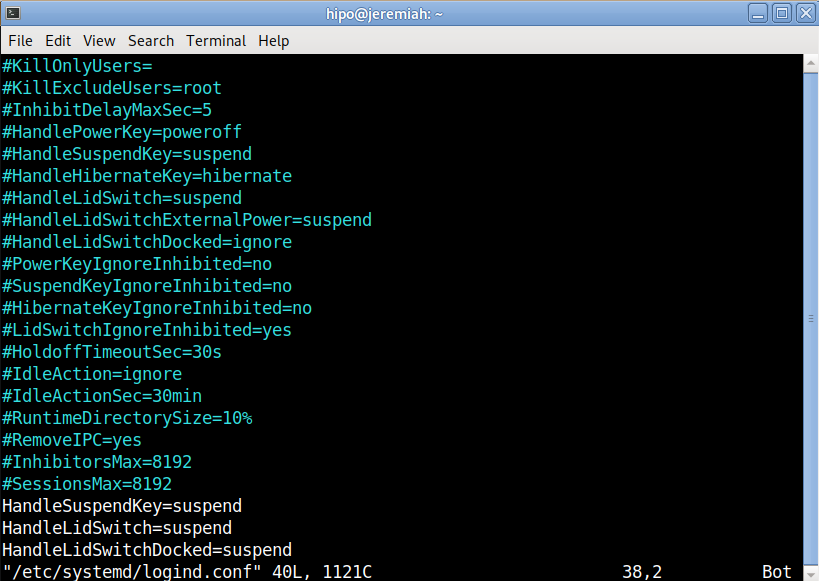
 

systemd-logind-conf-enable-suspend-sleep-on-laptop-lid-screen-close-linux

Save the file and to make systemd daemon reload restart the PC, even though theoretically systemd can be reloaded to digest its new /etc/systemd/logind.conf with:


# systemctl daemon-reexec


3. Assure yourself the Power Management LID setting of the Desktop Graphical User Interface are set to SUSPEND on close


I use MATE Desktop environment as it is simplistic and quite stable fork of GNOME 2.0, anyway depending on the GUI used on the Linux powered laptop e.g. GNOME / KDE Plasma / XFce etc. make sure the respective
 

Control Panel -> Power Management


settings are set to Force the Laptop Screen LID SUSPEND on Close.

Below is how this is done on MATE:
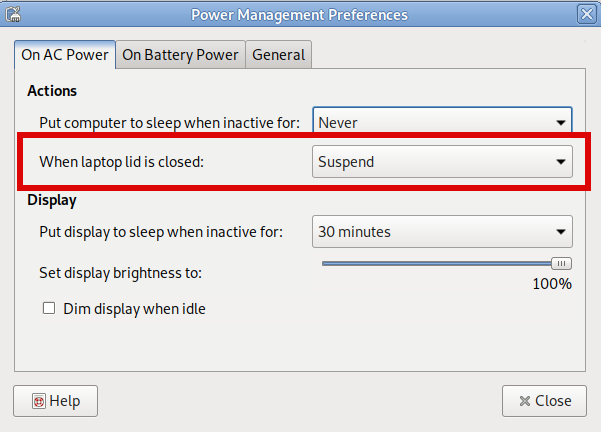
power-management-preferences-when-lid-is-closed-MATE-on-AC-power

power-management-preferences-when-lid-closed-on-battery-suspend

That's all folks, now close your Laptop and enjoy it going to sleep, open it up and get it awaked 🙂 Cheers !