Posts Tagged ‘tell’

How to tell yum to pick up a missing package from a local directory when updating

Wednesday, May 20th, 2026

When maintaining older RHEL, CentOS, AlmaLinux, Rocky Linux OS (legacy) installs, or HA cluster systems, you may (and will perhaps) occasionally hit RPM dependency problems during updates because a required package is missing from the currently enabled repositories.

One common scenario you mighty face is when the required missing RPM exists in another repository or on local storage, but YUM/DNF does not automatically pick it up, due to mismanaged central repositories, broken proxies or even OS package release bugs.

In this article shows how to solve these dependency issues by using local RPM directories and temporary repositories.

Here is a typical Error example:

# yum update

  • Updating Subscription Management repositories.
  • Unable to read consumer identity
  • This system is not registered with an entitlement server.
  • You can use subscription-manager to register.

The Error faced is:

# yum update

Last metadata expiration check: 0:00:20 ago on Tue 19 May 2026 11:15:32 AM CEST.

Problem: cannot install the best update candidate for package corosync-3.1.8-1.el8.x86_64

  – nothing provides corosynclib(x86-64) = 3.1.8-1.el8_10.1 needed by corosync-3.1.8-1.el8_10.1.x86_64 from rhel-8-rhsm-ha

(try to add '–skip-broken' to skip uninstallable packages or '–nobest' to use not only best candidate packages)


Here as you can read from the error:

corosync update is available but the currently enabled repositories do not provide it, as the required package corosynclib exists elsewhere.

This often happens for reasons like

  • Partially mirrored REPO systems,
  • Network disconnected environments,
  • On expired RHEL OS subscription,
  • or migrated CentOS / RHEL (physical systems on another network or migrated VMs to another DC),
  • Custom (old) EOL HA cluster setups.
  • etc.


The missing RPM packages work around

There areat least  4 ways to fix YUM / DNF missing RPM packages:

  1. Install the RPM directly
  2.  Create a temporary local repository
  3. Add another repository dynamically
  4. Use –repofrompath / Use –nobest as a fallback workaround (Not recommended)

1. Install the missing RPM directly from local file copy 

If you already have the required package downloaded:

# yum install /root/packages/corosynclib-3.1.8-1.el8_10.1.x86_64.rpm

Try update retry:

# yum check-update

# yum update

YUM will now resolve dependencies successfully.

2. Create a Local Repository and put the missing package in

This is the cleanest solution if you maintain multiple RPMs.

a)  Create Directory

# mkdir -p /root/localrepo

b) Copy RPMs to localrepo

# cp corosynclib-*.rpm /root/localrepo/

c) Install createrepo

# yum install createrepo

d) Generate repo Metadata


This is done with createrepo command the command is provided by a package RPM package “createrepo_c” so if you have it missing you will have to install it (note in older RPM distros the cmd was provided by createrepo)

# createrepo /root/localrepo

Add Repository Definition

Create local.repo :

# vim /etc/yum.repos.d/local.repo

Add:

[local]

name=Local Repository

baseurl=file:///root/localrepo

enabled=1

gpgcheck=0

e.  Rebuild Cache and retry update again

# yum clean all

# yum makecache

Retry the update:

# yum update

YUM / DNF will automatically pull corosynclib from the local repository.

3. Use a temporary repository With –repofrompath

If you do not want permanent configuration files:

# yum –repofrompath=local,file:///root/localrepo \

    –enablerepo=local \

    update


This method is excellent for:

one-time fixes, for mass automation (fix wrong dependency on multiple servers), inside a rescue shells or if having to fix something offline on systems, that can’t be connected to the Internet.

4. Use another existing repository to pull the package from

If corosynclib exists in another disabled repository:

Check available repositories:

# yum repolist all

Then enable the required repository temporarily:

# yum –enablerepo=repo-name-corosync update

Or install directly:

# yum –enablerepo=repo-name-corosync install corosynclib

Then rerun the update.

Using –nobest yum option (not recommended) as cluster might break

Sometimes the newest package version has unresolved dependencies, while an older compatible package is still installable.

Try:

# yum update –nobest

This tells YUM/DNF not to insist on the newest possible package candidate.

This is often enough for partially synced repositories. But still this work around is not desirable as the HA cluster might break.

Note ! –skip-broken should not be used (a wrongly suggested “fix”)

The error message suggests:

# yum update –skip-broken

But this only skips the problematic package entirely.

!! Meaning it will most lilkely make corosync outdated, cluster nodes may become inconsistent, dependency issues remain unresolved.

Note ! For HA clusters and production systems, fixing the dependency properly is the right safe way to go.

On RHEL 8+, AlmaLinux 8+, Rocky Linux 8+, and Fedora having the package downloaded manually from a repo and using dnf is enough to have it installed:

# dnf install /root/packages/corosynclib*.rpm

or (if you have created a localrepo)

# dnf –repofrompath=local,file:///root/localrepo update

Closing Summary

Dependency resolution failures are often caused by repository inconsistencies rather than broken packages themselves. Trying work arounds without providing for the package manager the missing package will certainly lead to issues so try to abstain it at all costs.
If the missing RPM exists elsewhere, YUM and DNF can usually be guided to it by using the good old direct RPM install, using a temporary repository containing the package by enabling additional repo, using –repofrompath or taking a minute to prepare yourself a local repository and placing the missing package/s that should be enough to fix it.

Megaraid SAS software installation on CentOS Linux

Saturday, October 20th, 2012

With a standard el5 on a new Dell server, it may be necessary to install the Dell Raid driver, otherwise the OMSA always reports an error and hardware monitoring is therefore obsolete:

Previously, the megaraid_sys package was now called mptlinux

For this we need the following packages in advance:

# yum install gcc kernel-devel
Now the driver stuff:

# yum install dkms mptlinux
That should have built the new module, better test it:

# modinfo mptsas

# dkms status
After a kernel update it may be necessary to build the driver for the new version:

# dkms build -m mptlinux -v 4.00.38.02

# dkms install -m mptlinux -v 4.00.38.02

Fix Mac OS X camera problems – Tell which application is using Mac OS X builtin Camera

Sunday, September 16th, 2018

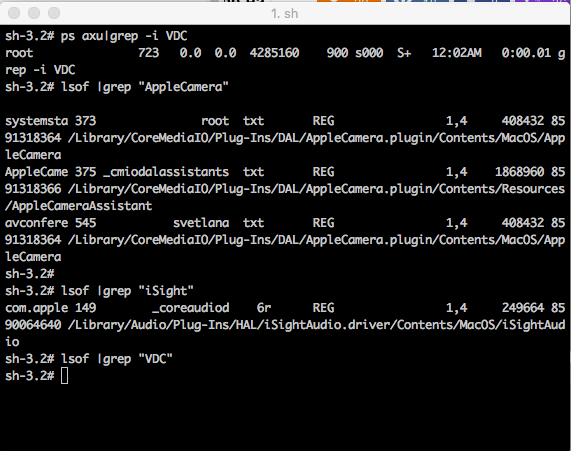
https://www.pc-freak.net/images/macosx-check-what-process-is-using-camera-screenshot
It is a common problem on Mac OS X notebooks (MacBook Air , MacBook Proc)  with builtin Video Camera to have issues with Camera in Facetime, Skype and other applications which use it.

Considering that the Camera is physically working on the Mac (it did not burn etc.) and it stooped working suddenly (is not detected by Mac OS applications which support it), the most common cause for that is the fact that another application running on the system is using it.
With the spread of spyware and malware that can easily hit your computer by exploiting Javascript bugs in browser intepreter (Firefox, Chrome, Chrome) it is not impossible that your Mac PC got infected with a kind of WebCam spy software that keeps your Video Camera active all time.

Webcam spying is a real issue of today so to secure yourself partially you can place Oversight App to get notifications when an application starts using Mac's Webcam or audio.

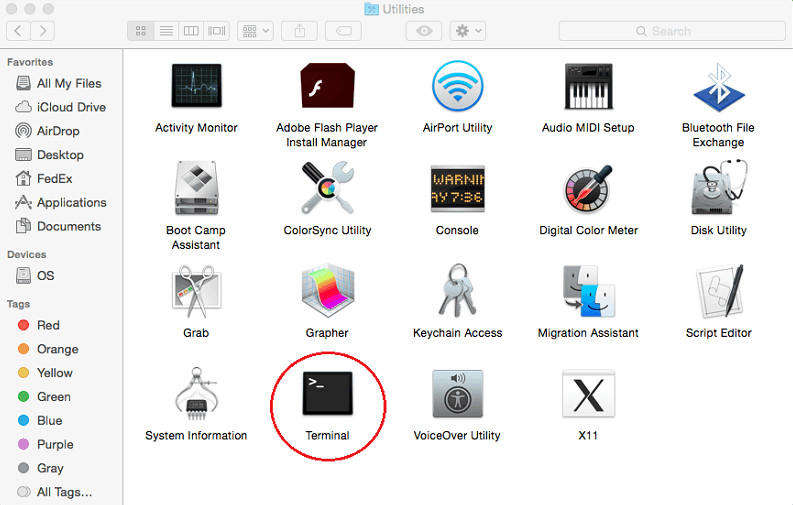
Open Finder and run Terminal to check whether the Web Camera is used by some of the Mac running processes.


Applications -> Utilities -> Terminal


macosx-utilities-terminal-osx-screenshot


MacBook-Air:Volumes root#  lsof | grep "AppleCamera"


You should see one or more results. If you don’t see any results, try running the following commands as well.
One of the below commands may be necessary if you’re using an older version of macOS.


MacBook-Air:Volumes root#  lsof | grep "iSight"


MacBook-Air:Volumes root#  lsof | grep "VDC"


If VDCAssistant process shows running kill it.
 

MacBook-Air:Volumes root#  killall -9 VDCAssistant


https://www.pc-freak.net/images/macosx-check-what-process-is-using-camera-screenshot

You can also check whether the Mac Camera is being detected by Mac OS with system_profiler command (this is Mac's equivalent of Linux's lspci / lsusb / lshw / dmidecode for more on the topic you can check my previous article Get hardware system info on Linux etc.)
 

/usr/sbin/system_profiler


   Type8Camera::12.781 system_profiler[1075:84585] Exception NSInvalidArgumentE
      Version: 10,1
      Obtained from: Apple
      Last Modified: 13.12.2017, 9:34
      Kind: Intel
      64-Bit (Intel): Yes
      Signed by: Software Signing, Apple Code Signing Certification Authority, Apple Root CA
      Location: /System/Library/Image Capture/Devices/Type8Camera.app
      Get Info String: 10.1, © Copyright 2002-2014 Apple Inc. All rights reserved.

    Type5Camera:

      Version: 10,1
      Obtained from: Apple
      Last Modified: 13.12.2017, 9:34
      Kind: Intel
      64-Bit (Intel): Yes
      Signed by: Software Signing, Apple Code Signing Certification Authority, Apple Root CA
      Location: /System/Library/Image Capture/Devices/Type5Camera.app
      Get Info String: 10.1, © Copyright 2001-2014 Apple Inc. All rights reserve

.

    Type4Camera:

      Version: 10,1
      Obtained from: Apple
      Last Modified: 13.12.2017, 9:34
      Kind: Intel
      64-Bit (Intel): Yes
      Signed by: Software Signing, Apple Code Signing Certification Authority, Apple Root CA
      Location: /System/Library/Image Capture/Devices/Type4Camera.app
      Get Info String: 10.1, © Copyright 2001-2014 Apple Inc. All rights reserved.

    PTPCamera:

      Version: 10,1
      Obtained from: Apple
      Last Modified: 13.12.2017, 9:34
      Kind: Intel
      64-Bit (Intel): Yes
      Signed by: Software Signing, Apple Code Signing Certification Authority, Apple Root CA