
Posts Tagged ‘time synchronization’

Check and Fix: “w32tm /query /source – The service has not been started” (Windows Time Service Error)

Thursday, February 12th, 2026

windows-logo-fix-windows-time-server-synchronization-error-w32tm

Some people are still forced to run Windows 10 due to hardware limitations on Legacy desktop PCs and Laptops as Windows 11 does not support all hardware. Hence the Windows Automatic Time Synchronization service might not have been started properly (is failing) and due to that the system clock might be slowing down or up from the actual time. This is a rare issue you might encounter but if you're physically situated on a place with very slow internet connection and / or on an 10 years+ old Gamer PC with Windows 10 you might encounter it under some specific unlucky circumstances combination, like very slow internet or using some kind of damaged windows due to failed Windows updates or due to running some unlicensed copy of Windows (which you should not!) etc.
Perhaps Windows time synchronization issues miight be caused  due to BIOS / UEFI time setting misconfiguration causing the PC clock to be back in time with minutes / hours  or in future mis-synchronized.
This perhaps could could happen even on more modern 356 Domain connected PCs / notebooks running on modern Windows 11?

In this article I'll give you an easy way how to resolve Windows Clock (Timing) issues by running few standard Windows commands in
Windows Administrator Prompt (elevated) cmd.exe line:

Run cmd.exe as Administartor: and try to get information on the configured time server:

sc query w32time

Usually that won't produce a good result if your clock is not properly synching with Windows Time server via the w32time service, to further debug run cmd:

w32tm /query /source

If you run the command:

and receive the error:

The following error occurred: 
The service has not been started. (0x80070426)

it means the Windows Time (W32Time) service is not running on your system.

This service is responsible for synchronizing your computer’s clock with an internet time server or domain controller. Without it, time sync will not work properly.

Why This Error Happens

The error usually appears when:

  • The Windows Time service is disabled

  • The service was stopped manually

  • System policies disabled time synchronization

  • The PC was recently restored or cloned

Below is how to fix it quickly.

Solution 1 : Start the Windows Time Service

Open Command Prompt as Administrator and run:

net start w32time

After it starts successfully, verify the time source:

 
w32tm /query /source

Solution 2: Set the Service to Start Automatically

If the problem keeps happening after reboot, set the service startup type to Automatic:

sc config w32time start= auto
net start w32time

Note: There must be a space after start= .

Solution 3: Re-register the Windows Time Service

If the service fails to start, try re-registering it:

w32tm /unregister
w32tm /register
net start w32time

Then force time synchronization:

w32tm /resync

Solution 4: Configure an NTP Server Manually

If no time source is configured, set one manually:

w32tm /config /manualpeerlist:"time.windows.com,0x8" \
/syncfromflags:manual /update
net stop w32time
net start w32time
w32tm /resync

You can also use other NTP servers such as for example:

  • pool.ntp.org

  • time.google.com

Alternative: Start the Service via Services Console services.msc

  1. Press Win + R

  2. Type services.msc

  3. Find Windows Time

  4. Set Startup type to Automatic

  5. Click Start

Finally Check time server syncs fine

After fixing the issue, confirm everything works:

 w32tm /query /status 
w32tm /query /source

If a valid NTP server or domain controller is displayed, the issue is resolved.

Monitoring chronyd time service is synchronized, get additional time server values with Zabbix userparameter script

Monday, March 21st, 2022

monitoring-chronyc-time-server-synchronization-zabbix-logo

If you''re running a server infrastructure and your main monitoring system is Zabbix. Then a vital check you might want to setup is to monitor the server time synchronization to a central server. In newer Linux OS-es ntpd time server is started to be used lesser and many modern Linux distributions used in the corporate realm are starting to recommend using chrony as a time synchronization client / server.

In this article, I'll show you how you can quickly setup monitoring of chronyd process and monitoring whether the time is successfully synchronizing with remote Chronyd time server. This will be done with a tiny one liner shell script setup as userparameter It is relatively easy then to setup an Action Alert


1. Create userparameter script to send parsed chronyd time synchronization to Zabbix Server

chronyc tracking provides plenty of useful data which can give many details about info such as offset, skew, root delay, stratum, update interval.

[root@server: ~]# chronyc tracking
Reference ID    : 0A32EF0B (fkf-intp01.intcs.meshcore.net)
Stratum         : 3
Ref time (UTC)  : Fri Mar 18 12:42:31 2022
System time     : 0.000032544 seconds fast of NTP time
Last offset     : +0.000031102 seconds
RMS offset      : 0.000039914 seconds
Frequency       : 3.037 ppm slow
Residual freq   : +0.000 ppm
Skew            : 0.023 ppm
Root delay      : 0.017352410 seconds
Root dispersion : 0.004285847 seconds
Update interval : 1041.6 seconds
Leap status     : Normal

[root@server zabbix_agentd.d]# cat userparameter_chrony.conf 
UserParameter=chrony.json,chronyc -c tracking | sed -e s/'^'/'{"chrony":[“‘/g -e s/’$’/'”]}'/g -e s/','/'","'/g
[root@server zabbix_agentd.d]#

The -c option passed to chronyc is printing the chronyc tracking command ouput data in comma-separated values ( CSV ) format.

2. Create Necessery Item key to get chronyd processes and catch the userparameter data


  • First lets create a an Item key to calculate the chronyd daemon proc.num
    proc.num – simply returns the number of processes in the process list just like a simple
    pgrep servicename command does.
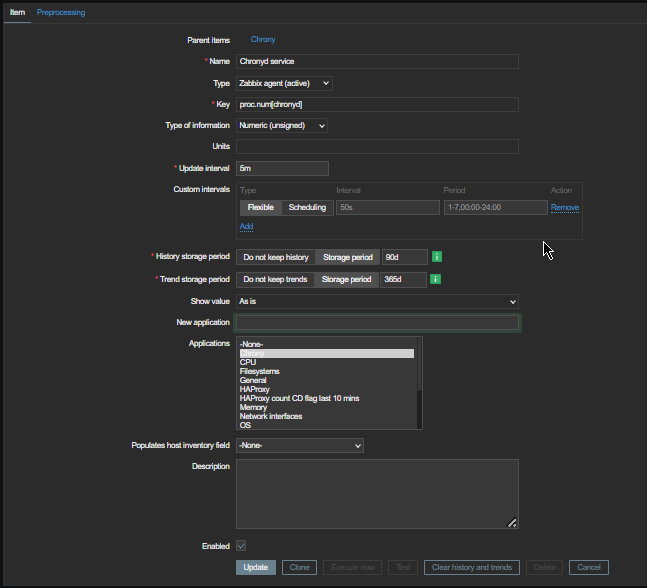

monitroing-chronyc_zabbix_item_report_to-zabbix

Second lets create the Item for the userparameter script, the chrony.json key should be the same as the key given in the userparameter script.
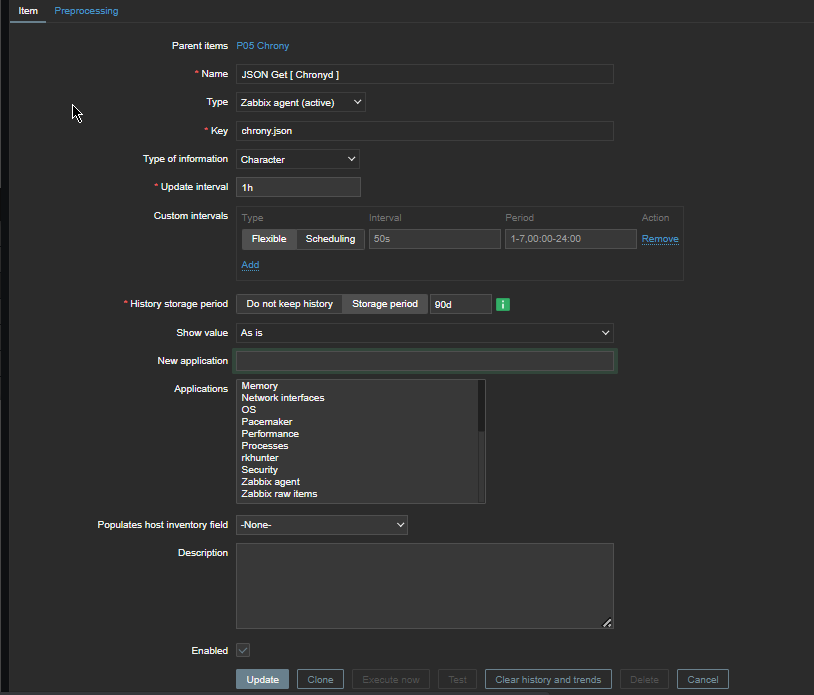
obtain-chronyc-statistic-variables-from-remote-chronyd-to-zabbix-windows

Create Chrony Zabbix Triggers 
 

Expression 

{server-host:proc.num[chronyd].last()}<1


will be triggered if the process of chronyd on the server is less than 1


chronyc_monitoring_process-is-not-running-screenshot

Next configure

{server-host:chrony[Leap status].iregexp[Not synchronised) ]=1


to trigger Alert Chronyd is Not synchronized if the Expression check occurs.
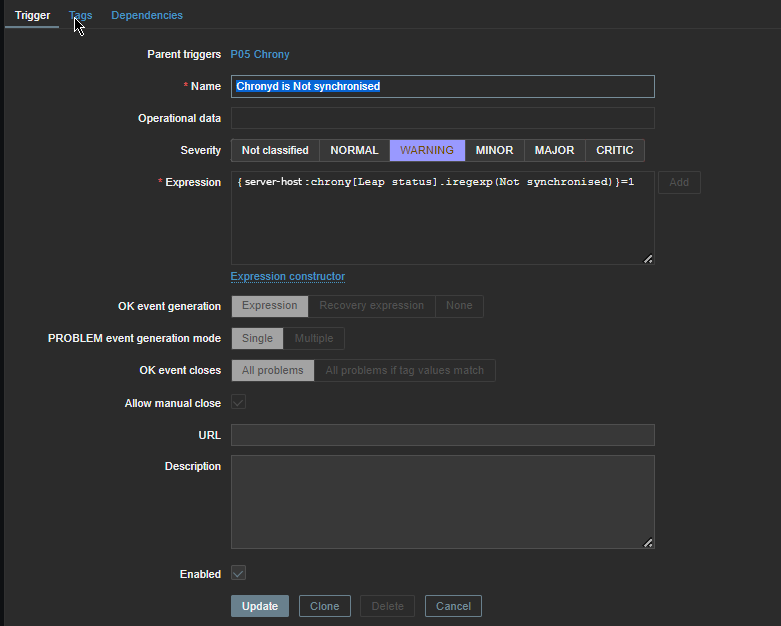
chronyd-is-not-synchronized-trigger-iregexp

Reload the zabbix-agent on the server
 

To make zabbix-agent locally installed on the machine read the userparameter into memory  (in my case this is zabbix-agent-4.0.28-1.el8.x86_64) installed on Redhat 8.3 (Ootpa), you have to restart it.

[root@server: ~]# systemctl restart zabbix-agent
[root@server: ~]# systemctl status zabbix-agent

● zabbix-agent.service – Zabbix Agent
   Loaded: loaded (/usr/lib/systemd/system/zabbix-agent.service; enabled; vendor preset: disabled)
   Active: active (running) since Thu 2021-12-16 16:41:02 CET; 3 months 0 days ago
 Main PID: 862165 (zabbix_agentd)
    Tasks: 6 (limit: 23662)
   Memory: 20.6M
   CGroup: /system.slice/zabbix-agent.service
           ├─862165 /usr/sbin/zabbix_agentd -c /etc/zabbix/zabbix_agentd.conf
           ├─862166 /usr/sbin/zabbix_agentd: collector [idle 1 sec]
           ├─862167 /usr/sbin/zabbix_agentd: listener #1 [waiting for connection]
           ├─862168 /usr/sbin/zabbix_agentd: listener #2 [waiting for connection]
           ├─862169 /usr/sbin/zabbix_agentd: listener #3 [waiting for connection]
           └─862170 /usr/sbin/zabbix_agentd: active checks #1 [idle 1 sec]

Warning: Journal has been rotated since unit was started. Log output is incomplete or unavailable.


In a short while you should be seeing in the chrony.json key History data fed by the userparameter Script.

In Zabbix Latest data, you will see plenty of interesting time synchronization data get reported such as Skew, Stratum, Root Delay, Update Interval, Frequency etc.
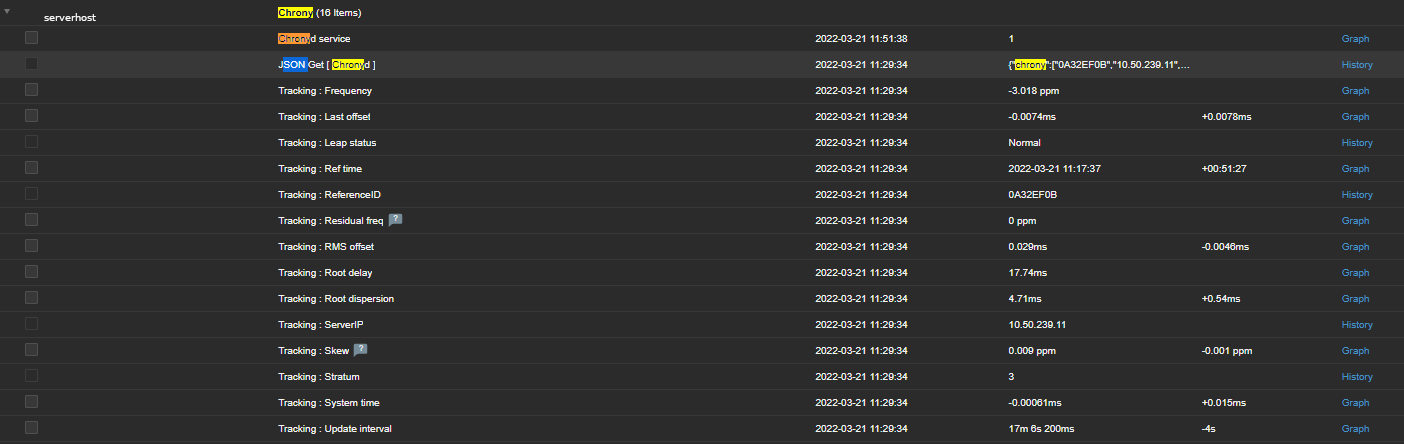
chronyd-zabbix-reported-time-synchronization-offset-leap-residual-freq-root-delay-screenshot

To have an email Alerting further, go and setup a new Zabbix Action based on the Trigger with your likings and you're done. 
The tracked machine will be in zabbix to make sure your OS clock is not afar from the time server. Repeat the same steps if you need to track chronyd is up running and synchronized on few machines, or if you have to make it for dozens setup a Zabbix template.