Posts Tagged ‘XFCE’

Why modern Linux systems feel Slow and how to Speed it up. Common RAM, CPU, and performance Linux problems in 2026 explained

Monday, May 18th, 2026

For years Linux we the Linux users proudly mocked Windows for bloated resource usage and that was a reason for many enthusiasts like me to start in the Linux realm.
There used to be the good old times where, lightweight distributions running comfortably inside 128MB of RAM were once common, and old computers and the hackers good old ThinkPads series were perfect for becoming a computer professional.

Fast-forward trip to 2026 and many modern GNU / Linux desktop's resource hunger has topped UP and a typical GUI environment such as Gnome is consuming as minimum 2 GB of RAM and often  4GB of RAM immediately after enters through the Login manager and machine. So many of the old computers if even running for 7-8 years and served well once updated or reused with Linux on a fresh install  prformance feels really bad. There of course work arounds to that as there are distributions such PuppyLinux / Tiny Core Linux / Linux Lite / Lubutuntu and even multiple articles online suggesting on how to place an ordinary Debian on Ubuntu and optimize it to work better on older hardware but still this article might be of help not only for old school Linux fans who install on old harware but also for sysadmins who has to deploy and install brand new Linux distributions and want to squeeze best of performance from the machine and make it as minimimalistic as possible in order to reduce the number of problems that might occur for system management.

So What happened, to make Linux performance degrade so dramatically over last 15 years ?

Old Hardware feels Slower Even With Linux

People often install Linux expecting miracles on ancient hardware.

Modern workloads assume:

  • SSD storage
  • multiple CPU cores
  • AVX instructions
  • GPU acceleration
  • large memory pools

Even lightweight Linux distributions struggle when rendering modern web applications on decade-old CPUs.

A 2007 machine browsing modern JavaScript-heavy websites experiences a fundamentally different workload than it did originally.

Web site use became computationally expensive.


Modern Linux Is Carrying the Weight of the development of Tech and Internet industry

A contemporary Linux desktop is no longer just:

  • X11
  • a window manager
  • a browser
  • a terminal emulator

Modern systems now run dozens of background services (as people run into complexity more and more instead of minimalism). Even a basic Linux install often runs by default things such as:
telemetry collectors, hardware abstraction layers, sandboxing frameworks, package management daemons, web server management platforms, indexing systems, GPU compositors, browser engines that resemble miniature operating systems and even with some specific distros embedded containers.

A typical desktop session environment on Linux today often includes as a base a bunch of software that is not always necessery such as:

  • systemd
  • dbus-daemon
  • pipewire
  • wireplumber
  • NetworkManager
  • xdg-desktop-portal
  • gvfsd
  • tracker-miner
  • udisksd
  • polkitd
  • bluetoothd
  • ModemManager
  • cupsd
  • flatpak-session-helper

Many younger users won't  never notice the burden of having those services running all time on the hardware as hardware today is mostly powerful and modern PC and notebooks often ship with 16GB or even some gaiming machines have 32 GB of memory.

As the default amount of memory on a laptop PC has become so abundant as 16GB RAM has become  "normal / standard ",  so software developers stopped aggressively optimizing memory consumption, plus the inclusing of AI vibe coding today and the abundant resource makes things with program optimization even more bloated.

The result of all this is more and more software entropy (the tendency of software systems to become more disorganized, complex, and harder to maintain over time).

The older UNIX philosophy no longer remembered by newer developers is completely forgotten. The old unix thinking was "Do one thing well.",
the new is "use everything no matter the efficiency if that would save you time"

As a result modern desktop applications instead ship entire browser engines for  simple things as displaying buttons.
This is exactly where Linux desktop gets heavily loaded and cause for whole system to work sluggish even on newer hardware. 
Very large part of those ineffiicient developed is caused by Electron:

Electron Framework for building Desktop apps worsened Linux performance

One of the largest reasons modern Desktop Linux / Windows systems is Electron (a framework for building desktop applications using JavaScript, HTML, and CSS).

Electron bundles essentially with:

  • Chromium
  • Node.js
  • V8 JavaScript engine
  • application runtime
  • UI rendering engine

and this is used in …inside many of the third party applications, which unfurtunately has to be used also on Linux, few examples that has heavy electron use are:

  • Discord client
  • Slack client
  • VS Code
  • Element 
  • Spotify
  • Visual Studio Code
  • Discord
  • Signal Desktop
  • Postman
  • Countless App launchers part of extra packages that one needs to use on Linux Desktop

…are frequently separate Chromium instances or use large part of chromium libs pretending to be native applications.

1. Finding top resource hungry Apps on Linux

To get a list of most memory heavy Apps on a Linux system:

# ps aux –sort=-%mem | head


You may discover that “lightweight desktop apps” and background services are consuming much more RAM than imagined.

Measuring Real Resource Usage Properly

Many users misunderstand Linux memory reporting.

Linux aggressively uses RAM for:

  • filesystem cache
  • buffers
  • inode caching

Note! Unused RAM is wasted RAM.

# free -h

Focus on:

  • available memory
  • swap activity
  • sustained pressure

Better command tools to optimize OS include:

htop
btop
smem
iotop
vmstat

Systemd  Useful but running default unused services

Mentioning systemd still starts wars on Linux forums.

Reality is nuanced.

Systemd solved real problems:

  • dependency management
  • predictable service startup
  • cgroup integration
  • journal logging
  • parallel boot
  • service supervision

However, it also dramatically expanded the scope of PID 1 responsibilities.

Leading to many Linux-es to now launch numerous services laying around, not known by the users and never (intially needed).

If you want to check and optimize systemd ecosystem to improve performance

2. Check systemd OS boot chain and disable unnecessery services

# systemd-analyze blame

And inspect active systemd units:

# systemctl list-units –type=service

Many Linux distributions has by default setup of unused:

  • printer services on systems without printers
  • modem services on desktops without modems
  • Bluetooth stacks on machines without Bluetooth devices
  • indexing daemons nobody uses

Disable unnecessary services carefully:

sudo systemctl disable –now ModemManager
sudo systemctl disable –now bluetooth
sudo systemctl disable –now cups


This alone will reduce memory usage and boot time.
A common set of unused Apps on Desktop and servers goes like this:
 

# Printing system (disable if you never use printers)

# systemctl disable –now cups.service cups-browsed.service

# Bluetooth support (disable if you don’t use Bluetooth devices)

# systemctl disable –now bluetooth.service

# Mobile broadband / modem support (disable if no 4G / 5G dongles)

# systemctl disable –now ModemManager.service

# Network discovery (AirPrint, LAN service discovery; disable if not needed)

# systemctl disable –now avahi-daemon.service

# Location services for apps/browser geolocation (disable if not used)

# systemctl disable –now geoclue.service

# Ubuntu crash reporting services (safe to disable for privacy/no reporting)

# systemctl disable –now apport.service whoopsie.service

# Desktop search indexing (GNOME file search; disable if you don’t use fast search)

# systemctl disable –now tracker-miner-fs.service tracker-extract.service tracker-store.service


For deeper analysis check out systemd cg groups use:

# systemd-cgtop

Or inspect slab allocator usage:

slabtop


3. Avoid using Flatpak and Snap for extra Apps

Flatpak and Snap Increase Isolation, provides many modern Apps that are not default shipped by Debian / Ubuntu / Fedora OS  etc (Deb / RPM) repos and keeps packages easily at latest but also puts great worthless overhead on system.
 

a) Modern packaging systems like Flatpak and Snap (Pros) prioritize:

  • sandboxing
  • dependency isolation
  • reproducibility
  • cross-distribution compatibility

This is good for security, however it comes at a cost.

b) Use of Flatpak and Snap pack. managers downsides

Flatpak applications frequently duplicate:

  • runtimes
  • libraries
  • graphics stacks
  • helper services

Snap packages compress applications into loop-mounted filesystem images which increase startup overhead and general memory fragmentation.

Inspect mounted Snap filesystems

# mount | grep snap


Inspect Flatpak runtimes:

# flatpak list


Considering that, traditional native packages remain significantly leaner in many cases.

4. Use Minimalistic GUI Desktop environment to reduce resource and use of complexity on Linux

Being mimimalist nowadays in a world of abundancy is considered wrong. However minimalism has its well known provent benefits. 

Wayland Is Efficient,  but X11 env with Minimalist GUI is better

Wayland itself is not inherently bloated.

However, modern compositors increasingly rely on:

  • GPU acceleration
  • animation pipelines
  • texture buffering
  • fractional scaling
  • HDR rendering
  • Vulkan / OpenGL abstractions

This improves:

  • smoothness
  • latency
  • security
  • multi-monitor support

…but increases baseline GPU and memory usage and still for performance cautious desktop users it is most likely not the best option.

For example, try to compare CPU / Mem / Disk use of:

  • Openbox on X11
  • KDE Plasma on Wayland with effects enabled

The performance difference is dramatic.


If you want to be a Linux Minimalist (benefit) and get astonishingly low resource usage try:

  • dwm
  • i3
  • bspwm
  • Openbox
  • Wmaker
  • XFCE
  • IceWM

Switching to one of those Linux ecosystem instead of the default heavy GNOME or KDE permits even further optimizations on Graphical environment level,  if users intentionally choose it. The downsides of that is twitching it will take you usually longer but if you setup one and the same desktop with the basic minimalist environment and you keep using it for daily work / development for years, invested time is worth.

5. Use browser extensions, habits or a lightweight  browser. 

Web browser a common source of slowness 

Web Browsers, became nowadays a fully featured Operating Systems. On many machines they are the largest consumers of RAM on Linux systems and on old computers main source of slowness. On older PCs try to use other small browser alternatives

A single browser tab may include:

  • isolated sandbox process
  • JavaScript runtime
  • GPU process
  • extension subsystem
  • video decoder
  • site isolation sandbox
  • service workers

a) Inspect Chromium process trees

# ps -ef | grep chromium

b) Inspect Firefox process trees

about:processes


A few “simple” tabs can easily consume several gigabytes.

The modern web itself is bloated:

  • gigantic JavaScript frameworks
  • endless analytics
  • autoplay video
  • AI scripts
  • tracking engines
  • real-time rendering

Shamefully, many websites today consume more RAM than entire operating systems from the early 2000s.

If you have to work on a PC with 4 or 8 GB with Linux maybe you can try to use a GUI browser only when necessery and for general reading and stuff use a minimalist version of browsers such as using a text / console web  browser and ones that are capable to support ncurses and javascript partially, a good candidate for a real console maniac or an old school hacker will be some of below:

  • Lynx (lightest, pure text)
  • w3m (text browser but supports javascripts partially)
  • Links / Links2 (fast, ultra-lightweight web browser works in both text and gui modes)
    NetSurf (graphical web browser built from scratch with its own independent layout and rendering engine, performs poor with javascript)
  • Browsh (can be often used instead of fully functional browser but buggy)

xlinks2-graphical-mode-lightweight-browser-linux

c) Use Lightweight Browsing Habits

Extensions matter enormously.

Block:

  • ads
  • trackers
  • autoplay
  • unnecessary scripts

uBlock Origin (free and open source browser block extension) alone can dramatically reduce CPU and RAM consumption.

Final words; the modern computing efficiency degredal

What a paradox, Modern hardware is unbelievably powerful, yet modern software consumes resources at almost the same rate hardware improves.

This phenomenon is partially explained by:abstraction layers, developer convenience, use of cross-platform frameworks, increased security isolation, the web technologies heaviness and reduced optimization pressure.

Even though the degredal in perforamance on old hardware, Linux itself remains extremely efficient at the kernel level.

The bloat largely exists and widens though in:

  • userland
  • desktop ecosystems
  • browser-centric software culture
     

The computing as we know it changed.

What once was: terminal-centric, native, lightweight,locally optimized, inter-dependent

turned over  last 10 years: browser-centricm, all time cloud-connected, sandboxed, abstraction-heavy, outer dependent

The good news is that GNU / Linux still gives users freedom, even though the freedom has reduced.

Even though the performance reduced,  Linux still remains one of the few environments where users retain meaningful control over their data and system complexity in the AI, Clouds era


Browse the web graphically in text console TTYs with w3m-img and links2 on Debian, Ubuntu, Fedora and CentOS Linux

Sunday, May 6th, 2012

links2 (links console graphics) www browser logo picture

Lately, I'm starting to use my tty consoles more and more. Most of the people should be probably aware of the existence of lynx, elinks and w3m text browsers enabling the console geeks to browse or debug web pages in plain text mode.

Anyhow, for people who did not used one of the aforementioned browsers to text brose the net I warmly suggest you give them a try. A good review on 'em is in one of my  previous post – Text mode console browsing with lynx, elinks, w3m and links text browsers

For people dedicated to only use console and text mode console on their Personal Computer, simply installing and using this text browsers will not allow you to view any images tags in the html.

Nowdays one of the reasons many people would decide not to use console for web is because they want to see pictures. Hence I believe by having the opportunity to have almost fully functional text browsing in Linux cosnole /  terminal many might choose not to bother with heavy resource consuming desktop browsers like Firefox, Google Chrome, Opera etc..

Another good reason why you might want to use a console browser instead of its Desktop resource monsters, would be improved efficiency of work. It is a well evident fact keyboard access to commands is always faster than mouse and GUI!

Besides that, I'm convinced there should be many hard core geeks out there, who still can happily live without Macromedia Flash ads and Videos in Web. For this group of users having support for graphical browsing in console is also a must.
Following my previous thoughts there should be many people who doesn't have a specific requirement for GUI programs but still use (mutt, ssh, vim, mpg321, zgv etc.).

I'm sure there are plenty of this people who do most of their work in text console and use the X windows server in conjunction with mimalistic graphical environment like (DropBox, XFCE …) for the one and only reason to view  pictures embedded in web pages.

I'm one of all this guys prior mentioned, keen on console tty browsing. Therefore while checking the available console browsers few days ago, I've stumbled on a text console w3m browser capable of displaying website with images in console called w3m-img.

w3m-img is displays pictures in web over a plain console tty or in X terminals (mlterm, xterm etc.).

Here is the description returned by apt-cache show w3m-img

debian:~# apt-cache show w3m-img|grep -i description -A 3
Description: inline image extension support utilities for w3m
w3m-img provides some utilities to support inline images for w3m
on terminal emulator in X Window System environments and Linux
framebuffer.

w3m-img doesn't rely on svgalib for displaying the pictures, but comes with its own written console image display & rendering library called w3mimgdisplay. – /usr/lib/w3m/w3mimgdisplay.

One w3m-img pre-requirement in order to be able to display pictures in plain text console ttys is to have the Linux kernel framebuffer enabled..

Actually, framebuffer is enabled by default on latest stable Debian and derivatives as well as on most other Linux releases as of time of writing.
Framebuffer is also active on other RPM based distros (Fedora, CentOS, SuSE) etc.

The Frambebuffer on or off is controlled via some directives added in grub or lilo configuration files – (depending on the installed boot loader).

Some people can only boot their PCs with the framebuffer kernel support switched off at boot time or the system will not boot Linux at all.
Unfortunately this unlucky ones, would not be able to use the picture rendering w3m-img capabilities but don't be desperate, there is hope 🙂

For people who can't run their Linux distro with a framebuffer kernel support enabled there is a custom hacked version of linksconsole text browser called links-graphic. links-graphic supports both console graphical text browsing using the framebuffer or alternatively svgalib as a console graphics render machine.

I used to be actively using links-graphics WWW browser quite often about 8 years ago and just remembering it brings me good memories of the good old console "hacking" years 🙂

Anyways, w3m-img packaged version is currently available for both rpm and deb based Linux distributions. Here is how to install on both.

1.Install and use w3m-img on Debian, Ubuntu, Mint Linux-es

debian:~# apt-get --yes install w3m-img
....

This should install w3m-img, if of course there is already no previous install of w3m package on the system.

In case you have the w3m deb installed, you will have to first remove the existing w3m installed version before installing the w3m-img package, otherwise you will probably end up with an installation conflict (at least I got such a dependency conflict while apt-getting). Probably the conflict would never occur if aptitude install w3m-img is used instead of apt ….

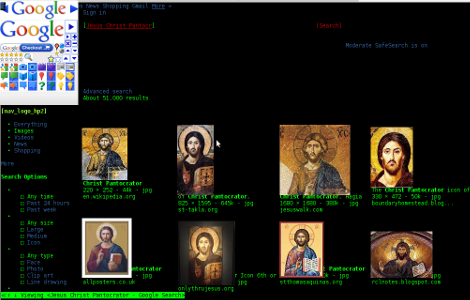
Usage of w3m-img is exactly the same as using the w3m text only browser version. Below is a screenshot example of w3m-img in action:

debian:~# w3m http://images.google.com
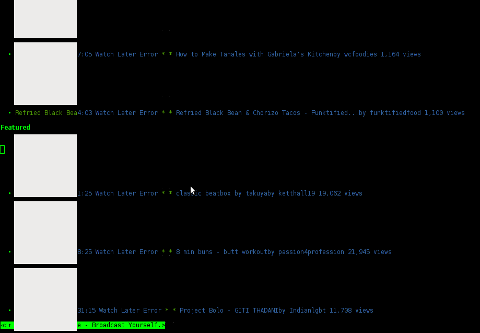
w3m-img text (console) browsing images.google.com screenshot

Jesus Christ Pantocrator Orthodox icon google image search screenshot Debian Squeeze Linux

As you can see in the upper screenshots w3m-img displays pictures pretty nice, whether even images.google.com search functionality works fine.

Generally IMHO a lot of pages looks cool with w3m-img.
Some elements placement during rendering, comes at odd positions but this is normal, since original w3m text browser doesn't have any support for Javascript 1 / 2.

For those people who would like to have both javascript basic support and images in a plain text console browsing you, again you will have to compile links2 WWW browser from source manually with svgalib support enabled.

2. Installing w3m-img to text-browse with images on Fedora, CentoS, RHEL, Redhat etc.

[root@centos ~]# yum -y install w3m-img
....

A very cool thing of w3m graphical console browser is it support  most major image formats including animated GIF files 🙂

The way animated GIFs are viewed is very old school, here is a notice extracted from README.img contained in the pack.
 

Notice
If you want to see GIF animation, please hit a suitable key, such
as 'h', 'l', etc., repeatedly, because a frame is rewritten
according to the re-drawing demand from w3m.
Some code in w3mimg/fb/fb.c was originally written by Mr. Yamasaki.
http://www.sainet.or.jp/~yamasaki/download/fb-sample.tar.gz

As one can read in order to see an animated GIF file with w3m you will have to keep pumping the h or l key or Enter key 😀 😀 😀 (like a nintendo game ain't it?)

Here is the also the complete list of Supported browser features mentioned in README.img
 

Support

* Display inline image (GIF,PNG,JPEG, etc.) on terminals
(xterm,rxvt, etc.) of X11 or Linux framebuffer device.
* Support inline image of img tag.
Support of attributes "width", "height", and "align".
* Direct display of image file which header is "Content-type: image/*"
* Support of

tag.
Support of attributes "shape" and "coords" of

tag.
* Support of an attribute "ismap" of img tag.
"w3m" adds coordinate of the cursor as ?, to url, and sends url.
* Support of an attribute "type=image" of img tag.
"w3m" sends coordinate of the cursor as .x=&.y=.
* Asynchronous loading of image files.
* Using cache of image file as pixmap.
* Support of GIF animation when use GdkPixbuf.

Something else which I find worthy to mention is the browser behaviour, whether a webpage has Adobe Flash .swf or .flv files embedded. If such files are contained in website source code, they will be simply ignored and the w3m keeps running stable (no strange flash crashes! hooray!).

While website with flash is opened in w3m, Adobe Flash's field on the screen shows either a blank rectangle or an empty square (depending on the site embedded flash banner dimensions and form).
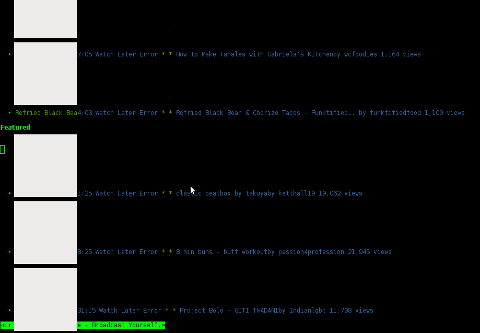
W3m-Img text web browser with picture viewing support adobe flash enabled youtube.com opened screenshot

Stability of w3m in opening flash website is something really nice. I say this because I still remember how terrible the situation with links with svgalib support compiled in used to be. I remember back in the day with links2 most "flash enabled" websites lead the browser to a ugly core dump.

3. Install and use links2 on Debian and derivatives Linux to browse in console graphically with javascript support

As aforementioned, there is a hacked version of links browser called links-graphics
This hacked version is available as a package within Debian, Ubuntu and presumably most if not all of the rest deb based Linux repos.

On Fedora and the other RPM family Linuces links-graphics, should be downloaded separately as rpm and installed and is inavailable through default rpm repositories.

On Debian distros links-graphics is available by installing links2.
debian:~# apt-get install --yes links2
....

Later to start links2 in graphics mode in lets say tty1 on a machine booted its kernel with framebuffer support, type:

debian:~# links2 -driver fb http://images.google.com

Actually links2 looks, way better in console than w3m but this is quite normal, as links is way more "user friendly GUI text browser".

For those, using their console ttys without framebuffer enabled you can alternatively run links2 with its svgalib graphics support like so:

debian:~# links2 -driver svgalib -mode 320x200x16 http://images.google.com
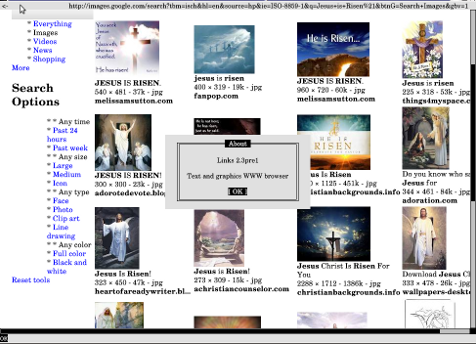
links graphics / xlinks images in X window on Debian GNU / Linux screenshot

Note that the svgalib driver is not working on my machine, as my Linux kernel framebuffer is already enabled. Probably if I want to use links2 through  svgalib I will have to reboot and boot machine with framebuffer kernel support switched off…

links2 also supports X window graphics and is a great for Graphical environment WWW browser substitute to CPU intensive Iceweasel / Firefox or Google Chrome.

Links2 can be also used as a default browser in X windows (GUI) with any graphic manager. In my view it is   perfect web browser  for scientists and people who does not need support for Adobe Flash Player or HTML5 standards.

To use links in XFCE or GNOME Desktop env, the quickest way is to prepare new Application Launcher to run command:

debian:~# links2 -g
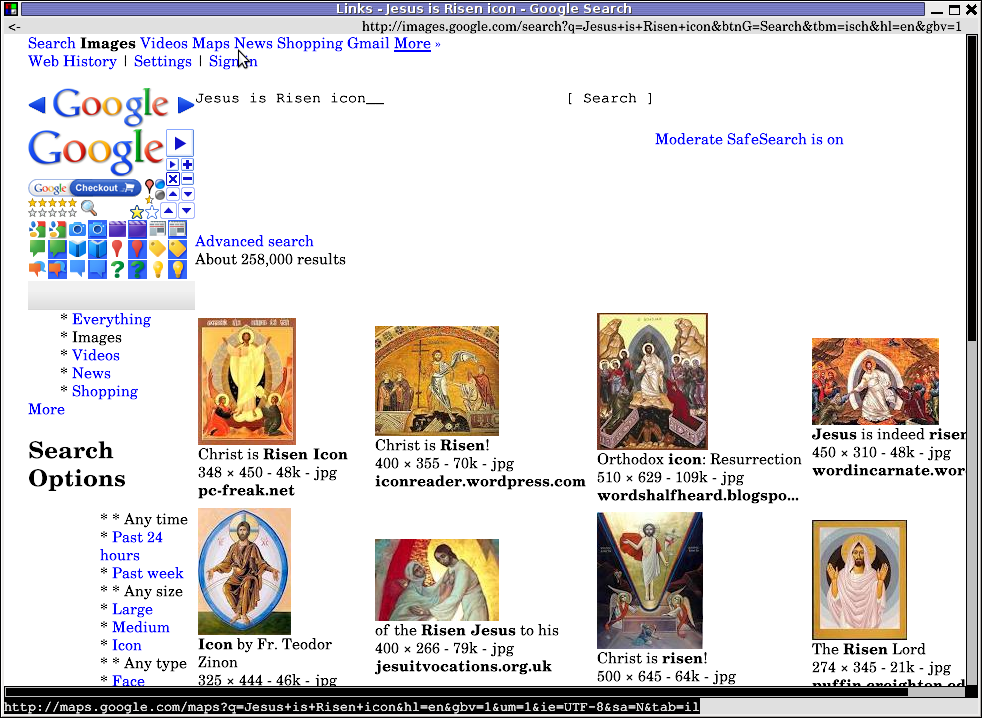
Google Images links2 graphics in GNOME desktop env screenshot

It is useful to use a quick alias to links -g in my ~/.bashrc in order to allow easier browsing from console by typing xlinks someurladdress.com

If you want to add this xlinks shell alias  exec:

debian:~# echo 'alias xlinks='links2 -g $1' >> ~/.bashrc

4. Install links with graphics console support on Fedora, CentOS and RHEL

[root@fedora ~]# cd /usr/local/src
[root@fedora src]# wget -q http://jakub.horky.net/rpm/links/links-2.1pre15-2/links-2.1pre15-2.i386.rpm
[root@fedora src]# rpm -ivh --nodeps links-2.1pre15-2/links-2.1pre15-2.i386.rpm
Preparing... ########################################### [100%]
Installing... ########################################### [100%]

If you get some errors with missing libraries after installing and launching links2, try to resolve them by manually linking them with ln cmd or look for the library package rpm versions and install them via yum. Another way is to fetch the links2 source from Links2 official website links.twibright.com and build from source.

Since the last time in 8 years ago I used links2,  it evolved a lot. The version now did not crash as before with flash websites are viewed.  Generally Links2 now is way more  stable.
To sum it up most people, will probably want to use Links2 for console graphical browsing as the speed and support for HTML and Javascript and web site formatting is way advanced than w3m-img

I haven't compared the speed of opening pages, but since w3m-img is html and graphics render is more simple than xlinks I suppose at some occasions w3m-img will be faster in site rendering.
However still links2 performs really light fast and its web page opening time is swift and more than good.. If xlinks opening performance is compared to most (if not all) traditional desktop browsers used nowdays Links2 will definitely beat them.

A good links2 application instead of a traditional desktop browser is also for people who aim at  improving website browsing time.

I haven't thoroughfully enough, researched on other text console grahic browser alternatives programs. If I miss something and you know amy other better ones please let me know.

Wish you a Happy Browsing 😉

Tools for finding files containing a string (recursively) in Graphical Enviroments (GNOME, KDE and XFCE) on GNU linux and FreeBSD

Monday, April 9th, 2012

1. Finding files containing a specific string with GNOME GUI tool gnome-search-tool

Default installation of GNOME version 2.x and 3.x is equipped with a tool called gnome-search-tool. The tool is used by default in the GNOME's file explorer program Nautilus. The quickest way to look for a certain text string across all the files located in a directory and show them is with nautilus's – find manager.

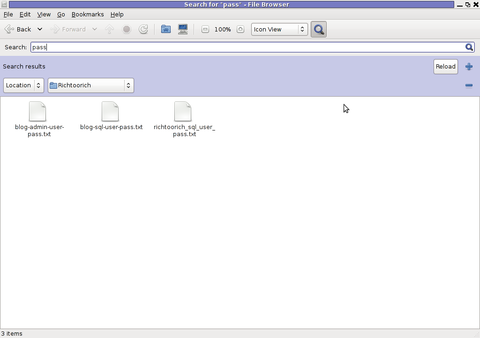
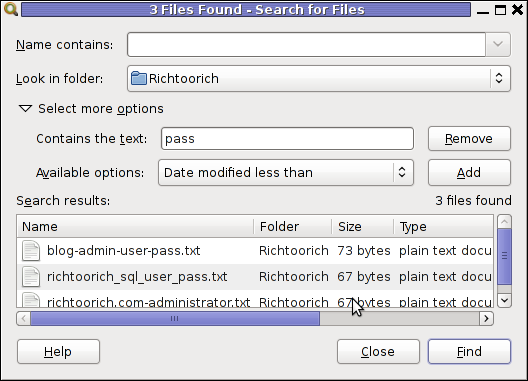
Below is a screenshot showing the gnome-search-tool embedded in nautilus Screenshot Search for pass string in GNOME nautilus File browser

Nautilus find uses gnome-search-tool program for its file search. Below is a screenshot showing the gnome-search-tool embedded in nautilus:

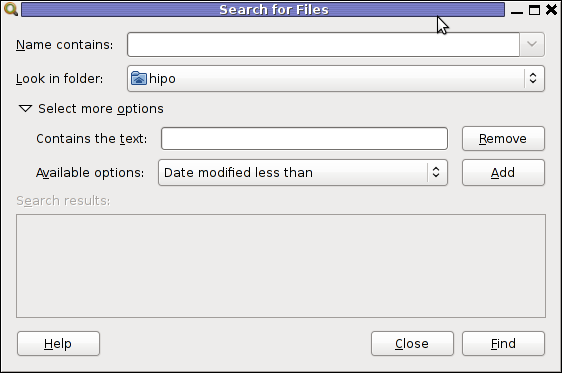
The gnome-search-tool can be also invoked through Gnome Run Application with ALT+F2 or directly run from terminal e.g.:

hipo@noah:~$ gnome-search-tool

gnome-search-tool screenshot find files by content recursively Debian GNU / Linux

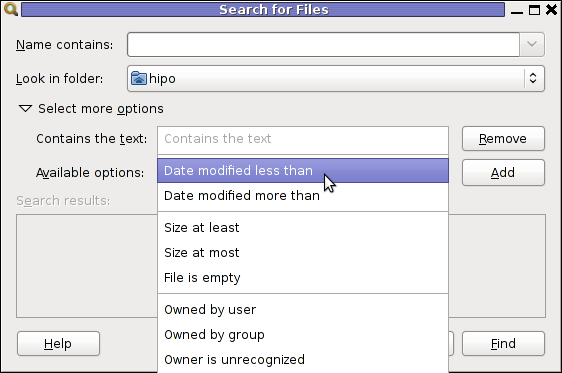
As you can see in below screenshot, gnome-search-tool has many available filter file search criterias.

gnome-search-tool available options screenshot Debian Linux

You see I wanted to look for my project passwords so typed in pass in Contains the text: field and pressed enter to simply look for this text in all my files in the look in folder RichtooRich
Screenshot 3 files found gnome search tool Linux screenshot

Actually gnome-search-tool offers plenty of more options than one might look for. With it one can easily make a combination of complex search critea (filters) and hence a very versatile Desktop file saerch tool. From testing it I can say it for sure more powerful program than MS Windows default file searching program called Find It – this is the program with the ( "dumb dog holing a magnifier" 🙂

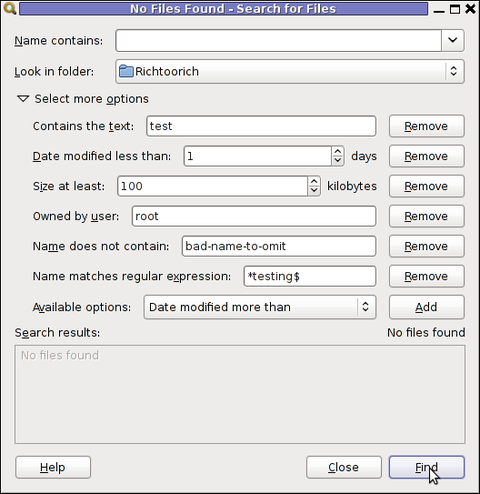
One can use the Add or Remove to Add single or various combination of filter criterias. For the sake of testing it, I've added a number of file search filters as you see in the shot below:

Linux graphical program for recursive file search gnome-search-tool - file search example screenshot

The search critias are not matched and therefore 0 files were found.
In case if you wonder how gnome-search-tool works? It is actually a GUI wrapper to Linux's Linux find command .

I wasn't complete sure if it uses find for the file search, so to check I run a one search and in in console ran:
 

hipo@noah:~$ ps axuwf|grep -i find
hipo 18213 2.0 0.0 25568 1276 ? S 23:55 0:00 find /home/hipo/Richtoorich ( -iname * -o -iname .* ) ! -type p -exec grep -i -I -c test {} ; -mtime -1 ( -size 102400 -o -size +102400 ) -user root ! -iname *bad\-name\-to\-omit* -print

You can see the filters set in gnome-search-tool are passed as command arguments to find.

2. Finding files containing a string recursively in KDE with kfind

For KDE users there is a handy little tool called Kfind. Kfind is less "search customizable" if it is compared to gnome-search-tool but it has advantage that its search options are way more "user friendly" / human readable 🙂

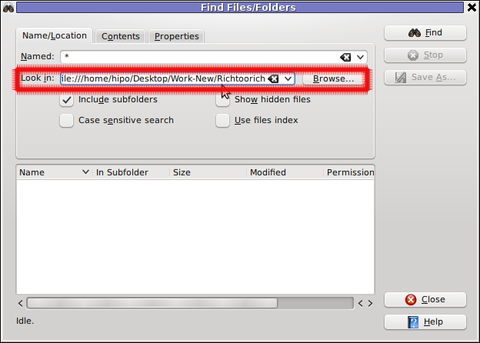
To use the tool to look in all files for explicit string fill in Look in: or browse to set the main directory where it will look for the string.

Screenshot find content in multiple files and folders recursively kfind kde programThen in the second Contents (tab) fill in the Containing Text: with the string to be looked for:
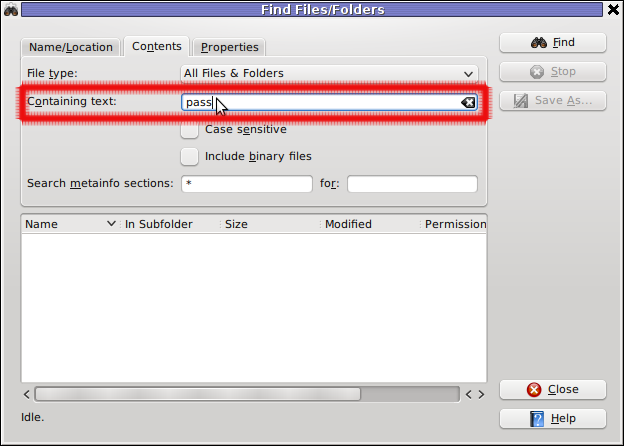
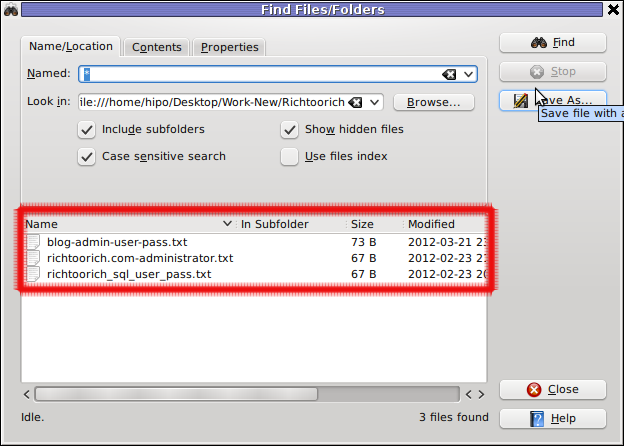
Kfind Recursive file search tool for Linux KDE graphic environment, input text field screenshot

Finally in the Names/Location tab, there are two other helpful search options – Show Hidden Files and Case Sensitive Search

Screenshot find content in multiple files and folders recursively kfind kde gui program

I'll be curious to hear if someone knows some other nice software easy and comprehensive to use for Linux / BSD. If you know a better file searcher for Linux than this kfind or gnome-search-tool please drop a comment.

Improve default picture viewing on Slackware Linux with XFCE as Desktop environment

Saturday, March 17th, 2012

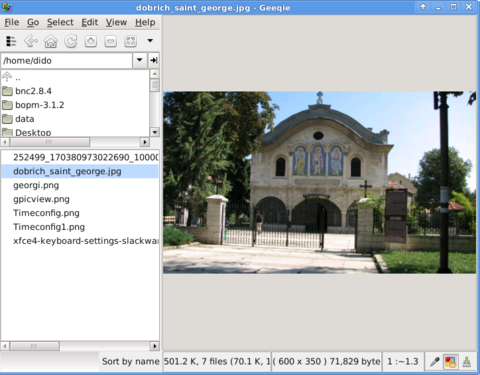
Default XFce picture viewer on Slackware Linux is GIMP (GNU Image Manipulation Program). Though GIMP is great for picture editting, it is rather strange why Patrick Volkerding compiled XFCE to use GIMP as a default picture viewer? The downsides of GIMP being default picture viewing program for Slackware's XFCE are the same like Xubuntu's XFCE risterroro, you can't switch easily pictures back and forward with some keyboard keys (left, right arrow keys, backspace or space etc.). Besides that another disadvantage of using GIMP are;
a) picture opening time in GIMP loading is significantly higher if compared to a simple picture viewer program like Gnome's default, eye of the gnomeeog.

b) GIMP is more CPU intensive and puts high load on each picture opening

A default Slackware install comes with two good picture viewing programs substitute for GIMP:
 

  • Gwenview

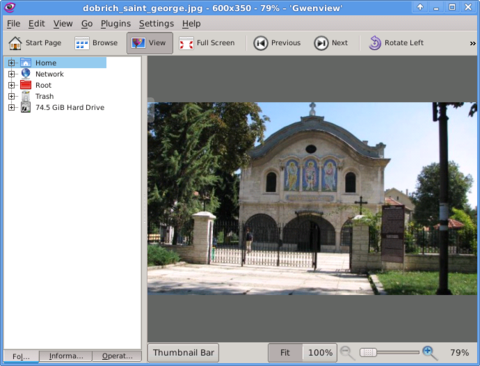
    Gwenview on Slackware Linux picture screenshot XFCE

  •  
  • Geeqie
  • Geeqie Slackware Linux Screenshot XFCE

    Both of the programs support picture changing, so if you open a picture you can switch to the other ones in the same directory as the first opened one.
    I personally liked more Gwenview because it has more intutive picture switching controls. With it you can switch with keyboard keys space and backspace

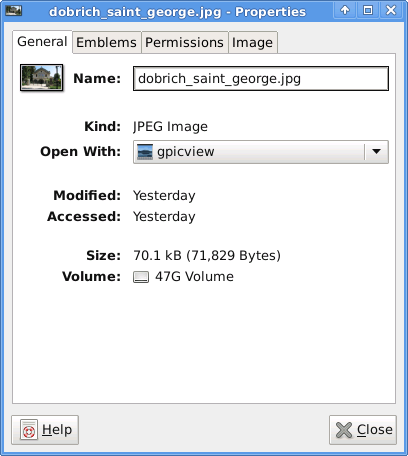
    To change GIMP's default PNG, JPEG opening I had with mouse right button over a pic and in properties change, Open With: program.

    XFCE4 Slackware Linux picture file properties window

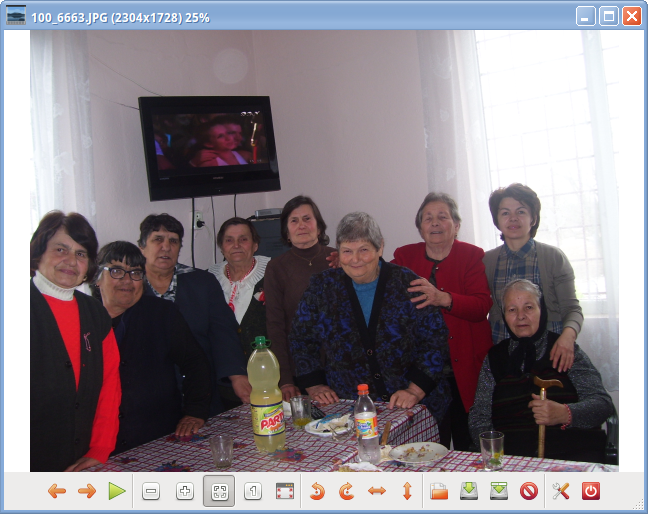
    If you're curious about the picture on on all screenshots, this is Church – Saint George (situated in the city center of Dobrich, Bulgaria).
    St. Georgi / St. George Church is built in 1842 and is the oldest Orthodox Church in Dobrich.
    In the Crimean War (1853-1856) the church was burned down and was restored to its present form in 1864.

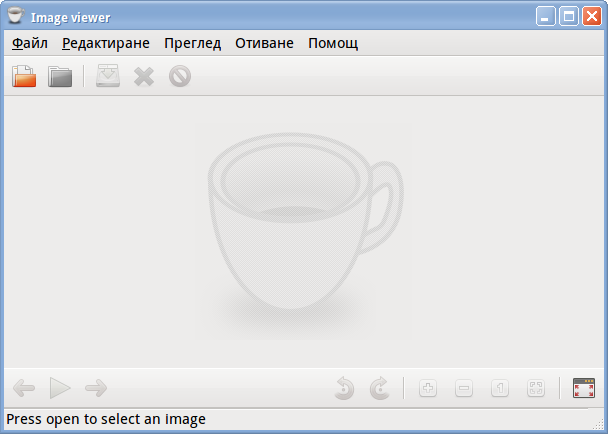
    gpicview is another cool picture viewing program, I like. Unfortunately on Slackware, there is no prebuild package and the only option is either to convert it with alien from deb package or to download source and compile as usual with ./configure && make && make install .
    Downloading and compiling from source went just fine on Slackware Linux 13.37gpicview has more modern looking interface, than gwenview and geeqie. and is great for people who want to be in pace with desktop fashion 🙂

How to make Print SysRQ keyboard key working on Slackware Linux’s XFCE

Saturday, March 17th, 2012

By default Slackware's XFCE, does not allow screenshot taking by simply pressing PrintScreen SysRQ, like is in most of the "more advanced" graphical environments (GNOME, KDE), MS-Windows 🙂 etc.

To have a key binding assinged to PrintScreen SysRQ key in XFCE, you will first need to have xfce4-screenshooter

I've earlier blogged on how to take screenshots on Slackware's XFCE by installing and using xfce4-screenshooter program , so I suggest you take a look at it.

After xfce4-screenshooter is installed start:

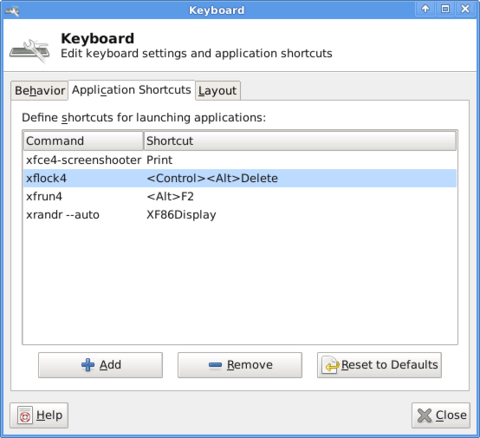
bash-4.1$ xfce4-keyboard-settings

XFCE4 keyboard settings window Slackware Linux screenshot

Further on go to:

Application Shortcuts (tab) -> Add

Type in the command prompt to appear xfce4-screenshooter and press the PrintScreen SysRQ keyboard button.
From now onwards pressing it will allow you to take screenshot like with GNOME's gnome-screenshot -i command.
Happy Screenshoting 😉

Xubuntu improve default picture viewing with gpicview

Tuesday, March 13th, 2012

The default picture viewer on Xubuntu's XFCE is risterroro. Risterroro is quite lightweight, but anyways is lacking even basic functionality with reading a number of pictures in a directory and showing, them one by one lacks any picture automated slider. The lack of picture back/forward functionality makes picture viewing very inconvenient on those Linux distro.

Ristretto Screenshot on Xubuntu Linux Desktop

Thanksfully this kind of unconfortable default behaviour on Xubuntu can easily be changed to use a handy picture viewer program called gpicview xubuntu-linux:~# apt-get install --yes gpicview

gpicviewer grandmothers screenshot on Xubuntu Linux

Gpicview is a good minimalistic program which has all the functionality of the default GNOME picture viewer program eog – (eye of the Gnome). If you're aaccustomed to GNOME's eog you can always install and use eog instead 🙂

How to make screenshots on Slackware Linux with XFCE graphical environment

Thursday, February 23rd, 2012

1. Install the slackware binary package xfce4-screenshooter.

For the latest Slackware Linux release which as of time of writting is 13.37 xfce4-screenshooter-1.7.9-i486-3sl.txz can be download from here

Install of xfce4-screenshooter-1.7.9-i486-3sl.txz is done with slackware's usual installpkg package manager command:

bash-4.1# /sbin/installpkg xfce4-screenshooter-1.7.9-i486-3sl.txz

By the way, I haven't used slackware for a long time so in the mean time since Slackware 13, the default slackware packages format .tgz is now substituted with the newer .txz (better compressed .txz). The old .tgz was simply a tar archive with DEFLATE gzip. The newer .txz packages bundled with newer slackware releases are using the LZMA2 (XZ) chain algorithm for compression. LZMA implies higher compression than even bzip2 and this is the reason why Patrick Volkerding – the one man army man behind Slackware decided to use it.
The reason Vollerding choose using .txz is slackware network distribution will load up less the networks and will take less time for downloading extra slackware packages via the internet. The .txz also reduces slackware main CD size so more packages can be contained in the same 700MB sized slack install CD.

Anyways now back to the installation of xfce-screenshooter.

Once installed to runit use the Xfce menus:

Xfce Menu -> Accesories -> Screenshot

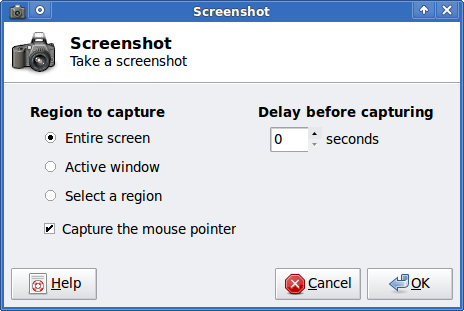
Next you will see the xfce-screenshooter program to pop-up:

To take a snapshot of the screen use:

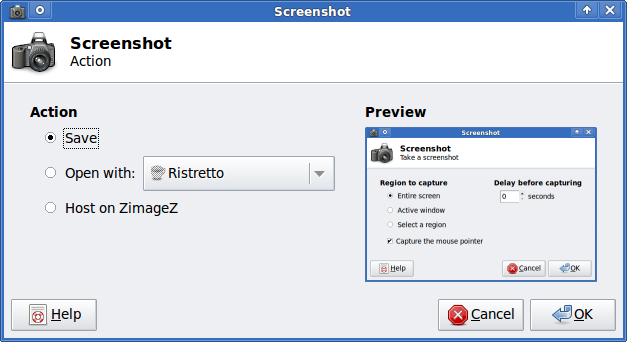
Entire Screen -> Save

XFCE screenshooter Slackware Linux take a screenshot dialog

XFCE screenshooter Slackware Linux action Save
 

How to set applications (programs) Autorun on XFCE in Xubuntu Linux

Monday, January 16th, 2012

I needed to set TeamViewer to autorun, each and every startup on one Xubuntu Linux

Xubuntu is running by default with Xfce 4 . Xfce is a sort of a very liteweight GNOME like graphical environment.

In Gnome the way that is through invoking the gnome-session-manager .

In Xfce the command is almost analogous doing changes is done by running:

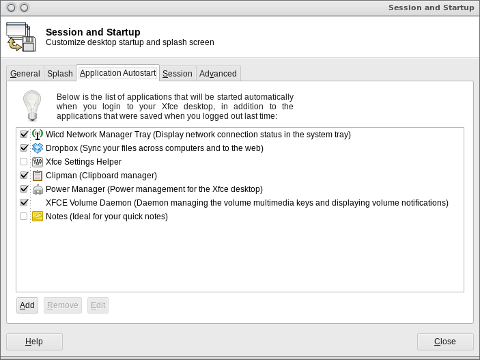
user@xubuntu:~$ xfce4-session-manager

XFce session manager Xubuntu Linux screenshot
Further on simply use the Add button to add applications to load each time user (opens xfce session) / logs in.
Cheers 😉