Diffie–Hellman key exchange (DH) is a method of securely exchanging cryptographic keys over a public channel and was one of the first public-key protocols as conceived by Ralph Merkle and named after Whitfield Diffie and Martin Hellman. DH is one of the earliest practical examples of public key exchange implemented within the field of cryptography.
Traditionally, secure encrypted communication between two parties required that they first exchange keys by some secure physical means, such as paper key lists transported by a trusted courier. The Diffie–Hellman key exchange method allows two parties that have no prior knowledge of each other to jointly establish a shared secret key over an insecure channel. This key can then be used to encrypt subsequent communications using a symmetric key cipher.
DH has been widely used on the Internet for improving the authentication encryption among parties. The only note is it useful if both the communication sides A and B are at your control, as what DH does is just strenghten the already established connection between client A and B and not protect from Man in the Middle Attacks. If some malicious user could connect to B pretending it is A the encryption will be established.
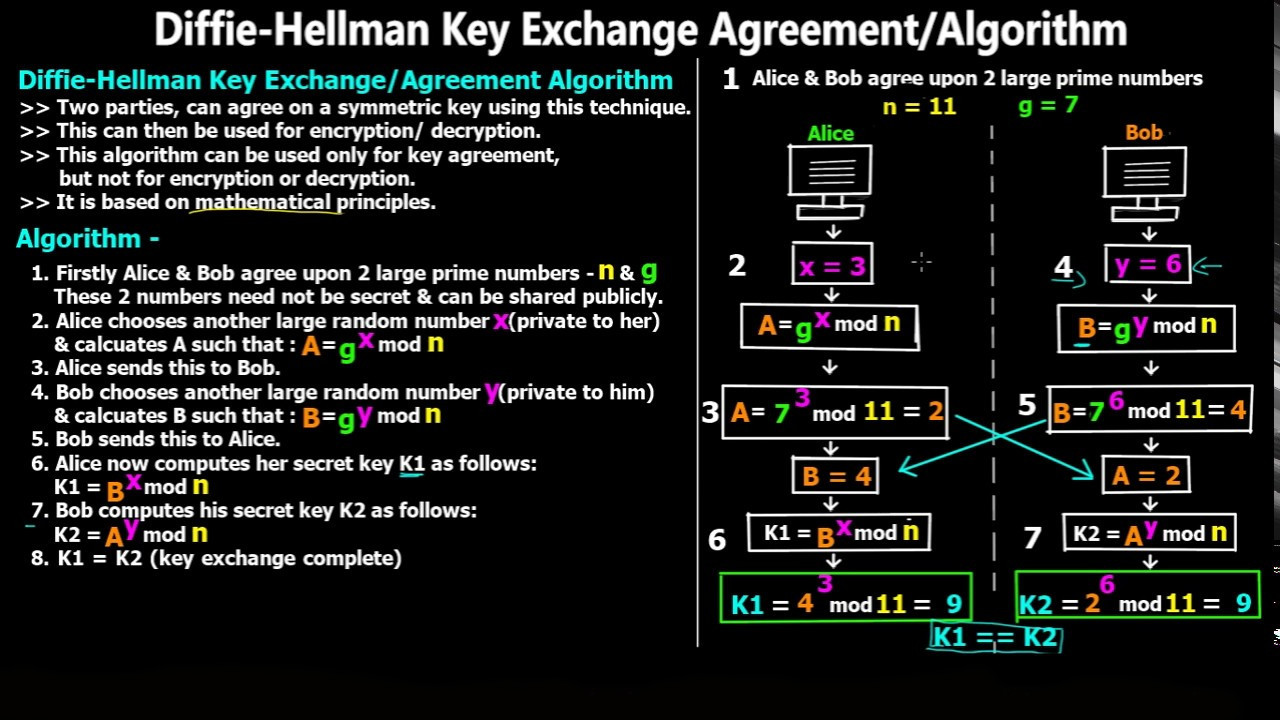
Alternatively, the Diffie-Hellman key exchange can be combined with an algorithm like the Digital Signature Standard (DSS) to provide authentication, key exchange, confidentiality and check the integrity of the data. In such a situation, RSA is not necessary for securing the connection.
TLS, which is a protocol that is used to secure much of the internet, can use the Diffie-Hellman exchange in three different ways: anonymous, static and ephemeral. In practice, only ephemeral Diffie-Hellman should be implemented, because the other options have security issues.
Anonymous Diffie-Hellman – This version of the Diffie-Hellman key exchange doesn’t use any authentication, leaving it vulnerable to man-in-the-middle attacks. It should not be used or implemented.
Static Diffie-Hellman – Static Diffie-Hellman uses certificates to authenticate the server. It does not authenticate the client by default, nor does it provide forward secrecy.
Ephemeral Diffie-Hellman – This is considered the most secure implementation because it provides perfect forward secrecy. It is generally combined with an algorithm such as DSA or RSA to authenticate one or both of the parties in the connection.
Ephemeral Diffie-Hellman uses different key pairs each time the protocol is run. This gives the connection perfect forward secrecy, because even if a key is compromised in the future, it can’t be used to decrypt all of the past messages.
DH encryption key could be generated with the openssl command and could be generated depending on your preference using a 1024 / 2048 or 4096 bit encryption.
Of course it is best to have the strongest encryption possible i.e 4096.
The Logjam attack
The Diffie-Hellman key exchange was designed on the basis of the discrete logarithm problem being difficult to solve. The most effective publicly known mechanism for finding the solution is the number field sieve algorithm.
The capabilities of this algorithm were taken into account when the Diffie-Hellman key exchange was designed. By 1992, it was known that for a given group, G, three of the four steps involved in the algorithm could potentially be computed beforehand. If this progress was saved, the final step could be calculated in a comparatively short time.
This wasn’t too concerning until it was realized that a significant portion of internet traffic uses the same groups that are 1024 bits or smaller. In 2015, an academic team ran the calculations for the most common 512-bit prime used by the Diffie-Hellman key exchange in TLS.
They were also able to downgrade 80% of TLS servers that supported DHE-EXPORT, so that they would accept a 512-bit export-grade Diffie-Hellman key exchange for the connection. This means that each of these servers is vulnerable to an attack from a well-resourced adversary.
The researchers went on to extrapolate their results, estimating that a nation-state could break a 1024-bit prime. By breaking the single most-commonly used 1024-bit prime, the academic team estimated that an adversary could monitor 18% of the one million most popular HTTPS websites.
They went on to say that a second prime would enable the adversary to decrypt the connections of 66% of VPN servers, and 26% of SSH servers. Later in the report, the academics suggested that the NSA may already have these capabilities.
“A close reading of published NSA leaks shows that the agency’s attacks on VPNs are consistent with having achieved such a break.”
Despite this vulnerability, the Diffie-Hellman key exchange can still be secure if it is implemented correctly. As long as a 2048-bit key is used, the Logjam attack will not work. Updated browsers are also secure from this attack.
Is the Diffie-Hellman key exchange safe?
While the Diffie-Hellman key exchange may seem complex, it is a fundamental part of securely exchanging data online. As long as it is implemented alongside an appropriate authentication method and the numbers have been selected properly, it is not considered vulnerable to attack.
The Diffie-Hellman key exchange was an innovative method for helping two unknown parties communicate safely when it was developed in the 1970s. While we now implement newer versions with larger keys to protect against modern technology the protocol itself looks like it will continue to be secure until the arrival of quantum computing and the advanced attacks that will come with it.
Here is how easy it is to add this extra encryption to make the SSL tunnel between A and B stronger.
On a Linux / Mac / BSD OS machine install and use openssl client like so:
# openssl dhparam -out dhparams1.pem 2048
Generating DH parameters, 2048 bit long safe prime, generator 2
This is going to take a long time
……………………………………………………….+………..+………………………………………………………+
…
…..
…. ………………..++*++*
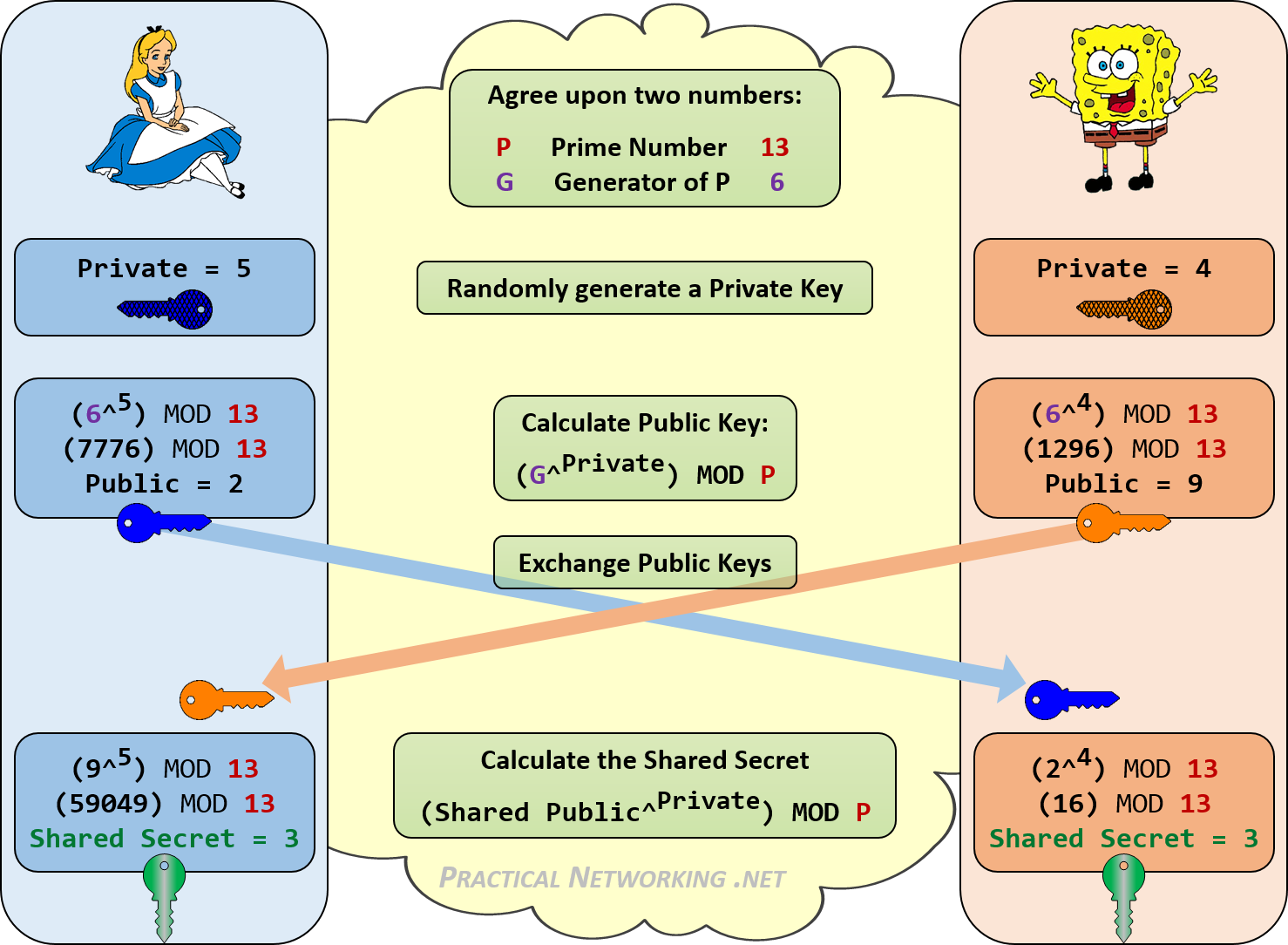
Be aware that the Diffie-Hellman key exchange would be insecure if it used numbers as small as those in our example. We are only using such small numbers to demonstrate the concept in a simpler manner.
# cat dhparams1.pem
—–BEGIN DH PARAMETERS—–
MIIBCAKCAQEAwG85wZPoVAVhwR23H5cF81Ml4BZTWuEplrmzSMOR9UNMnKjURf10
JX9xe/ZaqlwMxFYwZLyqtFQB2zczuvp1j+tKkSi4/TbD6Qm6gtsTeRghqunfypjS
+c4dNOVSbo/KLuIB5jDT31iMUAIDJF8OBUuqazRsg4pmYVHFm1KLHCcgcTk5kXqh
m8vXoCTlaLlmicC9pRTgQLuAQRXAF8LnVLCUvGlsyynTdc0yUFePWkmeYHMYAmWo
aBS6AMFNDvOxCubWv9cULkOouhPzd8k0wWYhUrrxMJXc1bSDFCBA7DiRCLPorefd
kCcNJFrh7rgy1lmu00d3I5S9EPH/EyoGSwIBAg==
—–END DH PARAMETERS—–
Copy the generated DH PARAMETERS headered key string to your combined .PEM certificate pair at the end of the file and save it
# vim /etc/haproxy/cert/ssl-cert.pem
….
—–BEGIN DH PARAMETERS—–
MIIBCAKCAQEAwG85wZPoVAVhwR23H5cF81Ml4BZTWuEplrmzSMOR9UNMnKjURf10
JX9xe/ZaqlwMxFYwZLyqtFQB2zczuvp1j+tKkSi4/TbD6Qm6gtsTeRghqunfypjS
+c4dNOVSbo/KLuIB5jDT31iMUAIDJF8OBUuqazRsg4pmYVHFm1KLHCcgcTk5kXqh
m8vXoCTlaLlmicC9pRTgQLuAQRXAF8LnVLCUvGlsyynTdc0yUFePWkmeYHMYAmWo
aBS6AMFNDvOxCubWv9cULkOouhPzd8k0wWYhUrrxMJXc1bSDFCBA7DiRCLPorefd
kCcNJFrh7rgy1lmu00d3I5S9EPH/EyoGSwIBAg==
—–END DH PARAMETERS—–
…..
Restart the WebServer or Proxy service wher Diffie-Hellman key was installed and Voila you should a bit more secure.