Archive for the ‘Linux Audio & Video’ Category

How to Optimize Debian Linux on old Computers to Get improved overall Speed, Performance and Stability

Tuesday, December 30th, 2025

tuning-debian-linux-to-work-quickly-and-smooth-on-old-pc-laptop-hardware


How to optimize Debian version 12.12 Linux OS to work responsive on Old ThinkPad laptops like from year 2008 Thinkpad R61 with Window Maker, zram, SSD etc.

Old computers aren’t obsolete but most worthy if you dont want to spend on extra hardware.

With the right setup, Debian Linux can run smoothly on hardware that’s more than a decade old. This article walks through a real-world, proven configuration using a classic ThinkPad R61 (Core 2 Duo, 4 GB RAM, SSD), but the principles apply to many older PCs as well.

Why use Debian Linux on old hardware?

Debian Stable is ideal for old hardware because it offers:

  • Low baseline resource usage
  • Long-term stability
  • Minimal background activity
  • Excellent support for lightweight desktops
  • Flexible and well organized and relatively easy to tune

Paired with a minimal window manager, Debian easily outperforms many “lightweight” distros that still ship heavy defaults.

Hardware Baseline PC setup

Test system:

  • Laptop: ThinkPad R61
  • CPU: Intel Core 2 Duo
  • RAM: 4 GB
  • Storage: SATA SSD
  • Graphics: Intel X3100 / NVIDIA NVS 140M
  • Desktop: Window Maker

This is a common configuration for late-2000s business laptops.

1. Desktop Environment: Keep It Simple

Heavy desktop environments is the main factor to slow down an old PC.
Where possible dont use the Desktop environment at all and stick to console.

Recommended:

  • Window Maker (used by myself)
  • Openbox
  • Fluxbox
  • IceWM

Avoid:

  • GNOME
  • KDE Plasma
  • Cinnamon

Window Maker is especially effective: no compositing, no animations, minimal memory usage.

2. Terminal Choice Matters

For console-based applications (games, tools, system utilities), use a terminal that correctly reports its size. Lets say you use xterm:

$ xterm

You can force a usable terminal size like this:

$ xterm -geometry 80×32 &

This avoids common issues with console applications failing due to incorrect terminal dimensions.

Install urxvt (best choice for terminal productivity)

Open a terminal and run:

apt update
# apt install rxvt-unicode

Optional (if you want tabbed terminal use suckless):

# sudo apt install suckless-tools

  • rxvt-unicode-256color → main terminal (n/a in debian) have to install third party  
  • rxvt-unicode-256color-perl → Perl extensions (tabs, URL click, etc.) (n/a in debian, installable via third party)
  • suckless-tools → includes tabbed, can be used as an alternative for tabs

a. Configure .Xresources

Create or edit ~/.Xresources:

$ vim~/.Xresources

Example for beautiful setup with tabs, transparency, and fonts:

! Basic appearance
! URxvt.font: xft:FiraCode Nerd Font Mono:size=12
 URxvt.background: [90]#1c1c1c
 URxvt.foreground: #c0c0c0
! URxvt.cursorColor: #ff5555
! URxvt.saveLines: 10000
! URxvt.scrollBar: false
! URxvt.borderLess: true

! Enable tabs using built-in tabbed extension
URxvt.perl-ext-common: default,tabbed

! Tab colors
URxvt.tabbed.tabbar-fg: 15
URxvt.tabbed.tabbar-bg: 0
URxvt.tabbed.tab-fg: 2
URxvt.tabbed.tab-bg: 8

! Keybindings for tabs
! Ctrl+Shift+N → new tab
URxvt.keysym.Control-Shift-N: perl:tabbed:new_tab
! Ctrl+Shift+W → close tab
URxvt.keysym.Control-Shift-W: perl:tabbed:close_tab
! Ctrl+Tab → next tab
URxvt.keysym.Control-Tab: perl:tabbed:next_tab
! Ctrl+Shift+Tab → previous tab
URxvt.keysym.Control-Shift-Tab: perl:tabbed:prev_tab
! Tabs keybindings
URxvt.keysym.Control-N: perl:tabbed:new_tab
URxvt.keysym.Control-W: perl:tabbed:close_tab


b. Apply .Xresources changes

Run:

$ xrdb ~/.Xresources

Then launch urxvt:

$ rxvt

  • Ctrl+Shift+T → new tab
  • Ctrl+Shift+W → close tab

c. Optional: Make it even cooler

  1. Install powerline fonts or Nerd Fonts (for fancy prompt icons):

# apt install fonts-firacode

  1. Enable URL clicking and clipboard (already enabled above)

  2. Combine with tmux for extra tabs/panes, session management, and more shortcuts.

3. Retain only last 500MB from journald

Retain only the past 500 MB:

# journalctl –vacuum-size=500M

This is exteremely useful as sometimes failing services might generate ton of unnecessery logs and might flood up the old machine hard disk.

4. Reduce journal memory footprint

# vim /etc/systemd/journald.conf

Set Storage=volatile
Set RuntimeMaxUse=50M

# systemctl restart systemd-journald

5. Trim services boot times

# systemd-analyze blame
# systemd-analyze critical-chain

This tells you which services slow down your boot the most.

6. Disable Unnecessary Services

Old systems benefit massively from disabling unused background services.

Check what’s enabled:

# systemctl list-unit-files –state=enabled

Common candidates to disable (if not needed):

# systemctl disable bluetooth
# systemctl disable cups
#systemctl disable avahi-daemon

#systemctl disable ModemManager

Each disabled service saves RAM and CPU cycles.

7. Dirty Page Tuning (Reduces Freezes)

Defaults favor servers, not laptops.

Edit:

vim /etc/sysctl.conf

Add:

vm.dirty_background_ratio=5
vm.dirty_ratio=10

This forces writeback earlier, preventing sudden stalls.

8. Memory Tuning: zram Done Right

Does zram make sense with 4 GB RAM and an SSD?

Yes it could, but only in moderation.

zram compresses memory in RAM and acts as fast swap. On a Core 2 Duo, compression overhead is small and the benefit is smoother multitasking.

Recommended zram configuration

Install zram-tools deb package:

# apt install zram-tools

Edit:

# vim /etc/default/zramswap

Set:

PERCENT=15

This creates ~600 MB of compressed swap — enough to absorb memory spikes without wasting RAM.

9. Keep Disk Swap (But Small)

Even with zram, disk swap is useful as a fallback.

Recommended:

  • 1–2 GB swap on SSD
  • zram should have higher priority than disk swap

Check:

# swapon –show

10. Swappiness and Cache Pressure

Tune the kernel to prefer RAM and zram first:

# vim /etc/sysctl.conf

Add:

vm.swappiness=10
vm.vfs_cache_pressure=50

Apply:

# sysctl -p

This prevents early swapping and keeps the system responsive.

11. CPU Governor: A Hidden Performance Win

Older ThinkPads often run conservative CPU governors.

Install tools:

# apt install cpufrequtils

Set a balanced governor:

# echo 'GOVERNOR="ondemand"' | sudo tee /etc/default/cpufrequtils

# systemctl restart cpufrequtils

This allows the CPU to ramp up quickly when needed.

12. Power and Thermal Management (ThinkPad-Specific)

Install TLP:

# apt install tlp
# systemctl enable tlp
# systemctl start tlp

TLP improves:

  • Battery life
  • Thermal behavior
  • SSD longevity

Defaults are usually perfect – no heavy tuning required.

13. Disable Watchdogs (If You Don’t Debug Kernels)

Watchdogs waste cycles on old CPUs.

Check:

# lsmod | grep watchdog

Disable:

# vim /etc/modprobe.d/blacklist.conf

Add:

blacklist iTCO_wdt
blacklist iTCO_vendor_support

Reboot.

14. Reduce systemd Noise

systemd logs aggressively by default.

Edit:

#vim/etc/systemd/journald.conf

Set:

Storage=volatile
RuntimeMaxUse=50M

Then:

#systemctl restart systemd-journald

Less disk I/O, faster boots.

15. Use tmpfs for caching and Volatile Junk

Put garbage in RAM, not SSD.

Edit:

# vim /etc/fstab

Add:

tmpfs /tmp tmpfs noatime,nosuid,nodev,mode=1777,size=256M 0 0

Optional:

tmpfs /var/tmp tmpfs noatime,nosuid,nodev,size=128M 0 0
# mount -a

16. IRQ Balance: Disable It (might slow down machine)

On single-socket old laptops, irqbalance can hurt.

Disable:

# systemctl disable irqbalance

Test performance; re-enable if needed.

17. Reduce systemd Timeout Delays

Old laptops often wait forever on dead hardware.

Edit:

# vim /etc/systemd/system.conf

Set:

DefaultTimeoutStartSec=10s
DefaultTimeoutStopSec=10s

18. Strip Kernel Modules You Don’t Use

If you don’t use:

  • FireWire
  • Bluetooth
  • Webcam

Blacklist them:

# vim /etc/modprobe.d/blacklist-extra.conf

Example:

blacklist firewire_ohci
blacklist firewire_core
blacklist uvcvideo
blacklist bluetooth


Faster boot, fewer interrupts.

19. X11 Performance Tweaks (Intel Graphics)

Create:

# vim/etc/X11/xorg.conf.d/20-intel.conf

Add:

Section "Device"
Identifier "Intel Graphics"
Driver "intel"
Option "TearFree" "false"
Option "AccelMethod" "sna"
EndSection

20. Disable IPv6 (if not used)

Saves a little RAM and startup time.

Edit:

# vim/etc/sysctl.conf

Add:

net.ipv6.conf.all.disable_ipv6=1
net.ipv6.conf.default.disable_ipv6=1

21.Lower Kernel Log Level verbosity

Stop kernel spam.

# dmesg -n 3

Make permanent:

# vim/etc/sysctl.conf

Add:

kernel.printk=3 4 1 3

22.Scheduler Latency (Advanced)

For desktop interactivity:

# vim/etc/sysctl.conf

Add:

kernel.sched_autogroup_enabled=1

Helps UI responsiveness under load.

23.Kill Browser Bloat (Biggest Win)

For Firefox ESR:

  • Disable telemetry
  • Enable tab unloading

browser.sessionstore.interval = 300000

No kernel tweak beats this.


a. Enable tab unloading (automatic tab discard)

  1. Open Firefox ESR
    Type

  2. about:config

  3. in the address bar.
  4. Accept the warning: “This might void your warranty.”

  5. Search for the following preference:

browser.tabs.unloadOnLowMemory

  • Default: false
  • Set to: true
     

This enables Firefox to unload inactive tabs automatically when memory is low.

b. Optional tuning

Some other preferences you can tweak:

Preference

Description

Suggested value


browser.tabs.maxSuspendedTabs


Maximum number of tabs that can be suspended

10–20


browser.tabs.autoHide


Auto-hide tabs while suspended (older ESR versions)

true


browser.tabs.loadInBackground


Background tabs load in suspended state

true


browser.sessionstore.interval


How often session is saved (ms)

15000

These may vary slightly depending on ESR version.

24. Graphics Considerations

ThinkPad R61 models typically have:

  • Intel X3100 → works well out of the box
  • NVIDIA NVS 140M → use nouveau driver

Recommendations:

  • Avoid proprietary legacy NVIDIA drivers
  • No compositing
  • Simple themes only

25. Extremely for Geeks, Build a Custom Kernel (Optional)

Only if you have plenty of time and you have a developers background and maniacal tendencies 🙂

Benefits:

  • Smaller kernel
  • Faster boot
  • Fewer interrupts

Cost:

  • Maintenance burden

26. Application Choices Matter More Than Tweaks

Keep in mind the application choices matter more than tweeks.
Even the best-tuned system can be ruined by heavy applications.

Recommended software:

  • Browser: Firefox ESR
  • File manager: PCManFM
  • Terminal: xterm, rxvt
  • Editor: nano, geany

Limit browser tabs and disable unnecessary extensions.

27. Things Not to Do

Avoid:

  • Huge zram sizes (50%+)
  • Do not Disable swap entirely
  • Beware of Aggressive kernel “performance hacks”
  • Disable any Heavy desktop effects if choosing to run MATE or alike GUI environment

Stability beats micro-optimizations.

Final Recommended Configuration

For a ThinkPad R61 with 4 GB RAM and SSD perhaps the best Linux configuration would be:

  • Debian Stable
  • Window Maker
  • zram: 15%
  • SSD swap: 1–2 GB
  • swappiness: 10
  • TLP enabled
  • No compositor
     

This setup would deliver:

  • Smooth multitasking
  • No UI lag
  • Minimal CPU overhead
  • Long-term stability

Conclusion

Old PCs don’t need to be fast necessery, but can be made work slightly faster, though the limits if used in a proper way with the right software and without out the eye candy nonse of today, they be still fully functionally used.

With Debian, a lightweight window manager, and sensible memory tuning, even 15-year-old + old hardware remains useful today for common daily tasks, and makes it not only useful but fun and different especially if you are a sysadmin or a developer who needs mostly console and a browser.

It gives you another perspective on how to do your computing in a simplier and more minimalistic way.

Of course do not expect the Old Hardware PC to be the perfect station for youtube maniacs, heavy gamers or complete newbies, who dont honor the old PC limited resources and don't want to have a bit of experimental approach to the PC.

Anyways by implementing before mentioned tweaks, they will reward you with reliability and simplicity  – something modern over complicated OS and Apps often lack.

Enjoy and Happy Christmas 2025 and Happy New Year 2026 soon ! 🙂

Debugging Jitsi Meet Server Problems: A Practical Guide

Saturday, April 26th, 2025

Jitsi Meet is a powerful open-source video conferencing platform. But like any real-time communication system, it can run into issues—from video/audio glitches to full-blown connection failures. Debugging Jitsi Meet can be tricky due to its multi-component architecture. This guide walks you through a systematic approach to identify and resolve common server-side issues.

1. Understand the Architecture

Before diving into logs, it's important to understand Jitsi Meet's core components:
 

  • Jitsi Meet (Web UI) – The front-end interface.
  • Jicofo (Focus component) – Manages conference sessions.
  • Prosody (XMPP Server) – Handles user authentication and signaling.
  • JVB (Jitsi Videobridge) – Routes video/audio streams.
  • Nginx or Apache – Web server proxy (often with HTTPS and WebSocket forwarding).


Knowing how these interact helps pinpoint the failing layer.

2. Check Logs in the Right Places

Each component has its own logs. Check them in the following order:

Prosody Logs

Location: /var/log/prosody/prosody.log and prosody.err
​Look for: Authentication issues, connection denials, or component registration problems.
 

Jicofo Logs

Location:  /var/log/jitsi/jicofo.log
Look for: Room creation errors, XMPP connection failures, conference creation attempts.
 

JVB Logs

Location: /var/log/jitsi/jvb.log
​Look for: ICE failures, STUN/TURN issues, packet loss, and bridge reachability.
 

Web Server Logs (Nginx/Apache)

Location (Nginx): /var/log/nginx/error.log and access.log
Look for: HTTP errors (404, 502), WebSocket connection problems.
 

Browser Console Logs
 

Tools: Press F12 in browser → Console/Network tabs.
Look for: WebSocket failures, CORS issues, or media permission problems.
 

3. Common Problems & Fixes

"Failed to join conference"

  • Cause: Prosody may not be running or not configured correctly.​

Fix: Restart Prosody and check domain configuration in /etc/prosody/conf.avail/


No Audio or Video
 

Usual Cause: Media not reaching the bridge or blocked by firewall

Fix:

  • Verify JVB is listening on correct ports (UDP 10000).
  • ​Check firewall/NAT settings (especially on cloud VMs).
  • Use tcpdump or ss to check traffic flow.
     

WebSocket Connection Fails


Usual Cause: Web server (Proxy) misconfiguration.

Fix:

Ensure Nginx is forwarding WebSocket requests to /xmpp-websocket/ .
Add proper proxy settings in nginx.conf
 

Authentication Not Working


Cause: Misconfigured JWT or internal authentication.

Fix:

  • Check Prosody's config for authentication method.
  • If using JWT, verify token structure and shared secret.
     

4. Use Debugging Tools

  • Jitsi Meet in debug mode:


​Add #config.debug=true to your meeting URL.
 

  • ICE Debugging:


    Check about:webrtc (Firefox) or WebRTC Internals (Chrome).
    Look at ICE candidate gathering and connectivity checks.
    Test TURN/STUN:

    • Use tools like trickle-ice to validate your server's ICE configuration.

5. Networking and Firewall Checks

Make sure these ports are open:
 

  • TCP 443 – HTTPS
  • UDP 10000 – Media (JVB)
  • TCP 4443 – (Optional, fallback media)
  • TCP 5222 – XMPP (if not using BOSH/WebSocket)
     

# ss -tuln ufw status


6. Component Health Checks

Do 
# systemctl status for each main jitsi component services:

# systemctl status prosody
# systemctl status jicofo
# systemctl status jitsi-videobridge2

Check uptime, errors, or failure restarts.

7. Enable More Verbose Logs

Increase logging levels for deeper debugging:
 

  • Prosody: Edit /etc/prosody/prosody.cfg.lua → set log = { ... debug = "*" }.
  • Jicofo/JVB: Edit /etc/jitsi/jicofo/logging.properties and /etc/jitsi/videobridge/logging.properties
    → change log level to FINE or ALL .


8. Update & Restart Services

Sometimes updates or configs don’t apply until services are restarted:
 

# apt update && apt upgrade systemctl restart prosody jicofo jitsi-videobridge2 nginx


Final Closure Thoughts

Debugging Jitsi Meet requires a structured approach, start from the user-facing symptoms, trace through each service, and verify network and authentication configurations.
Debug the status of prosody, jicofo and jitsi-videobridge2, check the firewall openings are okay to the jitsi server
With some log analysis and a bit of patience, experimentation and the help of forums or Artificial Intelligence tool like ChatGPT, the Jitsi server errors will get solved.

How to Install Jitsi Meet on Debian Linux to have your own free software video conferencing secure server

Thursday, April 24th, 2025


jitsi-meet-create-new-room-for-video-meetings-linux


Jitsi Meet is a free, open-source video conferencing platform that allows you to host secure and scalable video calls both using a Mobile Phone / Tablet / PC or any other electronic device for which jitsi client has available port. Jitsi meet is the best free alternative one can get to Rakuten Viber / Facebook (Meta) / Zoom / Apples' Facetime etc.
What makes Jitsi really worthy is it can make your Video streaming communication give you flexibility to keep your communication a little bit private and harder to be captured than if you use the general Video streaming platforms. 
Jitsi is also a very simple to use and can be used either with a Desktop Client on Windows / Linux and Mac OS or Smart Phone running Android (Samsung / Huawei etc.) or iOS (iPhones) you can configure to use the Jitsi server or directly via a SSL encryption secured web URL address. The only thing i really don't like about Jitsi is it uses Java and its way of work is cryptic just like it is pretty hard to debug or understand exactly how the software works, as when errors came the usual crazzy Java exceptions are filling the jitsi logs.

In below short guide, I'll try provides a simple step-by-step instructions for installing Jitsi Meet on a Debian-based systems, hoping that anyone can benefit from Jitsi by building his own server.


jitsi-meet-conference-free-open-source-video-streaming-viber-and-facebook-alternative


What you should have before you start buillding your new Jitsi meet server

Before you begin, ensure that your system meets the following requirements:

  • A fresh installation of Debian 10 (Buster) or newer.

  • A non-root user with sudo privileges.

  • A fully updated system.

  • A domain name pointing to your server's IP address.

  • OpenJDK 11 installed.​

To get a better understanding on how Jitsi meet works it is worthy to take a quick look on Jitsi Architectural diagram:

Jitsi-meet-video-conferencing-software-linux-windows-mac-Architectural-diagram
 

1. Update Your System

Start by updating your system's package list and upgrading existing packages:​

# apt update sudo apt upgrade -y

2. Install Required Dependencies

Install the necessary packages for adding repositories and managing keys:​

# apt install apt-transport-https curl gnupg2 -y

3 Add Jitsi Repository

Add the Jitsi repository key to your system:

# curl https://download.jitsi.org/jitsi-key.gpg.key | sudo gpg --dearmor -o /usr/share/keyrings/jitsi-keyring.gpg

Then, add the Jitsi repository:​

# echo "deb [signed-by=/usr/share/keyrings/jitsi-keyring.gpg] https://download.jitsi.org stable/" | sudo tee /etc/apt/sources.list.d/jitsi-stable.list > /dev/null

Update your package list to include the Jitsi repository into apt database:​

 # apt update

4. Install Jitsi Meet

Install the Jitsi Meet package:​  

# apt install jitsi-meet -y

During installation, you'll be prompted to:​

  • Enter the hostname: Provide your domain name (e.g., meet.example.com ).

  • Choose SSL certificate: Select "Generate a new self-signed certificate" or "Obtain a Let's Encrypt certificate" if you have a valid domain.​JitsiScaleway

If you opt for Let's Encrypt, ensure that ports 80 and 443 are open on your firewall.​

5. Configure Firewall openings

If you have already a configured firewall to filter out traffic, open the necessary ports to allow traffic to your Jitsi Meet server from your router or entry firewall device as well as on the Linux itself: ​

Allow access to SSH server

# ufw allow 22/tcp


Allow access to HTTP unecrypted to Jitsi meet server

# ufw allow 80/tcp
# ufw allow 443/tcp


Allow access necessery for proper operation of Jitsi VideoBridge (port range 10000 to 20000)
 

# ufw allow 10000:20000/udp
# ufw enable


Verify the firewall status is Okay​ 

# ufw status

6. Access Jitsi Meet in a browser

Open a web browser and navigate to your server's domain or IP address:​

https://meet.your-custom-domain-or-IP.com

Hopefully all is okay and You should see the Jitsi Meet interface, where you can start or join a meeting.​

7. Secure Conference Creation (Optional extra)

By default, anyone can create a conference. To restrict this:​

  1. Install and configure Prosody for authentication.
    For those who don't know Prosody is a modern XMPP communication server

  2. Set up secure domains and configure authentication settings.​

For detailed instructions, refer to the Jitsi DevOps Guide. ​
 

Conclusion

Now You should have successfully installed Jitsi Meet on your Debian server.
Installing to Ubuntu and Redhat OSes such as Fedora or Redhat based distros should be not much difrerent from on this guide, except you have to use
the correct RPM repositories.

Now you can further now host secure video conferences using your own infrastructure and have an increased privacy and perhaps be more calm that the CIA or Mussat, MI6 / FSB might be not spying your Video conference talks (except if they don't already do it on an OS level which most likely the case but this doesn't matter. :).

For advanced configurations and features, consult the Jitsi Handbook and the Jitsi DevOps Guide.​Jitsi

That's all folks Enjoy !

Play Audio Music CDs in Linux console / terminal in the 21 Century mission hard but possible

Tuesday, July 30th, 2024


Compact discs (CD's)
ain't dead yet but there easy straigh use on free operating systems Linux / FreeBSD / OpenBSD is starting to deteriorate. That is quite normal I guess, as CDs are no longer officially produced or sold for few years in America and there is no Audio CD bookstores, neither in europe and perhaps there are just few in europe, perhaps CD are used somewhere in Africa and Asia, but most modern world has officially buried them.

However as I love old stuff and I had the opportunity, I bought an old Audio CD (fake copy one 🙂 of Judas Priest Screaming for Vengence and the famous Jimi Hendrix  (Best Complilation) Experience an improvised shelf-book store selling books by a half deaf aging guy who sells books for years in Dobrich in the center.
And to remember the young years of Rock Roll wanted to play it on my very old but still kicking Lenovo Thinkpad R61 notebook (that is now 16 years old but thanksfully it still works and kicks ass with a Debian GNU / Linux 10 Buster.)

The task is very easy and as I have a Window Maker (Wmaker) on it in order to save myself an extra loading of this a kind of "archaic machine" and tried to play my CDs with everything at hand thus I tried first to play the CD in console with the good old but gold cdplay with which I have played a dozens of Audio CDs back in the days … 

# cdplay

just to find out the CD got red and started to roll but I get no sound via the Sound Card 🙁

Next thing, i assumed was the problem might be the pulseaudio process blocking the sound card to be used, preventing cdplay to be able to properly channel the sound to the sound card, that used to be quite of classical problem, if you remember, thus I tried to run the cdplay via the aoss (Wrapper script to facilitate use of alsa oss compatibility library.)

Before using oss of course i've loaded the snd-pcm-oss kernel module, to make the sound blaster be able to use the old obsolete Open Sound System.

# modprobe snd-pcm-oss

# aoss cdplay

Though that aoss trick worked for some programs that used old Open Sound System scheme to output sound, it doesn't unfortunately, at that case.
 

Strange enough my sound card is properly identified by the Debian Linux and I can play MP3 songs, as well browse videos in youtube and other Internet resources in Firefox and even the pulseaudio process that is running in the background is spitting sounds out of the Notebook Speakers.

The laptop doesn't seem to have any sound driver or Sound Card issues, as I can normally play my old .XM and .MOD  sound extension files with the good old mikmod


# mikmod

as well as I can even normally play MIDI audio files by using the timidity tool as well as with playmidi

# timidity HitTheLights.mid

# playmidi HitTheLights.mid


Just to proove the MIDIs can be played normally via the Sound Blaster (for a more on the topic check my previous article talking in depth about Linux and MIDI – Play Midis on Linux / Make Linux MIDI Ready for the Future – Enable embedded MIDI music to play in a Browser, Play MIDIs with VLC and howto enjoy Midis in Text Console.

Next logically to make sure, something is not wrong with audio drivers, I tried to play some music normally with, the standard console players I have played with for years on Linux mpg123 / mpg321 for reference check my Listening music in text mode in Linux console but this was no luck again …

I tried even to install the opencubicplayer ( Linux port) music player and tried to open the CD, but even though the CD can be heard to be rolling in the CD drive no sound was outputed out of the laptop speakers.


open-cubic-player-screenshot-on-linux

Thus to resolve tried everything at power starting from increasing any missing volumes via the aumix command, as often in the past I remember the problem in such situations is the sound volume is decreased to zero percentage or completely muted.

# aumix


aumix-with-linux-htop-screenshot-animated-gif

as well as with 

# alsamixer


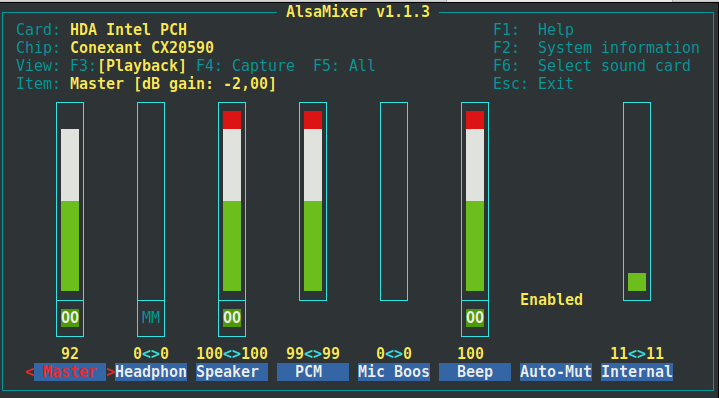
Alsamixer-control-sound-volume-linux-screenshot

Nevertheless, every possible volume up volume was raised and everything looked cool as I could play normally music on machine or in a browser, the AUDIO CD Music refused to play out of the Speakers.
 

Playing the Audio CD via success with mplayer

The work around to make it play was up to a one liner with mplayer

# mplayer -cdrom-device /dev/cdrom cdda://

To easify the play of CDs I've created for my self a tiny one liner script to run it.


#!/bin/bash
mplayer -cdrom-device /dev/cdrom cdda://

I've called the script playcd.sh, made it executable and placed it under /usr/local/bin

# vim /usr/local/bin/playcd.sh
#!/bin/bash
mplayer -cdrom-device /dev/cdrom cdda://


# chmod +x /usr/local/bin/playcd.sh


Playing Audio CDs with VLC (VideoLAN Media Player)

I've vlc client installed on my Linux box, if you don't have it, do:

# apt install –yes vlc

Then roll on the CD with vlc with passing it the location to the CD, usually one of the down two pointers should work:

# vlc vcd:///dev/sr0

# vlc vcd:///dev/cdrom

If you want to loop the Tracks to play forever

# vlc –loop vcd:///dev/cdrom

By the way vlc can do much more than you think as you can even play youtube with it, for example you can try it with the Axel Folly classics Mod file, by running it like this.

# vlc https://www.youtube.com/watch?v=SlyK_elUmIw


Cheers and Enjoy CD audio on Linux  ! 🙂

How to RIP audio CD and convert to MP3 format on Linux

Thursday, April 11th, 2024

I've been given a very tedious task to Copy music from Audio CD Drive to MP3 / MP4 file format and then copy the content to external Flash drive.
Doing so is pretty trivial, you just need to have a CD / DVD rom on your computer something that becomes rare nowadays and then you need to have installed a bunch of software, if you don't already have it as i've pointed in my previous article Howto craete Music Audio CD from MP3 files, create playable WAV format audio CD Albums from MP3s.

Creating a Audio CD from an MP3 collection is exactly the opposite to what is aim't now (to copy the content of a CD to a computer and prepare it for A Car MP3 player).

1. RIPing audio CDs to WAV and Conver to MP3 from terminal
 

On Linux there is  many ways to do it and many tools that can do it for your both graphical and command line.
But as I prefer command line to do stuff, in this article I'll mention the quickest and most elementary one which is done in 2 steps.

1. Use a tool to dump the CD Audio music to Tracks in WAV format
2. Convert the WAV to MP3 format

We'll need cdparanoia tool installed as well as ffmpeg.

If you don't have them installed do:

# apt-get install –yes cdparanoia dvd+rw-tools cdw cdrdao audiotools cdlabelgen dvd+rw-tools wodim ffmpeg lame normalize-audio libavcodec58

Next create the directory where you want to dump the .wav files.

# mkdir /home/hipo/audiorip/cd1
# cd /home/hipo/audiorip/cd1

Next assumng the Audio CD is plugged in the CD reader, dump its full content into track*.WAV files with cmd:

# paranoia -B

This will produce you the dumped songs into .wav files.

hipo@noah:~/audiorip/cd1$ ls -al *.wav
-rw-r–r– 1 root root  10278284 мар 25 22:49 track01.cdda.wav
-rw-r–r– 1 root root  21666668 мар 25 22:50 track02.cdda.wav
-rw-r–r– 1 root root  88334108 мар 25 22:53 track03.cdda.wav
-rw-r–r– 1 root root  53453948 мар 25 22:55 track04.cdda.wav
-rw-r–r– 1 root root 100846748 мар 25 22:58 track05.cdda.wav
-rw-r–r– 1 root root  41058908 мар 25 22:59 track06.cdda.wav
-rw-r–r– 1 root root 105952940 мар 25 23:02 track07.cdda.wav
-rw-r–r– 1 root root  50074124 мар 25 23:03 track08.cdda.wav
-rw-r–r– 1 root root  92555948 мар 25 23:06 track09.cdda.wav
-rw-r–r– 1 root root  61939964 мар 25 23:07 track10.cdda.wav
-rw-r–r– 1 root root   8521340 мар 25 23:07 track11.cdda.wav

Then you can use a simple for loop with ffmpeg command to conver the .wav files to .mp3s.

hipo@noah:~/audiorip/cd1$  for i in $( ls -1 *); do ffmpeg -i $i $i.wav.mp3; done
 

ffmpeg version 1.2.12 Copyright (c) 2000-2015 the FFmpeg developers
  built on Feb 12 2015 18:03:16 with gcc 4.7 (Debian 4.7.2-5)
  configuration: –prefix=/usr –extra-cflags='-g -O2 -fstack-protector –param=ssp-buffer-size=4 -Wformat -Werror=format-security ' –extra-ldflags='-Wl,-z,relro' –cc='ccache cc' –enable-shared –enable-libmp3lame –enable-gpl –enable-nonfree –enable-libvorbis –enable-pthreads –enable-libfaac –enable-libxvid –enable-postproc –enable-x11grab –enable-libgsm –enable-libtheora –enable-libopencore-amrnb –enable-libopencore-amrwb –enable-libx264 –enable-libspeex –enable-nonfree –disable-stripping –enable-libvpx –enable-libschroedinger –disable-encoder=libschroedinger –enable-version3 –enable-libopenjpeg –enable-librtmp –enable-avfilter –enable-libfreetype –enable-libvo-aacenc –disable-decoder=amrnb –enable-libvo-amrwbenc –enable-libaacplus –libdir=/usr/lib/x86_64-linux-gnu –disable-vda –enable-libbluray –enable-libcdio –enable-gnutls –enable-frei0r –enable-openssl –enable-libass –enable-libopus –enable-fontconfig –enable-libpulse –disable-mips32r2 –disable-mipsdspr1 –dis  libavutil      52. 18.100 / 52. 18.100
  libavcodec     54. 92.100 / 54. 92.100
  libavformat    54. 63.104 / 54. 63.104
  libavdevice    54.  3.103 / 54.  3.103
  libavfilter     3. 42.103 /  3. 42.103
  libswscale      2.  2.100 /  2.  2.100
  libswresample   0. 17.102 /  0. 17.102
  libpostproc    52.  2.100 / 52.  2.100
[wav @ 0x66c900] max_analyze_duration 5000000 reached at 5015510 microseconds
Guessed Channel Layout for  Input Stream #0.0 : stereo
Input #0, wav, from 'track01.cdda.wav':
  Duration: 00:00:23.19, bitrate: 1411 kb/s
    Stream #0:0: Audio: pcm_s16le ([1][0][0][0] / 0x0001), 44100 Hz, stereo, s16, 1411 kb/s
Output #0, mp3, to 'track01.cdda.wav.wav.mp3':
  Metadata:
    TSSE            : Lavf54.63.104
    Stream #0:0: Audio: mp3, 44100 Hz, stereo, s16p
Stream mapping:
  Stream #0:0 -> #0:0 (pcm_s16le -> libmp3lame)
Press [q] to stop, [?] for help
size=     363kB time=00:00:23.19 bitrate= 128.2kbits/s    
video:0kB audio:363kB subtitle:0 global headers:0kB muxing overhead 0.058402%
ffmpeg version 1.2.12 Copyright (c) 2000-2015 the FFmpeg developers
  built on Feb 12 2015 18:03:16 with gcc 4.7 (Debian 4.7.2-5)
  configuration: –prefix=/usr –extra-cflags='-g -O2 -fstack-protector –param=ssp-buffer-size=4 -Wformat -Werror=format-security ' –extra-ldflags='-Wl,-z,relro' –cc='ccache cc' –enable-shared –enable-libmp3lame –enable-gpl –enable-nonfree –enable-libvorbis –enable-pthreads –enable-libfaac –enable-libxvid –enable-postproc –enable-x11grab –enable-libgsm –enable-libtheora –enable-libopencore-amrnb –enable-libopencore-amrwb –enable-libx264 –enable-libspeex –enable-nonfree –disable-stripping –enable-libvpx –enable-libschroedinger –disable-encoder=libschroedinger –enable-version3 –enable-libopenjpeg –enable-librtmp –enable-avfilter –enable-libfreetype –enable-libvo-aacenc –disable-decoder=amrnb –enable-libvo-amrwbenc –enable-libaacplus –libdir=/usr/lib/x86_64-linux-gnu –disable-vda –enable-libbluray –enable-libcdio –enable-gnutls –enable-frei0r –enable-openssl –enable-libass –enable-libopus –enable-fontconfig –enable-libpulse –disable-mips32r2 –disable-mipsdspr1 –dis  libavutil      52. 18.100 / 52. 18.100
  libavcodec     54. 92.100 / 54. 92.100
  libavformat    54. 63.104 / 54. 63.104
  libavdevice    54.  3.103 / 54.  3.103
  libavfilter     3. 42.103 /  3. 42.103
  libswscale      2.  2.100 /  2.  2.100
  libswresample   0. 17.102 /  0. 17.102
  libpostproc    52.  2.100 / 52.  2.100
[mp3 @ 0x66c900] max_analyze_duration 5000000 reached at 5015510 microseconds
Input #0, mp3, from 'track01.cdda.wav.mp3':
  Metadata:
    encoder         : Lavf54.63.104
  Duration: 00:00:23.22, start: 0.000000, bitrate: 128 kb/s
    Stream #0:0: Audio: mp3, 44100 Hz, stereo, s16p, 128 kb/s
File 'track01.cdda.wav.mp3.wav.mp3' already exists. Overwrite ? [y/N] y
Output #0, mp3, to 'track01.cdda.wav.mp3.wav.mp3':
  Metadata:
    TSSE            : Lavf54.63.104
    Stream #0:0: Audio: mp3, 44100 Hz, stereo, s16p
Stream mapping:
  Stream #0:0 -> #0:0 (mp3 -> libmp3lame)
Press [q] to stop, [?] for help
Trying to remove 1152 samples, but the queue is emptys    
size=     363kB time=00:00:23.24 bitrate= 128.1kbits/s    
video:0kB audio:363kB subtitle:0 global headers:0kB muxing overhead 0.058336%
ffmpeg version 1.2.12 Copyright (c) 2000-2015 the FFmpeg developers
  built on Feb 12 2015 18:03:16 with gcc 4.7 (Debian 4.7.2-5)
  configuration: –prefix=/usr –extra-cflags='-g -O2 -fstack-protector –param=ssp-buffer-size=4 -Wformat -Werror=format-security ' –extra-ldflags='-Wl,-z,relro' –cc='ccache cc' –enable-shared –enable-libmp3lame –enable-gpl –enable-nonfree –enable-libvorbis –enable-pthreads –enable-libfaac –enable-libxvid –enable-postproc –enable-x11grab –enable-libgsm –enable-libtheora –enable-libopencore-amrnb –enable-libopencore-amrwb –enable-libx264 –enable-libspeex –enable-nonfree –disable-stripping –enable-libvpx –enable-libschroedinger –disable-encoder=libschroedinger –enable-version3 –enable-libopenjpeg –enable-librtmp –enable-avfilter –enable-libfreetype –enable-libvo-aacenc –disable-decoder=amrnb –enable-libvo-amrwbenc –enable-libaacplus –libdir=/usr/lib/x86_64-linux-gnu –disable-vda –enable-libbluray –enable-libcdio –enable-gnutls –enable-frei0r –enable-openssl –enable-libass –enable-libopus –enable-fontconfig –enable-libpulse –disable-mips32r2 –disable-mipsdspr1 –dis  libavutil      52. 18.100 / 52. 18.100
  libavcodec     54. 92.100 / 54. 92.100
  libavformat    54. 63.104 / 54. 63.104
  libavdevice    54.  3.103 / 54.  3.103
  libavfilter     3. 42.103 /  3. 42.103
  libswscale      2.  2.100 /  2.  2.100
  libswresample   0. 17.102 /  0. 17.102
  libpostproc    52.  2.100 / 52.  2.100
[mp3 @ 0x66c900] max_analyze_duration 5000000 reached at 5015510 microseconds
Input #0, mp3, from 'track01.cdda.wav.mp3.wav.mp3':
  Metadata:
    encoder         : Lavf54.63.104
  Duration: 00:00:23.25, start: 0.000000, bitrate: 128 kb/s
    Stream #0:0: Audio: mp3, 44100 Hz, stereo, s16p, 128 kb/s
Output #0, mp3, to 'track01.cdda.wav.mp3.wav.mp3.wav.mp3':
  Metadata:
    TSSE            : Lavf54.63.104
    Stream #0:0: Audio: mp3, 44100 Hz, stereo, s16p
Stream mapping:
  Stream #0:0 -> #0:0 (mp3 -> libmp3lame)
Press [q] to stop, [?] for help
Trying to remove 1152 samples, but the queue is emptys    
size=     364kB time=00:00:23.27 bitrate= 128.1kbits/s    
video:0kB audio:364kB subtitle:0 global headers:0kB muxing overhead 0.058271%
ffmpeg version 1.2.12 Copyright (c) 2000-2015 the FFmpeg developers
  built on Feb 12 2015 18:03:16 with gcc 4.7 (Debian 4.7.2-5)
  configuration: –prefix=/usr –extra-cflags='-g -O2 -fstack-protector –param=ssp-buffer-size=4 -Wformat -Werror=format-security ' –extra-ldflags='-Wl,-z,relro' –cc='ccache cc' –enable-shared –enable-libmp3lame –enable-gpl –enable-nonfree –enable-libvorbis –enable-pthreads –enable-libfaac –enable-libxvid –enable-postproc –enable-x11grab –enable-libgsm –enable-libtheora –enable-libopencore-amrnb –enable-libopencore-amrwb –enable-libx264 –enable-libspeex –enable-nonfree –disable-stripping –enable-libvpx –enable-libschroedinger –disable-encoder=libschroedinger –enable-version3 –enable-libopenjpeg –enable-librtmp –enable-avfilter –enable-libfreetype –enable-libvo-aacenc –disable-decoder=amrnb –enable-libvo-amrwbenc –enable-libaacplus –libdir=/usr/lib/x86_64-linux-gnu –disable-vda –enable-libbluray –enable-libcdio –enable-gnutls –enable-frei0r –enable-openssl –enable-libass –enable-libopus –enable-fontconfig –enable-libpulse –disable-mips32r2 –disable-mipsdspr1 –dis  libavutil      52. 18.100 / 52. 18.100
  libavcodec     54. 92.100 / 54. 92.100
  libavformat    54. 63.104 / 54. 63.104
  libavdevice    54.  3.103 / 54.  3.103
  libavfilter     3. 42.103 /  3. 42.103
  libswscale      2.  2.100 /  2.  2.100
  libswresample   0. 17.102 /  0. 17.102
  libpostproc    52.  2.100 / 52.  2.100
[wav @ 0x66c900] max_analyze_duration 5000000 reached at 5015510 microseconds
Guessed Channel Layout for  Input Stream #0.0 : stereo
Input #0, wav, from 'track02.cdda.wav':
  Duration: 00:02:21.28, bitrate: 1411 kb/s
    Stream #0:0: Audio: pcm_s16le ([1][0][0][0] / 0x0001), 44100 Hz, stereo, s16, 1411 kb/s
Output #0, mp3, to 'track02.cdda.wav.wav.mp3':
  Metadata:
    TSSE            : Lavf54.63.104
    Stream #0:0: Audio: mp3, 44100 Hz, stereo, s16p
Stream mapping:
  Stream #0:0 -> #0:0 (pcm_s16le -> libmp3lame)
Press [q] to stop, [?] for help


Finally remove the old unneded .wav files and enjoy the mp3s with vlc / mplayer / mpg123 or whatever player you like.

hipo@noah:~/audiorip/cd1$  rm -f *.wav


Now mount the flash drive and copy th files into it.

# mkdir /media/usb-drive
# mount /dev/sdc1 /media/usb-drive/
# mkdir -p /media/usb-drive/cd1
# fdisk -l |grep -i sdc1

/dev/sdc1 on /media/usb-drive type vfat (rw,relatime,fmask=0022,dmask=0022,codepage=437,iocharset=utf8,shortname=mixed,errors=remount-ro

# cp -rpf ~/audiorip/cd1*.mp3 /mnt/usb-drive/cd1
# umount /dev/sdc1


2. RIPping audio CD on Linux with rip-audio-cds-linux.sh  script
 

#!/bin/bash
# A simple shell script to rip audio cd and create mp3 using lame
# and cdparanoia utilities.
# —————————————————————————-
# Written by Vivek Gite <http://www.cyberciti.biz/>
# (c) 2006 nixCraft under GNU GPL v2.0+
# —————————————————————————-
read -p "Starting in 5 seconds ( to abort press CTRL + C ) " -t 5
cdparanoia -B
for i in *.wav
do
    lame –vbr-new -b 360 "$i" "${i%%.cdda.wav}.mp3"
    rm -f "$i"
done


If you need to automate the task of dumping the audio CDs to WAV and convert them to MP3s you can do it via a small shell script like the one provided by cyberciti.biz that uses paranoia and lame commands in a shell script loop. Script rip-audio-cds-linux.sh is here

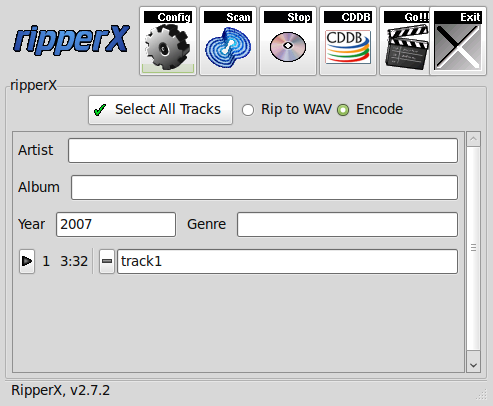
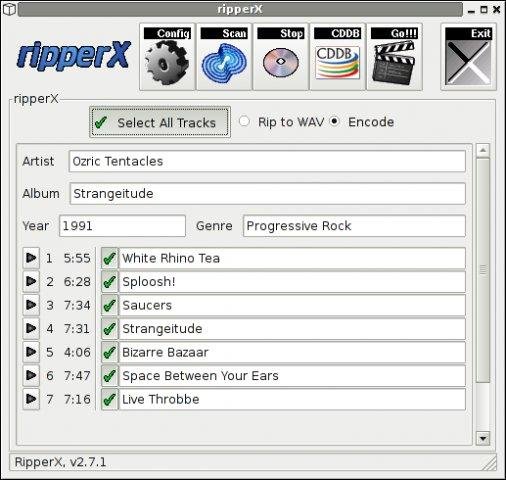
3. Dump Audio CD to MP3 with Graphical program ( ripperx ) 

By default most modern Linux distributions including the Debian GNU / Linux based ones has the ripperx in the default repositories, as well as the tool is downloadable and compilable from source from sourceforge.net 
ripping-audio-cds-linux-graphical-program-ripperx-tool

# apt-cache show ripperx|grep -i descript -A3 -B3
Architecture: amd64
Depends: cdparanoia, vorbis-tools (>= 1.0beta3), libatk1.0-0 (>= 1.12.4), libc6 (>= 2.14), libcairo2 (>= 1.2.4), libfontconfig1 (>= 2.12.6), libfreetype6 (>= 2.2.1), libgcc1 (>= 1:3.0), libgdk-pixbuf2.0-0 (>= 2.22.0), libglib2.0-0 (>= 2.16.0), libgtk2.0-0 (>= 2.8.0), libpango-1.0-0 (>= 1.14.0), libpangocairo-1.0-0 (>= 1.14.0), libpangoft2-1.0-0 (>= 1.14.0), libstdc++6 (>= 5.2), libtag1v5 (>= 1.9.1-2.2~)
Suggests: sox, cdtool, mpg321, flac, toolame
Description-en: GTK-based audio CD ripper/encoder
 ripperX is a graphical interface for ripping CD audio tracks (using
 cdparanoia) and then encoding them into the Ogg, FLAC, or MP2/3
 formats using the vorbis tools, FLAC, toolame or other available
 MP3 encoders.
 .
 It includes support for CDDB lookups and ID3v2 tags.
Description-md5: cdeabf4ef72c33d57aecc4b4e2fd5952
Homepage: http://sourceforge.net/projects/ripperx/
Tag: hardware::storage, hardware::storage:cd, interface::graphical,
 interface::x11, role::program, scope::application, uitoolkit::gtk,

# apt install –yes ripperx

https://www.pc-freak.net/images/ripperx-linux-gui-rip-audio-cds-tool

That's all folks.
Enjoy !
How to install Viber client on Debian GNU / Linux / Ubuntu / Mint in 2022 and enable Bulgarian language cyrillic phonetic keyboard

Tuesday, October 4th, 2022

How to install Viber client on Debian GNU / Linux / Ubuntu / Mint in 2022 and enable Bulgarian language cyrillic phonetic keyboard

how-to-install-and-use-viber-on-gnu-linux-desktop-viber-logo-tux-for-audio-video-communication-with-nonfree-world

So far I've always used Viber on my mobile phone earlier on my Blu H1 HD and now after my dear friend Nomen give me his old iPhone X, i have switched to the iOS version which i find still a bit strangely looking.
Using Viber on the phone and stretching for the Phone all day long is really annoying especially if you work in the field of Information technology like me as System Administrator programmer. Thus having a copy of Viber on your Linux desktop that is next to you is a must.
Viber is proprietary software on M$ Windows its installation is a piece of cake, you install confirm that you want to use it on a secondary device by scanning the QR and opening the URL with your phone and you're ready to Chat and Viber Call with your friends or colleagues

As often on Linux, it is a bit more complicated as the developers of Viber, perhaps did not put too much effort to port it to Linux or did not have much knowledge of how Linux is organized or they simply did not have the time to put for enough testing, and hence installing the Viber on Linux does not straight supported the Bulgarian traditional cyrillic. I've done some small experimentation and installed Viber on Linux both as inidividual package from their official Linux .deb package as well as of a custom build flatpak. In this small article, i'll put it down how i completed that as well as how managed to workaround the language layout problems with a simple setxkbmap cmd.

How to install Viber client on Debian GNU / Linux / Ubuntu / Mint in 2022 and enable Bulgarian language cyrillic phonetic

1.Install and use Viber as a standard Desktop user Linux application

Download latest Debian AMD64 .deb binary from official Viber website inside some dir with Opera / Chrome / Firefox browser and store it in:

hipo@jericho: ~$ cd /usr/local/src

Alternatively you can run the above wget command, but this is not the recommended way since you might end up with Viber Linux version that is older.

hipo@jericho: ~$ sudo wget http://download.cdn.viber.com/cdn/desktop/Linux/viber.deb
hipo@jericho: ~$ su – root

1.2. Resolve the required Viber .deb package dependecies

To resolve the required dependencies of viber.deb package, easiest way is to use gdebi-core # apt-cache show gdebi-core|grep Description-en -A4 Description-en: simple tool to install deb files  gdebi lets you install local deb packages resolving and installing  its dependencies. apt does the same, but only for remote (http, ftp)  located packages. # apt-get install gdebi-core … # apt-get install -f ./viber

1.3. Setting the default language for Viber to support non-latin languages like Cyrillic

I'm Bulgarian and I use the Phonetic Traidional BG keyboard that is UTF8 compatible but cyrillic and non latin. However Viber developers seems to not put much effort and resolve that the Bulgarian Phonetic Traditional keyboard added in my Mate Desktop Environment to work out of the box with Viber on Linux. So as usual in Linux you need a hack ! The hack consists of using setxkbmap to set supported keyboard layouts for Viber US,BG and Traditional Phonetic. This can be done with above command:

setxkbmap -layout 'us,bg' -variant ' ,phonetic' -option 'grp:lalt_lshift_toggle'

To run it everytime together with the Viber binary executable that is stored in location /opt/viber/Viber as prepared by the package developer by install and post-install scripts in the viber.deb, prepared also a 3 liner tine script:

# cat start_viber.sh
#!/bin/bash
cd /opt/viber; setxkbmap -layout 'us,bg' -variant ' ,phonetic' -option 'grp:lalt_lshift_toggle'
./Viber


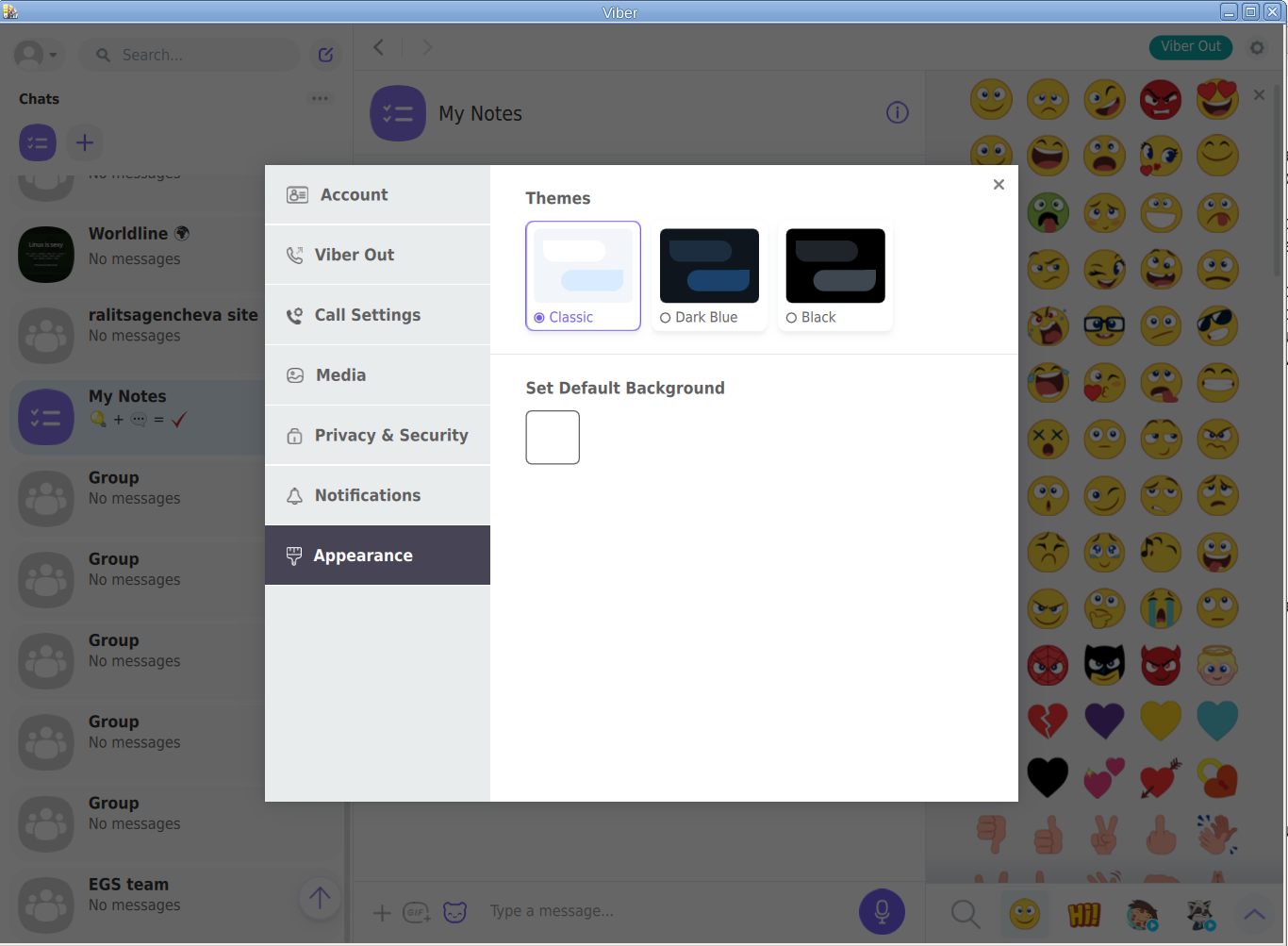
viber-appearance-menu-screenshot-linux


2. Install Viber in separated isolated sandbox from wider system

Second way if you don't trust a priorietary third party binary of Viber (and don't want for Viber to be able to possibly read data of your login GNOME / KDE user, e.g. not be spied by KGB 🙂

For those curious why i'm saying that Viber is mostly used mainly in the ex Soviet Union and in the countries that used to be Soviet satellite ones for one or another reason and though being developed in Israel some of its development in the past was done in Belarus as far as I remember one of the main 3 members (Ukraine, Belarus and Russia) that took the decision to dissolve the USSR 🙂

Talking about privacy if you're really concerned about privacy the best practice is not to use neither WhatApp nor Viber at all on any OS, but this is hard as usually most people are already "educated" to use one of the two. 
For the enthusiasts however I do recommend just to use the Viber / WhatsApp free GPLed software alternative for Vital communication that you don't want to have been listened to by the China / USA / Russia etc. 
Such a good free software alternative is Jitsy and it has both a Web interface that can be used very easily straight inside a browser or you could install a desktop version for PC / iOS and Android and more.
An interesting and proud fact to mention about Jitsy is that its main development that led the project to the state it is now is being done by a buddy Bulgarian ! Good Job man ! 🙂

If you want to give jitsy a try in web with a friend just clik over my pc-freak home lab machine has installed usable version on meet.pc-freak.net

In the same way people in most countries with American and English free world use the WhatsApp which is a another free spy and self analysis software offered by America most likely collecting your chat data and info about you in the (US Central Intelligence Agency) CIA databases. But enough blant so to minimize a bit the security risks of having the binary run directly as a process you can use a containerization like docker to run it inside and isolate from the rest of your Linux desktop. flatpak is a tool developed exactly for that.


hipo@jeremiah:/opt/viber$ apt-cache show flatpak|grep -i Description-en -A 13

Description-en: Application deployment framework for desktop apps
 Flatpak installs, manages and runs sandboxed desktop application bundles.
 Application bundles run partially isolated from the wider system, using
 containerization techniques such as namespaces to prevent direct access
 to system resources. Resources from outside the sandbox can be accessed
 via "portal" services, which are responsible for access control; for
 example, the Documents portal displays an "Open" dialog outside the
 sandbox, then allows the application to access only the selected file.
 .
 Each application uses a specified "runtime", or set of libraries, which is
 available as /usr inside its sandbox. This can be used to run application
 bundles with multiple, potentially incompatible sets of dependencies within
 the same desktop environment.

Having Viber installed on Linux inside a container with flatpak is as simple as to adding, repository and installing the flatpak package
already bundled and stored inside flathub repository, e.g.:
 

2.1. Install flatpak 

# sudo apt install flatpak


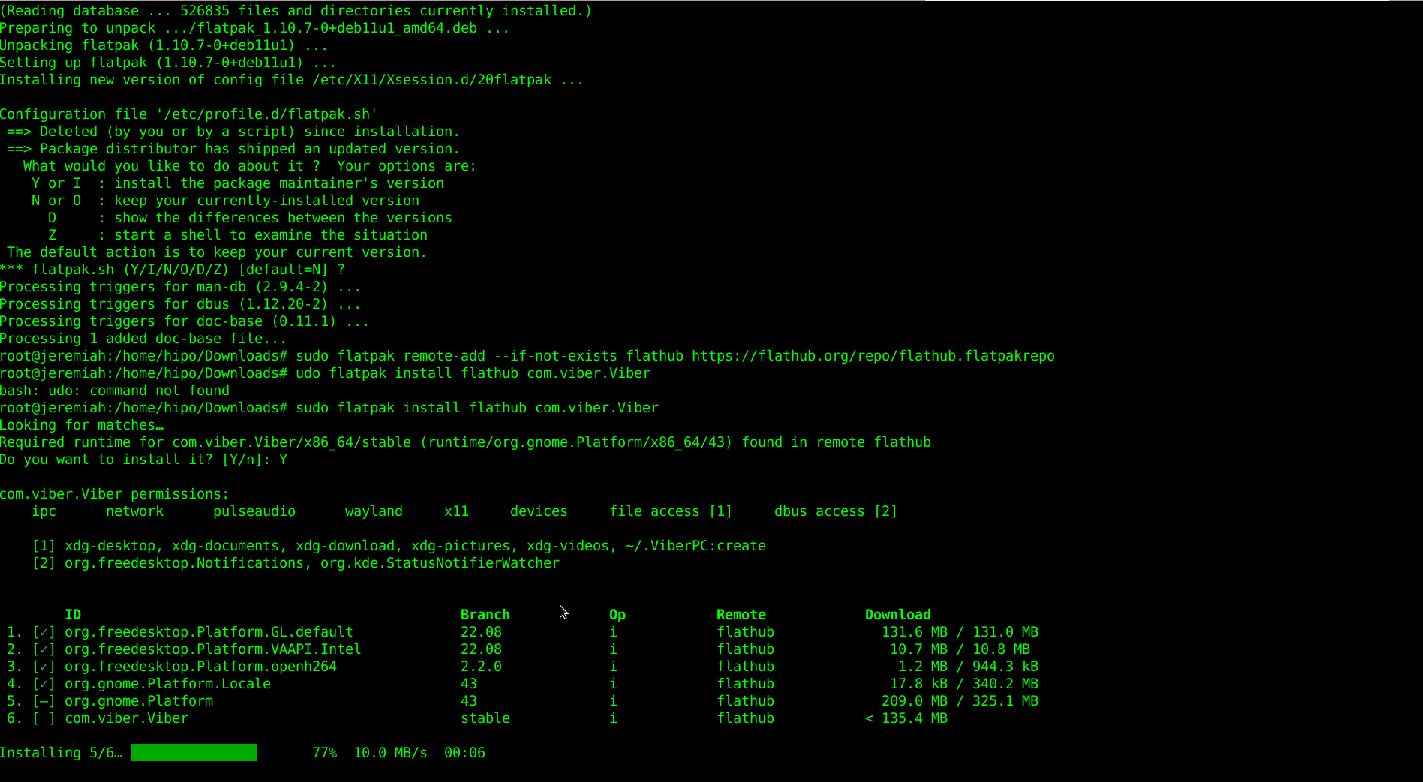
flatpak-viber-installation-linux-screenshot
 

2.2. Add flathub install repository

flatpak is pretty much like dockerhub, it contains images of containered sandbox copies of software, the main advantage of flatpak is its portability, scalability and security.
Of course if you're a complete security freak you can prepare yourself an own set of Viber and add it to flathub and use instead of the original one 🙂
 

# sudo flatpak remote-add –if-not-exists flathub https://flathub.org/repo/flathub.flatpakrepo

2.3. Install Flatpak-ed Viber 

#sudo flatpak install flathub com.viber.Viber


Reboot the PC and to test Viber will run containerized normally issue below flapak start command:

# /usr/bin/flatpak run –branch=stable –arch=x86_64 –command=viber com.viber.Viber


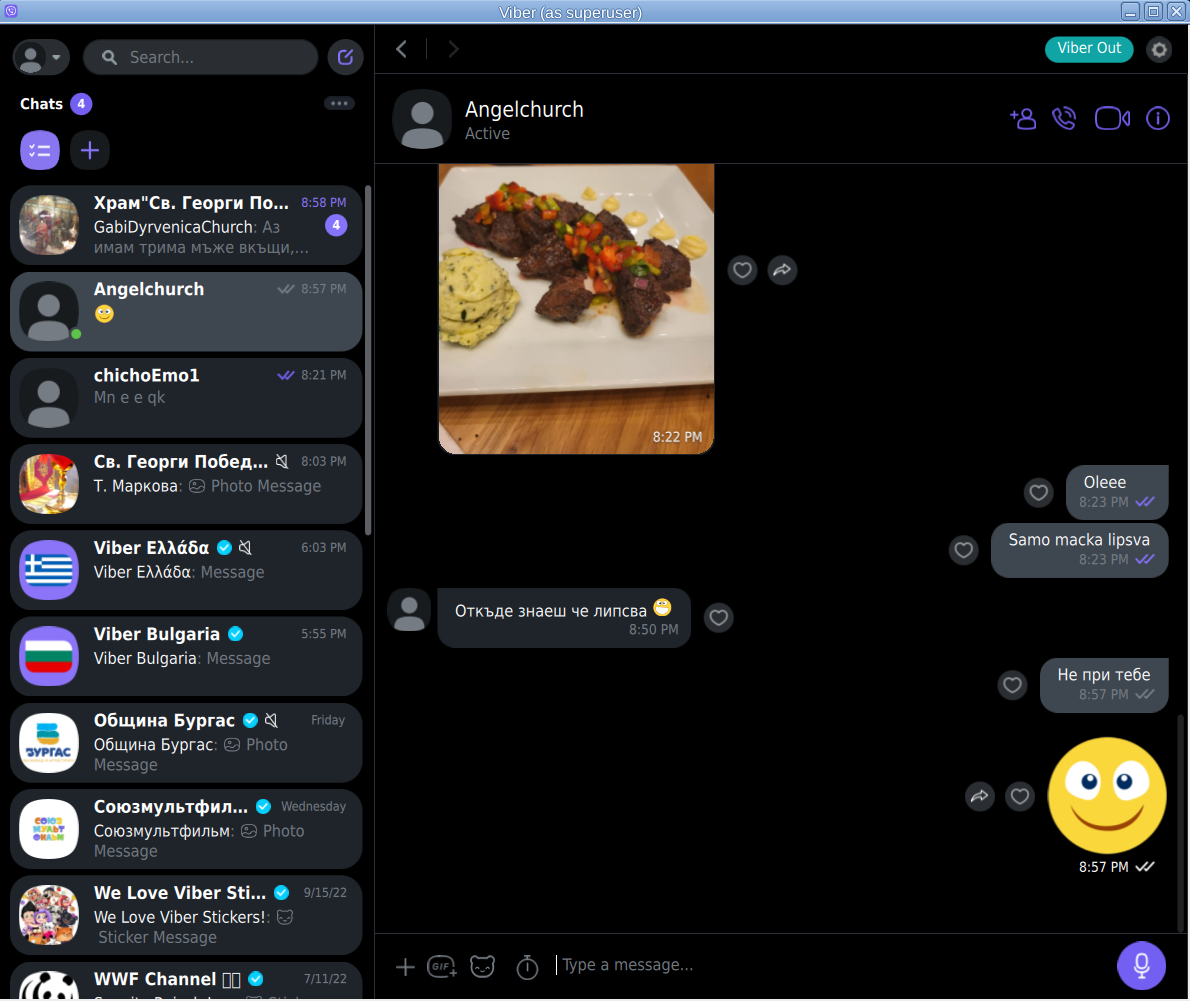
Viber-inside-flatpak-sandbox-on-debian-linux-screenshot-running

! NOTE !  The Linux version of Viber is missing Backups options, exclusively the Settings -> Account -> Viber backup menus is missing, but the good news is that if you're using the Viber client
as a secondary device message client, on first login you'll be offered to Synchronize your Viber data with your 1st Active device (usually your Smart Phone). Just click on it and allow the synchronization from your phone and in a while the Contacts and message history should be on the Linux Viber client.

That's it Enjoy your Viber Sound and Video on Linux ! 🙂

Things to install on newly installed GNU / Linux (My favourite must have Linux text and GUI programs missing in fresh Linux installs)

Thursday, September 7th, 2017

must-have-packages-to-install-on-a-freshly-brand-new-linux-installed-on-desktop-computer-gnu-linux-logo

On every next computer I use as a Desktop or Laptop, I install with Debian GNU / Linux I install the following bunch of extra packages in order to turn the computer into a powerful Multimedia, User, Sys Admin army knife tools, A Programmer desktop and Hacker / Penetration Testing security auditting station.

The packages names might vary less or more across various Debian releases and should be similar or the same in Ubuntu / Linux Mint and the rest of Deb based distribtuions.

Also some of the package names might given in the article might change from time of writting this article just like some  already changed in time from a release to release, nomatter that the general list is a collection of packages I have enjoyed for the last 8 years. And I believe anyone who is new to GNU / Linux and  or even some experienced free software users in need of  full featured computer system for remote system administration purposes or general software development and even small entertainment such as Movie Watching or Playing some unsophisticated basic games to kill some time might benefit from the list of programs collected from my experience as a Free Software GNU / Linux users over the last 12 years or so.

So here we go as you might know, once you have a Debian GNU / Linux, first thing to do is to add some extra repositories in /etc/apt/sources.list

For example my debian 9 Stretch sources.list looks like this:

cp -rpf /etc/apt/sources.list /etc/apt/sources.list-bak

vim /etc/apt/sources.list

And delete / substitute everything within with something as following:

deb http://deb.debian.org/debian stretch main non-free
deb-src http://deb.debian.org/debian stretch main

deb http://deb.debian.org/debian stretch-updates main
deb-src http://deb.debian.org/debian stretch-updates main

deb http://security.debian.org/ stretch/updates main
deb-src http://security.debian.org/ stretch/updates main

deb http://security.debian.org/debian-security stretch/updates main contrib
deb-src http://security.debian.org/debian-security stretch/updates main contrib

deb http://download.virtualbox.org/virtualbox/debian stretch contrib

If you're using an older Debian release for example debian 7 or 8, the sources.list codename stretch word should be changed to wheezy for legacy debian 7 or jessie for debian 8, do it respectively for any future or older Deb releases.

Then proceed and update all current installed packages to their latest release with:

apt-get update && apt-get upgrade

If you're running on a very old Debian GNU / Linux release , you might encounter errors from above cmds, if that's your case just follow the online guides and update to a newer still supported Deb release.

Once all this is done assuming you have connected to the internet via LAN network or if on a laptop via Wireless, here are some useful stuff to install especially if you're planning to use your computer effectively in both console and graphics environment.


1. Install some basic packages necessery if you're planning to be using compilers on the freshly installed GNU / linux

apt-get install –yes gcc autoconf build-essential fakeroot devscripts equivs libncurses5-dev g++ make libc6-dev fontconfig gdc

The most notable package here is build-essential it provides the following collection of C / C++ programs on Deb package based distributions Debian / Ubuntu / Mint etc.
 

  1. libc6-dev – C standard library.
  2. gcc – C compiler.
  3. g++ – C++ compiler.
  4. make – GNU make utility to maintain groups of programs.
  5. dpkg-dev – Debian package development tools.

2. Install w3m lynx elinks text browsers

apt-get install –yes lynx elinks w3m-img w3m

3. Install wireless and networking tools
 

apt-get install  –yes tcpdump vnstat wpasupplicant wpagui dnsutils

4. Install Network sniffing, penetration testing and network evaluation tools
 

apt-get install  –yes wireshark nmap zenmap sniffit iptraf iptraf-ng tshark dsniff netsniff-ng netwox netwag sslsniff darkstat kismet netcat ngrep hashcat hydra hydra-gtk ophcrack ophcrack-cli

————–

wiresharkGUI network traffic analyzer

nmapnmap port mapper and security audit tool

zenmapGUI frontend to nmap

sniffitconsole text based basic packet sniffer and monitoring tool very used tool to sniff servers authenticatoins in the past

iptraf-ngNext Generation interactive colorful IP Lan mointor

tsharkanother network traffic analyzer console version

dsniffVarious tools to sniff network traffic for cleartext insecurities

netsniff-ngLinux network packet sniffer toolkit

netwoxProvides more than 200 tools to solve network problems with DNS, FTP, HTTP, IRC, NNTP, SMTP, SNMP, SYSLOG, TELNET, TFTP

netwaggraphical frontend to netwox

sslsniff SSL/TLS man-in-the-middle attack tool

darkstatnetwork traffic analyzer

kismetwireless sniffer and monitor (very useful in the past for sniffing passwords on a Wi-Fi network)

netcatTCP / IP swiss army knife (good tool to listen and connect to local and remote ports)

ngrepgrep like tool for network traffic

hashcatClaims to be world's fastest and most advanced password recovery utility, capable of attacking more than 160 highly optimized hashing algorithms, supports CPU and GPU (using the video card CPU to enhance password cracking speed), also could be used for distributed password cracking

hydra Very fast network logon cracker, supports webforms works with dictionary attacks etc.

hydra-gtkGTK GUI version of Hydra

ophcrackMicrosoft Windows password cracker using rainbow tables GUI

ophcrack-cli Console version of Microsoft Windows password cracker using rainbow tables for speed

————


5. Install multimedia, entertainment few useful tools and other useful stuff
 

apt-get install –yes workrave xscreensaver xscreensaver-data xulrunner xutils zenity yelp zgv   tracker-utils alltray ant apt-utils bsdutils  aumix bwidget ca-certificates pulseaudio-module-jack aumix audacious ffmpeg bluefish bluefish-plugins blender blueman bluez cabextract bluez-firmware bsdmainutils dcraw dmidecode evtest file fonts-liberation fonts-stix fonts-uralic fonts-opensymbol fonts-lyx fonts-cantarell fuse gimp gimp-data-extras gimp-plugin-registry git gnupg gnupg2 imagemagick imwheel inkscape iw less 


bsdutils – Provides some nice old school programs such as :

-=-=-=-=-=-

wall – a program to write to every logged in user console, used in old times on time sharing servers to notify all users about sys admin planning for a reboot or for some other update activity

renice – allows to renice priority over already prioritized process with (nice command)

script – Allows you to do a recorder like saves of user activity on a console / terminal

logger – send logging output from programs to syslog 

-=-=-=-=-=-

alltray – A small program that allows you to bring to dock any program useful to make Thunderbird appear in Gnome / Mate / KDE Dock in a similar manner as Outlook does in m$ Windows

zgv – SVGAlib graphical (picture viewer) useful to view pictures from tty consoles

zenity – allows to display graphical dialog boxes by using shell scripts

aumix – Simple text based mixer control, useful to tune up sound values and mic recording volume from console

WorkRave – is a useful program to periodically remind you to stand out of the computer on a specified interval and shows you graphically some exercies to do to prevent your physical health to not deteriorate by standing all day immobilized

Bluefish – Is Advanced GTK+ HTML Editor useful if you're about to edit HTML / CSS and other Web files

dcraw – Decode raw digital images

dmidecode – Text program that reports your computer hardware

blueman, bluez – Programs to enable USB support on your Linux

evtest – evtest is a utility to monitor Linux input devices

file – little tool to determine file type based on "magic numbes"

fontsliberation – Fonts with same metrics as Times, Arial and Courier


6. Install Text based console Multimedia Mp3 / Mod / S3m players

apt-get install –yes mpg321 mpg123 cmus mp3blaster mplayer sox  ogg123 mikmod cplay cdcd cdck eject

———

mpg321, mpg123 Mp3 and Ogg Vorbis console player historically one of the earliest I used to play my music

cmus Another awesome ncurses menu based small music player

mp3blaster Full Screen ncurses text console mp3 and Ogg vorbis music player

mplayer An awesome old school (the defacto standard) and still one of the best Music and Video player for GNU / Linux

sox Swiss army knife of sound processing, contains (sox, play, rec and soxi commands), which could be used to play, rec and add effects to WAV and other popular old sound formats

ogg123 Play Ogg Vorbis .OGG Free encoding file format in console

mikmodThe most famous Tracker (S3M, MOD, IT) music player for *NIX, play the old soundtracker formats on your GNU / Linux

cplay – A really nice text front end to music players, the cool thing about it it shows how much is left for the song to over using ASCII

cdcd – play Audio CDs from console

eject – eject your CD Drive from console

cdck – tool to verify the quality of written CDs/DVDs

———


7. Install Games

apt-get install –yes xpenguins frozen-bubble alex4 bsdgames bb ninvaders blobwars btanks chromium-bsu criticalmass figlet freetennis njam swell-foop dreamchess extremetuxracer gltron gnuchess wesnoth njam wing nikwi dreamchess gltron gnome-games swell-foop aisleriot prboom

———–

xpenguins – little penguins walk on your screen great to use as a screensaver

frozen-bubble – cool game with bubbles you have to pop out

blobwars – platform shooting game

njam – pacman like game with multiplayer support

extremetuxracer – 3D racing game featuring Tux the Linux penguin mascot

gltron – 3D remake of the good well known Tron Game

gnuchess – GNU remake of classic Chess game

wing – arcade Galaga like game for GNU / Linux

wesnoth – Fantasy turne based strategy game

dremachess – 3D chess game

swell-fool – Colored ball puzzle game

gnome-games – A collection of Games for the GNOME Desktop

nikwi – platform game with a goal to collect candies

aisleriot – GNOME solitaire card game 

prboom – PrBoom, a remake of the Doom 3d shooter classic game using SDL (supports OpenGL), to play it you will need WAD files if you don't have it install (doom-wad-shareware) package

figlet – Make large character ASCII banners out of ordinary provided text (just provide any text and get a nice ASCII picture out of it)

———-
 

8. Install basic archivers such as rar, zip, arj etc.

apt-get install –yes zip unrar arj cpio p7zip unzip bzip2 file-roller


———–

cpioGNU cpio, a program to manager archive files

bzip2BunZip2 block compressor decompressor utility (necessery to untar the .tar.bz2 tar balls)

unzipDe-archiver for .zip files console version

rar, unrarArchiver Unarchiver for .rar files in terminal / console (unfortunately non-free software)

file-rollerArchive manager for gnome

gpg – gnu privacy guard to be able to generate gpg keys

————-

If you're looking for an advanced file archive, dearchive software GUI that be a substitute for Windows WinRar,  WinZip there is also the proprietary software PeaZip for Linux, as I stay as much as possible away from non-free software I don't use PeaZip though. For me file-roller's default GNOME archiver / unarchiver does a pretty good job and if it fails someties I use the console versions of above programs
 

9. Install text and speech synthesizer festival freetts
 

apt-get install –yes festival festival-cmu festvox-kallpc16k festvox-ru mbrola-en1 speech-dispatcher-festival freetts flite yasr gnupg2

————-

FestivalIs the general multi-lingual speech synthesis system

yasris a basic console screen reader program

flitea small run time speech synthesis engine alternative to festival, another free software synthesis tool based built using FestVox

————–

Festival is great if you want to listen to text files and can easily be used to convert basic PDFs or DOC files to listen them if you're lazy to read I've explained on how you can use festival to read speak for you PDFs and DOCs, ODF (Open Document Format) here
 

10. Install linux-header files for latest installed Debian kernel

apt-get install –yes linux-headers-$(uname -r)

You will need that package if you need to compile external usually DRM (Digital Rights Management)  external modules that could be loaded to current Debian precompiled kernel, I recommend you abstain from it since most of the modules are DRMed and doesn't respect your freedom.
 

11. Install GUI programs and browsers

apt-get install –yes gnome-themes-standard gnome-themes-standard-data epiphany-browser dconf-tools gnome-tweak-tool

epiphany-browserIntuitive GNOME web browser (I love this browser, though sometimes Crashing I prefer to use it as it is really fast and lightweight I think Mac OS's Safari has been partially based on its programming code)

dconf-tools Dconf is a low-level key / value database designed for storing desktop environment variables (provides dconf-editor – which allows you to tune tons of gnome settings tunable only through this database it is something like Windows regedit registry editor tool but for GNOME)

gnome-themes-standard / gnome-themes-standard-data The name says it all it provides beautiful gnome standard themes

gnome-tweak-tool Graphic tool to adjust many advanced configuration settings in GNOME in GNOME 3.2, many of the old GNOME 3.0 and 2.X capabilities such as Desktop icons or Computer on the Desktop and many more useful gnome capabilities you might be used for historically can be enabled through that handy tool, it is a must for the GNOME user

12. Install text and GUI mail clients

apt-get install –yes mutt fetchmail bsd-mailx mailutils thunderbird aspell-bg aspell-en aspell-ru

I use primary 3 languages Russian, Bulgarian and English, so by installing the 3 packages aspell-bg, aspell-en, aspell-ru, that would add a possiility for Thunderbird and LibreOffice to have ability to spell check your mails and ODF documents, if your native language is different or you speak different languages do run:
 

apt-cache search aspell 


And install whatever languages spell check support you need


13. Install filesystem mount, check and repair tools
 

apt-get install –yes ntfs-3g sshfs dosfstools ext3grep  e2fsprogs e2fsck-static growisofs  e2undel extundelete recover bleachbit


———–

ntfs-3g – read / write NTFS driver support for FUSE (Filesystem in UserSpace) or in other words install these to be able to mount in read/write mode NTFS filesystems

sshfs – filesystem client based on SSH File Transfer Protocol, that little nitty tool enables you to mount remotely SSH Filesystems to your local Linux Desktop, it is also useful to install across servers if you need to remotely mount SSH Filesystems

e2fsprogs ext2 / ext3 / ext4 filesystem utilities to check, fix, tune, defragment resize and create etc. new filesystems  (provides crucial commands such as fsck.ext2, fsck.ext3, fsck.ext4, e2label, lsattr, chattr, resize2fs, mkfs.ext2, mkfs.ext3, mkfs.ext4 …)

dosfstoolstool giving you ability to check, create and diagnose DOS and Windows FAT 32 Filesystems provides commands such as dosfsck, mkdosfs, dosfslabel, fsck.msdos, fsck.vfat, mkfs.msdos

growisofs DVD+ RW / Read Only Recorder

ext3greptool to help recover deleted files on ext3 filesystems

e2undel Undelete utility for ext2 filesystems
———–

14. Install emulators for PC OS Emuation (Qemu), DOS and Wine to run native Windows programs on GNU / Linux
 

apt-get install –yes qemu qemu-utils aqemu dosbox mame mame-extra os8 simh wine nestopia dgen


—————-

QemuVirtual Machine emulator with support UEFI firmware

Aqemu – Qemu QT VM GUI Frotend

Dosbox – Dos Emulator, great to have to play the good old DOS games on your GNU / Linux

Mame – Multiple Arcade Machine Emulator, great if you want to play the old arcade games of your youth such as The Punisher, Cadillacs and Dinosaurs, Captain America, Robocop, Captain Commando, Wonderboy and so on the list goes on and on …

simh – PDP-1 PDP-4 PDP-7, PDP-9, PDP-10, PDP-11, PDP-15 HP 2100, IBM System 3, IBM 1620, Interdata, SDS, LGP-21, LGP-30, DEC VaX emulator

nestopia Nintendo Entertainment System / Famicom Emulator

dgen – Sega MegaDrive GNU / Linux Emulator

—————


15. Install Network Time protocol daemon and ntpdate (time synchronizing text client)

apt-get install –yes ntpdate ntp

16. Install Djview and CHM books reader

apt-get install –yes djview djview4 djvulibre-bin xchm kchmviewer chm2pdf

Install this packages to be able read DjView and CHM book formats

17. Install other text stuff

# Install text calculator I always prefer and use this console tool instead of the GUI gnome-calculator

apt-get install –yes bc

18. Install printing CUPs and printing utilities

apt-get install –yes cups-client cups-daemon cups-server-common hplip hplip-data printer-driver-hpcups printer-driver-hpijs ghostscript 

A bunch of packages for your Linux Deskto po properly support printing, you might need to install some extra packages depending on the type of printer you need to use, perhaps you will have to take few minutes probably to configure CUPs.

19. Install text monitoring tools

apt-get install –yes htop atop  dnstop  iftop iotop  jnettop ntopng  pktstat  powertop  sntop mariadb-client  iotop  itop jnettop kerneltop logtop
pgtop powertop


—————–

htop – More interactive colorful process viewer similar to top

atop – Monitor for system resources and process activity

dnstop – Console tool for analyze DNS traffic

iftop displays bandwidth usage information on a chosen network interface

iotopsimple top-like I/O (I / O) information output by the Linux kernel

jnettopView hosts / ports taking up the most network traffic

ntopng High-Speed Web-based Traffic analysis and Flow Collection tool

pktstat top like utility for network connections usage

powertop tool to diagnose issues with power consumption and management (useful for Linux running laptops)

sntop A ncurses-based utility that polls hosts to determine connectivity

mariadb-clientthis is the new name for the old mytop / mtop MySQL top package

kerneltop shows Linux kernel usage in a style like top

pgtop Show PostgreSQL queries in a top like style

lograte real time log line rate analyzer

—————-

20. Install text command line tools for transferring data from Web sites and FTP

apt-get install –yes curl wget lftp filezilla gftp transmission linuxdcpp

———-
curl command line tool for transferring data with URL syntax

wget tool to retrvie files and html from the web

lftp sophisticated command-line FTP/HTTP/BitTorrent client program

filezilla Full-featured graphical FTP/FTPS/SFTP client

gftp X/GTK+ and console FTP client

transmission lightweight Bittorrent client

linuxdcpp – Port of the Windows file-sharing program DC++

———–

21. Install text based communication programs

apt-get install –yes irssi freetalk centerim finch

———-

Irssi Great console IRC chat client with support for encryption

FreeTalk console based jabber client

centerim Console based ICQ client

finch – Multi protocol Text console client for AIM/ICQ, Yahoo!, MSN, IRC, Jabber / XMPP / Google Talk Sametime, MySpaceIM, Napster, Zephyr, Gadu-Gadu, Bonjour, GroupWise

———-

22. Install Apache Webserver and MySQL

This two are necessery if you're about to use your computer as a PHP / MySQL develment station

apt-get install –yes mysql-server phpmyadmin apache2 libapache2-mod-php php-pear php php-mysql  ant ant-contrib apache2-dev apache2-ssl-dev

———-

mysql-server MySQL community edition

ant Java based build tool like make (necessery for building many third party apache modules and code)

libapache2-mod-php5the php module loaded into apache

phpmyadminWebtool admin to manage your MySQL database

——–

23. Install mouse support for consoles

apt-get install –yes gpm


———–

gpm is the general purpose mouse interface, if you want to have support for your mouse in TTY consoles (the ones you go to with CTRL + ALT + F2, CTRL + ALT + F3 and so on install it).

———–

24. Install various formats converter tools

apt-get install –yes html2text pdf2djvu unoconv oggconvert webkit2pdf img2pdf gsscan2pdf netpbm dir2ogg soundconverter


————

gsscan2pdfGUI program to produce PDF or DJVU from scanned documents

img2pdfLossless conversion of raster images to PDF

webkit2pdfexport web pages to PDF files or printer

html2textAdvanced HTML to text converter

oggcconvert – convert media files to free format 

netpbmGraphics conversion tools between image formats

dir2ogg – converts MP3, M4A, WMA, FLAC, WAV files and Audio CDs to the open-source OGG format.

soundconverter – GNOME application to convert audio files into other formats

————

There are probably a lot of more handy packages that other Free Software users like to install to make the GNU / Linux desktop notebook even more entertaining and fulfillful for daily work. If you can think of other useful packages not mentioned here you tend to use on a daily basis no matter where Debian based or other distro, please share that would help me too to learn a new thing and I'll be greateful.

Enjoy !

UPDATE: If you get errors with missing packages, just delete them out of the apt-get lines. The reason is some packages are beying removed from .deb repositories or the software package name has changed due to some reason.
 

How to enable Gravis UltraSound in DOSBox for enhanced music experience in DOS programs and Games

Tuesday, October 31st, 2017

DOSBox

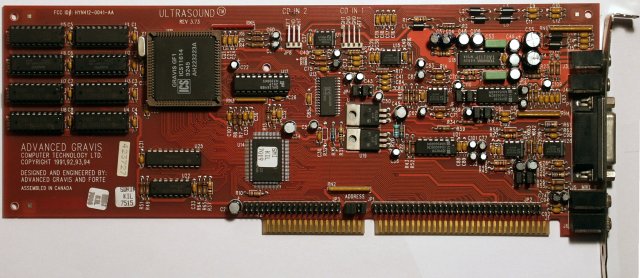
Gravis UltraSound Classic


Gravis UltraSound

Gravis UltraSound or GUS is a sound card for the IBM PC compatible systems.
It was lunched in 1992 and is notable for it's ability to use real-world sound recordings (wavetable) of a musical instruments rather than artificial computer-generated waveforms.
As one of my friends used to say back then: "it sounds like a CD".

To enable GUS in DOSBox all you need to do is:

1. Download the archive with the GUS files from https://alex.www.pc-freak.net/files/GUS/ULTRASND.zip. Extract the archive (there is already a directory in it so you don't have to create one) preferably where you keep your DOSBox stuff (like Games).

2. Find your DOSBox config file. Depending on the version or host OS, the dosbox conf file is located either inside the user profile folder or inside the same folder as dosbox.exe. In Windows 7 the config file is located at

"C:\Users\Fred\AppData\Local\VirtualStore\Program Files (x86)\dosbox.conf"

where "Fred" is your username.

In GNU/Linux it's in "/home/Fred/.dosbox/dosbox.conf" where "Fred" is your username.

The name of the conf file may also have dosbox version (for example –

"dosbox-0.74.conf").

Open it with a text editor like notepad (Windows) or equvalent for GNU/Linux (vi, Kate, gedit…). Locate "[gus]" section (without the quotes) and edit it so it looks like this:

[gus]
#      gus: Enable the Gravis Ultrasound emulation.
#  gusrate: Sample rate of Ultrasound emulation.
#           Possible values: 44100, 48000, 32000, 22050, 16000, 11025, 8000, 49716.
#  gusbase: The IO base address of the Gravis Ultrasound.
#           Possible values: 240, 220, 260, 280, 2a0, 2c0, 2e0, 300.
#   gusirq: The IRQ number of the Gravis Ultrasound.
#           Possible values: 5, 3, 7, 9, 10, 11, 12.
#   gusdma: The DMA channel of the Gravis Ultrasound.
#           Possible values: 3, 0, 1, 5, 6, 7.
# ultradir: Path to Ultrasound directory. In this directory
#           there should be a MIDI directory that contains
#           the patch files for GUS playback. Patch sets used
#           with Timidity should work fine.

gus=true
gusrate=44100
gusbase=240
gusirq=5
gusdma=3
ultradir=C:\ULTRASND

Then save the dosbox conf file.

3. Start DOSBox and mount "ULTRASND" directory to "C:".

You can do that with

mount c (directory to ULTRASND)

For example if you have extracted the archive in "C:\Games" it has created "C:\Games\ULTRASND" and the command you will have to write in DOSBox is

mount c c:\Games

(example: if your game is in "C:\Games\Heroes2" and your GUS directory is "C:\Games\ULTRSND" (if you have extracted the archive "C:\Games\") then you "mount c c:\Games" and you are set)

or for GNU/Linux if you have extracted the archive in "/home/Fred/Games" it has created "/home/Fred/Games/ULTRASND" and the command you will have to write in DOSBox is

mount c /home/Fred/Games (where "Fred" is your user name).

(example: if your game is in "/home/Fred/Games/Heroes2" and your GUS directory is "/home/Fred/Games/ULTRSND" (if you have extracted the archive" /home/Fred/Games/") in  then you "mount c /home/Fred/Games" and you are set)

You can make this automatic so you don't have to write it everytime by adding this command in the end (bottom) part of your dosbox conf file and save it.

You're practicly ready. All you need to do now is set Gravis UltraSound in your game or application setup (for example with the file "setup.exe") with IO: 240, IRQ 5 and DMA 3. If you prefer you previous sound card you can do that by selecting it again from the setup without disabling GUS from the dosbox conf file.

Happy listening!

Gravis Ultrasound


Article written by Alex

Install JBL Go Bluetooth Speaker on Debian GNU / Linux and Ubuntu

Thursday, August 24th, 2017

jbl-go-on-gnu-how-to-install-on-debian-and-ubuntu-linux

Here is how to configure a JBL Go Bluetooth (Wireless) speaker and presumably other Bluetooth external speakers to Debian GNU / Linux Wheezy 7 and Ubuntu 14.04 . 1. Install following bunch of deb packages

debian:~# apt-get install pulseaudio pulseaudio-module-bluetooth pavucontrol bluez-firmware

Here it is notable to mention pavucontrol if you have previously played more extensively on GNU / Linux you should have already used if not it is really cozy volume control tool with a lot of tuning options regarding pulseaudio stream server. Considering that like me you're using a GNOME as a desktop environment you will also need gnome-bluetooth package, e.g.:

debian:~# apt-get install gnome-bluetooth

As Pulseaudio is used as a sound streaming server in GNU / Linux (assuming your Debian version is using it you'll also need to have installed pulseaudio-module-bluetooth)

debian:~# apt-get install pulseaudio-module

For Ubuntu 14.04 GNU / Linux users the list of necessery bluetooth packages is a bit longer, if you're on this OS go and install:

debian:~# apt-get install bluez bluez-alsa bluez-audio bluez-btsco bluez-compat bluez-cups bluez-dbg bluez-gstreamer bluez-hcidump bluez-pcmcia-support bluez-tools bluez-utils python-bluez bluewho indicator-bluetooth libbluetooth-dev libgnome-bluetooth11 libbluetooth3 python-gobject python-dbus

Moreover you will need pulseaudio-module-bluetooth deb package installed in order to be able to select the desired sound output.

Next it is time to restart Bluetooth service

debian:~# service bluetooth restart
[ ok ] Stopping bluetooth: rfcomm /usr/sbin/bluetoothd.
[ ok ] Starting bluetooth: bluetoothd rfcomm.

It is also a good idea to restart pulseaudio snd streaming server in order to load the newly installed pulseaudio bluetooth module settings, to do so issue:

debian:~# killall pulseaudio

And try to establish connection from Gnome-Bluetooth to the JBL Go (press the JBL Go bluetooth button) and search from the Linux bluetooth interface, once founded connect it.

bluetooth-new-device-setup

jbl-go-connected-screenshot

Before JBL Go appears to list listable blootooth devices you will also need to run following command:

debian:~# pactl load-module module-bluetooth-discover
26

This command is to connect bluetooth discovered JBL Go device to the audio sink interface.

It is generally idea to add this line also to /etc/rc.local to make the setting permanently executed on every Linux boot.

Now you can launch pavucontrol and hopefully the JBL GO bluetooth speaker should be visible as an option, check out my below screenshot:


In case you further experience issues connecting the Bluetooth Speaker I would recommend to check out this Debian a2dp page at the end of the page are troubleshooting suggestions.

Troubleshooting

Refused to switch profile to a2dp_sink: Not connected

Bluetooth headset is connected, but ALSA/PulseAudio fails to pick up the connected device or there's no device to pick. This happens because GDM captures A2DP sink on session start, as GDM needs pulseaudio in the gdm session for accessibility. For example, the screen reader requires it. See 805414 for some discussion.


Workaround 1: disable pulseaudio in gdm

In order to prevent GDM from capturing the A2DP sink on session start, edit /var/lib/gdm3/.config/pulse/client.conf (or create it, if it doesn't exist):


autospawn = no
daemon-binary = /bin/true

After that you have to grant access to this file to Debian-gdm user:


chown Debian-gdm:Debian-gdm /var/lib/gdm3/.config/pulse/client.conf

You will also need to disable pulseaudio startup:


rm /var/lib/gdm3/.config/systemd/user/sockets.target.wants/pulseaudio.socket

In order to auto-connect a2dp for some devices, add this to /etc/pulse/default.pa:


load-module module-switch-on-connect

Logout your Desktop environment and restart gdm3 /etc/init.d/gdm3 restart or Reboot the PC and then it should be fine.


Now the sound device (bluetooth headset) should be accessible through pavucontrol and standard audio device manager.


Workaround 2: disable pulseaudio's bluetooth in gdm

The actual solution package maintainers are looking into next is to simply disable the bluetooth sink in the gdm pulseaudio daemon so that it doesn't take over the device. Add this to /var/lib/gdm3/.config/pulse/default.pa:


#!/usr/bin/pulseaudio -nF
#
# load system wide configuration
.include /etc/pulse/default.pa
### unload driver modules for Bluetooth hardware
.ifexists module-bluetooth-policy.so
unload-module module-bluetooth-policy
.endif
.ifexists module-bluetooth-discover.so
unload-module module-bluetooth-discover
.endif

Though this article explains how to connect a bluetooth speaker connecting Bluetooth Speaker to GNU / Linux is done in analogous way


How to turn keyboard backlight on GNU / Linux, keyboard no backlight solution

Friday, October 20th, 2017

how-to-make-CM_Storm_Devastator-keyboard_backlight-work-on-linux-enabled-disable-keyboard-glowing-gnu-linux

If you're a GNU / Linux user and you happen to buy a backlighted keyboard, some nice new laptop whose keyboard supports the more and more modern keyboard growing or if you happen to install a GNU / Linux for a Gamer friend no matter the Linux distribution, you might encounter sometimes  problem even in major Linux distributions Debian / Ubuntu / Mint / Fedora with keyboard backlight not working.

Lets say you buy a Devastator II backlighted keyboard or any other modern keyboard you plug it into the Linux machine and there is no nice blinking light coming out of the keyboard, all the joy is gone yes I know. The free software coolness would have been even more grandiose if your keyboard was shiny and glowing in color / colors 🙂

But wait, there is hope for your joy to be made complete.

To make the keyboard backlight switch on Just issue commands:


xmodmap -e 'add mod3 = Screen_Lock'


# Turn on the keyboard bright lamps
xset led on

# Turns off the keyboard bright lamps
xset led off


If you want to make the keyboard backlight be enabled permanent the easiest solution is to

– add the 3 command lines to /etc/rc.local

E.g. to do so open /etc/rc.local and before exit 0 command just add the lines:


vim /etc/rc.local


xmodmap -e 'add mod3 = Screen_Lock'

# Turn on the keyboard bright lamps
xset led on

# Turns off the keyboard bright lamps
xset led off


If you prefer to have the keyboard colorful backlight enable and disabled from X environment on lets say GNOME , here is how to make yourself an icon that enabled and disables the colors.

That's handy because at day time it is a kind of meaningless for the keyboard to glow.

Here is the shell script:

#!/bin/bash
sleep 1
xset led 3
xmodmap -e 'add mod3 = Scroll_Lock'


I saved it as /home/hipo/scripts/backlight.sh

(don't forget to make it executable!, to do so run):


chmod +x /home/hipo/scripts/backlight.sh


Then create  the .desktop file at /etc/xdg/autostart/backlight.desktop so that it runs the new shell script, like so:

[Desktop Entry]
Type=Application
Name=Devastator Backlight
Exec=/home/hipo/scripts/backlight.sh
Icon=system-run
X-GNOME-Autostart-enabled=true