Posts Tagged ‘configure’

How to Harden a Linux Server in 2025 – Practical Steps for Sysadmins to protect against hackers and bots

Thursday, December 11th, 2025

linux_server-hardening-practical-steps-for-sysadmins-protecting-machine-vs-hackers-and-bots-good-practices

Securing a Linux server has never been more importan than ever these days..
With automated attacks, AI-driven exploits, and increasingly complex infrastructure, even a small misconfiguration can lead to a serious breach.
But wait, you don't have to wait to get bumped by a random script kiddie. Good news is you can mitigate a bit attacks with just a few practical and pretty much standard steps, that can can drastically increase your server’s security.

Below is a straightforward, battle-tested hardening guide suitable for Debian, Ubuntu, CentOS, AlmaLinux, and most modern distributions.

1. Keep the System Updated (But Safely)

Outdated packages remain the #1 cause of server compromises.
On Debian/Ubuntu:

# apt update && apt upgrade -y

# apt install unattended-upgrades

On RHEL-based systems:
 

# dnf update -y

# dnf install dnf-automatic

Enable security-only auto-updates where possible. Full auto-updates may break production apps, so use them carefully.

2. Create a Non-Root User and Disable Direct Root Login
 

Attackers constantly brute-force “root”. Avoid letting them.
 

# adduser sysadmin

# usermod -aG sudo sysadmin

Then edit SSH:

# vim /etc/ssh/sshd_config

Set:

PermitRootLogin no

PasswordAuthentication no

And restart:

# systemctl restart sshd


Use SSH keys only.

3. Install a Firewall and Block Everything by Default

UFW (Debian/Ubuntu):

# ufw default deny incoming

# ufw default allow outgoing

#ufw allow ssh

# ufw enable

Firewalld (RHEL/AlmaLinux):

# systemctl enable firewalld –now

# firewall-cmd –permanent –add-service=ssh

# firewall-cmd –reload

Turn off any unneeded ports immediately.

4. Protect SSH with Fail2Ban

Fail2Ban watches log files for suspicious authentication attempts and blocks offenders.

# apt install fail2ban -y

or

# dnf install fail2ban -y

Enable:

# systemctl enable –now fail2ban

To harden SSH jail:

[sshd]

enabled = true

maxretry = 5

bantime = 1h

findtime = 10m

5. Enable Kernel Hardening

Install sysctl rules that protect against common attacks:

Create /etc/sysctl.d/99-hardening.conf:

kernel.kptr_restrict = 2

kernel.sysrq = 0

net.ipv4.conf.all.rp_filter = 1

net.ipv4.tcp_synack_retries = 2

net.ipv4.conf.all.accept_redirects = 0

net.ipv4.conf.all.send_redirects = 0

net.ipv4.conf.all.log_martians = 1

Apply:

# sysctl –system

6. Install and Configure AppArmor or SELinux

Mandatory Access Control significantly limits damage if a service gets compromised.

  • Ubuntu / Debian uses AppArmor by default — ensure it's enabled.
  • RHEL, AlmaLinux, Rocky use SELinux — keep it in enforcing mode unless absolutely necessary.

Check SELinux:

# getenforce

You want:

Enforcing but hopefully you will have to configure all your machine services to venerate and work correctly with selinux enabled.

7. Scan the System with Lynis

Lynis is the best open-source Linux security auditing tool.

# apt install lynis

# lynis audit system

It provides a security score and actionable suggestions.

8. Use 2FA for SSH (Optional but Highly Recommended)

Use Two Factor Authentication:

a. Freely with Oath toolkityou can read how in my previous article how to set up 2fa free software authentication on Linux

or

b. Install Google Authenticator:

# apt install libpam-google-authenticator

# google-authenticator

Enable in /etc/pam.d/sshd:

auth required pam_google_authenticator.so

And in SSH config:

ChallengeResponseAuthentication yes

Restart SSH.

9. Separate Services Using Containers or Systemd Isolation

Even simple servers can benefit from isolation.

Systemd sandbox options:

ProtectSystem=full

ProtectHome=true

ProtectKernelTunables=true

PrivateTmp=true

Add these inside a service file under:

/etc/systemd/system/yourservice.service

It prevents processes from touching parts of the system they shouldn’t.

10. Regular Backups Are Part of Security

A secure server with no backups is a disaster waiting to happen.

Use:

  • rsync
  • borgbackup
  • restic
  • Cloud object storage with versioning

Always encrypt backups and test restore procedures.

Conclusion

Hardening a Linux server in 2025 requires vigilance, good practices, and layered security. No single tool will protect your system — but when you combine SSH security, firewalls, Fail2Ban, kernel hardening, and backups, you eliminate the majority of attack vectors.


How to Install and Use Netdata on Debian / Ubuntu Linux for Real-Time Server Monitoring

Wednesday, October 29th, 2025

netdata-server-monitoring-simple-tool-for-linux-bsd-windows

Monitoring system performance is one of the most overlooked aspects of server administration – until something breaks. That is absolutely true for beginners and home brew labs for learnings on how to manage servers and do basic system administration. For novice monitoring servers and infrastructure is not a big deal as usually testing machines are OK to break things. But still if you happen to host yourself some own brew websites a blog or Video streaming servers a torrent server, a tor server, some kind of public proxy or whatever of community advantageous solution for free at home, then monitoring will become important topic at some time when your small thing becomes big.

 While many sysadmins reach for Prometheus or Zabbix, using those comes with much of a complexity and effort to put in installing + setting up the overall server and agent clients as well as configure different monitoring checks.

Anyways sometimes you just need a lightweight, zero-configuration server monitoring tool that gives you instant visibility and you don’t want to learn much to have the basic and a bit of heuristic monitoring in the house.

That’s where Netdata shines.

What is Netdata?

Netdata is an open-source, real-time performance monitoring tool that visualizes CPU, memory, disk, network, and process metrics directly in your browser. It’s written in C and optimized for minimal overhead, making it perfect for both old hardware and modern VPS setups.

Netdata is built to primarly monitor different Linux OS distributions such as CentOS / RHEL / AlmaLinux / Rocky Linux / OpenSuse / Arch Linux / Amazon Linux and Oracle Linux it also has support for Windows OS as well as partially supports Mac OS and FreeBSD / OpenBSD / Dragonfly BSD and some other BSDs but some of its Linux features are not available on those.

1. Install Netdata real time performance monitoring tool


root@pcfreak:~# apt-cache show netdata|grep -i description -A3

Description-en: real-time performance monitoring (metapackage)

 Netdata is distributed, real-time, performance and health monitoring for

 systems and applications. It provides insights of everything happening on the

 systems it runs using interactive web dashboards.

Description-md5: 6843dd310958e94a27dd618821504b8e

Homepage: https://github.com/netdata/netdata

Section: net

Priority: optional

Netdata runs on most Linux distributions. On Debian or Ubuntu, installation is dead simple:

# apt update

# apt install curl -y


To be with the latest version since the default repositories provide usually older release you can use for install directly the kickstart installer from netdata.

# bash <(curl -Ss https://my-netdata.io/kickstart.sh)

This script automatically installs dependencies, sets up the Netdata daemon, and enables it as a systemd service.

Once installed, Netdata starts immediately. You can verify with:

# systemctl status netdata

2. Access the Web Dashboard


Open your browser and navigate to:

http://your-server-ip:19999/

You’ll be greeted by an intuitive dashboard showing real-time graphs of every aspect of your system — CPU load, memory usage, disk I/O, network bandwidth, and more.

If you’re running this on a public server, make sure to secure access with a firewall or reverse proxy, since by default Netdata is open to all IPs.

Example (UFW):

# ufw allow from YOUR.IP.ADDRESS.HERE to any port 19999

# ufw enable

3. Enable Persistent Storage

By default, Netdata stores only live data in memory. To retain historical data:
 

# vim /etc/netdata/netdata.conf

Find the [global] section and modify:

[global]

  history = 86400

  update every = 1

This keeps 24 hours of data at one-second resolution. You can also connect Netdata to a database backend for long-term archiving.

4. Secure with Basic Auth (Optional)

If you want simple password protection:

# apt install apache2-utils

# htpasswd -c /etc/netdata/.htpasswd admin

Then edit /etc/netdata/netdata.conf to include:

[web]

  mode = static-threaded

  default port = 19999

  allow connections from = localhost 192.168.1.*

  basic auth users file = /etc/netdata/.htpasswd

Restart Netdata:

# systemctl restart netdata

Why Netdata is Awesome 

Unlike Prometheus or Grafana, Netdata gives you instant insights without heavy setup. It’s ideal for:

  • Debugging high load or memory leaks in real time
  • Monitoring multiple VPS or embedded devices
  • Visualizing system resource usage with minimal CPU cost

And because it’s written in C, it’s insanely fast — often using less than 1% CPU on idle systems.

Final Thoughts

If you’re running any Linux server – whether for personal projects, web hosting, or experiments – Netdata is one of the easiest ways to visualize what’s happening under the hood.

You can even integrate it into your homelab or connect multiple nodes to the Netdata Cloud for centralized monitoring. And of course the full featured use and all the features of the tool are available just in the cloud version but that is absolutely normal. As the developers of netdata seems to have adopted the usual business model of providing things for free and same time selling another great things to make cash.

Netdata is really cool solution without cloud for people who needs to be able to quickly monitor like 20 or 50 servers without putting too much effort. You can simply install it across the machines and you will get a plenty of monitoring, just open each of the machines inside a separate browser tabs and take a look at what is going on once or 2 times a day. It is very old fashioned way to do monitoring but still can make sense if you don't want to bother too much with developing the monitoring or put any effort in it but still have a kind of obeservability on your mid size computer infrastructure.

So, next time your VPS feels sluggish or your load average spikes, fire up Netdata — your CPU will tell you exactly what’s wrong.

How to Run Your Own Windows Domain Authentication on Linux

Thursday, October 2nd, 2025

samba-active-directory-win-tux-logo


Run Your Own Domain Authentication on Linux

Running your own domain authentication system on Linux can significantly enhance security and manageability in your IT environment. Whether you're setting up centralized login for a small network or a more complex domain environment, Linux provides powerful tools to become your own domain controller using open-source software.

In this guide, we’ll walk you through setting up Samba as an Active Directory (AD) Domain Controller on a Linux server.
These tutorial should work fine on Debian 12 (Bookworm), though it should work with minor modifications on pretty much most of recent Debs and deb based distros.

What is Domain Authentication?

Domain authentication allows users to log in to any authorized machine within a network using the same set of credentials. It provides centralized management of:

  • Users and groups
  • Computer accounts
  • Group policies
  • File and printer sharing
  • Access control

Microsoft's Active Directory is the most well-known implementation, but you can achieve similar functionality using Samba on Linux.

Pre-requirements

  • A fresh Linux installation (Ubuntu Server 22.04 LTS or Debian 12 recommended)
  • Static IP address
  • Root or sudo access
  • Domain name (e.g., mydomain.local)
 

1. Update System and Set proper Hostname

# apt update && sudo apt upgrade -y

# hostnamectl set-hostname dc1.mydomain.local


Add the hostname to /etc/hosts:

# vim /etc/hosts

Add the local network IP the SMB Domain controller will have locally on the machine:

192.168.1.100  dc1.mydomain.local dc1


2. Install Samba and Required Packages

# apt install samba krb5-config krb5-user winbind smbclient dnsutils -y

During the installation, you may be prompted for Kerberos configuration:

  • Default realm: MYDOMAIN.LOCAL
  • KDC: dc1.mydomain.local
  • Admin server: dc1.mydomain.local


samba-active-directory-raw-illustration


3. Provision Samba as a Domain Controller

First, stop any running Samba services:
 

# systemctl stop smbd nmbd winbind

# systemctl disable smbd nmbd winbind

Move default config:

# mv /etc/samba/smb.conf /etc/samba/smb.conf.bak

Now provision the domain:

# samba-tool domain provision –use-rfc2307 –interactive

Answer prompts:

  • Realm: MYDOMAIN.LOCAL
  • Domain: MYDOMAIN
  • Server role: dc
  • DNS backend: SAMBA_INTERNAL
  • Admin password: (choose a strong one)

Once done, configure Kerberos using the samba krb5.conf template file:

# mv /etc/krb5.conf /etc/krb5.conf.bak

# cp /var/lib/samba/private/krb5.conf /etc/


4. Start and Enable Samba AD Services

# systemctl unmask samba-ad-dc

# systemctl enable samba-ad-dc –now

Verify it’s working by running:

# samba-tool domain level show

Check Kerberos authentication is OK:

# kinit administrator

# klist

You should see a valid Kerberos ticket.

5. Configure DNS (Optional but Recommended)

If using SAMBA_INTERNAL DNS backend:

Check DNS resolution is OK:

# host -t A dc1.mydomain.local

# host -t SRV _kerberos._udp.mydomain.local

If you want clients to resolve domain names, configure them to use the Samba DC's IP as their DNS server.

6. Add Users and Join Client Machines

Add a new user:

# samba-tool user add your.samba.user

Join a Windows client:

  1. Go to System Properties → Computer Name → Change settings
  2. Click Domain, enter MYDOMAIN
  3. Authenticate with Administrator and the password you set
  4. Reboot

7. Managing the Domain

You can manage users, groups, and policies simply via commands or GUI interface or LDAP tools:

  • samba-tool (CLI)
  • RSAT tools on Windows (for GUI management)
  • via LDAP tools (if you have to stick to RFC2307)

Example commands:

# samba-tool user list

# samba-tool group list

# samba-tool user setpassword your.samba.user

8. Managing Samba AD Samba Linux Domain easily with UI
 

You can manage a Samba domain (especially when it's running as an Active Directory Domain Controller) via a web interface — but not directly through Samba itself, since it doesn't come with a built-in web UI.

Instead, you can integrate Samba with third-party web-based tools that provide management interfaces for:

  • Users and groups
  • Computer accounts
  • LDAP directory entries
  • Domain policies (to a limited extent)

Popular Web Interfaces to Manage a Samba Domain

Here are the most reliable options:

8.1. [Cockpit + 389 Directory Server or FreeIPA (for LDAP-based domains)]

  • Cockpit is a modern web admin interface for Linux servers.
  • When paired with FreeIPA, you can manage users, groups, policies, and more.
  • However, this is more suited for FreeIPA-based domains, not Samba AD.

✅ Great for: Linux-native domains
❌ Not compatible with Windows-style Samba AD


8.2. [LDAP Account Manager (LAM)] – RECOMMENDED FOR SAMBA + AD

Website: https://www.ldap-account-manager.org/

LDAP Account Manager (LAM) is one of the best tools to manage a Samba domain via LDAP, especially when:

  • You use Samba in AD DC mode with RFC2307 extensions (for Unix attributes)
  • Or, you're using Samba as a member server with an external LDAP backend

Features:

  • Web-based GUI to manage:


    • Users and groups
    • Samba-specific attributes (like SID, RID, home directories)
    • POSIX and Windows-compatible accounts
  • Can bind directly to the Samba LDAP directory

Authentication: Admin binds via LDAP (either over plain or TLS)

✅ Works with Samba AD (with some config)
✅ Handles Samba3/4 user schemas
✅ Active development and documentation


8.3. Samba Web Administration Tool (SWAT) ❌ Deprecated

SWAT was the original web interface for Samba but:

  • It was deprecated and removed from Samba after version 4.1
  • It's no longer secure or maintained
  • Not suitable for Samba AD DC environments

Recommendation: Do not use SWAT

8.4. Webmin (Partial Support)

  • Webmin is a general Linux web admin tool
  • It has a Samba module, but:


    • Designed for traditional Samba file sharing (not AD/DC mode)
    • Cannot manage Samba AD users/groups
    • Doesn’t interact with samba-tool or the AD schema

✅ Works for standalone Samba file servers
Not suitable for Samba AD DCs

Can You really Use RSAT Instead ?

If you want full Active Directory-style control (like Group Policy, OU structure, DNS, etc.), the best GUI tool is actually RSAT (Remote Server Administration Tools) on Windows
but for that of course you will have to have an own Windows Server setup especailly for it.

  • Connects to your Samba AD DC
  • Fully supports:


    • Users and groups
    • Group Policy Objects (GPO)
    • DNS management (if using internal Samba DNS)

Install RSAT on a Windows machine and run dsa.msc (Active Directory Users and Computers).

✅ Officially supported
✅ Full compatibility with Samba AD
Requires a Windows machine

Summary: Web UI for Samba Domain Management


Tool

Works with Samba AD DC?

Features

Notes

LDAP Account Manager (LAM)

Yes

User/group management

Best web option

Cockpit + FreeIPA

❌ No (not Samba AD)

Excellent for FreeIPA domains

Not compatible with Samba AD

Webmin

❌ Not fully

File shares only

No AD/DC management

RSAT (Windows)

✅ Yes

Full AD management

Not web-based

Recommendation

If you're running a Samba AD DC and want a web-based interface:

  • Use LAM (LDAP Account Manager) for basic account management
  • Use RSAT tools on Windows for full domain administration
  • Avoid SWAT and Webmin for this purpose

Security Considerations

  • Ensure firewall allows relevant ports (e.g., 53, 88, 389, 445, etc.) with Iptables / firewalld or whatever firewall solution you have present on the server and in the Network in which you hosted the server
  • Keep the system updated
  • Use secure passwords and rotate them regularly
  • Consider setting up replication if high availability is needed

Conclusion

Running your own domain authentication system on Linux using Samba is a powerful way to control user access in a centralized manner. It’s ideal for small to mid-sized networks, homelabs, or even enterprise environments looking for a cost-effective alternative to Windows Server.

With Samba acting as your domain controller, you can enjoy the benefits of centralized authentication, integrated DNS, and a high degree of compatibility with Windows clients — all while staying in the open-source ecosystem.


References

  • Samba Wiki: Setting up Samba as an AD Domain Controller
  • man samba-tool
  • man smb.conf


Notes and things to consider:

/var/lib/samba/private/krb5.conf file is generated only after you provision Samba as an Active Directory (AD) Domain Controller using:

# samba-tool domain provision

After provisioning, Samba creates a custom Kerberos config at:

/var/lib/samba/private/krb5.conf


This is true for both Debian and Ubuntu because it's handled by the Samba package itself, not the distro.

Why use that krb5.conf instead of Debian's default?

Well because:

The default /etc/krb5.conf on Debian isn't tailored for Samba AD.
The one Samba generates includes correct realm, KDC, and admin server settings.
It avoids subtle issues like failed kinit or broken Kerberos trust.

So you copy it over Debian’s default:


Gotchas on Debian to be aware of

Do not install samba via tasksel (like tasksel's “Samba file server” role), as it sets up a traditional SMB server, not AD.

Only use samba-tool domain provision if you're setting up AD DC.

Debian sometimes separates systemd services (e.g., samba-ad-dc might not be enabled by default). So make sure to enable samba-ad-dc instead of smbd/nmbd.


Implementing and using gssproxy, example guide on how to use it to authenticate ssh, samba, nfs with no password via kerberos protocol

Friday, September 26th, 2025

Implementing and using gssproxy, example guide on how to use it to authenticate ssh, samba, nfs with no password via kerberos protocol

GSS-Proxy is a daemon that safely performs GSSAPI (Kerberos) operations on behalf of other processes. It’s useful when services running as unprivileged users need to accept or initiate Kerberos GSSAPI authentication but shouldn’t hold or access long‑lived keys (keytabs) or raw credentials themselves. Typical users: OpenSSH, SSSD, Samba, NFS idmap, and custom daemons.

This article walks through what gssproxy does, how it works, how to install and configure it, example integrations (sshd and an unprivileged service), testing, debugging and common pitfalls.
 

1. What gssproxy does (quick conceptual summary)
 

  • Runs as a privileged system daemon (typically root) and holds access to keytabs or system credentials.
  • Exposes a local IPC (Unix socket) and controlled API so allowed clients can ask it to perform GSSAPI accept/init operations on their behalf.
  • Enforces access controls by client PID/user and by named service configuration (you map a client identity to the allowed service name and keytab).
  • Minimizes the need to distribute keytabs or give services direct access to Kerberos credentials.
     

2. Installation

On many modern Linux distributions (Fedora, RHEL/CentOS, Debian/Ubuntu) gssproxy is packaged.

Example (RHEL/Fedora/CentOS):

# RHEL/CentOS 7/8/9 (dnf or yum)


sudo dnf install gssproxy


# or


sudo yum install gssproxy

Example (Debian/Ubuntu):

sudo apt update

sudo apt install gssproxy

If you must build from source:

# get source, then typical autotools or meson/ninja workflow per upstream README

./configure

make

sudo make install


After install, systemd unit gssproxy.service should be available.
 

3. Main configuration concepts

The main config file is usually /etc/gssproxy/gssproxy.conf. It consists of mechs (mechanisms), services, clients, and possibly mappings. Key elements:

  • mech: declares a GSSAPI mechanism (e.g., krb5) and default keytab(s) for acceptor credentials.
  • service: logical service names (e.g., ssh, nfs, httpd) with attributes: user (the Unix user running the service), keytab, cred_store, mechs, and whether the service is allowed to be client (initiate) and/or server (accept).
  • client: rules mapping local client sockets / users / pids to allowed services.

A minimal working example that allows sshd to use gssproxy:

mechs = {

    krb5_mech = {

        mech = krb5;

        default_keytab = /etc/krb5.keytab;

    };

};


services = {

    ssh = {

        mech = krb5_mech;

        user = "sshd";

        keytab = /etc/krb5.keytab;

        # allow both acceptor (server) and initiator (client) ops if needed

        client = yes;

        server = yes;

    };

};

Client rules are often implicit: gssproxy can enforce that calls on a given service socket originate from the configured Unix user. For more complex setups you add policy and client blocks. Example to allow a specific PID or user to use the ssh service:

clients = {

    ssh_clients = {

        clients = [

            { match = "uid:0" },      # root can ask for ssh service

            { match = "user:sshd" },  # or the sshd user

        ];

        service = "ssh";

    };

};

Paths and sockets: gssproxy listens on a socket (e.g. /var/run/gssproxy/socket) and possibly per-user sockets (e.g. /run/gssproxy/uid_1000). The systemd unit usually creates the runtime directory with correct permissions.
 

4. Example: Integrate with OpenSSH server (sshd)

Goal: allow sshd and session processes to accept delegated GSS credentials and let unprivileged child processes use those credentials via gssproxy.

Server side config

  1. Ensure sshd is built/installed with GSSAPI support. On SSH server:

    • In /etc/ssh/sshd_config:
    • GSSAPIAuthentication yes
    • GSSAPICleanupCredentials yes
    • GSSAPIKeyExchange yes        # optional: if you want GSS key exchange
  2. Configure gssproxy with an ssh service entry pointing to the host keytab (so gssproxy can accept SPNEGO/kerberos accept_sec_context calls):

mechs = {

    krb5 = {

        mech = krb5;

        default_keytab = /etc/krb5.keytab;

    };

};


services = {

    ssh = {

        mech = krb5;

        user = "sshd";

        keytab = /etc/krb5.keytab;

        server = yes;

        client = yes;

    };

};

  1. Ensure /etc/krb5.keytab contains the host principal host/fqdn@REALM (or host/short@REALM depending on SPN strategy). Use ktutil or kadmin to create/populate.
  2. Restart gssproxy and sshd:

sudo systemctl restart gssproxy

sudo systemctl restart sshd

Client side

  • ssh client configuration (usually ~/.ssh/config or /etc/ssh/ssh_config):

Host myhost.example.com

    GSSAPIAuthentication yes

    GSSAPIDelegateCredentials yes

Client must have a TGT in the credential cache (kinit user), or use a client that acquires one.

Result

When the client initiates GSSAPI authentication and delegates credentials (GSSAPIDelegateCredentials yes or -K for older OpenSSH), gssproxy on the server handles acceptor functions. If a session process needs to use the delegated credentials (e.g., to access network resources as that user), gssproxy arranges a per-session credential store that unprivileged processes can use via the kernel keyring or other mechanisms gssproxy supports.
 

5. Example: Allow an unprivileged service to acquire initiator creds via gssproxy

Suppose a service mydaemon runs as myuser and needs to initiate Kerberos-authenticated connections using a specific service principal stored in /etc/mydaemon.keytab but you don’t want to expose that keytab to myuser.

Add a mech and service:

mechs = {

    krb5 = {

        mech = krb5;

        default_keytab = /etc/krb5.keytab;

    };

    mydaemon_mech = {

        mech = krb5;

        default_keytab = /etc/mydaemon.keytab;

    };

};


services = {

    mydaemon = {

        mech = mydaemon_mech;

        user = "myuser";

        keytab = /etc/mydaemon.keytab;

        client = yes;    # allow initiator operations

        server = no;

    };

};

Configure a client mapping so the mydaemon process (uid myuser) is allowed to use the mydaemon service. Once gssproxy runs, mydaemon uses the gssapi libraries (GSSAPI libs detect gssproxy via environment or library probe) and calls the GSSAPI functions; gssproxy will perform gss_acquire_cred using /etc/mydaemon.keytab and return a handle to the calling process. The service itself never directly reads the keytab.
 

6. Testing and tools

  • kinit / klist: manage and list Kerberos TGTs on clients.
  • journalctl -u gssproxy -f (or systemctl status gssproxy) to watch logs.
  • ss -l or ls -l /run/gssproxy to inspect sockets.
  • If you have gssproxy command-line utilities installed (may vary by distro), some installations include gssproxy CLI helpers. Otherwise use the service that relies on gssproxy and watch logs.

Example basic tests:

  1. Ensure gssproxy is running:

sudo systemctl status gssproxy

  1. On server, check socket and permissions:

sudo ls -l /run/gssproxy

# or

sudo ss -x -a | grep gssproxy

  1. Attempt SSH from a client with a TGT:

kinit alice

ssh -o GSSAPIDelegateCredentials=yes alice@server.example.com

# then on server, check journalctl logs for gssproxy/sshd messages
 

7. Debugging tips

  • Journal logs: journalctl -u gssproxy -xe will be your first stop.
  • Permissions: Ensure that gssproxy can read the keytab(s) (typically root-owned with restrictive perms). In config you may point to a keytab readable only by gssproxy.
  • Clients blocked: If a client is denied, check the clients block and match rules (uid/pid/user).
  • Keytab issues: Use klist -k /etc/krb5.keytab to list principals in a keytab. Ensure correct SPN and realm.
  • Clock skew: Kerberos is time-sensitive. Ensure NTP/chrony is working.
  • DNS / SPNs: Ensure hostnames and reverse DNS match the principal names expected for the service.
  • SSHD integration: If sshd still complains it can’t accept GSSAPI creds, enable debug logging (LogLevel DEBUG), and check gssproxy logs.
  • SELinux: On SELinux-enabled systems, you may need to ensure file contexts and SELinux policies allow gssproxy to access keytabs and sockets. Check audit.log for AVC denials and use semanage fcontext/restorecon or local policy modules when needed.
     

8. Common pitfalls & best practices

  • Don’t expose keytabs to unprivileged users. Let gssproxy hold them.
  • Principals & SPNs must match service hostnames used by clients. Consistent DNS is essential.
  • Minimal privileges: configure services and clients narrowly: allow only the minimum users/PIDs and only the required mech ops.
  • Rotation: when rotating keytabs, reload/restart gssproxy or send a signal if supported. Plan for keytab updates.
  • Logging: enable adequate logging during deployment and revert to normal verbosity in production.
  • Testing in staging: GSSAPI behavior across SSH clients and other daemons can be subtle — test across your client set (Linux, macOS, Windows via native Kerberos clients, etc.).
     

9. Security considerations

  • gssproxy centralizes credential access: secure the host and the gssproxy process.
  • Protect keytab files using strict filesystem permissions and (if needed) SELinux policy.
  • Restrict which local processes may request operations for a service — map by UID/PID carefully.
  • Monitor logs for unexpected use of gssproxy.
     

10. Example full config (simple)

Save as /etc/gssproxy/gssproxy.conf:

mechs = {

    krb5 = {

        mech = krb5;

        default_keytab = /etc/krb5.keytab;

    };

};


services = {

    ssh = {

        mech = krb5;

        user = "sshd";

        keytab = /etc/krb5.keytab;

        server = yes;

        client = yes;

    };


    mydaemon = {

        mech = krb5;

        user = "myuser";

        keytab = /etc/mydaemon.keytab;

        client = yes;

        server = no;

    };

};


clients = {

    allow_root_for_ssh = {

        clients = [

            { match = "uid:0" },

        ];

        service = "ssh";

    };


    mydaemon_client = {

        clients = [

            { match = "user:myuser" },

        ];

        service = "mydaemon";

    };

};

Restart: sudo systemctl restart gssproxy and then restart dependent services (sshd, mydaemon, etc.) if needed.


Useful resources for gssproxy and further integrations

  • Read your distribution’s /usr/share/doc/gssproxy/ or man pages (man gssproxy, man gssproxy.conf) — they contain distribution-specific details.
  • Check integrations: Samba/Winbind, SSSD, NFS idmap — many modern stacks support gssproxy as an option to avoid exposing keytabs to many daemons.
  • For production: automate keytab distribution, rotation and monitor gssproxy usage.


Enable Debian Linux automatic updates to keep latest OS Patches / Security Up to Date

Monday, January 13th, 2025

Enable Debian Linux automatic updates to keep latest OS Patches / Security Up to Date

Debian: Entenda a Importância Para o Mundo GNU/LINUX

I'm not a big fan of automatism on GNU / Linux as often using automatic updates could totally mess things especially with a complex and a bit chatic OS-es like is Linux nowadays. 
Nevertheless as Security is becoming more and more of a problem especially the browser security, having a scheduled way to apply updates like every normal modern Windows and MAC OS as an option is becoming essential to have a fully manageble Operating system.

As I use Debian GNU / Linux for desktop for my own personal computer and I have already a lot of Debian servers, whose OS minor level and package version maintenance takes up too big chunk of my time (a time I could dedicated to more useful activities). Thus I found it worthy at some cases to trigger Debian's way to keep the OS and security at a present level, the so called Debian "unattended upgrades".

In this article, I'll explain how to install and Enable Automatic (" Unattended " ) Updates on Debian, with the hope that other Debian users might start benefiting from it.
 

Pros of  enabling automatic updates, are:

  • Debian OS Stay secure without constant monitoring.
  • You Save much time by letting your system handle updates.
  • Presumably Enjoying more peace of mind, knowing your system is more protected.

Cons of enabling automatic updates:

  • Some exotic and bad maintained packages (might break after the update)
  • Customizations made on the OS /etc/sysctl.conf or any other very custom server configs might disappear or not work after the update
  • At worst scenario (a very rare but possible case) OS might fail to boot after update 🙂

Regular security updates patch vulnerabilities that could otherwise be exploited by attackers, which is especially important for servers and systems exposed to the internet, where threats evolve constantly.

1. Update Debian System to latest

Before applying automatic updates making any changes, run apt to update package lists and upgrade any outdated packages,to have automatic updates for a smooth configuration process.

# apt update && apt upgrade -y

2. Install the Unattended-Upgrades deb Package 

# apt install unattended-upgrades -y

Reading package lists… Done
Building dependency tree… Done
Reading state information… Done
The following additional packages will be installed:
  distro-info-data gir1.2-glib-2.0 iso-codes libgirepository-1.0-1 lsb-release python-apt-common python3-apt python3-dbus python3-distro-info python3-gi
Suggested packages:
  isoquery python-apt-doc python-dbus-doc needrestart powermgmt-base
The following NEW packages will be installed:
  distro-info-data gir1.2-glib-2.0 iso-codes libgirepository-1.0-1 lsb-release python-apt-common python3-apt python3-dbus python3-distro-info python3-gi unattended-upgrades
0 upgraded, 11 newly installed, 0 to remove and 0 not upgraded.
Need to get 3,786 kB of archives.
After this operation, 24.4 MB of additional disk space will be used.
Do you want to continue? [Y/n]


# apt install apt-listchanges
Reading package lists… Done
Building dependency tree… Done
Reading state information… Done
The following package was automatically installed and is no longer required:
  linux-image-5.10.0-30-amd64
Use 'apt autoremove' to remove it.
The following additional packages will be installed:
  python3-debconf
The following NEW packages will be installed:
  apt-listchanges python3-debconf
0 upgraded, 2 newly installed, 0 to remove and 0 not upgraded.
Need to get 137 kB of archives.
After this operation, 452 kB of additional disk space will be used.
Do you want to continue? [Y/n]
Get:1 http://deb.debian.org/debian bookworm/main amd64 python3-debconf all 1.5.82 [3,980 B]
Get:2 http://deb.debian.org/debian bookworm/main amd64 apt-listchanges all 3.24 [133 kB]
Fetched 137 kB in 0s (292 kB/s)
Preconfiguring packages …
Deferring configuration of apt-listchanges until /usr/bin/python3
and python's debconf module are available
Selecting previously unselected package python3-debconf.
(Reading database … 84582 files and directories currently installed.)
Preparing to unpack …/python3-debconf_1.5.82_all.deb …
Unpacking python3-debconf (1.5.82) …
Selecting previously unselected package apt-listchanges.
Preparing to unpack …/apt-listchanges_3.24_all.deb …
Unpacking apt-listchanges (3.24) …
Setting up python3-debconf (1.5.82) …
Setting up apt-listchanges (3.24) …

Creating config file /etc/apt/listchanges.conf with new version


Example config for apt-listchanges would be like:

# vim /etc/apt/listchanges.conf
[apt]
frontend=pager
email_address=root
confirm=0
save_seen=/var/lib/apt/listchanges.db
which=both

3. Enable Automatic unattended upgrades

Once installed, enable automatic updates with the following command, which will prompt asking if you want to enable automatic updates. Select Yes and press Enter, which will confirm that the unattended-upgrades service is active and ready to manage updates for you.

# dpkg-reconfigure unattended-upgrades

Configure-Unattended-Upgrades-on-Debian_Linux-dpkg-reconfigure-screenshot

Or non-interactively by running command:

# echo unattended-upgrades unattended-upgrades/enable_auto_updates boolean true | debconf-set-selections
dpkg-reconfigure -f noninteractive unattended-upgrades


4. Set the Schedule for Automatic Updates on Debian

By default, unattended-upgrades runs daily, to verify or modify the schedule, check the systemd timer:

# sudo systemctl status apt-daily.timer
# sudo systemctl status apt-daily-upgrade.timer
# systemctl edit apt-daily-upgrade.timer

Current apt-daily.timer config as of Debian 12 (bookworm) is as follows

root@haproxy2:/etc/apt/apt.conf.d# cat  /lib/systemd/system/apt-daily.timer
[Unit]
Description=Daily apt download activities

[Timer]
OnCalendar=*-*-* 6,18:00
RandomizedDelaySec=12h
Persistent=true

[Install]
WantedBy=timers.target
root@haproxy2:/etc/apt/apt.conf.d#


# systemctl edit apt-daily-upgrade.timer

[Timer]
OnCalendar=
OnCalendar=03:00
RandomizedDelaySec=0


At Line  num 2 above is needed to reset (empty) the default value shown below in line  num 5.
Line 4 is needed to prevent any random delays coming from the defaults.


Now both timers should be active, if not, activate them with:

# systemctl enable –now apt-daily.timer
# systemctl enable –now apt-daily-upgrade.timer


These timers ensure that updates are checked and applied regularly, without manual intervention.

5.Test one time Automatic Updates on Debian works

To ensure everything is working, simulate an unattended upgrade with a dry run:

# unattended-upgrade –dry-run


You can monitor automatic updates by checking the logs.

# less /var/log/unattended-upgrades/unattended-upgrades.log

Log shows details of installed updates and any issues that occurred. Reviewing logs periodically can help you ensure that updates are being applied correctly and troubleshoot any problems.

6. Advanced Configuration Options

If you’re a power user or managing multiple systems, you might want to explore these additional settings in the configuration file:

# vim /etc/apt/apt.conf.d/50unattended-upgrades


Configure unattended-upgrades to send you an email whenever updates are installed.

Unattended-Upgrade::Mail "your-email-address@email-address.com";


Enable automatic reboots after kernel updates
by adding the line:

Unattended-Upgrade::Automatic-Reboot "true";

To schedule reboots after package upgrade is applied  at a specific time:

Unattended-Upgrade::Automatic-Reboot-Time "02:00";

Specify packages you don’t want to be updated by editing the Unattended-Upgrade::Package-Blacklist section in the configuration file.


Here is alternative way to configure the unattended upgrade, by using apt configuration options:

# vim /etc/apt/apt.conf.d/02periodic

// Control parameters for cron jobs by /etc/cron.daily/apt-compat //


// Enable the update/upgrade script (0=disable)
APT::Periodic::Enable "1";


// Do "apt-get update" automatically every n-days (0=disable)
APT::Periodic::Update-Package-Lists "1";


// Do "apt-get upgrade –download-only" every n-days (0=disable)
APT::Periodic::Download-Upgradeable-Packages "1";


// Run the "unattended-upgrade" security upgrade script
// every n-days (0=disabled)
// Requires the package "unattended-upgrades" and will write
// a log in /var/log/unattended-upgrades
APT::Periodic::Unattended-Upgrade "1";


// Do "apt-get autoclean" every n-days (0=disable)
APT::Periodic::AutocleanInterval "21";


// Send report mail to root
//     0:  no report             (or null string)
//     1:  progress report       (actually any string)
//     2:  + command outputs     (remove -qq, remove 2>/dev/null, add -d)
//     3:  + trace on
APT::Periodic::Verbose "2";

If you have to simultaneously update multiple machines and you're on a limited connection line, configure download limits if you’re on a metered connection by setting options in /etc/apt/apt.conf.d/20auto-upgrades.

7. Stop Automatic Unattended Upgrade

Under some circumstances if it happens the unattended upgrades are no longer required and you want to revert back to manual package updates, to disable the updates you have to disable the unattended-upgrades service

# systemctl stop unattended-upgrades


8.  Stop an ongoing apt deb package set of updates applied on Debian server

Perhaps not often, but it might be you have run an automated upgrade and this has broke a server system or a service and for that reason you would like to stop the upcoming upgrade (some of whose might have started on other servers) immediately, to do so, the easiest way (not always safe thogh) is to kill the unattended-upgrades daemon.
 

# pkill –signal SIGKILL unattended-upgrades


Note that this a very brutal way to kill it and that might lead to some broken package update, that you might have to later fix manually.

If you have the unattended-upgrade process running on the OS in the process list backgrounded and you want to stop the being on the fly upgrade on the system more safely for the system, you can stop and cancel the ongoing apt upgrade  it by running the ncurses prompt interface, through dpkg-reconfigure

# dpkg-reconfigure unattended-upgrades


Then just select No, press Enter. In my case, this has promptly stopped the ongoing unattended upgrade that seemed blocked (at least as promptly as the hardware seemed to allow 🙂 ).

If you want to disable it for future, so it doesn't automatically gets enabled on next manual update, by some update script disable service as well.
 

# systemctl disable unattended-upgrades


Close up

That’s all ! Now, your Debian system will automatically handle security updates, keeping your system secure without you having to do a thing.
The same guide should be good for most Deb based distributions such as Ubuntu / Mint and there rest of other Debian derivative OS-es.
You’ve now set up a reliable way to ensure your system stays protected from vulnerabilities, but anyways it is a good practice to always login and check what the update has done to the system, otherwise expect the unexpected. 

Perl Modules via HTTP Proxy installation, update and install perl CPAN modules behind a Firewall DMZ-ed networks

Friday, May 19th, 2023

If you have to maintain perl script written applications on Linux servers that are sitting behind a very paranoid set-up firewalls
and Local DMZ network, but you still need to maintain the servers and applications versions including perl CPAN (Comprehensive Perl Archive networking) module libraries, you could still do so via another Proxy machine Hub on the Local network, where you either have to manually download all the newest perl versions and CPAN module (libraries) or you can set it up that Proxy machine
to access only a specific Secured internet URLs for perl stuff.

Proxying perl downloads can be done via FTP connects, but as FTP is communicating in plain text and the protocol is known
for not behaving very well behind firewalls, it is a better idea to use for CPAN downloads HTTP or HTTPS protocol.

Normlly Perl is using FTP to download files from the internet. To enable Perl using also HTTP, please install the following RPM:

# yum install perl-libwww-perl

After figure out a CPAN-mirror from http://mirrors.cpan.org/search.cgi?country=Germany, we can start with the configuration from CPAN.

or debian package

# apt install libwww-perl

At the first run from /usr/bin/cpan the initial configuration will be started up which will be done automatically:

[username@linux-host ~]$ cpan

/home/linux-username/.cpan/CPAN/MyConfig.pm initialized.


CPAN is the world-wide archive of perl resources. It consists of about
100 sites that all replicate the same contents all around the globe.
Many countries have at least one CPAN site already. The resources
found on CPAN are easily accessible with the CPAN.pm module. If you
want to use CPAN.pm, you have to configure it properly.

If you do not want to enter a dialog now, you can answer 'no' to this
question and I'll try to autoconfigure. (Note: you can revisit this
dialog anytime later by typing 'o conf init' at the cpan prompt.)

Are you ready for manual configuration? [yes] no

— SNIP — SNAP — SNIP — SNAP — SNIP — SNAP —

commit: wrote /home/linux-username/.cpan/CPAN/MyConfig.pm
Terminal does not support AddHistory.

cpan shell — CPAN exploration and modules installation (v1.7602)
ReadLine support available (try 'install Bundle::CPAN')

cpan> q
Terminal does not support GetHistory.
Lockfile removed.
[username@linux-host ~]$

After the initial configuration you have to run /usr/bin/cpan again, to configure the HTTP-proxy and an alternative HTTP-URL for the default FTP URL:
 

[username@linux-host ~]$ cpan
Terminal does not support AddHistory.

cpan shell — CPAN exploration and modules installation (v1.7602)
ReadLine support available (try 'install Bundle::CPAN')

cpan> o conf http_proxy http://proxy-host-to-internet.com:8080
    http_proxy         http://proxy-host-to-internet.com:8080

cpan> o conf urllist push http://mirrors.zerg.biz/cpan/

cpan> o conf commit
commit: wrote /home/linux-username/.cpan/CPAN/MyConfig.pm

cpan> q
Terminal does not support GetHistory.
Lockfile removed.
[username@linux-host ~]$

From now CPAN will load it's files from the internet with the HTTP-proxy:
 

[username@linux-host ~]$ cpan
Terminal does not support AddHistory.

cpan shell — CPAN exploration and modules installation (v1.7602)
ReadLine support available (try 'install Bundle::CPAN')

cpan> i  Example::DB::Oracle
CPAN: Storable loaded ok
CPAN: LWP::UserAgent loaded ok
Fetching with LWP:
  http://mirrors.zerg.biz/cpan/authors/01mailrc.txt.gz
Going to read /home/linux-host/.cpan/sources/authors/01mailrc.txt.gz
Fetching with LWP:
  http://mirrors.zerg.biz/cpan/modules/02packages.details.txt.gz
Going to read /home/linux-host/.cpan/sources/modules/02packages.details.txt.gz
  Database was generated on Thu, 07 Jan 2010 10:44:22 GMT

  There's a new CPAN.pm version (v1.9402) available!
  [Current version is v1.7602]
  You might want to try
    install Bundle::CPAN
    reload cpan
  without quitting the current session. It should be a seamless upgrade
  while we are running…

Fetching with LWP:
  http://mirrors.zerg.biz/cpan/modules/03modlist.data.gz
Going to read /home/linux-username/.cpan/sources/modules/03modlist.data.gz
Going to write /home/linux-username/.cpan/Metadata
Strange distribution name [Example::DB::Oracle]
Module id = Example::DB::Oracle
    CPAN_USERID  MSERGEANT (MSERGEANT <msergeant@cpan.org>)
    CPAN_VERSION undef
    CPAN_FILE    M/MS/MSERGEANT/DBIx-AnyDBD-2.01.tar.gz
    INST_FILE    (not installed)

cpan> q
Terminal does not support GetHistory.
Lockfile removed.

Now as the new proxy http URL http://proxy-host-to-internet.com:8080 is set on the machine, to upgrade the existing modules non interactively

# perl MCPAN -e upgrade

or do it the old fashioned way via the MCPAN perl shell:

# perl -MCPAN -e shell

Starting with version 2.29 of the cpan shell, a new download mechanism
is the default which exclusively uses cpan.org as the host to download
from. The configuration variable pushy_https can be used to (de)select
the new mechanism. Please read more about it and make your choice
between the old and the new mechanism by running

    o conf init pushy_https

Once you have done that and stored the config variable this dialog
will disappear.

cpan shell — CPAN exploration and modules installation (v2.29)
Enter 'h' for help.

cpan[1]> upgrade

That's all folks after a while if no errors are spit during the Perl modules update you'll be at the latest versions of CPAN and modules.


Monitor cluster heartbeat lines IP reahability via ping ICMP protocol with Zabbix

Wednesday, April 12th, 2023

https://pc-freak.net/images/zabbix-monitoring-icmp-ping-on-application-crm-clusters-with-userparameter-script-howto

Say you're having an haproxy load balancer cluster with two or more nodes and you are running the servers inside some complex organizational hybrid complex network that is a combination of a local DMZ lans, many switches, dedicated connectivity lines and every now and then it happens for the network to mysteriously go down. Usually simply setting monitoring on the network devices CISCO itself or the smart switches used is enough to give you an overview on what's going on but if haproxy is in the middle of the end application servers and in front of other Load balancers and network equipment sometimes it might happen that due to failure of a network equipment / routing issues or other strange unexpected reasons one of the 2 nodes connectivity might fail down via the configured dedicated additional Heartbeat lines that are usually configured in order to keep away the haproxy CRM Resource Manager cluster thus ending it up in a split brain scenarios.

Assuming that this is the case like it is with us you would definitely want to keep an eye on the connectivity of Connect Line1 and Connect Line2 inside some monitoring software like zabbix. As our company main monitoring software used to monitor our infrastructure is Zabbix in this little article, I'll briefly explain how to configre the network connectivity status change from haproxy node1 and haproxy node2 Load balancer cluster to be monitored via a simple ICMP ping echo checks.

Of course the easies way to configure an ICMP monitor via Zabbix is using EnableRemoteCommands=1 inside /etc/zabbix/zabbix-agentd.conf but if your infrastructure should be of High Security and PCI perhaps this options is prohibited to be used on the servers. This is why to achieve still the ICMP ping checks with EnableRemoteCommands=0 a separate simple bash user parameter script could be used. Read further to find out one way ICMP monitoring with a useparameter script can be achieved with Zabbix.


1. Create the userparameter check for heartbeat lines

root@haproxy1 zabbix_agentd.d]# cat userparameter_check_heartbeat_lines.conf
UserParameter=heartbeat.check,\
/etc/zabbix/scripts/check_heartbeat_lines.sh

root@haproxy2 zabbix_agentd.d]# cat userparameter_check_heartbeat_lines.conf
UserParameter=heartbeat.check,\
/etc/zabbix/scripts/check_heartbeat_lines.sh

2. Create check_heartbeat_lines.sh script which will be actually checking connectivity with simple ping

root@haproxy1 zabbix_agentd.d]# cat /etc/zabbix/scripts/check_heartbeat_lines.sh
#!/bin/bash
hb1=haproxy2-lb1
hb2=haproxy2-lb2
if ping -c 1 $hb1  &> /dev/null
then
  echo "$hb1 1"
else
  echo "$hb1 0"
fi
if ping -c 1 $hb2  &> /dev/null
then
  echo "$hb2 1"
else
  echo "$hb2 0"
fi

[root@haproxy1 zabbix_agentd.d]#

root@haproxy2 zabbix_agentd.d]# cat /etc/zabbix/scripts/check_heartbeat_lines.sh
#!/bin/bash
hb1=haproxy1-hb1
hb2=haproxy1-hb2
if ping -c 1 $hb1  &> /dev/null
then
  echo "$hb1 1"
else
  echo "$hb1 0"
fi
if ping -c 1 $hb2  &> /dev/null
then
  echo "$hb2 1"
else
  echo "$hb2 0"
fi

[root@haproxy2 zabbix_agentd.d]#


3. Test script heartbeat lines first time

Each of the nodes from the cluster are properly pingable via ICMP protocol

The script has to be run on both haproxy1 and haproxy2 Cluster (load) balancer nodes

[root@haproxy-hb1 zabbix_agentd.d]# /etc/zabbix/scripts/check_heartbeat_lines.sh
haproxy2-hb1 1
haproxy2-hb2 1

[root@haproxy-hb2 zabbix_agentd.d]# /etc/zabbix/scripts/check_heartbeat_lines.sh
haproxy1-hb1 1
haproxy1-hb2 1


The status of 1 returned by the script should be considered remote defined haproxy node is reachable / 0 means ping command does not return any ICMP status pings back.

4. Restart the zabbix-agent on both cluster node machines that will be conducting the ICMP ping check

[root@haproxy zabbix_agentd.d]# systemctl restart zabbix-agentd
[root@haproxy zabbix_agentd.d]# systemctl status zabbix-agentd

[root@haproxy zabbix_agentd.d]# tail -n 100 /var/log/zabbix_agentd.log


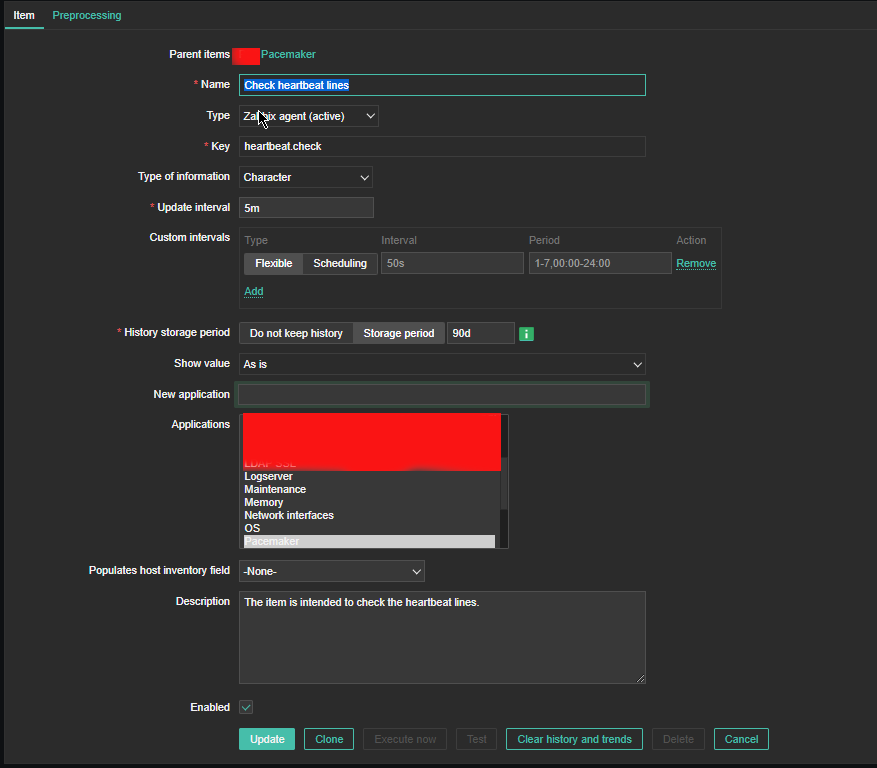
5. Create Item to process the userparam script

Create Item as follows:

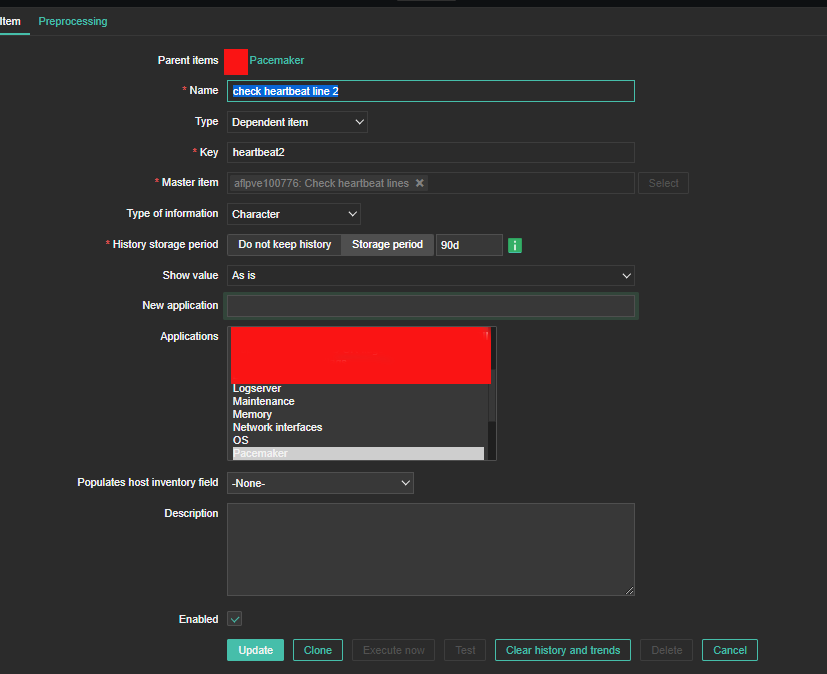
6. Create the Dependent Item required
 

zabbix-heartbeat-check-screenshots/heartbeat-line1-preprocessing

For processing you need to put the following simple regular expression

Name: Regular Expression
Parameters: hb1(\s+)(\d+)
Custom on fail: \2

zabbix-heartbeat-check-screenshots/heartbeat-line2-preprocessing1

zabbix-heartbeat-check-screenshots/heartbeat-lines-triggers


7. Create triggers that will be generating the Alert

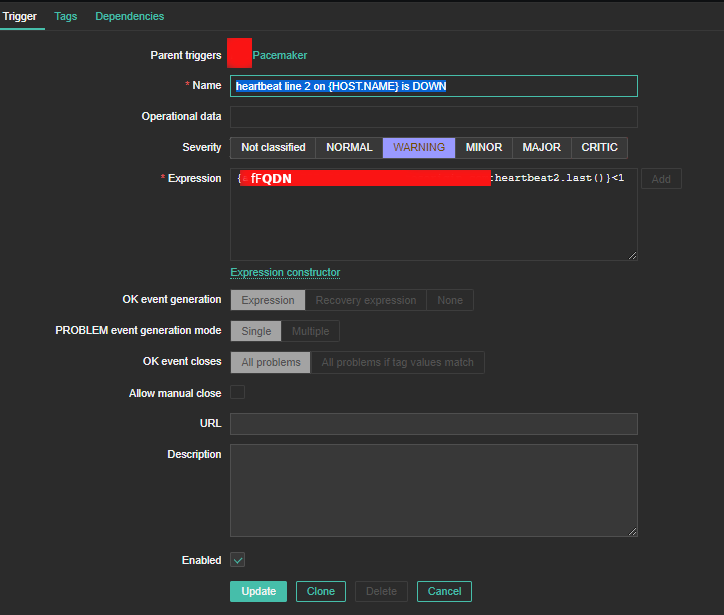
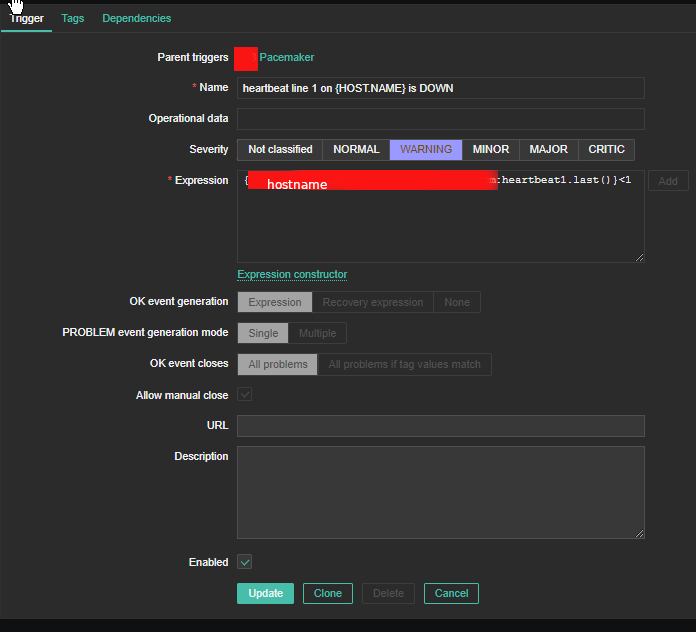
Create the required triggers as well

zabbix-heartbeat-check-screenshots/heartbeat2-line
Main thing to configure here in Zabbix is below expression

Expression: {FQDN:heartbeat2.last()}<1

triggers_heartbeat1

You can further configure Zabbix Alerts to mail yourself or send via Slack / MatterMost or Teams alarms in case of problems.

Configure aide file integrity check server monitoring in Zabbix to track for file changes on servers

Tuesday, March 28th, 2023

zabbix-aide-log-monitoring-logo

Earlier I've written a small article on how to setup AIDE monitoring for Server File integrity check on Linux, which put the basics on how this handy software to improve your server overall Security software can be installed and setup without much hassle.

Once AIDE is setup and a preset custom configuration is prepared for AIDE it is pretty useful to configure AIDE to monitor its critical file changes for better server security by monitoring the AIDE log output for new record occurs with Zabbix. Usually if no files monitored by AIDE are modified on the machine, the log size will not grow, but if some file is modified once Advanced Linux Intrusion Detecting (aide) binary runs via the scheduled Cron job, the /var/log/app_aide.log file will grow zabbix-agentd will continuously check the file for size increases and will react.

Before setting up the Zabbix required Template, you will have to set few small scripts that will be reading a preconfigured list of binaries or application files etc. that aide will monitor lets say via /etc/aide-custom.conf
 

1. Configure aide to monitor files for changes


Before running aide, it is a good idea to prepare a file with custom defined directories and files that you plan to monitor for integrity checking e.g. future changes with aide, for example to capture bad intruders who breaks into server which runs aide and modifies critical files such as /etc/passwd /etc/shadow /etc/group or / /usr/local/etc/* or /var/* / /usr/* critical files that shouldn't be allowed to change without the admin to soon find out.

# cat /etc/aide-custom.conf

# Example configuration file for AIDE.
@@define DBDIR /var/lib/aide
@@define LOGDIR /var/log/aide
# The location of the database to be read.
database=file:@@{DBDIR}/app_custom.db.gz
database_out=file:@@{DBDIR}/app_aide.db.new.gz
gzip_dbout=yes
verbose=5

report_url=file:@@{LOGDIR}/app_custom.log
#report_url=syslog:LOG_LOCAL2
#report_url=stderr
#NOT IMPLEMENTED report_url=mailto:root@foo.com
#NOT IMPLEMENTED report_url=syslog:LOG_AUTH

# These are the default rules.
#
#p:      permissions
#i:      inode:
#n:      number of links
#u:      user
#g:      group
#s:      size
#b:      block count
#m:      mtime
#a:      atime
#c:      ctime
#S:      check for growing size
#acl:           Access Control Lists
#selinux        SELinux security context
#xattrs:        Extended file attributes
#md5:    md5 checksum
#sha1:   sha1 checksum
#sha256:        sha256 checksum
#sha512:        sha512 checksum
#rmd160: rmd160 checksum
#tiger:  tiger checksum

#haval:  haval checksum (MHASH only)
#gost:   gost checksum (MHASH only)
#crc32:  crc32 checksum (MHASH only)
#whirlpool:     whirlpool checksum (MHASH only)

FIPSR = p+i+n+u+g+s+m+c+acl+selinux+xattrs+sha256

#R:             p+i+n+u+g+s+m+c+acl+selinux+xattrs+md5
#L:             p+i+n+u+g+acl+selinux+xattrs
#E:             Empty group
#>:             Growing logfile p+u+g+i+n+S+acl+selinux+xattrs

# You can create custom rules like this.
# With MHASH…
# ALLXTRAHASHES = sha1+rmd160+sha256+sha512+whirlpool+tiger+haval+gost+crc32
ALLXTRAHASHES = sha1+rmd160+sha256+sha512+tiger
# Everything but access time (Ie. all changes)
EVERYTHING = R+ALLXTRAHASHES

# Sane, with multiple hashes
# NORMAL = R+rmd160+sha256+whirlpool
NORMAL = FIPSR+sha512

# For directories, don't bother doing hashes
DIR = p+i+n+u+g+acl+selinux+xattrs

# Access control only
PERMS = p+i+u+g+acl+selinux

# Logfile are special, in that they often change
LOG = >

# Just do sha256 and sha512 hashes
LSPP = FIPSR+sha512

# Some files get updated automatically, so the inode/ctime/mtime change
# but we want to know when the data inside them changes
DATAONLY =  p+n+u+g+s+acl+selinux+xattrs+sha256

##############TOUPDATE
#To delegate to app team create a file like /app/aide.conf
#and uncomment the following line
#@@include /app/aide.conf
#Then remove all the following lines
/etc/zabbix/scripts/check.sh FIPSR
/etc/zabbix/zabbix_agentd.conf FIPSR
/etc/sudoers FIPSR
/etc/hosts FIPSR
/etc/keepalived/keepalived.conf FIPSR
# monitor haproxy.cfg
/etc/haproxy/haproxy.cfg FIPSR
# monitor keepalived
/home/keepalived/.ssh/id_rsa FIPSR
/home/keepalived/.ssh/id_rsa.pub FIPSR
/home/keepalived/.ssh/authorized_keys FIPSR

/usr/local/bin/script_to_run.sh FIPSR
/usr/local/bin/another_script_to_monitor_for_changes FIPSR

#  cat /usr/local/bin/aide-config-check.sh
#!/bin/bash
/sbin/aide -c /etc/aide-custom.conf -D

# cat /usr/local/bin/aide-init.sh
#!/bin/bash
/sbin/aide -c /etc/custom-aide.conf -B database_out=file:/var/lib/aide/custom-aide.db.gz -i


# cat /usr/local/bin/aide-check.sh

#!/bin/bash
/sbin/aide -c /etc/custom-aide.conf -Breport_url=stdout -B database=file:/var/lib/aide/custom-aide.db.gz -C|/bin/tee -a /var/log/aide/custom-aide-check.log|/bin/logger -t custom-aide-check-report
/usr/local/bin/aide-init.sh


# cat /usr/local/bin/aide_app_cron_daily.txt

#!/bin/bash
#If first time, we need to init the DB
if [ ! -f /var/lib/aide/app_aide.db.gz ]
   then
    logger -p local2.info -t app-aide-check-report  "Generating NEW AIDE DATABASE for APPLICATION"
    nice -n 18 /sbin/aide –init -c /etc/aide_custom.conf
    mv /var/lib/aide/app_aide.db.new.gz /var/lib/aide/app_aide.db.gz
fi

nice -n 18 /sbin/aide –update -c /etc/aide_app.conf
#since the option for syslog seems not fully implemented we need to push logs via logger
/bin/logger -f /var/log/aide/app_aide.log -p local2.info -t app-aide-check-report
#Acknoledge the new database as the primary (every results are sended to syslog anyway)
mv /var/lib/aide/app_aide.db.new.gz /var/lib/aide/app_aide.db.gz

What above cron job does is pretty simple, as you can read it yourself. If the configuration predefined aide database store file /var/lib/aide/app_aide.db.gz, does not
exists aide will create its fresh empty database and generate a report for all predefined files with respective checksums to be stored as a comparison baseline for file changes. 

Next there is a line to write aide file changes via rsyslog through the logger and local2.info handler


2. Setup Zabbix Template with Items, Triggers and set Action

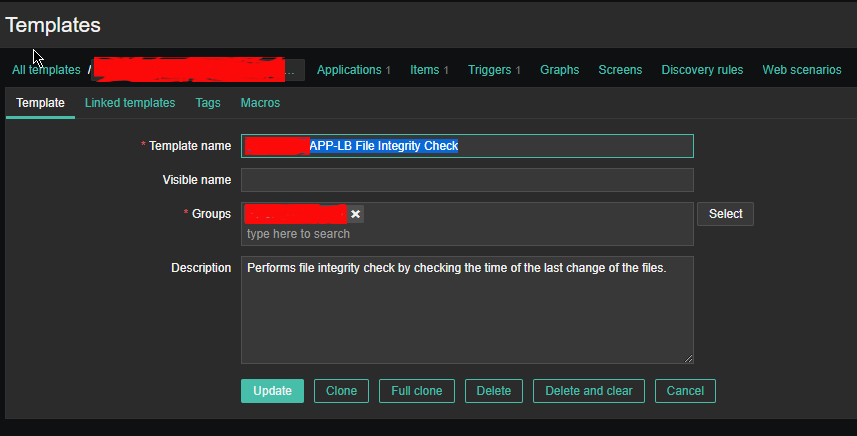
2.1 Create new Template and name it YourAppName APP-LB File integrity Check

aide-itengrity-check-zabbix_ Configuration of templates

Then setup the required Items, that will be using zabbix's Skip embedded function to scan file in a predefined period of file, this is done by the zabbix-agent that is
supposed to run on the server.

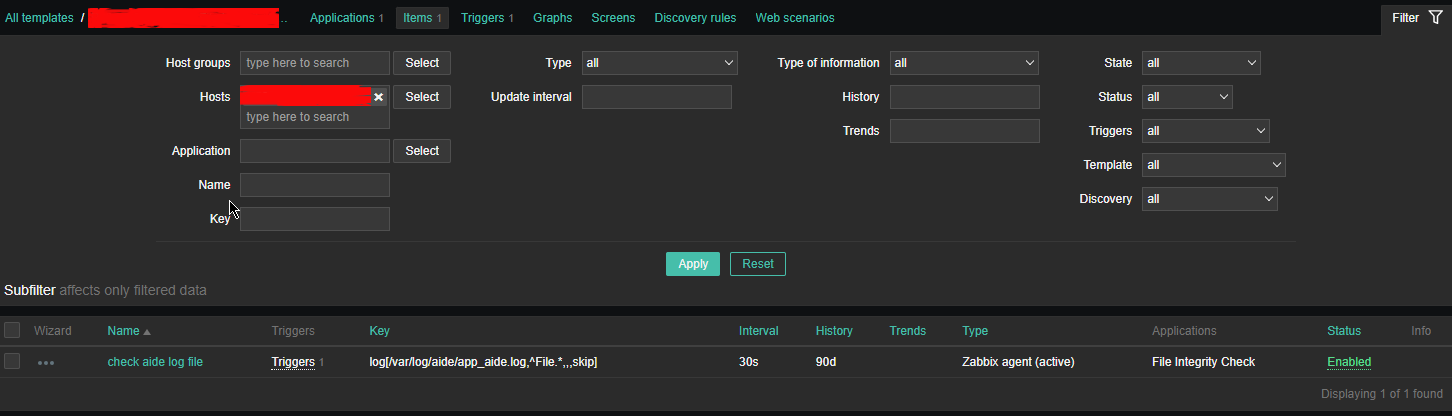
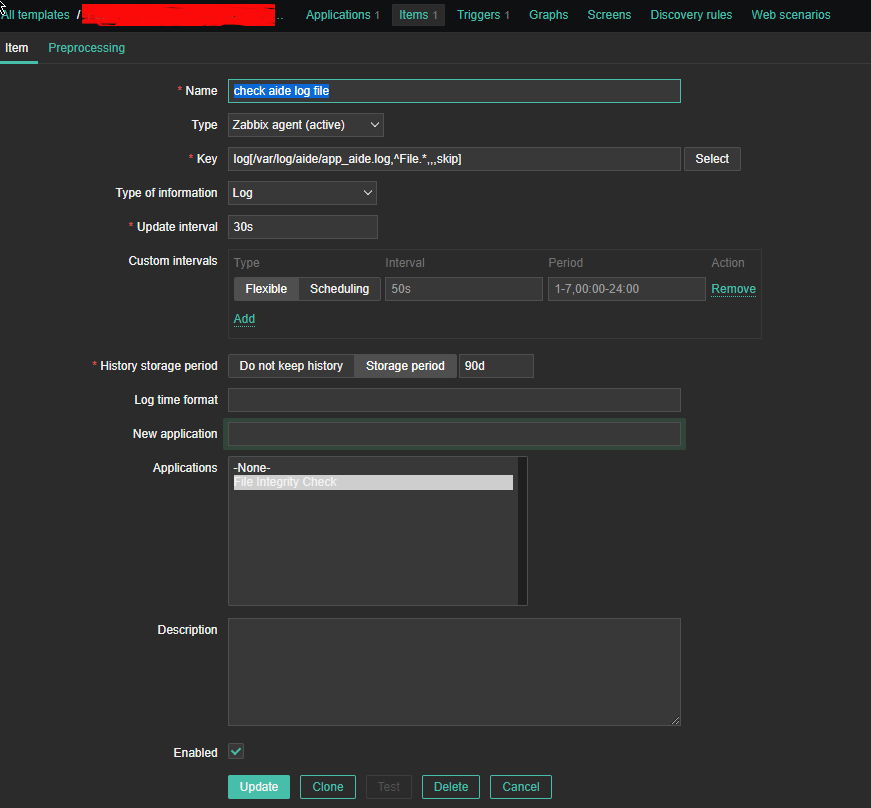
2.2 Configure Item like

aide-zabbix-triggers-screenshot
 

*Name: check aide log file

Type: zabbix (active)

log[/var/log/aide/app_aide.log,^File.*,,,skip]

Type of information: Log

Update Interval: 30s

Applications: File Integrity Check

Configure Trigger like

Enabled: Tick On

images/aide-zabbix-screenshots/check-aide-log-item


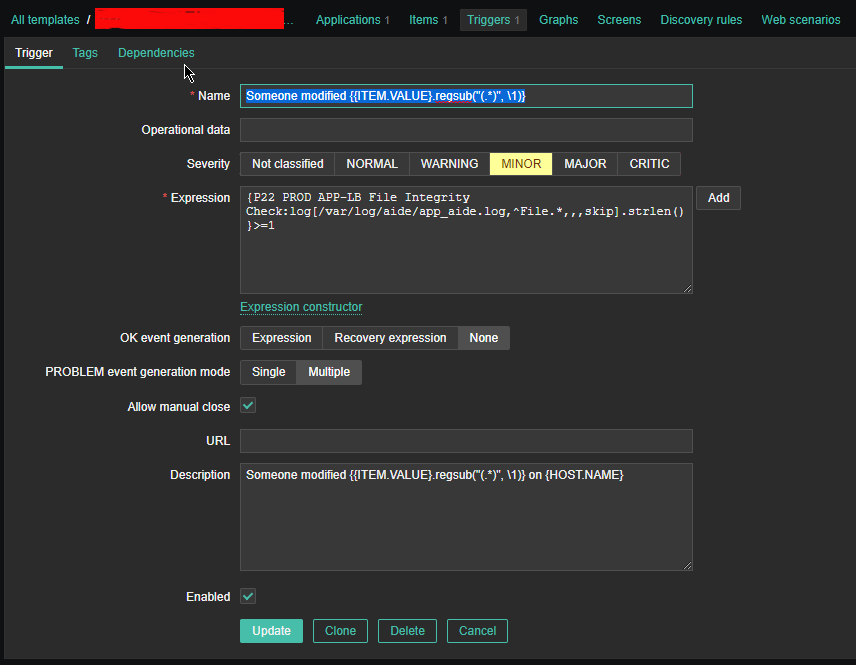
2.3 Create Triggers with the respective regular expressions, that would check the aide generated log file for file modifications


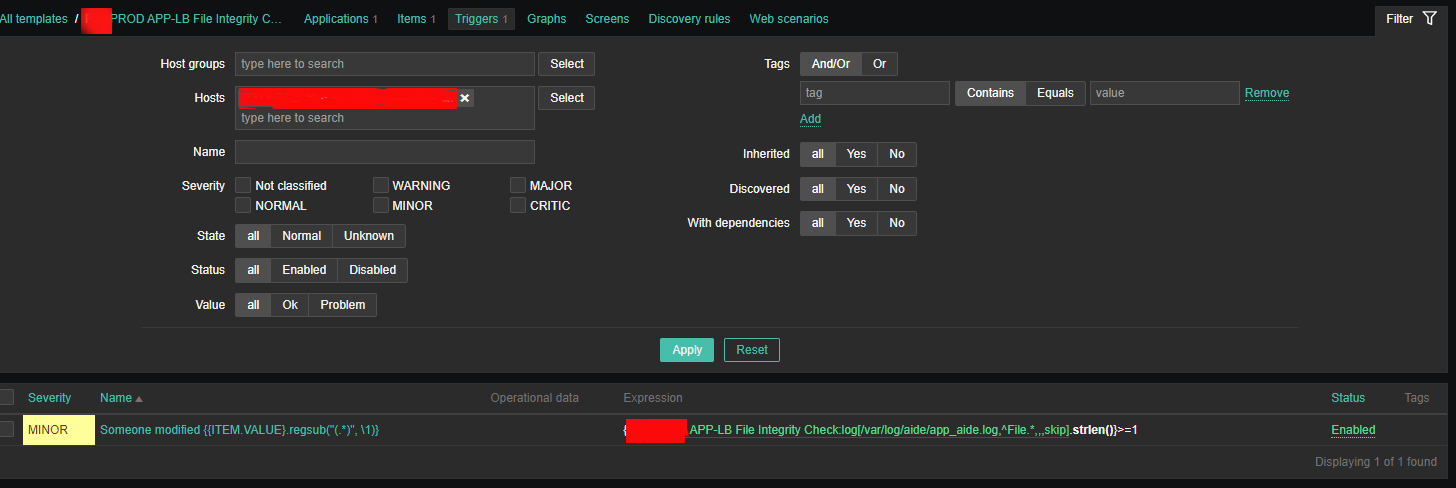
aide-zabbix-screenshot-minor-config

Configure Trigger like
 

Enabled: Tick On


*Name: Someone modified {{ITEM.VALUE}.regsub("(.*)", \1)}

*Expression: {PROD APP-LB File Integrity Check:log[/var/log/aide/app_aide.log,^File.*,,,skip].strlen()}>=1

Allow manual close: yes tick

*Description: Someone modified {{ITEM.VALUE}.regsub("(.*)", \1)} on {HOST.NAME}


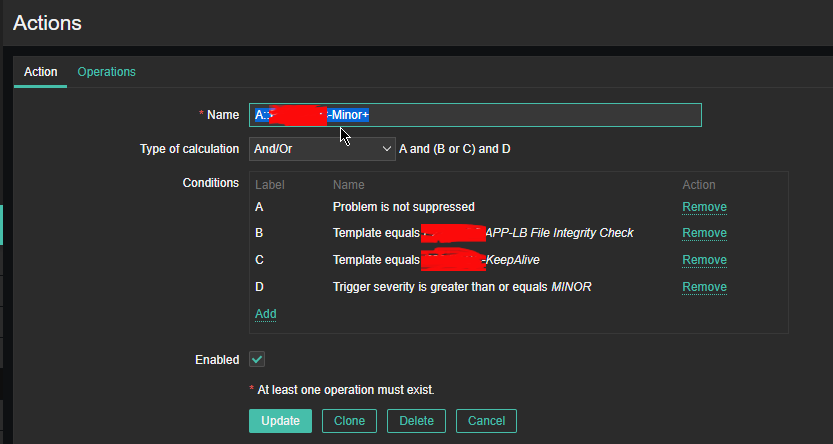
2.4 Configure Action


aide-zabbix-file-monitoring-action-screensho

Now assuming the Zabbix server has  a properly set media for communication and you set Alerting rules zabbix-server can be easily set tosend mails to a Support email to get Notifications Alerts, everytime a monitored file by aide gets changed.

That's all folks ! Enjoy being notified on every file change on your servers  !
 

How to configure multiple haproxies and frontends to log in separate log files via rsyslog

Monday, September 5th, 2022

log-multiple-haproxy-servers-to-separate-files-log-haproxy-froentend-to-separate-file-haproxy-rsyslog-Logging-diagram
In my last article How to create multiple haproxy instance separate processes for different configuration listeners,  I've shortly explained how to create a multiple instances of haproxies by cloning the systemd default haproxy.service and the haproxy.cfg to haproxyX.cfg.
But what if you need also to configure a separate logging for both haproxy.service and haproxy-customname.service instances how this can be achieved?

The simplest way is to use some system local handler staring from local0 to local6, As local 1,2,3 are usually used by system services a good local handler to start off would be at least 4.
Lets say we already have the 2 running haproxies, e.g.:

[root@haproxy2:/usr/lib/systemd/system ]# ps -ef|grep -i hapro|grep -v grep
root      128464       1  0 Aug11 ?        00:01:19 /usr/sbin/haproxy -Ws -f /etc/haproxy/haproxy.cfg -p /run/haproxy.pid -S /run/haproxy-master.sock
haproxy   128466  128464  0 Aug11 ?        00:49:29 /usr/sbin/haproxy -Ws -f /etc/haproxy/haproxy.cfg -p /run/haproxy.pid -S /run/haproxy-master.sock

root      346637       1  0 13:15 ?        00:00:00 /usr/sbin/haproxy-customname-wrapper -Ws -f /etc/haproxy/haproxy_customname_prod.cfg -p /run/haproxy_customname_prod.pid -S /run/haproxy-customname-master.sock
haproxy   346639  346637  0 13:15 ?        00:00:00 /usr/sbin/haproxy-customname-wrapper -Ws -f /etc/haproxy/haproxy_customname_prod.cfg -p /run/haproxy_customname_prod.pid -S /run/haproxy-customname-master.sock


1. Configure local messaging handlers to work via /dev/log inside both haproxy instance config files
 

To congigure the separte logging we need to have in /etc/haproxy/haproxy.cfg and in /etc/haproxy/haproxy_customname_prod.cfg the respective handlers.

To log in separate files you should already configured in /etc/haproxy/haproxy.cfg something like:


global
        stats socket /var/run/haproxy/haproxy.sock mode 0600 level admin #Creates Unix-Like socket to fetch stats
        log /dev/log    local0
        log /dev/log    local1 notice

#       nbproc 1
#       nbthread 2
#       cpu-map auto:1/1-2 0-1
        nbproc          1
        nbthread 2
        cpu-map         1 0
        cpu-map         2 1
        chroot /var/lib/haproxy
        user haproxy
        group haproxy
        daemon
        maxconn 99999

defaults
        log     global
        mode    tcp


        timeout connect 5000
        timeout connect 30s
        timeout server 10s

    timeout queue 5s
    timeout tunnel 2m
    timeout client-fin 1s
    timeout server-fin 1s

    option forwardfor
        maxconn 3000
    retries                 15

frontend http-in
        mode tcp

        option tcplog
        log global


        option logasap
        option forwardfor
        bind 0.0.0.0:80

default_backend webservers_http
backend webservers_http
    fullconn 20000
        balance source
stick match src
    stick-table type ip size 200k expire 30m

        server server-1 192.168.1.50:80 check send-proxy weight 255 backup
        server server-2 192.168.1.54:80 check send-proxy weight 254
        server server-3 192.168.0.219:80 check send-proxy weight 252 backup
        server server-4 192.168.0.210:80 check send-proxy weight 253 backup
        server server-5 192.168.0.5:80 maxconn 3000 check send-proxy weight 251 backup

For the second /etc/haproxy/haproxy_customname_prod.cfg the logging configuration should be similar to:
 

global
        stats socket /var/run/haproxy/haproxycustname.sock mode 0600 level admin #Creates Unix-Like socket to fetch stats
        log /dev/log    local5
        log /dev/log    local5 notice

#       nbproc 1
#       nbthread 2
#       cpu-map auto:1/1-2 0-1
        nbproc          1
        nbthread 2
        cpu-map         1 0
        cpu-map         2 1
        chroot /var/lib/haproxy
        user haproxy
        group haproxy
        daemon
        maxconn 99999

defaults
        log     global
        mode    tcp


2. Configure separate haproxy Frontend logging via local5 inside haproxy.cfg
 

As a minimum you need a configuration for frontend like:


frontend http-in
        mode tcp

        option tcplog
        log /dev/log    local5 debug
…..
….

..
.

Of course the mode tcp in my case is conditional you might be using mode http etc. 


3. Optionally but (preferrably) make local5 / local6 handlers to work via rsyslogs UDP imudp protocol


In this example /dev/log is straightly read by haproxy instead of sending the messages first to rsyslog, this is a good thing in case if you have doubts that rsyslog might stop working and respectively you might end up with no logging, however if you prefer to use instead rsyslog which most of people usually do you will have instead for /etc/haproxy/haproxy.cfg to use config:

global
    log          127.0.0.1 local6 debug

defaults
        log     global
        mode    tcp

And for /etc/haproxy_customname_prod.cfg config like:

global
    log          127.0.0.1 local5 debug

defaults
        log     global
        mode    tcp

If you're about to send the haproxy logs directly via rsyslog, it should have enabled in /etc/rsyslog.conf the imudp module if you're not going to use directly /dev/log

# provides UDP syslog reception
module(load="imudp")
input(type="imudp" port="514")


4. Prepare first and second log file and custom frontend output file and set right permissions
 

Assumably you already have /var/log/haproxy.log and this will be the initial haproxy log if you don't want to change it, normally it is installed on haproxy package install time on Linux and should have some permissions like following:

root@haproxy2:/etc/rsyslog.d# ls -al /var/log/haproxy.log
-rw-r–r– 1 haproxy haproxy 6681522  1 сеп 16:05 /var/log/haproxy.log


To create the second config with exact permissions like haproxy.log run:

root@haproxy2:/etc/rsyslog.d# touch /var/log/haproxy_customname.log
root@haproxy2:/etc/rsyslog.d# chown haproxy:haproxy /var/log/haproxy_customname.log

Create the haproxy_custom_frontend.log file that will only log output of exact frontend or match string from the logs
 

root@haproxy2:/etc/rsyslog.d# touch  /var/log/haproxy_custom_frontend.log
root@haproxy2:/etc/rsyslog.d# chown haproxy:haproxy  /var/log/haproxy_custom_frontend.log


5. Create the rsyslog config for haproxy.service to log via local6 to /var/log/haproxy.log
 

root@haproxy2:/etc/rsyslog.d# cat 49-haproxy.conf
# Create an additional socket in haproxy's chroot in order to allow logging via
# /dev/log to chroot'ed HAProxy processes
$AddUnixListenSocket /var/lib/haproxy/dev/log

# Send HAProxy messages to a dedicated logfile
:programname, startswith, "haproxy" {
  /var/log/haproxy.log
  stop
}


Above configs will make anything returned with string haproxy (e.g. proccess /usr/sbin/haproxy) to /dev/log to be written inside /var/log/haproxy.log and trigger a stop (by the way the the stop command works exactly as the tilda '~' discard one, except in some newer versions of haproxy the ~ is no now obsolete and you need to use stop instead (bear in mind that ~ even though obsolete proved to be working for me whether stop not ! but come on this is no strange this is linux mess), for example if you run latest debian Linux 11 as of September 2022 haproxy with package 2.2.9-2+deb11u3.
 

6. Create configuration for rsyslog to log from single Frontend outputting local2 to /var/log/haproxy_customname.log
 

root@haproxy2:/etc/rsyslog.d# cat 48-haproxy.conf
# Create an additional socket in haproxy's chroot in order to allow logging via
# /dev/log to chroot'ed HAProxy processes
$AddUnixListenSocket /var/lib/haproxy/dev/log

# Send HAProxy messages to a dedicated logfile
#:programname, startswith, "haproxy" {
#  /var/log/haproxy.log
#  stop
#}
# GGE/DPA 2022/08/02: HAProxy logs to local2, save the messages
local5.*                                                /var/log/haproxy_customname.log


You might also explicitly define the binary that will providing the logs inside the 48-haproxy.conf as we have a separate /usr/sbin/haproxy-customname-wrapper in that way you can log the output from the haproxy instance only based
on its binary command and you can omit writting to local5 to log via it something else 🙂

root@haproxy2:/etc/rsyslog.d# cat 48-haproxy.conf
# Create an additional socket in haproxy's chroot in order to allow logging via
# /dev/log to chroot'ed HAProxy processes
$AddUnixListenSocket /var/lib/haproxy/dev/log

# Send HAProxy messages to a dedicated logfile
#:programname, startswith, "haproxy" {
#  /var/log/haproxy.log
#  stop
#}
# GGE/DPA 2022/08/02: HAProxy logs to local2, save the messages

:programname, startswith, "haproxy-customname-wrapper " {
 
/var/log/haproxy_customname.log
  stop
}


7. Create the log file to log the custom frontend of your preference e.g. /var/log/haproxy_custom_frontend.log under local5 /prepare rsyslog config for
 

root@haproxy2:/etc/rsyslog.d# cat 47-haproxy-custom-frontend.conf
$ModLoad imudp
$UDPServerAddress 127.0.0.1
$UDPServerRun 514
#2022/02/02: HAProxy logs to local6, save the messages
local4.*                                                /var/log/haproxy_custom_frontend.log
:msg, contains, "https-in" ~

The 'https-in' is my frontend inside /etc/haproxy/haproxy.cfg it returns the name of it every time in /var/log/haproxy.log therefore I will log the frontend to local5 and to prevent double logging inside /var/log/haproxy.log of connections incoming towards the same frontend inside /var/log/haproxy.log, I have the tilda symbol '~' which instructs rsyslog to discard any message coming to rsyslog with "https-in" string in, immediately after the same frontend as configured inside /etc/haproxy/haproxy.cfg will output the frontend operations inside local5.


!!! Note that for rsyslog it is very important to have the right order of configurations, the configuration order is being considered based on the file numbering. !!!
 

Hence notice that my filter file number 47_* preceeds the other 2 configured rsyslog configs.
 

root@haproxy2:/etc/rsyslog.d# ls -1
47-haproxy-custom-frontend.conf
48-haproxy.conf
49-haproxy.conf

This will make 47-haproxy-custom-frontend.conf to be read and processed first 48-haproxy.conf processed second and 49-haproxy.conf processed third.


8. Reload rsyslog and haproxy and test


root@haproxy2: ~# systemctl restart rsyslog
root@haproxy2: ~# systemctl restart haproxy
root@haproxy2: ~# systemctl status rsyslog

● rsyslog.service – System Logging Service
     Loaded: loaded (/lib/systemd/system/rsyslog.service; enabled; vendor preset: enabled)
     Active: active (running) since Thu 2022-09-01 17:34:51 EEST; 1s ago
TriggeredBy: ● syslog.socket
       Docs: man:rsyslogd(8)
             man:rsyslog.conf(5)
             https://www.rsyslog.com/doc/
   Main PID: 372726 (rsyslogd)
      Tasks: 6 (limit: 4654)
     Memory: 980.0K
        CPU: 8ms
     CGroup: /system.slice/rsyslog.service
             └─372726 /usr/sbin/rsyslogd -n -iNONE

сеп 01 17:34:51 haproxy2 systemd[1]: Stopped System Logging Service.
сеп 01 17:34:51 haproxy2 rsyslogd[372726]: warning: ~ action is deprecated, consider using the 'stop' statement instead [v8.210>
сеп 01 17:34:51 haproxy2 systemd[1]: Starting System Logging Service…
сеп 01 17:34:51 haproxy2 rsyslogd[372726]: [198B blob data]
сеп 01 17:34:51 haproxy2 systemd[1]: Started System Logging Service.
сеп 01 17:34:51 haproxy2 rsyslogd[372726]: [198B blob data]
сеп 01 17:34:51 haproxy2 rsyslogd[372726]: imuxsock: Acquired UNIX socket '/run/systemd/journal/syslog' (fd 3) from systemd.  [>
сеп 01 17:34:51 haproxy2 rsyslogd[372726]: [origin software="rsyslogd" swVersion="8.2102.0" x-pid="372726" x-info="https://www.

Do some testing with some tool like curl / wget / lynx / elinks etc. on each of the configured haproxy listeners and frontends and check whether everything ends up in the correct log files.
That's all folks enjoy ! 🙂
 

How to test RAM Memory for errors in Linux / UNIX OS servers. Find broken memory RAM banks

Friday, December 3rd, 2021

test-ram-memory-for-errors-linux-unix-find-broken-memory-logo


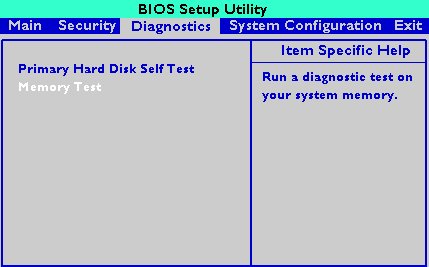
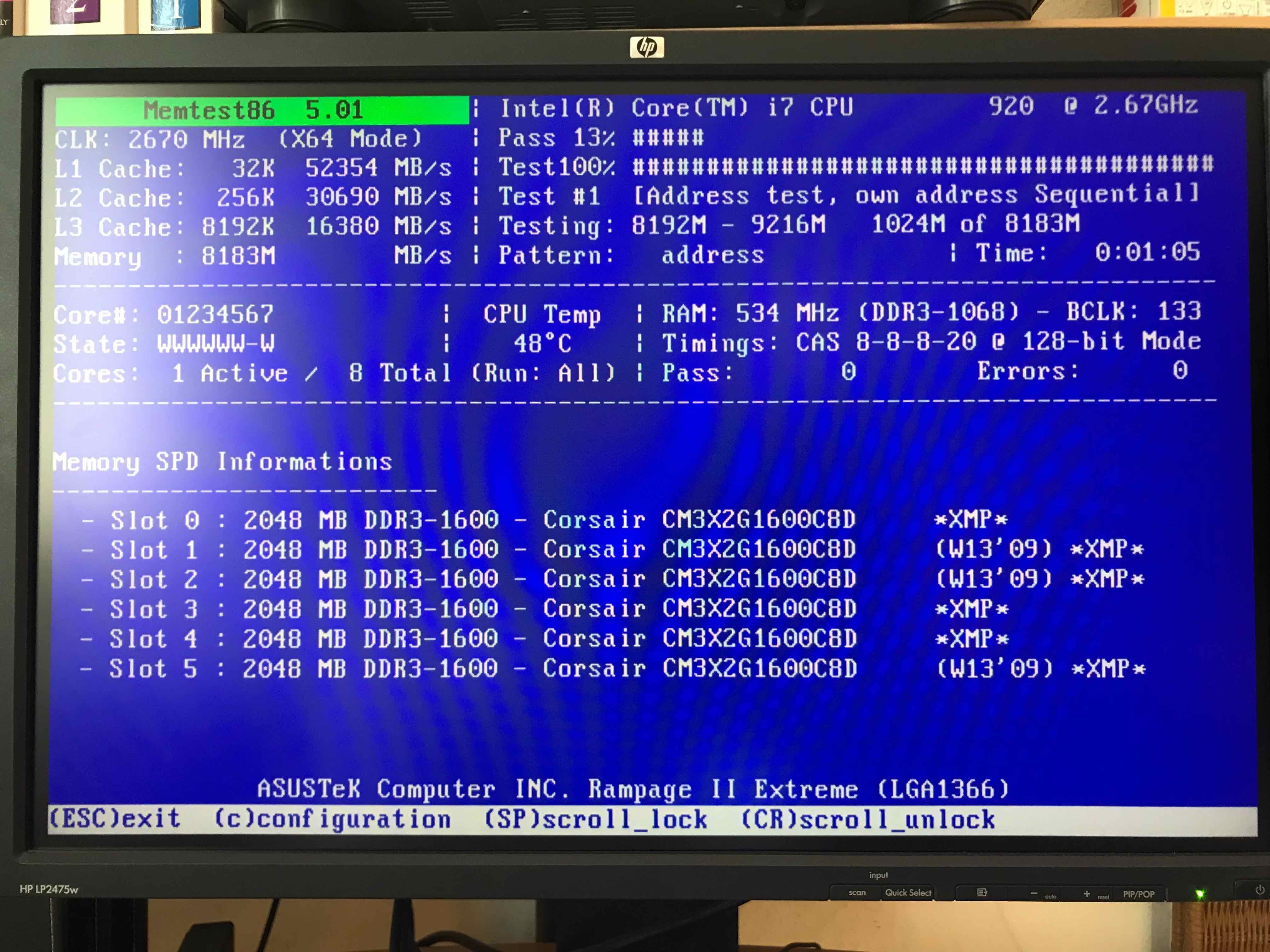
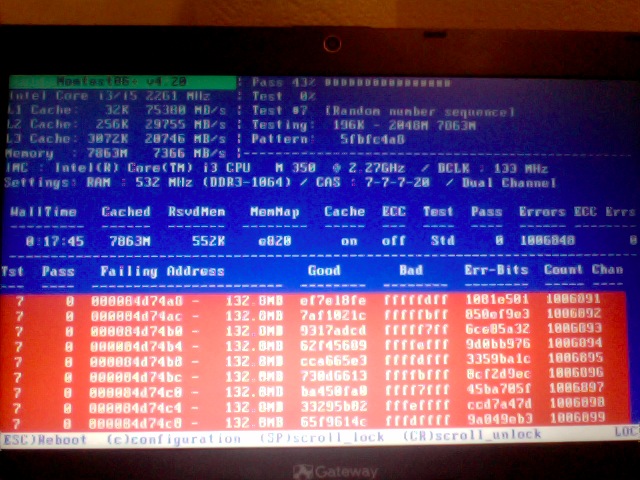
1. Testing the memory with motherboard integrated tools
 

Memory testing has been integral part of Computers for the last 50 years. In the dawn of computers those older perhaps remember memory testing was part of the computer initialization boot. And this memory testing was delaying the boot with some seconds and the user could see the memory numbers being counted up to the amount of memory. With the increased memory modern computers started to have and the annoyance to wait for a memory check program to check the computer hardware memory on modern computers this check has been mitigated or completely removed on some hardware.
Thus under some circumstances sysadmins or advanced computer users might need to check the memory, especially if there is some suspicion for memory damages or if for example a home PC starts crashing with Blue screens of Death on Windows without reason or simply the PC or some old arcane Linux / UNIX servers gets restarted every now and then for now apparent reason. When such circumstances occur it is an idea to start debugging the hardware issue with a simple memory check.

There are multiple ways to test installed memory banks on a server laptop or local home PC both integrated and using external programs.
On servers that is usually easily done from ILO or IPMI or IDRAC access (usually web) interface of the vendor, on laptops and home usage from BIOS or UEFI (Unified Extensible Firmware Interface) acces interface on system boot that is possible as well.

memtest-hp
HP BIOS Setup

An old but gold TIP, more younger people might not know is the


Prolonged SHIFT key press which once held with the user instructs the machine to initiate a memory test before the computer starts reading what is written in the boot loader.

So before anything else from below article it might be a good idea to just try HOLD SHIFT for 15-20 seconds after a complete Shut and ON from the POWER button.

If this test does not triggered or it is triggered and you end up with some corrupted memory but you're not sure which exact Memory bank is really crashing and want to know more on what memory Bank and segments are breaking up you might want to do a more thorough testing. In below article I'll try to explain shortly how this can be done.


2. Test the memory using a boot USB Flash Drive / DVD / CD 
 

Say hello to memtest86+. It is a Linux GRUB boot loader bootable utility that tests physical memory by writing various patterns to it and reading them back. Since memtest86+ runs directly off the hardware it does not require any operating system support for execution. Perhaps it is important to mention that memtest86 (is PassMark memtest86)and memtest86+ (An Advanced Memory diagnostic tool) are different tools, the first is freeware and second one is FOSS software.

To use it all you'll need is some version of Linux. If you don't already have some burned in somewhere at your closet, you might want to burn one.
For Linux / Mac users this is as downloading a Linux distribution ISO file and burning it with

# dd if=/path/to/iso of=/dev/sdbX bs=80M status=progress


Windows users can burn a Live USB with whatever Linux distro or download and burn the latest versionof memtest86+ from https://www.memtest.org/  on Windows Desktop with some proggie like lets say UnetBootIn.
 

2.1. Run memtest86+ on Ubuntu

Many Linux distributions such as Ubuntu 20.0 comes together with memtest86+, which can be easily invoked from GRUB / GRUB2 Kernel boot loader.
Ubuntu has a separate menu pointer for a Memtest.

ubuntu-grub-2-04-boot-loader-memtest86-menu-screenshot

Other distributions RPM based distributions such as CentOS, Fedora Linux, Redhat things differ.

2.2. memtest86+ on Fedora


Fedora used to have the memtest86+ menu at the GRUB boot selection prompt, but for some reason removed it and in newest Fedora releases as of time such as Fedora 35 memtest86+ is preinstalled and available but not visible, to start on  already and to start a memtest memory test tool:

  •   Boot a Fedora installation or Rescue CD / USB. At the prompt, type "memtest86".

boot: memtest86

2.3 memtest86+ on RHEL Linux

The memtest86+tool is available as an RPM package from Red Hat Network (RHN) as well as a boot option from the Red Hat Enterprise Linux rescue disk.
And nowadays Red Hat Enterprise Linux ships by default with the tool.

Prior redhat (now legacy) releases such as on RHEL 5.0 it has to be installed and configure it with below 3 commands.

[root@rhel ~]# yum install memtest86+
[root@rhel ~]# memtest-setup
[root@rhel ~]# grub2-mkconfig -o /boot/grub2/grub.cfg


    Again as with CentOS to boot memtest86+ from the rescue disk, you will need to boot your system from CD 1 of the Red Hat Enterprise Linux installation media, and type the following at the boot prompt (before the Linux kernel is started):

boot: memtest86

memtestx86-8gigabytes-of-memory-boot-screenshot
memtest86+ testing 5 memory slots

As you see all on above screenshot the Memory banks are listed as Slots. There are a number of Tests to be completed until
it can be said for sure memory does not have any faulty cells. 
The

Pass: 0
Errors: 0 

Indicates no errors, so in the end if memtest86 does not find anything this values should stay at zero.
memtest86+ is also usable to detecting issues with temperature of CPU. Just recently I've tested a PC thinking that some memory has defects but it turned out the issue on the Computer was at the CPU's temperature which was topping up at 80 – 82 Celsius.

If you're unfortunate and happen to get some corrupted memory segments you will get some red fields with the memory addresses found to have corrupted on Read / Write test operations:

memtest86-returning-memory-address-errors-screenshot


2.4. Install and use memtest and memtest86+ on Debian / Mint Linux

You can install either memtest86+ or just for the fun put both of them and play around with both of them as they have a .deb package provided out of debian non-free /etc/apt/sources.list repositories.


root@jeremiah:/home/hipo# apt-cache show memtest86 memtest86+
Package: memtest86
Version: 4.3.7-3
Installed-Size: 302
Maintainer: Yann Dirson <dirson@debian.org>
Architecture: amd64
Depends: debconf (>= 0.5) | debconf-2.0
Recommends: memtest86+
Suggests: hwtools, memtester, kernel-patch-badram, grub2 (>= 1.96+20090523-1) | grub (>= 0.95+cvs20040624), mtools
Description-en: thorough real-mode memory tester
 Memtest86 scans your RAM for errors.
 .
 This tester runs independently of any OS – it is run at computer
 boot-up, so that it can test *all* of your memory.  You may want to
 look at `memtester', which allows testing your memory within Linux,
 but this one won't be able to test your whole RAM.
 .
 It can output a list of bad RAM regions usable by the BadRAM kernel
 patch, so that you can still use you old RAM with one or two bad bits.
 .
 This is the last DFSG-compliant version of this software, upstream
 has opted for a proprietary development model starting with 5.0.  You
 may want to consider using memtest86+, which has been forked from an
 earlier version of memtest86, and provides a different set of
 features.  It is available in the memtest86+ package.
 .
 A convenience script is also provided to make a grub-legacy-based
 floppy or image.

Description-md5: 0ad381a54d59a7d7f012972f613d7759
Homepage: http://www.memtest86.com/
Section: misc
Priority: optional
Filename: pool/main/m/memtest86/memtest86_4.3.7-3_amd64.deb
Size: 45470
MD5sum: 8dd2a4c52910498d711fbf6b5753bca9
SHA256: 09178eca21f8fd562806ccaa759d0261a2d3bb23190aaebc8cd99071d431aeb6

Package: memtest86+
Version: 5.01-3
Installed-Size: 2391
Maintainer: Yann Dirson <dirson@debian.org>
Architecture: amd64
Depends: debconf (>= 0.5) | debconf-2.0
Suggests: hwtools, memtester, kernel-patch-badram, memtest86, grub-pc | grub-legacy, mtools
Description-en: thorough real-mode memory tester
 Memtest86+ scans your RAM for errors.
 .
 This tester runs independently of any OS – it is run at computer
 boot-up, so that it can test *all* of your memory.  You may want to
 look at `memtester', which allows to test your memory within Linux,
 but this one won't be able to test your whole RAM.
 .
 It can output a list of bad RAM regions usable by the BadRAM kernel
 patch, so that you can still use your old RAM with one or two bad bits.
 .
 Memtest86+ is based on memtest86 3.0, and adds support for recent
 hardware, as well as a number of general-purpose improvements,
 including many patches to memtest86 available from various sources.
 .
 Both memtest86 and memtest86+ are being worked on in parallel.
Description-md5: aa685f84801773ef97fdaba8eb26436a
Homepage: http://www.memtest.org/

Tag: admin::benchmarking, admin::boot, hardware::storage:floppy,
 interface::text-mode, role::program, scope::utility, use::checking
Section: misc
Priority: optional
Filename: pool/main/m/memtest86+/memtest86+_5.01-3_amd64.deb
Size: 75142
MD5sum: 4f06523532ddfca0222ba6c55a80c433
SHA256: ad42816e0b17e882713cc6f699b988e73e580e38876cebe975891f5904828005


root@jeremiah:/home/hipo# apt-get install –yes memtest86+

root@jeremiah:/home/hipo# apt-get install –yes memtest86

Reading package lists… Done
Building dependency tree       
Reading state information… Done
Suggested packages:
  hwtools kernel-patch-badram grub2 | grub
The following NEW packages will be installed:
  memtest86
0 upgraded, 1 newly installed, 0 to remove and 21 not upgraded.
Need to get 45.5 kB of archives.
After this operation, 309 kB of additional disk space will be used.
Get:1 http://ftp.de.debian.org/debian buster/main amd64 memtest86 amd64 4.3.7-3 [45.5 kB]
Fetched 45.5 kB in 0s (181 kB/s)     
Preconfiguring packages …
Selecting previously unselected package memtest86.
(Reading database … 519985 files and directories currently installed.)
Preparing to unpack …/memtest86_4.3.7-3_amd64.deb …
Unpacking memtest86 (4.3.7-3) …
Setting up memtest86 (4.3.7-3) …
Generating grub configuration file …
Found background image: saint-John-of-Rila-grub.jpg
Found linux image: /boot/vmlinuz-4.19.0-18-amd64
Found initrd image: /boot/initrd.img-4.19.0-18-amd64
Found linux image: /boot/vmlinuz-4.19.0-17-amd64
Found initrd image: /boot/initrd.img-4.19.0-17-amd64
Found linux image: /boot/vmlinuz-4.19.0-8-amd64
Found initrd image: /boot/initrd.img-4.19.0-8-amd64
Found linux image: /boot/vmlinuz-4.19.0-6-amd64
Found initrd image: /boot/initrd.img-4.19.0-6-amd64
Found linux image: /boot/vmlinuz-4.19.0-5-amd64
Found initrd image: /boot/initrd.img-4.19.0-5-amd64
Found linux image: /boot/vmlinuz-4.9.0-8-amd64
Found initrd image: /boot/initrd.img-4.9.0-8-amd64
Found memtest86 image: /boot/memtest86.bin
Found memtest86+ image: /boot/memtest86+.bin
Found memtest86+ multiboot image: /boot/memtest86+_multiboot.bin
File descriptor 3 (pipe:[66049]) leaked on lvs invocation. Parent PID 22581: /bin/sh
done
Processing triggers for man-db (2.8.5-2) …


After this both memory testers memtest86+ and memtest86 will appear next to the option of booting a different version kernels and the Advanced recovery kernels, that you usually get in the GRUB boot prompt.

2.5. Use memtest embedded tool on any Linux by adding a kernel variable

Edit-Grub-Parameters-add-memtest-4-to-kernel-boot

2.4.1. Reboot your computer

# reboot

2.4.2. At the GRUB boot screen (with UEFI, press Esc).

2.4.3 For 4 passes add temporarily the memtest=4 kernel parameter.
 

memtest=        [KNL,X86,ARM,PPC,RISCV] Enable memtest
                Format: <integer>
                default : 0 <disable>
                Specifies the number of memtest passes to be
                performed. Each pass selects another test
                pattern from a given set of patterns. Memtest
                fills the memory with this pattern, validates
                memory contents and reserves bad memory
                regions that are detected.


3. Install and use memtester Linux tool
 

At some condition, memory is the one of the suspcious part, or you just want have a quick test. memtester  is an effective userspace tester for stress-testing the memory subsystem.  It is very effective at finding intermittent and non-deterministic faults.

The advantage of memtester "live system check tool is", you can check your system for errors while it's still running. No need for a restart, just run that application, the downside is that some segments of memory cannot be thoroughfully tested as you already have much preloaded data in it to have the Operating Sytstem running, thus always when possible try to stick to rule to test the memory using memtest86+  from OS Boot Loader, after a clean Machine restart in order to clean up whole memory heap.

Anyhow for a general memory test on a Critical Legacy Server  (if you lets say don't have access to Remote Console Board, or don't trust the ILO / IPMI Hardware reported integrity statistics), running memtester from already booted is still a good idea.


3.1. Install memtester on any Linux distribution from source

wget http://pyropus.ca/software/memtester/old-versions/memtester-4.2.2.tar.gz
# tar zxvf memtester-4.2.2.tar.gz
# cd memtester-4.2.2
# make && make install

3.2 Install on RPM based distros


On Fedora memtester is available from repositories however on many other RPM based distros it is not so you have to install it from source.

[root@fedora ]# yum install -y memtester


3.3. Install memtester on Deb based Linux distributions from source
 

To install it on Debian / Ubuntu / Mint etc. , open a terminal and type:
 

root@linux:/ #  apt install –yes memtester

The general run syntax is:

memtester [-p PHYSADDR] [ITERATIONS]


You can hence use it like so:

hipo@linux:/ $ sudo memtester 1024 5

This should allocate 1024MB of memory, and repeat the test 5 times. The more repeats you run the better, but as a memtester run places a great overall load on the system you either don't increment the runs too much or at least run it with  lowered process importance e.g. by nicing the PID:

hipo@linux:/ $ nice -n 15 sudo memtester 1024 5


  • If you have more RAM like 4GB or 8GB, it is upto you how much memory you want to allocate for testing.
  • As your operating system, current running process might take some amount of RAM, Please check available Free RAM and assign that too memtester.
  • If you are using a 32 Bit System, you cant test more than 4 GB even though you have more RAM( 32 bit systems doesnt support more than 3.5 GB RAM as you all know).
  • If your system is very busy and you still assigned higher than available amount of RAM, then the test might get your system into a deadlock, leads to system to halt, be aware of this.
  • Run the memtester as root user, so that memtester process can malloc the memory, once its gets hold on that memory it will try to apply lock. if specified memory is not available, it will try to reduce required RAM automatically and try to lock it with mlock.
  • if you run it as a regular user, it cant auto reduce the required amount of RAM, so it cant lock it, so it tries to get hold on that specified memory and starts exhausting all system resources.


If you have 8 Gigas of RAM plugged into the PC motherboard you have to multiple 1024*8 this is easily done with bc (An arbitrary precision calculator language) tool:

root@linux:/ # bc -l
bc 1.07.1
Copyright 1991-1994, 1997, 1998, 2000, 2004, 2006, 2008, 2012-2017 Free Software Foundation, Inc.
This is free software with ABSOLUTELY NO WARRANTY.
For details type `warranty'. 
8*1024
8192


 for example you should run:

root@linux:/ # memtester 8192 5

memtester version 4.3.0 (64-bit)
Copyright (C) 2001-2012 Charles Cazabon.
Licensed under the GNU General Public License version 2 (only).

pagesize is 4096
pagesizemask is 0xfffffffffffff000
want 8192MB (2083520512 bytes)
got  8192MB (2083520512 bytes), trying mlock …Loop 1/1:
  Stuck Address       : ok        
  Random Value        : ok
  Compare XOR         : ok
  Compare SUB         : ok
  Compare MUL         : ok
  Compare DIV         : ok
  Compare OR          : ok
  Compare AND         : ok
  Sequential Increment: ok
  Solid Bits          : ok        
  Block Sequential    : ok        
  Checkerboard        : ok        
  Bit Spread          : ok        
  Bit Flip            : ok        
  Walking Ones        : ok        
  Walking Zeroes      : ok        
  8-bit Writes        : ok
  16-bit Writes       : ok

Done.


4. Shell Script to test server memory for corruptions
 

If for some reason the machine you want to run a memory test doesn't have connection to the external network such as the internet and therefore you cannot configure a package repository server and install memtester, the other approach is to use a simple memory test script such as memtestlinux.sh
 

#!/bin/bash
# Downloaded from https://www.srv24x7.com/memtest-linux/
echo "ByteOnSite Memory Test"
cpus=`cat /proc/cpuinfo | grep processor | wc -l`
if [ $cpus -lt 6 ]; then
threads=2
else
threads=$(($cpus / 2))
fi
echo "Detected $cpus CPUs, using $threads threads.."
memory=`free | grep 'Mem:' | awk {'print $2'}`
memoryper=$(($memory / $threads))
echo "Detected ${memory}K of RAM ($memoryper per thread).."
freespace=`df -B1024 . | tail -n1 | awk {'print $4'}`
if [ $freespace -le $memory ]; then
echo You do not have enough free space on the current partition. Minimum: $memory bytes
exit 1
fi
echo "Clearing RAM Cache.."
sync; echo 3 > /proc/sys/vm/drop_cachesfile
echo > dump.memtest.img
echo "Writing to dump file (dump.memtest.img).."
for i in `seq 1 $threads`;
do
# 1044 is used in place of 1024 to ensure full RAM usage (2% over allocation)
dd if=/dev/urandom bs=$memoryper count=1044 >> dump.memtest.img 2>/dev/null &
pids[$i]=$!
echo $i
done
for pid in "${pids[@]}"
do
wait $pid
done

echo "Reading and analyzing dump file…"
echo "Pass 1.."
md51=`md5sum dump.memtest.img | awk {'print $1'}`
echo "Pass 2.."
md52=`md5sum dump.memtest.img | awk {'print $1'}`
echo "Pass 3.."
md53=`md5sum dump.memtest.img | awk {'print $1'}`
if [ “$md51” != “$md52” ]; then
fail=1
elif [ “$md51” != “$md53” ]; then
fail=1
elif [ “$md52” != “$md53” ]; then
fail=1
else
fail=0
fi
if [ $fail -eq 0 ]; then
echo "Memory test PASSED."
else
echo "Memory test FAILED. Bad memory detected."
fi
rm -f dump.memtest.img
exit $fail

Nota Bene !: Again consider the restults might not always be 100% trustable if possible restart the server and test with memtest86+

Consider also its important to make sure prior to script run,  you''ll have enough disk space to produce the dump.memtest.img file – file is created as a test bed for the memory tests and if not scaled properly you might end up with a full ( / ) root directory!


4.1 Other memory test script with dd and md5sum checksum

I found this solution on the well known sysadmin site nixCraft cyberciti.biz, I think it makes sense and quicker.

First find out memory site using free command.
 

# free
             total       used       free     shared    buffers     cached
Mem:      32867436   32574160     293276          0      16652   31194340
-/+ buffers/cache:    1363168   31504268
Swap:            0          0          0


It shows that this server has 32GB memory,
 

# dd if=/dev/urandom bs=32867436 count=1050 of=/home/memtest


free reports by k and use 1050 is to make sure file memtest is bigger than physical memory.  To get better performance, use proper bs size, for example 2048 or 4096, depends on your local disk i/o,  the rule is to make bs * count > 32 GB.
run

# md5sum /home/memtest; md5sum /home/memtest; md5sum /home/memtest


If you see md5sum mismatch in different run, you have faulty memory guaranteed.
The theory is simple, the file /home/memtest will cache data in memory by filling up all available memory during read operation. Using md5sum command you are reading same data from memory.


5. Other ways to test memory / do a machine stress test

Other good tools you might want to check for memory testing is mprime – ftp://mersenne.org/gimps/ 
(https://www.mersenne.org/ftp_root/gimps/)

  •  (mprime can also be used to stress test your CPU)

Alternatively, use the package stress-ng to run all kind of stress tests (including memory test) on your machine.
Perhaps there are other interesting tools for a diagnosis of memory if you know other ones I miss, let me know in the comment section.