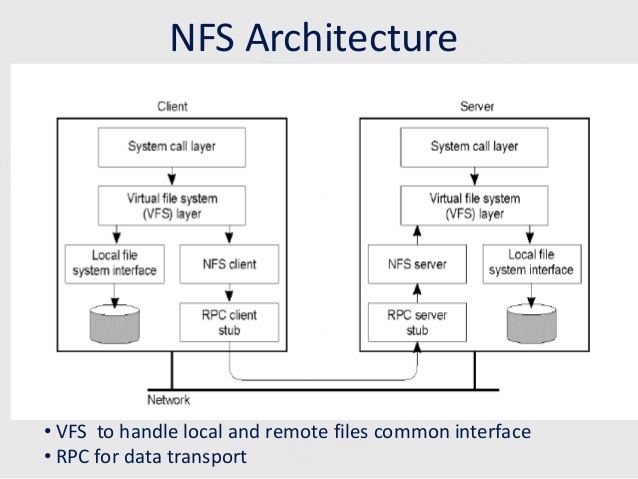
If you're using actively NFS remote storage attached to your Linux server it is very useful to get the number of dropped NFS connections and in that way to assure you don't have a remote NFS server issues or Network connectivity drops out due to broken network switch a Cisco hub or other network hop device that is routing the traffic from Source Host (SRC) to Destination Host (DST) thus, at perfect case if NFS storage and mounted Linux Network filesystem should be at (0) zero dropped connectios or their number should be low. Firewall connectivity between Source NFS client host and Destination NFS Server and mount should be there (set up fine) as well as proper permissions assigned on the server, as well as the DST NFS should be not experiencing I/O overheads as well as no DNS issues should be present (if NFS is not accessed directly via IP address).
In below article which is mostly for NFS novice admins is described shortly few of the nuances of working with NFS.
1. Check nfsstat and portmap for issues
One indicator that everything is fine with a configured NFS mount is the number of dropped NFS connections
or with a very low count of dropped connections, to check them if you happen to administer NFS
nfsstat
linux:~# nfsstat -o net
Server packet stats:
packets udp tcp tcpconn
0 0 0 0
nfsstat is useful if you have to debug why occasionally NFS mounts are getting unresponsive.
As NFS is so dependent upon portmap service for mapping the ports, one other point to check in case of Hanged NFSes is the portmap service whether it did not crashed due to some reason.
linux:~# service portmap status
portmap (pid 7428) is running… [portmap service is started.]
linux:~# ps axu|grep -i rpcbind
_rpc 421 0.0 0.0 6824 3568 ? Ss 10:30 0:00 /sbin/rpcbind -f -w
A useful commands to debug further rcp caused issues are:
On client side:
rpcdebug -m nfs -c
On server side:
rpcdebug -m nfsd -c
It might be also useful to check whether remote NFS permissions did not changed with the good old showmount cmd
linux:~# showmount -e rem_nfs_server_host
Also it is useful to check whether /etc/exports file was not modified somehow and whether the NFS did not hanged due to attempt of NFS daemon to reload the new configuration from there, another file to check while debugging is /etc/nfs.conf – are there group / permissions issues as well as the usual /var/log/messages and the kernel log with dmesg command for weird produced NFS client / server or network messages.
nfs-utils disabled serving NFS over UDP in version 2.2.1. Arch core updated to 2.3.1 on 21 Dec 2017 (skipping over 2.2.1.) If UDP stopped working then, add udp=y under [nfsd] in /etc/nfs.conf. Then restart nfs-server.service.
If the remote NFS server is running also Linux it is useful to check its /etc/default/nfs-kernel-server configuration
At some stall cases it might be also useful to remount the NFS (but as there might be a process on the Linux server) trying to read / write data from the remote NFS mounted FS it is a good idea to check (whether a process / service) on the server is not doing I/O operations on the NFS and if such is existing to kill the process in question with fuser
linux:~# fuser -k [mounted-filesystem]
2. Diagnose the problem interactively with htop
Htop should be your first port of call. The most obvious symptom will be a maxed-out CPU.
Press F2, and under "Display options", enable "Detailed CPU time". Press F1 for an explanation of the colours used in the CPU bars. In particular, is the CPU spending most of its time responding to IRQs, or in Wait-IO (wio)?
3. Get more extensive Mount info with mountstats
nfs-utils package contains mountstats command which is very useful in debugging further the issues identified
$ mountstats
Stats for example:/tank mounted on /tank:
NFS mount options: rw,sync,vers=4.2,rsize=524288,wsize=524288,namlen=255,acregmin=3,acregmax=60,acdirmin=30,acdirmax=60,soft,proto=tcp,port=0,timeo=15,retrans=2,sec=sys,clientaddr=xx.yy.zz.tt,local_lock=none
NFS server capabilities: caps=0xfbffdf,wtmult=512,dtsize=32768,bsize=0,namlen=255
NFSv4 capability flags: bm0=0xfdffbfff,bm1=0x40f9be3e,bm2=0x803,acl=0x3,sessions,pnfs=notconfigured
NFS security flavor: 1 pseudoflavor: 0
NFS byte counts:
applications read 248542089 bytes via read(2)
applications wrote 0 bytes via write(2)
applications read 0 bytes via O_DIRECT read(2)
applications wrote 0 bytes via O_DIRECT write(2)
client read 171375125 bytes via NFS READ
client wrote 0 bytes via NFS WRITERPC statistics:
699 RPC requests sent, 699 RPC replies received (0 XIDs not found)
average backlog queue length: 0READ:
338 ops (48%)
avg bytes sent per op: 216 avg bytes received per op: 507131
backlog wait: 0.005917 RTT: 548.736686 total execute time: 548.775148 (milliseconds)
GETATTR:
115 ops (16%)
avg bytes sent per op: 199 avg bytes received per op: 240
backlog wait: 0.008696 RTT: 15.756522 total execute time: 15.843478 (milliseconds)
ACCESS:
93 ops (13%)
avg bytes sent per op: 203 avg bytes received per op: 168
backlog wait: 0.010753 RTT: 2.967742 total execute time: 3.032258 (milliseconds)
LOOKUP:
32 ops (4%)
avg bytes sent per op: 220 avg bytes received per op: 274
backlog wait: 0.000000 RTT: 3.906250 total execute time: 3.968750 (milliseconds)
OPEN_NOATTR:
25 ops (3%)
avg bytes sent per op: 268 avg bytes received per op: 350
backlog wait: 0.000000 RTT: 2.320000 total execute time: 2.360000 (milliseconds)
CLOSE:
24 ops (3%)
avg bytes sent per op: 224 avg bytes received per op: 176
backlog wait: 0.000000 RTT: 30.250000 total execute time: 30.291667 (milliseconds)
DELEGRETURN:
23 ops (3%)
avg bytes sent per op: 220 avg bytes received per op: 160
backlog wait: 0.000000 RTT: 6.782609 total execute time: 6.826087 (milliseconds)
READDIR:
4 ops (0%)
avg bytes sent per op: 224 avg bytes received per op: 14372
backlog wait: 0.000000 RTT: 198.000000 total execute time: 198.250000 (milliseconds)
SERVER_CAPS:
2 ops (0%)
avg bytes sent per op: 172 avg bytes received per op: 164
backlog wait: 0.000000 RTT: 1.500000 total execute time: 1.500000 (milliseconds)
FSINFO:
1 ops (0%)
avg bytes sent per op: 172 avg bytes received per op: 164
backlog wait: 0.000000 RTT: 2.000000 total execute time: 2.000000 (milliseconds)
PATHCONF:
1 ops (0%)
avg bytes sent per op: 164 avg bytes received per op: 116
backlog wait: 0.000000 RTT: 1.000000 total execute time: 1.000000 (milliseconds)
nfs-utils disabled serving NFS over UDP in version 2.2.1. Arch core updated to 2.3.1 on 21 Dec 2017 (skipping over 2.2.1.) If UDP stopped working then, add udp=y under [nfsd] in /etc/nfs.conf. Then restart nfs-server.service.
4. Check for firewall issues
If all fails make sure you don't have any kind of firewall issues. Sometimes firewall changes on remote server or somewhere in the routing servers might lead to stalled NFS mounts.
To use properly NFS as you should know as a minimum you need to have opened as ports is Port 111 (TCP and UDP) and 2049 (TCP and UDP) on the NFS server (side) as well as any traffic inspection routers on the road from SRC (Linux client host) and NFS Storage destination DST server.
There are also ports for Cluster and client status (Port 1110 TCP for the former, and 1110 UDP for the latter) as well as a port for the NFS lock manager (Port 4045 TCP and UDP) but having this opened or not depends on how the NFS is configured. You can further determine which ports you need to allow depending on which services are needed cross-gateway.
5. How to Remount a Stalled unresponsive NFS filesystem mount
At many cases situation with remounting stalled NFS filesystem is not so easy but if you're lucky a standard mount and remount should do the trick.
Most simple way to remout the NFS (once you're sure this might not disrupt any service) – don't blame me if you break something is with:
umount -l /mnt/NFS_mnt_point
mount /mnt/NFS_mnt_point
Note that the lazy mount (-l) umount opt is provided here as very often this is the only way to unmount a stalled NFS mount.
Sometimes if you have a lot of NFS mounts and all are inacessible it is useful to remount all NFS mounts, if the remote NFS is responsive this should be possible with a simple for bash loop:
for P in $(mount | awk '/type nfs / {print $3;}'); do echo $P; echo "sudo umount $P && sudo mount $P" && echo "ok :)"; done
If you cd /mnt/NFS_mnt_point and try ls and you get
$ ls
.: Stale File Handle
You will need to unmount the FS with forceful mount flag
umount -f /mnt/NFS_mnt_point
Sum it up
In this article, I've shown you a few simple ways to debug what is wrong with a Stalled / Hanged NFS filesystem present on a NFS server mounted on a Linux client server.
Above was explained the common issues caused by NFS portmap (rpcbind) dependency, how to its status is fine, some further diagnosis with htop and mountstat was pointed. I've pointed the minimum amount of TCP / UDP ports 2049 and 111 that needs to be opened for the NFS communication to work and finally explained on how to remount a stalled NFS single or all attached mount on a NFS client to restore to normal operations.
As NFS is a whole ocean of things and the number of ways it is used are too extensive this article is just a general info useful for the NFS dummy admin for more robust configs read some good book on NFS such as Managing NFS and NIS, 2nd Edition – O'Reilly Media and for Kernel related NFS debugging make sure you check as a minimum ArchLinux's NFS troubleshooting guide and sourceforge's NFS Troubleshoting and Optimizing NFS Performance guides.







