Posts Tagged ‘buffer size’

How to Easily Integrate AI Into Bash on Linux with ollama

Monday, January 12th, 2026

Essential Ollama Commands You Should Know | by Jaydeep Karale | Artificial Intelligence in Plain English

AI is more and more entering the Computer scene and so is also in the realm of Computer / Network management. Many proficient admins already start to get advantage to it.
AI doesn’t need a GUI, or a special cloud dashboard or fancy IDE so for console geeks Sysadmins / System engineers and Dev Ops it can be straightly integrated into the bash / zsh etc. and used to easify a bit your daily sys admin tasks.

If you live in the terminal, the most powerful place to add AI is Bash itself. With a few tools and a couple of lines of shell code, you can turn your terminal into an AI-powered assistant that writes commands, explains errors, and helps automate everyday Linux tasks.

No magic. No bloat. Just Unix philosophy with a brain.

1. AI as a Command-Line Tool

Instead of treating AI like a chatbot, treat it like any other CLI utility:

  • stdin → prompt
  • stdout → response
  • pipes → integration

Hardware Requirements of Ollama Server

2. Minimum VM (It runs, but you’ll hate it)

Only use this to test that things work.

  • vCPU: 2
  • RAM: 4 GB
  • Disk: 20 GB (SSD mandatory)
  • Storage type: ( HDD / network storage = bad )
  • Models: phi3, tinyllama

Expect:

  • Very slow pulls
  • Long startup times
  • Laggy responses

a. Recommended VM (Actually usable)

This is the sweet spot for Bash integration and daily CLI use.

  • vCPU: 4–6 (modern host CPU)
  • RAM: 8–12 GB
  • Disk: 30–50 GB local SSD
  • CPU type: host-passthrough (important!)
  • NUMA: off (for small VMs)

Models that feel okay:

  • phi3
  • mistral
  • llama3:8b (slow but tolerable)
 

b. “Feels Good” VM (CPU-only but not painful)

If you want it to feel responsive.

  • vCPU: 8
  • RAM: 16 GB
  • Disk: NVMe-backed storage
  • CPU flags: AVX2 enabled
  • Hugepages: optional but nice

Models:

  • llama3:8b
  • codellama:7b
  • mixtral (slow, but usable)
 

Hypervisor-Specific Advice (Important)

c. KVM / Proxmox (Best choice)

  • CPU type: host
  • Enable AES-NI, AVX, AVX2
  • Use virtio-scsi
  • Cache: writeback
  • IO thread: enabled

d. If running VM on VMware platform

  • Enable Expose hardware-assisted virtualization
  • Use paravirtual SCSI
  • Reserve memory if possible

e. VirtualBox (Not recommended)

  • Poor CPU feature exposure
  • Weak IO performance

Avoid if you can

f. Local AI With Ollama (Recommended)

If you want privacy, low latency, and no API keys, Ollama is currently the easiest way to run LLMs locally on Linux.

3. Install Ollama

# curl -fsSL https://ollama.com/install.sh | sh


Start the service:

# ollama serve

Pull a model (lightweight and fast):

# ollama pull llama3

Test it:

ollama run llama3 "Explain what the ls command does"

If that works, you’re ready to integrate.

To check whether all is properly setup after installed llama3:

root@haproxy2:~# ollama list
NAME             ID              SIZE      MODIFIED
llama3:latest    365c0bd3c000    4.7 GB    About an hour ago

root@haproxy2:~# systemctl status ollama
● ollama.service – Ollama Service
     Loaded: loaded (/etc/systemd/system/ollama.service; enabled; preset: enabled)
     Active: active (running) since Mon 2026-01-12 16:43:30 EET; 15min ago
   Main PID: 37436 (ollama)
      Tasks: 16 (limit: 6999)
     Memory: 5.0G
        CPU: 13min 5.264s
     CGroup: /system.slice/ollama.service
             ├─37436 /usr/local/bin/ollama serve
             └─37472 /usr/local/bin/ollama runner –model /usr/share/ollama/.ollama/models/blobs/sha256-6a0746a1ec1aef3e7ec53>

яну 12 16:45:34 haproxy2 ollama[37436]: llama_context: Flash Attention was auto, set to enabled
яну 12 16:45:34 haproxy2 ollama[37436]: llama_context:        CPU compute buffer size =   258.50 MiB
яну 12 16:45:34 haproxy2 ollama[37436]: llama_context: graph nodes  = 999
яну 12 16:45:34 haproxy2 ollama[37436]: llama_context: graph splits = 1
яну 12 16:45:34 haproxy2 ollama[37436]: time=2026-01-12T16:45:34.959+02:00 level=INFO source=server.go:1376 msg="llama runner>
яну 12 16:45:34 haproxy2 ollama[37436]: time=2026-01-12T16:45:34.989+02:00 level=INFO source=sched.go:517 msg="loaded runners>
яну 12 16:45:35 haproxy2 ollama[37436]: time=2026-01-12T16:45:35.000+02:00 level=INFO source=server.go:1338 msg="waiting for >
яну 12 16:45:35 haproxy2 ollama[37436]: time=2026-01-12T16:45:35.001+02:00 level=INFO source=server.go:1376 msg="llama runner>
яну 12 16:55:58 haproxy2 ollama[37436]: [GIN] 2026/01/12 – 16:55:58 | 200 |    3.669915ms |       127.0.0.1 | HEAD     "/"
яну 12 16:55:58 haproxy2 ollama[37436]: [GIN] 2026/01/12 – 16:55:58 | 200 |   42.244006ms |       127.0.0.1 | GET      "/api/>
root@haproxy2:~#

4. Turning AI Into a Bash Command

Let’s create a simple AI helper command called ai.

Add this to your ~/.bashrc or ~/.bash_aliases:

ai() {

  ollama run llama3 "$*"

}

Reload your shell:

$ source ~/.bashrc


Now you can do things like:

$ ai "Write a bash command to find large files"


$ ai "Explain this error: permission denied"

$ ai "Convert this sed command to awk"


At this point, AI is already a first-class CLI tool.

5. Using AI to Generate Bash Commands

One of the most useful patterns is asking AI to output only shell commands.

Example:

$ ai "Give me a bash command to recursively find .log files larger than 100MB. Output only the command."

Copy, paste, done.

You can even enforce this behavior with a wrapper:

aicmd() {

  ollama run llama3 "Output ONLY a valid bash command. No explanation. Task: $*"

}

Now:

$ aicmd "list running processes using more than 1GB RAM"

Danger note: always read commands before running them. AI is smart, not trustworthy.

6. AI for Explaining Commands and Logs

This is where AI shines.

Pipe output directly into it:

$ dmesg | tail -n 50 | ai "Explain what is happening here"

Or errors:

$ make 2>&1 | ai "Explain this error and suggest a fix"

You’ve just built a terminal-native debugger.

7. Smarter Bash History Search

You can even use AI to interpret your intent instead of remembering exact commands:

aih() {

  history | ai "From this bash history, find the best command for: $*"

}

Example:

$ aih "compress a directory into tar.gz"

It’s like Ctrl+R, but semantic.

8. Using AI With Shell Scripts

AI can help generate scripts inline:

$ ai "Write a bash script that monitors disk usage and sends a notification when it exceeds 90%"

You’re not replacing scripting skills – you’re accelerating them.

Think of AI as:

  • a junior sysadmin
  • a documentation search engine
  • a rubber duck that talks back

9. Where Ollama Stores Its Data

Depending on how it runs:

System service (most common)

Models live here:

/usr/share/ollama/.ollama/

Inside:

models/

blobs/

User-only install

~/.ollama/

Since you installed as root + systemd, use the first path.

See What’s Taking Space

# du -sh /usr/share/ollama/.ollama/*

Typical output:

  • models/ → metadata
  • blobs/ → the big files (GBs)

10. Remove Unused Models (Safe Way)

List models Ollama knows about:

# ollama list

Remove a model properly:

# ollama rm llama3

This removes metadata and unreferenced blobs.

Always try this first.

11. Full Manual Cleanup (Hard Reset)

If things are broken, stuck, or you want a clean slate:

Stop Ollama

# systemctl stop ollama

Delete all local models and cache

# rm -rf /usr/share/ollama/.ollama/models

# rm -rf /usr/share/ollama/.ollama/blobs

(Optional but safe)

# rm -rf /usr/share/ollama/.ollama/tmp

Start Ollama again

# systemctl start ollama

Ollama will recreate everything automatically.

Verify Cleanup Worked

# du -sh /usr/share/ollama/.ollama

# ollama list

You should see:

  • Very small disk usage
  • Empty model list

Prevent Disk Bloat (Highly Recommended)

Only pull small models on VMs

Stick to:

  • phi3
  • mistral
  • tinyllama

Remove models you don’t use

# ollama rm modelname

Set a custom data directory (optional)

If /usr is small, move Ollama data:

# systemctl stop ollama

# mkdir -p /opt/ollama-data

# chown -R ollama:ollama /opt/ollama-data

Edit service:

# systemctl edit ollama

Add:

[Service]

Environment=OLLAMA_HOME=/opt/ollama-data

Then:

# systemctl daemon-reload

# systemctl start ollama

Quick “Nuke It” One-Liner (Use With Care)

Deletes everything Ollama-related:

# systemctl stop ollama && rm -rf /usr/share/ollama/.ollama && systemctl start ollama

API-Based Option (Cloud Models)

If you prefer cloud models (OpenAI, Anthropic, etc.), the pattern is identical:

  • Use curl
  • Pass prompt
  • Parse output

Once AI returns text to stdout, Bash doesn’t care where it came from.

12. Best Practices how to use shell AI to not overload machine

Before you go wild:

  • Don’t auto-execute AI output
  • Don’t run AI as root
  • Treat responses as suggestions
  • Version-control important scripts
  • Keep prompts specific
     

AI is powerful — but Linux still assumes you know what you’re doing.

Sum it up

Adding AI to Bash isn’t about replacing skills.
It’s about removing friction.

When AI gets easy to use from the command line it is a great convenience for those who don't want to switch to browser all the time and copy / paste like crazy.
AI as a command-line tool fits perfectly into the Linux console:

  • composable
  • scriptable
  • optional
  • powerful

Once you’ve used AI from inside your shell for a few hours, going back to browser-based AI chat stuff like querying ChatGPT feels… slow and inefficient.
However keep in mind that ollama is away from perfect and has a lot of downsides and ChatGPT / Grok / DeepSeek often might give you better results, however as ollama is really isolated and non-depend on external sources your private quries will not get into a public AI historic database and you won't be tracked.
So everything has its Pros and Cons. I'm pretty sure that this tool and free AI tools like those will certainly have a good future and will be heavily used by system admins and
programmers in the coming future.
The terminal just got smarter. And it didn’t need a GUI to do it.

Best software available today for Linux video Desktop capturing on Debian

Tuesday, April 19th, 2011

I’ve been experimenting since some time in order to understand better what is the current situation with Video Desktop Capturing Software available today for Linux and FreeBSD.

My previous investigations has led me to write an article about xvidcap called How to make Video from your Linux Desktop with xvidcap

Though xvidcap works pretty well, it is currently uncapable of capturing the audio stream of a Linux Desktop env and hence part of the interactivity of the videos is missing when used.

A bit of further investigation on the topic has pointed me to 3 free software programs which are capable to record Desktop environment on Linux with sound embedded

The interesting screen video capturing Desktop tools I’ve found are:

1. recordMyDesktop
2. Istanbul
and
3. vnc2swf

Installing them on a Debian based distribution is pleasable, as there are installable debian packages of each one which I installed easily with apt:

debian:~# apt-get install istanbul recordmydesktop gtk-recordmydesktop vnc2swf

RecordMyDesktop‘s package contains a command line little tool which when started directly starts capturing video and audio of the Linux Desktop. After a Ctrl+C is pressed the program quits, saves and encodes the video in ogg-encapsulated theora-vorbis file format.

Here is the output I got in saving a sample file by launching recordmydesktop without any arguments:

hipo@debian:~/Desktop$ recordmydesktop
Initial recording window is set to:
X:0 Y:0 Width:1024 Height:768
Adjusted recording window is set to:
X:0 Y:0 Width:1024 Height:768
Your window manager appears to be Metacity

Initializing…
Buffer size adjusted to 4096 from 4096 frames.
Opened PCM device hw:0,0
Recording on device hw:0,0 is set to:
2 channels at 22050Hz
Capturing!
Broken pipe: Overrun occurred.
^C
*********************************************

Cached 5 MB, from 207 MB that were received.
Average cache compression ratio: 97.3 %

*********************************************
Saved 69 frames in a total of 69 requests
Shutting down..Broken pipe: Overrun occurred.

STATE:ENCODING
Encoding started!
This may take several minutes.
Pressing Ctrl-C will cancel the procedure (resuming will not be possible, but
any portion of the video, which is already encoded won’t be deleted).
Please wait…
Output file: out.ogv
[100%]
Encoding finished!
Wait a moment please…

Done.
Written 692529 bytes
(635547 of which were video data and 56982 audio data)

Cleanning up cache…
Done!!!
Goodbye!

The captured file as I you see in the above output is saved in file out.ogv

RecordMyDesktop has also a GUI interface (written in Python) called gtk-recordmydesktop

Below you see a screenshot of the GUI gtk-recordmydesktop:
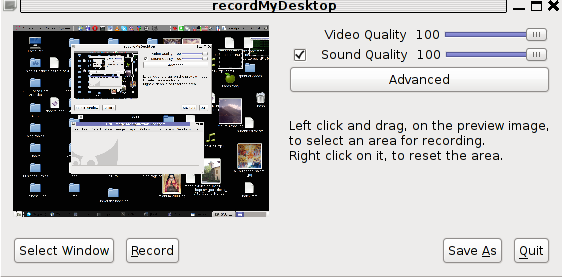
RecordMyDesktop GTK interface entry screen

gtk-recordmydesktop is a super-easy to use as you already see in the picture, you can either configure it with Advanced button or use Save As button to select where you want the Desktop captured video and audio to be stored.

In Debian Squeeze 6.0, the Advanced GUI button interface button is not working but that’s not such an issue, as the rest of the buttons works fine.
After the recordmydesktop‘s Record button is pressed it will start capturing from your Desktop and the window seen in the above screenshot will disappear/hide in the system tray:
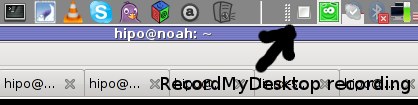
recordmydesktop recording minimized in system tray
When you press over the white little square in the system tray the screen capturing will be interrupted and a window will pop-up informing you that the captured video and audio is being encoded, here is another screenshot of recordmydesktop encoding a saved Desktop video stream:
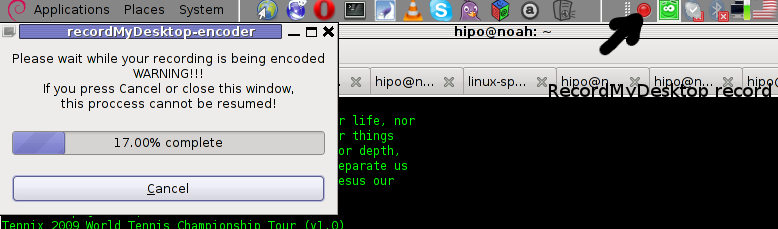
recordmydesktop saving captured desktop video

After the final .ogv file is encoded and saved to further transfer it into (.flv) I used ffmpeg;

debian:~# ffmpeg -i test.ogv test.flv
...

Now let’s evaluate a bit on the the final results, the produced test.ogv‘s synchronization between sound and video was not good as the sound was starting earlier than the video and therefore even though recordmydesktop used to be highly praised on the net, the proggie developers still needs to do some bug fixing
Further on, I continued and (gave the other Desktop screen capturer) Istanbul a try hoping that at least with it the video and audio of my Linux desktop will be properly captured. But guess what, the results with Istanbul was even more unsatisfactory as the produced videos and sounds, were slow and a lot of frames from the screens were missing completely.
Moreover the sound which was supposed to accompany the video was completely 🙁

Thus I will skip on talking about Istanbul as in my view, this piece of software is far away from being production ready.

I also tested vnc2swf , launched it by: pressing alt+f2 and typing in vnc2swf in GNOME’s run application prompt, just to be surprised by an error …:
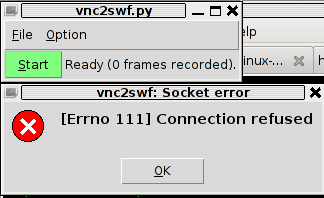
vnc2swf error no 111 Connection refused

The reason for this error is caused by the xserver (Xorg) port 5900 is being closed by default on Debian

However this error is easily solvable, by making the Xserver to listen to a the port 5900, to make the Xorg server on Debian to listen on this port you need to edit the file:

/etc/X11/xinit/xserverrc

and change inside it:

exec /usr/bin/X -nolisten tcp "$@"

with:

exec /usr/bin/X "$@"

and either reboot your Linux or restart only the Xorg server by pressing Ctrl+Alt+BackSpace

Now let me conclude, the results from my desktop video screen capturing experiments prooved that vnc2swf is superior (as it is capable of properly saving a movie with sound and video from a Linux Desktop). It appears this soft is actually the best one you can use to make a video of your Linux desktop.

Sadly my testing has proven that Linux is still lacking behind Windows and Mac in even doing the most simple tasks …
Let’s hope that situation will get better soon and Gnome or KDE developers will soon provide us with better software capable to save properly a video and audio captured from the Linux Desktop.





