Posts Tagged ‘file deletion’

How to Make Easy Backups on Linux Using a GUI tools Deja Dup, TimeShift, BackinTime, Grsync, Vorta

Monday, February 2nd, 2026

Backing up your data on Linux doesn’t have to involve complex terminal commands or custom scripts. While the command line is powerful, many users prefer a simple graphical interface (GUI) that just works.

Luckily, Linux offers several excellent GUI-based backup tools that are easy, reliable, and beginner-friendly.

In this article, we’ll look at why backups matter, and then walk through some of the best GUI backup tools for Linux, along with basic setup tips.

Why Backups Are Important (Even on Linux)

Linux systems are known for stability, but unfortunately, no system is immune to:

  • Hard drive failures
  • Accidental file deletion
  • System updates gone wrong
  • Malware or ransomware
  • Laptop theft or damage

A proper backup ensures you can restore your files or even your entire system in minutes instead of losing everything.

What Makes a Good GUI Backup Tool?

For most desktop users, a good backup tool should :

  • Be easy to use (no terminal required)
  • Supports automatic scheduled backups
  • Allow restoring individual files
  • Work with different types of external drives or network storage
  • Be relatively actively maintained
     

Let’s look at the few tools to create backups with lesser effort.

1. Déjà Dup – The Simplest Backup Tool

Best for: Beginners and home users
Available on: Ubuntu, Linux Mint, Fedora, and others

Déjà Dup is one of the most user-friendly backup tools on Linux. It comes preinstalled on Ubuntu and integrates perfectly with the GNOME desktop.

Key Features

  • Very simple interface
  • Automatic scheduled backups
  • Supports local drives, external USB disks, and network locations
  • Optional encryption for security

# apt info deja-dup
Package: deja-dup
Version: 44.0-2
Priority: optional
Section: utils
Maintainer: Debian GNOME Maintainers <pkg-gnome-maintainers@lists.alioth.debian.org>
Installed-Size: 4,851 kB
Depends: duplicity (>= 0.7.14), dconf-gsettings-backend | gsettings-backend, libadwaita-1-0 (>= 1.2), libc6 (>= 2.34), libglib2.0-0 (>= 2.70.0), libgpg-error0 (>= 1.14), libgtk-4-1 (>= 4.0.0), libjson-glib-1.0-0 (>= 1.5.2), libpackagekit-glib2-18 (>= 1.1.0), libpango-1.0-0 (>= 1.18.0), libsecret-1-0 (>= 0.18.6), libsoup-3.0-0 (>= 3.0.3)
Recommends: gvfs-backends, packagekit, policykit-1
Suggests: python3-pydrive2
Homepage: https://launchpad.net/deja-dup
Tag: admin::backup, implemented-in::c, interface::graphical, interface::x11,
 role::program, scope::application, suite::gnome, uitoolkit::gtk,
 x11::application
Download-Size: 693 kB
APT-Sources: http://ftp.debian.org/debian bookworm/main amd64 Packages
Description: Backup utility
 Déjà Dup is a simple backup tool. It hides the complexity of backing up the
 Right Way (encrypted, off-site, and regular) and uses duplicity as the
 backend.
 .
 Features:
  * Support for local, remote, or cloud backup locations such as Nextcloud
  * Securely encrypts and compresses your data
  * Incrementally backs up, letting you restore from any particular backup
  * Schedules regular backups
  * Integrates well into your GNOME desktop

How to Use Déjà Dup

Using it is generally simplistic, you select the data folders to be backupped and then the media where to backup it. The program supports also encryption with a password which is nice if you want to keep the backed-up data secret (especially if you want to store the backup on Google Cloud or Microsoft Azure)

Open “Backups” from your application menu

  1. Choose folders to back up (e.g., Home folder)
  2. Select a backup location (external drive recommended)
  3. Enable automatic backups


Click on Back Up Now button

That’s it. Déjà Dup runs quietly in the background after setup.

Note ! that it is not a good idea to try to backup the whole Linux installation ! with deja-dup, as you will get a lot of issues with improper permissions errors and stuff and the OS backup won't get consistent, however for a basic backups of User Homes, Cictures and some Personal data situated within a single directory it is simple as it is easy to initially setup and run.

# apt install deja-dup

$ sudo deja-dup


deja-dup-backup-gui-tool-linux-screenshot

deja-dup-backup-gui-tool-linux-screenshot2

2. Timeshift – System Snapshots Made Easy

Best for: System recovery
Available on: Most Linux distributions

Timeshift focuses on system backups, not personal files. It creates restore points similar to Windows System Restore.

Key Features

  • Snapshot-based backups
  • Perfect for rolling back failed updates
  • Supports RSYNC and BTRFS
  • Clean and simple GUI
     

When to Use Timeshift

  • Before major system updates
  • After fresh OS installation
  • To recover from broken packages or configs

# apt info timeshift
Package: timeshift
Version: 22.11.2-1+deb12u1
Priority: optional
Section: utils
Maintainer: Yanhao Mo <yanhaocs@gmail.com>
Installed-Size: 3,231 kB
Depends: cron-daemon | cron, pkexec, psmisc, rsync, libc6 (>= 2.34), libcairo2 (>= 1.2.4), libgdk-pixbuf-2.0-0 (>= 2.22.0), libgee-0.8-2 (>= 0.8.3), libglib2.0-0 (>= 2.39.4), libgtk-3-0 (>= 3.16.2), libjson-glib-1.0-0 (>= 1.5.2), libvte-2.91-0, libxapp1 (>= 1.0.4)
Breaks: util-linux (<< 2.37.2~)
Replaces: timeshift-btrfs
Homepage: https://github.com/linuxmint/timeshift
Tag: uitoolkit::gtk
Download-Size: 617 kB
APT-Manual-Installed: yes
APT-Sources: http://ftp.debian.org/debian bookworm/main amd64 Packages
Description: System restore utility
 Timeshift is a system restore utility which takes snapshots
 of the system at regular intervals. These snapshots can be restored
 at a later date to undo system changes. Creates incremental snapshots
 using rsync or BTRFS snapshots using BTRFS tools.

# apt install timeshift

$ sudo timeshift-gtk


https://www.pc-freak.net/images/linux-gui-backup-tools-screenshot/timeshift-rsync-backup-gui-tool-linux-screenshot4

timeshift-rsync-backup-gui-tool-linux-screenshot5

timeshift-rsync-backup-gui-tool-linux-screenshot6

3. Use Timeshift alongside a file backup tool like Déjà Dup as a backup solution for OS and data

a. Set up Timeshift (system snapshots)

What to include

Snapshot type:

  • RSYNC → works on any filesystem (recommended)
  • BTRFS → if your root is BTRFS


timeshift-rsync-backup-gui-tool-linux-screenshot1

Include:

  • / (root filesystem)

Exclude home directories (important!)

In Timeshift settings:

  • Keep /root excluded
  • Do NOT include /home/youruser

timeshift-rsync-backup-gui-tool-linux-screenshot2

Timeshift is not meant to back up your personal files.

Schedule (typical)

  • Daily: 3–5 snapshots
  • Weekly: 2–3 snapshots
  • Monthly: optional

Store snapshots on:

A separate drive or partition if possible

b. Set up Deja Dup (personal backups)

Deja Dup is perfect for:

  • Home directory backups
  • Encryption
  • External drives, NAS, cloud (Google Drive, SFTP, etc.)

Folders to back up

Usually:

~/Documents
~/Pictures
(or similar)
Optional: ~/.config (only if you know why)
~/Videos
~/Projects

In Deja Dup:

Folders to back up → select what you actually care about

Folders to ignore → add

~/.cache
~/.local/share/Trash
~/Downloads
(optional)

Schedule

Daily or weekly backup is usually fine

Keep backups for “forever” or at least several months

c. Prevent overlap (this matters)

To avoid wasting space and time:

Tool

Should back up

Should NOT back up

Timeshift

/, system configs

/home

Deja Dup

/home/youruser

/, system files

Never:

  • Use Deja Dup to back up /
  • Use Timeshift to back up /home

That’s the #1 mistake you could do

d. Real-world recovery scenarios

Scenario 1: Bad update / system won’t boot

  1. Boot from live USB

  2. Restore with Timeshift

  3. System is back exactly as before

  4. Files untouched

Scenario 2: Deleted or corrupted files

  1. Open Deja Dup

  2. Restore specific files/folders

  3. Done

Scenario 3: New machine / fresh install

  1. Install OS

  2. Restore system apps/settings manually or via Timeshift (if compatible)

  3. Restore home data with Deja Dup

e. Optional pro tips (to avoid data loss)

  • Test restores once (seriously)
  • Label backup drives clearly
  • Keep Deja Dup backups offsite if possible
  • After major distro upgrades:
  • Make a Timeshift snapshot
  • Don’t restore old Timeshift snapshots across major versions unless you know it’s safe
     

4. Back In Time – More Control features tool to create GUI-Based backups on Linux

Best for: Advanced users who want flexibility

Available on: Most Linux distributions

Back In Time uses RSYNC but wraps it in a friendly GUI.

Key Features

  • Scheduled snapshots
  • Exclude files and folders easily
  • Restore files from any snapshot
  • Supports local and remote backups
     

# apt-cache search backintime


backintime-common – simple backup/snapshot system (common files)
# apt info backintime-qt
Package: backintime-qt
Version: 1.3.3-4
Priority: optional
Section: utils
Source: backintime
Maintainer: Jonathan Wiltshire <jmw@debian.org>
Installed-Size: 416 kB
Depends: backintime-common (= 1.3.3-4), libnotify-bin, pkexec, polkitd, python3-dbus.mainloop.pyqt5, python3-pyqt5, x11-utils, python3:any
Recommends: python3-secretstorage
Suggests: meld | kompare
Conflicts: backintime-kde4
Breaks: backintime-qt4 (<< 1.2.1-0.1~)
Replaces: backintime-kde4, backintime-qt4 (<< 1.2.1-0.1~)
Homepage: https://github.com/bit-team/backintime
Download-Size: 73.8 kB
APT-Sources: http://ftp.debian.org/debian bookworm/main amd64 Packages
Description: simple backup/snapshot system (graphical interface)
 Back In Time is a framework for rsync and cron for the purpose of
 taking snapshots and backups of specified folders. It minimizes disk space use
 by taking a snapshot only if the directory has been changed, and hard links
 for unmodified files if it has. The user can schedule regular backups using
 cron.
 .
 This is the graphical interface for Back In Time.

backintime-qt – simple backup/snapshot system (graphical interface)

# apt install backintime-qt

$ sudo backintime-qt

backintime-linux-backup-gui-easy-tool-screenshot-options

linux-gui-backup-tools-screenshot/backintime-linux-backup-gui-easy-tool-screenshot-options

backintime-linux-screenshot-options-menu

backintime-linux-screenshot-options3

linux-gui-backup-tools-screenshot

It’s slightly more complex than Déjà Dup, but still very manageable.
 

5. Backing Up your Data on Linux with Grsync (rsync GUI frontend backup tool interface)

Grsync is a simple yet powerful graphical tool for backing up data on Linux. It acts as a front-end for rsync, one of the most trusted file synchronization utilities in the Linux world, but removes the need to remember long command-line options. This makes Grsync ideal for users who want reliable backups without extra complexity.

grsync-gui-backup-rsync-tool-linux-screenshot1

With Grsync, you can easily select a source and destination folder, such as backing up your home directory to an external drive or a network location. It supports incremental backups, meaning only changed files are copied after the first run, which saves both time and disk space. Useful options like preserving file permissions, deleting obsolete files, and excluding specific directories (for example, cache or temporary files) can be enabled with simple checkboxes.

Another advantage of Grsync is its safety features. You can perform a dry run to preview what will be copied or deleted before actually starting the backup. This reduces the risk of accidental data loss and makes it easier to fine-tune your backup settings. For Linux users looking for a practical and dependable backup solution, Grsync offers a great balance between power and ease of use.
 

Best Backup Strategy for Desktop Linux Users

For most users, Deja Dup + TimeShift  combo should works perfectly:

  • Déjà Dup → Personal files (documents, photos, videos)
  • Timeshift → System snapshots

This way, you’re protected from both data loss and system failure.

Final Thoughts

Linux gives you freedom – and that includes freedom to choose how you protect your data.

With modern GUI backup tools, there’s no excuse not to back up regularly. Whether you’re a casual user or a hardcore PC freak, setting up backups takes just a few minutes and can save you hours (or days) of frustration later.

If you’re serious about your Linux system data,
backup early, backup often and you this 

will pay you back.

How to delete million of files on busy Linux servers (Work out Argument list too long)

Tuesday, March 20th, 2012

How to Delete million or many thousands of files in the same directory on GNU / Linux and FreeBSD

If you try to delete more than 131072 of files on Linux with rm -f *, where the files are all stored in the same directory, you will get an error:

/bin/rm: Argument list too long.

I've earlier blogged on deleting multiple files on Linux and FreeBSD and this is not my first time facing this error.
Anyways, as time passed, I've found few other new ways to delete large multitudes of files from a server.

In this article, I will explain shortly few approaches to delete few million of obsolete files to clean some space on your server.
Here are 3 methods to use to clean your tons of junk files.

1. Using Linux find command to wipe out millions of files

a.) Finding and deleting files using find's -exec switch:

# find . -type f -exec rm -fv {} \;

This method works fine but it has 1 downside, file deletion is too slow as for each found file external rm command is invoked.

For half a million of files or more, using this method will take "long". However from a server hard disk stressing point of view it is not so bad as, the files deletion is not putting too much strain on the server hard disk.
b.) Finding and deleting big number of files with find's -delete argument:

Luckily, there is a better way to delete the files, by using find's command embedded -delete argument:

# find . -type f -print -delete

c.) Deleting and printing out deleted files with find's -print arg

If you would like to output on your terminal, what files find is deleting in "real time" add -print:

# find . -type f -print -delete

To prevent your server hard disk from being stressed and hence save your self from server normal operation "outages", it is good to combine find command with ionice, e.g.:

# ionice -c 3 find . -type f -print -delete

Just note, that ionice cannot guarantee find's opeartions will not affect severely hard disk i/o requests. On  heavily busy servers with high amounts of disk i/o writes still applying the ionice will not prevent the server from being hanged! Be sure to always keep an eye on the server, while deleting the files nomatter with or without ionice. if throughout find execution, the server gets lagged in serving its ordinary client requests or whatever, stop the execution of the cmd immediately by killing it from another ssh session or tty (if physically on the server).

2. Using a simple bash loop with rm command to delete "tons" of files

An alternative way is to use a bash loop, to print each of the files in the directory and issue /bin/rm on each of the loop elements (files) like so:

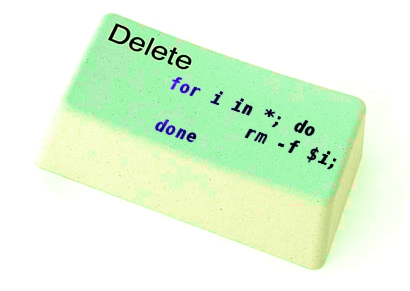
for i in *; do
rm -f $i;
done

If you'd like to print what you will be deleting add an echo to the loop:

# for i in $(echo *); do \
echo "Deleting : $i"; rm -f $i; \

The bash loop, worked like a charm in my case so I really warmly recommend this method, whenever you need to delete more than 500 000+ files in a directory.

3. Deleting multiple files with perl

Deleting multiple files with perl is not a bad idea at all.
Here is a perl one liner, to delete all files contained within a directory:

# perl -e 'for(<*>){((stat)[9]<(unlink))}'

If you prefer to use more human readable perl script to delete a multitide of files use delete_multple_files_in_dir_perl.pl

Using perl interpreter to delete thousand of files is quick, really, really quick.
I did not benchmark it on the server, how quick exactly is it, but I guess the delete rate should be similar to find command. Its possible even in some cases the perl loop is  quicker …

4. Using PHP script to delete a multiple files

Using a short php script to delete files file by file in a loop similar to above bash script is another option.
To do deletion  with PHP, use this little PHP script:

<?php
$dir = "/path/to/dir/with/files";
$dh = opendir( $dir);
$i = 0;
while (($file = readdir($dh)) !== false) {
$file = "$dir/$file";
if (is_file( $file)) {
unlink( $file);
if (!(++$i % 1000)) {
echo "$i files removed\n";
}
}
}
?>

As you see the script reads the $dir defined directory and loops through it, opening file by file and doing a delete for each of its loop elements.
You should already know PHP is slow, so this method is only useful if you have to delete many thousands of files on a shared hosting server with no (ssh) shell access.

This php script is taken from Steve Kamerman's blog . I would like also to express my big gratitude to Steve for writting such a wonderful post. His post actually become  inspiration for this article to become reality.

You can also download the php delete million of files script sample here

To use it rename delete_millioon_of_files_in_a_dir.php.txt to delete_millioon_of_files_in_a_dir.php and run it through a browser .

Note that you might need to run it multiple times, cause many shared hosting servers are configured to exit a php script which keeps running for too long.
Alternatively the script can be run through shell with PHP cli:

php -l delete_millioon_of_files_in_a_dir.php.txt.

5. So What is the "best" way to delete million of files on Linux?

In order to find out which method is quicker in terms of execution time I did a home brew benchmarking on my thinkpad notebook.

a) Creating 509072 of sample files.

Again, I used bash loop to create many thousands of files in order to benchmark.
I didn't wanted to put this load on a productive server and hence I used my own notebook to conduct the benchmarks. As my notebook is not a server the benchmarks might be partially incorrect, however I believe still .they're pretty good indicator on which deletion method would be better.

hipo@noah:~$ mkdir /tmp/test
hipo@noah:~$ cd /tmp/test;
hiponoah:/tmp/test$ for i in $(seq 1 509072); do echo aaaa >> $i.txt; done

I had to wait few minutes until I have at hand 509072  of files created. Each of the files as you can read is containing the sample "aaaa" string.

b) Calculating the number of files in the directory

Once the command was completed to make sure all the 509072 were existing, I used a find + wc cmd to calculate the directory contained number of files:

hipo@noah:/tmp/test$ find . -maxdepth 1 -type f |wc -l
509072

real 0m1.886s
user 0m0.440s
sys 0m1.332s

Its intesrsting, using an ls command to calculate the files is less efficient than using find:

hipo@noah:/tmp/test$ time ls -1 |wc -l
509072

real 0m3.355s
user 0m2.696s
sys 0m0.528s

c) benchmarking the different file deleting methods with time

– Testing delete speed of find

hipo@noah:/tmp/test$ time find . -maxdepth 1 -type f -delete
real 15m40.853s
user 0m0.908s
sys 0m22.357s

You see, using find to delete the files is not either too slow nor light quick.

– How fast is perl loop in multitude file deletion ?

hipo@noah:/tmp/test$ time perl -e 'for(<*>){((stat)[9]<(unlink))}'real 6m24.669suser 0m2.980ssys 0m22.673s

Deleting my sample 509072 took 6 mins and 24 secs. This is about 3 times faster than find! GO-GO perl 🙂
As you can see from the results, perl is a great and time saving, way to delete 500 000 files.

– The approximate speed deletion rate of of for + rm bash loop

hipo@noah:/tmp/test$ time for i in *; do rm -f $i; done

real 206m15.081s
user 2m38.954s
sys 195m38.182s

You see the execution took 195m en 38 secs = 3 HOURS and 43 MINUTES!!!! This is extremely slow ! But works like a charm as the running of deletion didn't impacted my normal laptop browsing. While the script was running I was mostly browsing through few not so heavy (non flash) websites and doing some other stuff in gnome-terminal) 🙂

As you can imagine running a bash loop is a bit CPU intensive, but puts less stress on the hard disk read/write operations. Therefore its clear using it is always a good practice when deletion of many files on a dedi servers is required.

b) my production server file deleting experience

On a production server I only tested two of all the listed methods to delete my files. The production server, where I tested is running Debian GNU / Linux Squeeze 6.0.3. There I had a task to delete few million of files.
The tested methods tried on the server were:

– The find . type -f -delete method.

– for i in *; do rm -f $i; done

The results from using find -delete method was quite sad, as the server almost hanged under the heavy hard disk load the command produced.

With the for script all went smoothly. The files were deleted for a long long time (like few hours), but while it was running, the server continued with no interruptions..

While the bash loop was running, the server load avarage kept at steady 4
Taking my experience in mind, If you're running a production, server and you're still wondering which delete method to use to wipe some multitude of files, I would recommend you go  the bash for loop + /bin/rm way. Yes, it is extremely slow, expect it run for some half an hour or so but puts not too much extra load on the server..

Using the PHP script will probably be slow and inefficient, if compared to both find and the a bash loop.. I didn't give it a try yet, but suppose it will be either equal in time or at least few times slower than bash.

If you have tried the php script and you have some observations, please drop some comment to tell me how it performs.

To sum it up;

Even though there are "hacks" to clean up some messy parsing directory full of few million of junk files, having such a directory should never exist on the first place.

Frankly, keeping millions of files within the same directory is very stupid idea.
Doing so will have a severe negative impact on a directory listing performance of your filesystem in the long term.

If you know better (more efficient) ways to delete a multitude of files in a dir please share in comments.





