Posts Tagged ‘graph’

How to Easily Integrate AI Into Bash on Linux with ollama

Monday, January 12th, 2026

Essential Ollama Commands You Should Know | by Jaydeep Karale | Artificial Intelligence in Plain English

AI is more and more entering the Computer scene and so is also in the realm of Computer / Network management. Many proficient admins already start to get advantage to it.
AI doesn’t need a GUI, or a special cloud dashboard or fancy IDE so for console geeks Sysadmins / System engineers and Dev Ops it can be straightly integrated into the bash / zsh etc. and used to easify a bit your daily sys admin tasks.

If you live in the terminal, the most powerful place to add AI is Bash itself. With a few tools and a couple of lines of shell code, you can turn your terminal into an AI-powered assistant that writes commands, explains errors, and helps automate everyday Linux tasks.

No magic. No bloat. Just Unix philosophy with a brain.

1. AI as a Command-Line Tool

Instead of treating AI like a chatbot, treat it like any other CLI utility:

  • stdin → prompt
  • stdout → response
  • pipes → integration

Hardware Requirements of Ollama Server

2. Minimum VM (It runs, but you’ll hate it)

Only use this to test that things work.

  • vCPU: 2
  • RAM: 4 GB
  • Disk: 20 GB (SSD mandatory)
  • Storage type: ( HDD / network storage = bad )
  • Models: phi3, tinyllama

Expect:

  • Very slow pulls
  • Long startup times
  • Laggy responses

a. Recommended VM (Actually usable)

This is the sweet spot for Bash integration and daily CLI use.

  • vCPU: 4–6 (modern host CPU)
  • RAM: 8–12 GB
  • Disk: 30–50 GB local SSD
  • CPU type: host-passthrough (important!)
  • NUMA: off (for small VMs)

Models that feel okay:

  • phi3
  • mistral
  • llama3:8b (slow but tolerable)
 

b. “Feels Good” VM (CPU-only but not painful)

If you want it to feel responsive.

  • vCPU: 8
  • RAM: 16 GB
  • Disk: NVMe-backed storage
  • CPU flags: AVX2 enabled
  • Hugepages: optional but nice

Models:

  • llama3:8b
  • codellama:7b
  • mixtral (slow, but usable)
 

Hypervisor-Specific Advice (Important)

c. KVM / Proxmox (Best choice)

  • CPU type: host
  • Enable AES-NI, AVX, AVX2
  • Use virtio-scsi
  • Cache: writeback
  • IO thread: enabled

d. If running VM on VMware platform

  • Enable Expose hardware-assisted virtualization
  • Use paravirtual SCSI
  • Reserve memory if possible

e. VirtualBox (Not recommended)

  • Poor CPU feature exposure
  • Weak IO performance

Avoid if you can

f. Local AI With Ollama (Recommended)

If you want privacy, low latency, and no API keys, Ollama is currently the easiest way to run LLMs locally on Linux.

3. Install Ollama

# curl -fsSL https://ollama.com/install.sh | sh


Start the service:

# ollama serve

Pull a model (lightweight and fast):

# ollama pull llama3

Test it:

ollama run llama3 "Explain what the ls command does"

If that works, you’re ready to integrate.

To check whether all is properly setup after installed llama3:

root@haproxy2:~# ollama list
NAME             ID              SIZE      MODIFIED
llama3:latest    365c0bd3c000    4.7 GB    About an hour ago

root@haproxy2:~# systemctl status ollama
● ollama.service – Ollama Service
     Loaded: loaded (/etc/systemd/system/ollama.service; enabled; preset: enabled)
     Active: active (running) since Mon 2026-01-12 16:43:30 EET; 15min ago
   Main PID: 37436 (ollama)
      Tasks: 16 (limit: 6999)
     Memory: 5.0G
        CPU: 13min 5.264s
     CGroup: /system.slice/ollama.service
             ├─37436 /usr/local/bin/ollama serve
             └─37472 /usr/local/bin/ollama runner –model /usr/share/ollama/.ollama/models/blobs/sha256-6a0746a1ec1aef3e7ec53>

яну 12 16:45:34 haproxy2 ollama[37436]: llama_context: Flash Attention was auto, set to enabled
яну 12 16:45:34 haproxy2 ollama[37436]: llama_context:        CPU compute buffer size =   258.50 MiB
яну 12 16:45:34 haproxy2 ollama[37436]: llama_context: graph nodes  = 999
яну 12 16:45:34 haproxy2 ollama[37436]: llama_context: graph splits = 1
яну 12 16:45:34 haproxy2 ollama[37436]: time=2026-01-12T16:45:34.959+02:00 level=INFO source=server.go:1376 msg="llama runner>
яну 12 16:45:34 haproxy2 ollama[37436]: time=2026-01-12T16:45:34.989+02:00 level=INFO source=sched.go:517 msg="loaded runners>
яну 12 16:45:35 haproxy2 ollama[37436]: time=2026-01-12T16:45:35.000+02:00 level=INFO source=server.go:1338 msg="waiting for >
яну 12 16:45:35 haproxy2 ollama[37436]: time=2026-01-12T16:45:35.001+02:00 level=INFO source=server.go:1376 msg="llama runner>
яну 12 16:55:58 haproxy2 ollama[37436]: [GIN] 2026/01/12 – 16:55:58 | 200 |    3.669915ms |       127.0.0.1 | HEAD     "/"
яну 12 16:55:58 haproxy2 ollama[37436]: [GIN] 2026/01/12 – 16:55:58 | 200 |   42.244006ms |       127.0.0.1 | GET      "/api/>
root@haproxy2:~#

4. Turning AI Into a Bash Command

Let’s create a simple AI helper command called ai.

Add this to your ~/.bashrc or ~/.bash_aliases:

ai() {

  ollama run llama3 "$*"

}

Reload your shell:

$ source ~/.bashrc


Now you can do things like:

$ ai "Write a bash command to find large files"


$ ai "Explain this error: permission denied"

$ ai "Convert this sed command to awk"


At this point, AI is already a first-class CLI tool.

5. Using AI to Generate Bash Commands

One of the most useful patterns is asking AI to output only shell commands.

Example:

$ ai "Give me a bash command to recursively find .log files larger than 100MB. Output only the command."

Copy, paste, done.

You can even enforce this behavior with a wrapper:

aicmd() {

  ollama run llama3 "Output ONLY a valid bash command. No explanation. Task: $*"

}

Now:

$ aicmd "list running processes using more than 1GB RAM"

Danger note: always read commands before running them. AI is smart, not trustworthy.

6. AI for Explaining Commands and Logs

This is where AI shines.

Pipe output directly into it:

$ dmesg | tail -n 50 | ai "Explain what is happening here"

Or errors:

$ make 2>&1 | ai "Explain this error and suggest a fix"

You’ve just built a terminal-native debugger.

7. Smarter Bash History Search

You can even use AI to interpret your intent instead of remembering exact commands:

aih() {

  history | ai "From this bash history, find the best command for: $*"

}

Example:

$ aih "compress a directory into tar.gz"

It’s like Ctrl+R, but semantic.

8. Using AI With Shell Scripts

AI can help generate scripts inline:

$ ai "Write a bash script that monitors disk usage and sends a notification when it exceeds 90%"

You’re not replacing scripting skills – you’re accelerating them.

Think of AI as:

  • a junior sysadmin
  • a documentation search engine
  • a rubber duck that talks back

9. Where Ollama Stores Its Data

Depending on how it runs:

System service (most common)

Models live here:

/usr/share/ollama/.ollama/

Inside:

models/

blobs/

User-only install

~/.ollama/

Since you installed as root + systemd, use the first path.

See What’s Taking Space

# du -sh /usr/share/ollama/.ollama/*

Typical output:

  • models/ → metadata
  • blobs/ → the big files (GBs)

10. Remove Unused Models (Safe Way)

List models Ollama knows about:

# ollama list

Remove a model properly:

# ollama rm llama3

This removes metadata and unreferenced blobs.

Always try this first.

11. Full Manual Cleanup (Hard Reset)

If things are broken, stuck, or you want a clean slate:

Stop Ollama

# systemctl stop ollama

Delete all local models and cache

# rm -rf /usr/share/ollama/.ollama/models

# rm -rf /usr/share/ollama/.ollama/blobs

(Optional but safe)

# rm -rf /usr/share/ollama/.ollama/tmp

Start Ollama again

# systemctl start ollama

Ollama will recreate everything automatically.

Verify Cleanup Worked

# du -sh /usr/share/ollama/.ollama

# ollama list

You should see:

  • Very small disk usage
  • Empty model list

Prevent Disk Bloat (Highly Recommended)

Only pull small models on VMs

Stick to:

  • phi3
  • mistral
  • tinyllama

Remove models you don’t use

# ollama rm modelname

Set a custom data directory (optional)

If /usr is small, move Ollama data:

# systemctl stop ollama

# mkdir -p /opt/ollama-data

# chown -R ollama:ollama /opt/ollama-data

Edit service:

# systemctl edit ollama

Add:

[Service]

Environment=OLLAMA_HOME=/opt/ollama-data

Then:

# systemctl daemon-reload

# systemctl start ollama

Quick “Nuke It” One-Liner (Use With Care)

Deletes everything Ollama-related:

# systemctl stop ollama && rm -rf /usr/share/ollama/.ollama && systemctl start ollama

API-Based Option (Cloud Models)

If you prefer cloud models (OpenAI, Anthropic, etc.), the pattern is identical:

  • Use curl
  • Pass prompt
  • Parse output

Once AI returns text to stdout, Bash doesn’t care where it came from.

12. Best Practices how to use shell AI to not overload machine

Before you go wild:

  • Don’t auto-execute AI output
  • Don’t run AI as root
  • Treat responses as suggestions
  • Version-control important scripts
  • Keep prompts specific
     

AI is powerful — but Linux still assumes you know what you’re doing.

Sum it up

Adding AI to Bash isn’t about replacing skills.
It’s about removing friction.

When AI gets easy to use from the command line it is a great convenience for those who don't want to switch to browser all the time and copy / paste like crazy.
AI as a command-line tool fits perfectly into the Linux console:

  • composable
  • scriptable
  • optional
  • powerful

Once you’ve used AI from inside your shell for a few hours, going back to browser-based AI chat stuff like querying ChatGPT feels… slow and inefficient.
However keep in mind that ollama is away from perfect and has a lot of downsides and ChatGPT / Grok / DeepSeek often might give you better results, however as ollama is really isolated and non-depend on external sources your private quries will not get into a public AI historic database and you won't be tracked.
So everything has its Pros and Cons. I'm pretty sure that this tool and free AI tools like those will certainly have a good future and will be heavily used by system admins and
programmers in the coming future.
The terminal just got smarter. And it didn’t need a GUI to do it.

The brief story of information according to James Gleich – and how we possibly come to be at where we are

Saturday, June 23rd, 2012

We're living at a times, where information has become more valuable than money and gold. Though we're living in a such a wild changing times, still it is not easy to answer in onefold clear way what is information.
The more the world and humanity developed the more meanings information word accepted.
While checking some interesting videos on the net, I've come across a video representing in a very brief form the history of information.

The Story of Information and how we come to be at where we are now

We're living at a times, where information has become more valuable than money and gold. Lest that living in a such a wild changing times, still it is not easy to answer in onefold clear way what is information.
As you can see from the video, the more the world and humanity developed the more meanings information word took up.

At the end end of the short presentational video there are few questions asked:
 

  • Who coined the term MEME
  • How many zeros are in yottabyte?
  • What is a one thing that can escape a black hole?

I did a quick research on the newly heard words and came to know meme concept. A meme is an "an idea, behavior or style that spreads from person to person within a culture.". The theory lists some interesting information like replication of personality (propagation) from one person to another etc. etc. However the general content of meme's theory puts Christian faith, religions and all kind of people beliefs in the graph of being just a continuous meme's patterns which are transferred from a person to person (generation to generation). Therefore according to memetics (as the meme's science is called), Christian faith and even my Orthodox Christian faith is just an informtion transmitted similarly to genetics information and the laws against:; sexual morality, bestiality, adultery, castration etc. are just a taboo and makes not sense and is just they claim is a information transferred from family generation to next generation until today.

Obviously the whole "theory" of memetics as a science is not true and is just a world view of Mr. Richard Dawkins in a book called The Selfish Gene (1976). It is well to be said Dawkins a follower of the fairy tales of Charle's Darwin's Darwinism.
Modern science however is seriously questioning Darwin's materialist world view. There are plenty of scientific researches which has prooved the existence of spiritual realm and hence some of the claims memetics are standing on a shaky grounds.

Concerning the second question in the video how many zeros are in an yottabyte the answer according to FreeFactFinder.com is:

2^80 = 1,208,925,819,614,629,174,706,176 bytes = 1024 zettabytes.

So having in mind the yottabyte equals 1,208,925,819,614,629,174,706,176 bytes if in bytes it would have 2 zeros 🙂

But if by zero is meant the number of values which could become zeroes then the answer would be 24 zeroes. This of course is in bytes in zettabytes the zeroes are only 0 or 3 i.e. (1024 zettabytes) 🙂

Moving back to the 3rd video question What is a one thing that can escape a black hole?. The answer is "WHO KNOWS ??".
The BlackHoles are a matter of science based on a huge theory base, there are plenty of discussions by some scientists still doubting if black holes really exist ,,, even if we assume blackholes exist noone can tell if the blackhole would suck up all matter (including light) or some specific kind of still un-researched matter or energy can get out… In short the question imposed is completely ridiculously funny 😉

Installing qmailmrtg (qmail graph statistics on qmail activity) on Debian Lenny

Monday, April 19th, 2010

1. First it’s necessery to have the mrtg debian package installed.
If it’s not installed then we have to install it:

debian-server:~# apt-get install mrtg

2. Second download the qmailmrtg source binary
To download the latest current source release of qmailmrtg execute:

debian-server:~# wget http://www.inter7.com/qmailmrtg7/qmailmrtg7-4.2.tar.gz

It’s a pity qmailmrtg is not available for download via debian repositories.

3. Third download the qmail.mrtg.cfg configuration file

debian-server~# wget https://www.pc-freak.net/files/qmail.mrtg.cfg

Now you have to put the file somewhere, usually it’s best to put it in the /etc/ directory.
Make sure the file is existing in /etc/qmail.mrtg.cfg
4. Untar compile and install qmailmrtg binary


debian-server:~# tar -xzvvf qmailmrtg7-4.2.tar.gz
...
debian-server:~# make && make install

strip qmailmrtg7
cp qmailmrtg7 /usr/local/bin
rm -rf *.o qmailmrtg7 checkq core
cc checkq.c -o checkq
./checkq
cc -s -O qmailmrtg7.c -o qmailmrtg7
qmailmrtg7.c: In function ‘main’:
qmailmrtg7.c:69: warning: incompatible implicit declaration of
built-in function ‘exit’
qmailmrtg7.c:93: warning: incompatible implicit declaration of
built-in function ‘exit’
qmailmrtg7.c:131: warning: incompatible implicit declaration of
built-in function ‘exit’
qmailmrtg7.c:137: warning: incompatible implicit declaration of
built-in function ‘exit’

5. Set proper file permissions according to the user you indent to execute qmailmrtg as
I personally execute it as root user, if you intend to do so as well set a permissions to
/etc/qmail.mrtg.cfg of 700.
In order to do that issue the command:

debian-server:~# chmod 700 /etc/qmail.mrtg.cfg

6. You will now need to modify the qmail.mrtg.cfg according to your needs
There you have to set a proper location where the qmailmrtg shall generate it’s html data files.
I use the /var/www/qmailmrtg qmailmrtg log file location. If you will do so as wellyou have to create the directory.

7. Create qmailmrtg html log files directory

debian-server:~# mkdir /var/log/qmailmrtg

8. Now all left is to set a proper cron line to periodically invoke qmailmrtg in order to generate qmail activity statistics.

Before we add the desired root’s crontab instructions we have to open the crontab for edit, using the command.

debian-server:~# crontab -u root -e

I personally use and recommend the following line as a line to be added to root’s crontab.

0-55/5 * * * * env LANG=C /usr/bin/mrtg /etc/qmail.mrtg.cfg > /dev/null
9. Copy index.html from qmailmrtg source directory to /var/log/qmailmrtg


debian-server:/usr/local/src/qmailmrtg7-4.2# cp -rpf index.html /var/log/qmailmrtg

10. Last step is to make sure Apache’s configuration contains lines that will enable you to access the qmail activity statistics.

The quickest way to do that in Debian running Apache 2.2 is to edit /etc/apache2/apache2.conf and add a directory Alias as follows

Alias /qmailmrtg/ "/var/www/qmailmrtg/"

Now after Apache restart /etc/init.d/apache2 restart
You should be now able to access the qmail mrtg qmail log statistics through your Apache’s default configured host.
For instance, assuming your default configured Apache host is domain.com. You’ll be able to reach the qmailmrtg statistics through an url like:

http://domain.com/qmailmrtg/

After I verified and ensured myself qmail mrtg is working correctly after all the above explained steps partook I wasn’t happy with some headlines in the index.html and the html tile of qmailmrtg,
so as a last step I manually edited the /var/www/qmailmrtg/index.html to attune it to my likings.

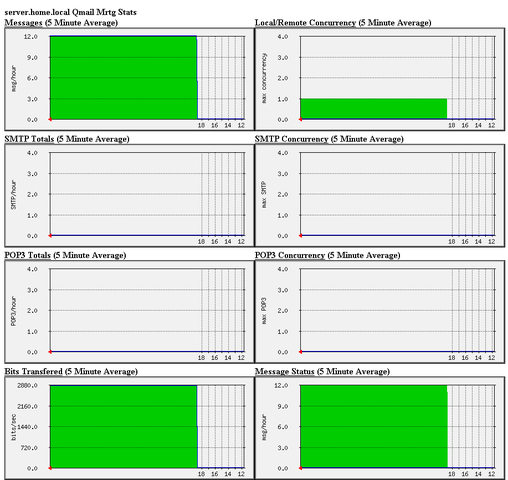
Here is a screenshot of the qmailmrtg web statistics in action.

qmail mrtg on debian lenny




