Posts Tagged ‘server’

How to Install and Use Kibana for Log Visualization

Wednesday, February 18th, 2026

/images/kibana-logo how to install it on linux
I saw Kibana in my professional career and I find it a very interesting tool for sysadmins, so I thought it might be helpful to someone out there to write a small article on how to install and use to to visualize data inside some elasticsearch software.

Kibana is an open-source data visualization and exploration tool used to analyze large volumes of data, especially logs. It is part of the ELK Stack (Elasticsearch, Logstash, Kibana), and is commonly used for centralized log management, security monitoring, and observability.

Kibana is often used in the so-called ELK pipeline for log file collection, analysis and visualization:

  • Elasticsearch is for searching, analyzing, and storing your data
  • Logstash (and Beats) is for collecting and transforming data, from any source, in any format
  • Kibana is a portal for visualizing the data and to navigate within the elastic stack
     

In this article, you'll learn how to:

  • Install Kibana
  • Connect it to Elasticsearch
  • Visualize log data
  • Use its basic features

Prerequisites

Before installing Kibana, make sure you have the following:

  • A Linux server running (Ubuntu / Debian / CentOS / RHEL)
  • Elasticsearch installed and running
  • Root or sudo access

Install Kibana

I. On Debian/Ubuntu
 

  1. Import the Elastic GPG key:

# wget -qO – https://artifacts.elastic.co/GPG-KEY-elasticsearch | sudo apt-key add –

  1. Add the repository:

# echo "deb https://artifacts.elastic.co/packages/8.x/apt stable main" | sudo tee -a /etc/apt/sources.list.d/elastic-8.x.list

  1. Update and install:


# apt update

# apt install kibana

II. On RHEL/CentOS Linux

  1. Create repo file:

# tee /etc/yum.repos.d/elastic.repo <<EOF

[elastic-8.x]

name=Elastic repository for 8.x packages

baseurl=https://artifacts.elastic.co/packages/8.x/yum

gpgcheck=1

gpgkey=https://artifacts.elastic.co/GPG-KEY-elasticsearch

enabled=1

autorefresh=1

type=rpm-md

EOF

  1. Install Kibana:

# yum install kibana

2. Configure Kibana

The configuration file is located at:

/etc/kibana/kibana.yml

Edit the file:

# vim /etc/kibana/kibana.yml

Update or add the following:
 

# Server settings
server.port: 5601
server.host: "0.0.0.0"

# Elasticsearch connection
elasticsearch.hosts: [“http://localhost:9200”]

# Logging
logging.level: info

# Security (only if Elasticsearch security is enabled)
# elasticsearch.username: "kibana_system"
# elasticsearch.password: "your_password_here"

Optional: Set basic auth or SSL settings if needed.


3. Start and Enable Kibana

# systemctl enable kibana

# systemctl start kibana

Check status:

# systemctl status kibana


4. Access Kibana Web Interface

Open your browser and go to:

http://<your-server-ip>:5601

You’ll be welcomed with the Kibana dashboard.

5. Import and Visualize Logs

Option A: Use Filebeat to Send Logs

Install Filebeat on the server with logs and configure it to send data to Elasticsearch. Kibana will then be able to visualize it.

# apt install filebeat

# filebeat modules enable system

# filebeat setup

# systemctl start filebeat

Option B: Ingest Logs via Logstash or Elasticsearch API

If you already have data in Elasticsearch, Kibana will automatically detect indices.
 

6. Create Index Pattern

  1. In Kibana, go to Stack Management -> Index Patterns
  2. Click Create Index Pattern
  3. Enter the name (e.g., filebeat-*)
  4. Select the timestamp field (usually @timestamp)
  5. Save

Now Kibana knows how to query and visualize your data.

7. Create Visualizations and Dashboards

  1. Go to Visualize -> Create visualization
  2. Choose a type (bar, pie, line, etc.)
  3. Select an index pattern
  4. Configure metrics and buckets

You can then save visualizations and add them to dashboards.

8. Secure Kibana

  • Configure TLS/SSL for Kibana / ElasticSearch (such as Logstash)
  • Use additional Elastic Security features like RBAC (Role Based Access Control, SSO (Single Sign On)
  • Secure Kibana with a reverse proxy (e.g., Nginx + Basic Auth or Apache / Haproxy infront)

Example Nginx config simple snippet:

location / {

  proxy_pass http://localhost:5601;

  auth_basic "Restricted";

  auth_basic_user_file /etc/nginx/.htpasswd;

}


What is Kibana used for and what it can do for you?

Use Case

Description

Log Monitoring

Visualize system and application logs in real time

Security Analytics

Detect anomalies, failed logins, suspicious activity

DevOps Dashboards

Track uptime, error rates, and system performance

SIEM

Use Elastic Security for threat detection


Once Kibana is installed on a server, you typically use it to visualize and explore data stored in Elasticsearch. Here’s a practical guide with sample usage scenarios:

Access Kibana

After installation, Kibana usually runs on port 5601 by default.

http://<your-server-ip>:5601

  • Open this URL in a browser.
  • You should see the Kibana dashboard.

Connect to Elasticsearch

Kibana automatically connects to your Elasticsearch instance if installed locally.
You can verify the connection:

GET /_cluster/health

  • Go to Dev ToolsConsole in Kibana.
  • Run the above query to check cluster status.

Visualize Data

Kibana allows multiple types of visualizations:

  • Bar/line chart: trends over time.
  • Pie chart: distribution of values.
  • Data table: top IP addresses or most visited URLs.
  • Maps: geolocation of IP addresses.

Create Dashboards

  • Combine multiple visualizations in a Dashboard.
  • Useful for monitoring logs, metrics, or application performance.
  • Example: Create a dashboard with:


    • Requests per URL (bar chart)
    • Requests over time (line chart)
    • Top client IPs (data table)
    • Errors by type (pie chart)

 Search & Query Logs

  • Use Discover to search logs interactively.
  • Example KQL query:

status:500 AND url:"/login"

This finds all failed login requests.

Set Alerts (Optional)

  • Kibana’s Alerts and Actions can trigger notifications (email, Slack, etc.) when certain thresholds are crossed.
  • Example: alert if error responses exceed 100 in 5 minutes.

Once Kibana is installed on a server, you typically use it to visualize and explore data stored in Elasticsearch. Here’s a practical guide with sample usage scenarios:

Access Kibana

After installation, Kibana usually runs on port 5601 by default.

http://<your-server-ip>:5601

  • Open this URL in a browser.
  • You should see the Kibana dashboard.

Connect to Elasticsearch

Kibana automatically connects to your Elasticsearch instance if installed locally.
You can verify the connection:

GET /_cluster/health

  • Go to Dev ToolsConsole in Kibana.
  • Run the above query to check cluster status.

Visualize Data

Kibana allows multiple types of visualizations:

  • Bar/line chart: trends over time.
  • Pie chart: distribution of values.
  • Data table: top IP addresses or most visited URLs.
  • Maps: geolocation of IP addresses.

Create Dashboards

  • Combine multiple visualizations in a Dashboard.
  • Useful for monitoring logs, metrics, or application performance.
  • Example: Create a dashboard with:
     

    • Requests per URL (bar chart)
    • Requests over time (line chart)
    • Top client IPs (data table)
    • Errors by type (pie chart)

 Search & Query Logs

  • Use Discover to search logs interactively.
  • Example KQL query:

status:500 AND url:"/login"

This finds all failed login requests.

Set Alerts (Optional)

  • Kibana’s Alerts and Actions can trigger notifications (email, Slack, etc.) when certain thresholds are crossed.
  • Example: alert if error responses exceed 100 in 5 minutes.

Once Kibana is installed on a server, you typically use it to visualize and explore data stored in Elasticsearch. Here’s a practical guide with sample usage scenarios:

Access Kibana

After installation, Kibana usually runs on port 5601 by default.

http://your-server-ip:5601

  • Open this URL in a browser.
  • You should see the Kibana dashboard.

Connect to Elasticsearch

Kibana automatically connects to your Elasticsearch instance if installed locally.
You can verify the connection:

GET /_cluster/health

  • Go to Dev ToolsConsole in Kibana.
  • Run the above query to check cluster status.

Visualize Data

Kibana allows multiple types of visualizations:

  • Bar/line chart: trends over time.
  • Pie chart: distribution of values.
  • Data table: top IP addresses or most visited URLs.
  • Maps: geolocation of IP addresses.

Create Dashboards

  • Combine multiple visualizations in a Dashboard.
  • Useful for monitoring logs, metrics, or application performance.
  • Example: Create a dashboard with:

    • Requests per URL (bar chart)
    • Requests over time (line chart)
    • Top client IPs (data table)
    • Errors by type (pie chart)

 Search & Query Logs

  • Use Discover to search logs interactively.
  • Example KQL query:

status:500 AND url:"/login"

This finds all failed login requests.

Set Alerts (Optional)

  • Kibana’s Alerts and Actions can trigger notifications (email, Slack, etc.) when certain thresholds are crossed.
  • Example: alert if error responses exceed 100 in 5 minutes.

kibana-sample-dashboard-screenshot

Sample Kibana dashboard
 

kibana-geo-kibana-web-traffic-by-location

Kibana with connected servers to find out Geo Location
 

Summary closing words (what we did)

Step

Action

 1

Install Kibana from Elastic repo

2

Configure to connect to Elasticsearch

3

Start and enable the service

4

Access it via http://<ip>:5601

5

Ingest log data

6

Define index pattern

7

Create dashboards and visualizations

The idea of this article was just to introduce you to the existence of Elasticsearch / kibana and filebeat and logstack and not to give you a fully fine tuned install guide. The usual way to deploy Kibana on multiple servers of course is using a dockerized container version of it. There is plenty to learned on how to use kibana to do a monitoring of your machines. But most simple use is to directly access the locally visible kibana on a server and check the status of processes on the host instead of logging via SSH. Kibana can do pretty much


Some further useful Reading Resources


Deploying a Server and Managing a 10-Node Linux Infrastructure with Ansible

Friday, May 30th, 2025

File:Ansible Logo.png - Wikimedia Commons

As organizations grow, manually configuring and maintaining servers quickly becomes inefficient, error-prone, and unscalable. Ansible, a powerful open-source automation tool, allows sysadmins and DevOps engineers to automate server provisioning, configuration management, and application deployment across multiple nodes—making it ideal for managing a fleet of Linux servers.

In this article, you’ll learn how to deploy a server using Ansible and manage an infrastructure of 10 Linux servers with ease.


What Is Ansible?

Ansible is a suite of software tools that enables infrastructure as code. It is open-source and the suite includes software provisioning, configuration management, and application deployment functionality.Ansible is an agentless IT automation tool. It uses SSH to connect to remote machines and YAML-based playbooks to define automation tasks. With Ansible, you can:

  • Install and configure software packages
  • Enforce configuration consistency
  • Perform updates across nodes
  • Deploy applications
  • Orchestrate complex workflows
     

Pre-requisites

To follow this guide, you need:

  • A control node (the machine from which you run Ansible)
  • 10 Linux servers (can be VMs or physical machines)
  • SSH access from the control node to all servers
  • Python installed on the target machines (most Linux distros have this by default)
     

1. Install Ansible on the Control Node 

On Ubuntu / Debian Linux

# apt update sudo apt install ansible -y

Or for CentOS/RHEL

# yum install epel-release -y
# yum install ansible -y

Verify installation:

# ansible –version

2. Configure Your Inventory File

Ansible uses an inventory file to define which servers to manage. By default, this is located at /etc/ansible/hosts , but you can also create a custom one.

Create an inventory file hosts.ini

[webservers]
server1 ansible_host=192.168.1.101
server2 ansible_host=192.168.1.102
server3 ansible_host=192.168.1.103
[dbservers]
server4 ansible_host=192.168.1.104
[all:vars]
ansible_user=ansible_user
ansible_ssh_private_key_file=~/.ssh/id_rsa

You can also use hostnames if DNS is configured.

3. Test Connectivity

# ansible -i hosts.ini all -m ping

If everything is set up correctly, you should see pong responses from all servers.

4. Write Your First Playbook (Provisioning Example)

Create a file called server_setup.yml:


– name: Provision and configure Linux servers
  hosts: all
  become: yes
  tasks:

    – name: Update apt cache (Debian/Ubuntu)
      apt:
        update_cache: yes
      when: ansible_os_family == "Debian"

    – name: Install common packages
      package:
        name:
          – curl
          – git
          – htop
        state: present

    – name: Ensure Nginx is installed on webservers
      apt:
        name: nginx
        state: present
      when: "'webservers' in group_names"

    – name: Start and enable Nginx
      service:
        name: nginx
        state: started
        enabled: yes
      when: "'webservers' in group_names"
 

5. Run the Playbook

ansible-playbook -i hosts.ini server_setup.yml

Ansible will SSH into each server, execute the tasks, and return status messages.

6. Scaling to 10+ Servers

Managing a growing infrastructure is simple with Ansible:

  • Add new servers to hosts.ini
  • Reuse existing playbooks for setup
  • Use roles to modularize configuration (e.g., webserver, database, monitoring)
  • Schedule playbooks using cron or CI/CD pipelines (e.g., GitHub Actions, Jenkins)

7. Sample Ansible Project Structure

Organizing your Ansible project effectively is crucial for scalability and maintainability. Here's a sample recommended directory layout:

ansible-infra/
├── hosts.ini
├── server_setup.yml
├── roles/
│   ├── common/
│   │   ├── tasks/
│   │   │   └── main.yml
│   │   └── files/
│   └── webserver/
│       ├── tasks/
│       │   └── main.yml
│       └── templates/
└── group_vars/
    └── all.yml
 

Key Components:
 

  • ansible.cfg: Configuration file defining paths and settings.
  • inventories/: Directory containing environment-specific inventory files.
  • playbooks/: Directory for playbooks that define automation tasks.
  • roles/: Directory for reusable roles, each with its own tasks and variables.
  • requirements.yml: File listing external roles or collections.
     

For a detailed explanation of this structure, refer to the Ansible Documentation.

Visual Workflow (text) Diagram

To illustrate the workflow, here's a diagram depicting how Ansible interacts with your infrastructure:

+——————+        +——————+        +——————+
|   Control Node   |        |    Ansible      |        |   Managed Nodes  |
|  (Your Machine)  |        |  (Ansible Core) |        |  (10 Linux Servers)|
+——————+        +——————+        +——————+
        |                               |                                 |
        | SSH                      | Execute Playbooks  | Apply Configurations
        |                               |                                 |
        +————————->+————————->+

Workflow Steps:

  1. Control Node: You initiate commands from your local machine.

  2. Ansible Core: Ansible connects via SSH to each managed node.

  3. Managed Nodes: Ansible applies configurations as defined in your playbooks and roles.

This workflow ensures consistent and automated management of your infrastructure.

Best Practices

  • Use roles: Organize playbooks into reusable roles
     (ansible-galaxy init myrole)
  • Maintain version control: Keep playbooks and inventory in Git
  • Encrypt secrets: Use ansible-vault for secure credentials
  • Test in staging: Always validate changes before pushing to production

Conclusion

Ansible is a game-changer for managing Linux infrastructure. With a few simple playbooks, you can provision, configure, and maintain your servers consistently and securely.
For a 10-node infrastructure, it offers the perfect balance of simplicity and power—letting you scale efficiently without the overhead of agent-based solutions.

How to Install Jitsi Meet on Debian Linux to have your own free software video conferencing secure server

Thursday, April 24th, 2025


jitsi-meet-create-new-room-for-video-meetings-linux


Jitsi Meet is a free, open-source video conferencing platform that allows you to host secure and scalable video calls both using a Mobile Phone / Tablet / PC or any other electronic device for which jitsi client has available port. Jitsi meet is the best free alternative one can get to Rakuten Viber / Facebook (Meta) / Zoom / Apples' Facetime etc.
What makes Jitsi really worthy is it can make your Video streaming communication give you flexibility to keep your communication a little bit private and harder to be captured than if you use the general Video streaming platforms. 
Jitsi is also a very simple to use and can be used either with a Desktop Client on Windows / Linux and Mac OS or Smart Phone running Android (Samsung / Huawei etc.) or iOS (iPhones) you can configure to use the Jitsi server or directly via a SSL encryption secured web URL address. The only thing i really don't like about Jitsi is it uses Java and its way of work is cryptic just like it is pretty hard to debug or understand exactly how the software works, as when errors came the usual crazzy Java exceptions are filling the jitsi logs.

In below short guide, I'll try provides a simple step-by-step instructions for installing Jitsi Meet on a Debian-based systems, hoping that anyone can benefit from Jitsi by building his own server.


jitsi-meet-conference-free-open-source-video-streaming-viber-and-facebook-alternative


What you should have before you start buillding your new Jitsi meet server

Before you begin, ensure that your system meets the following requirements:

  • A fresh installation of Debian 10 (Buster) or newer.

  • A non-root user with sudo privileges.

  • A fully updated system.

  • A domain name pointing to your server's IP address.

  • OpenJDK 11 installed.​

To get a better understanding on how Jitsi meet works it is worthy to take a quick look on Jitsi Architectural diagram:

Jitsi-meet-video-conferencing-software-linux-windows-mac-Architectural-diagram
 

1. Update Your System

Start by updating your system's package list and upgrading existing packages:​

# apt update sudo apt upgrade -y

2. Install Required Dependencies

Install the necessary packages for adding repositories and managing keys:​

# apt install apt-transport-https curl gnupg2 -y

3 Add Jitsi Repository

Add the Jitsi repository key to your system:

# curl https://download.jitsi.org/jitsi-key.gpg.key | sudo gpg --dearmor -o /usr/share/keyrings/jitsi-keyring.gpg

Then, add the Jitsi repository:​

# echo "deb [signed-by=/usr/share/keyrings/jitsi-keyring.gpg] https://download.jitsi.org stable/" | sudo tee /etc/apt/sources.list.d/jitsi-stable.list > /dev/null

Update your package list to include the Jitsi repository into apt database:​

 # apt update

4. Install Jitsi Meet

Install the Jitsi Meet package:​  

# apt install jitsi-meet -y

During installation, you'll be prompted to:​

  • Enter the hostname: Provide your domain name (e.g., meet.example.com ).

  • Choose SSL certificate: Select "Generate a new self-signed certificate" or "Obtain a Let's Encrypt certificate" if you have a valid domain.​JitsiScaleway

If you opt for Let's Encrypt, ensure that ports 80 and 443 are open on your firewall.​

5. Configure Firewall openings

If you have already a configured firewall to filter out traffic, open the necessary ports to allow traffic to your Jitsi Meet server from your router or entry firewall device as well as on the Linux itself: ​

Allow access to SSH server

# ufw allow 22/tcp


Allow access to HTTP unecrypted to Jitsi meet server

# ufw allow 80/tcp
# ufw allow 443/tcp


Allow access necessery for proper operation of Jitsi VideoBridge (port range 10000 to 20000)
 

# ufw allow 10000:20000/udp
# ufw enable


Verify the firewall status is Okay​ 

# ufw status

6. Access Jitsi Meet in a browser

Open a web browser and navigate to your server's domain or IP address:​

https://meet.your-custom-domain-or-IP.com

Hopefully all is okay and You should see the Jitsi Meet interface, where you can start or join a meeting.​

7. Secure Conference Creation (Optional extra)

By default, anyone can create a conference. To restrict this:​

  1. Install and configure Prosody for authentication.
    For those who don't know Prosody is a modern XMPP communication server

  2. Set up secure domains and configure authentication settings.​

For detailed instructions, refer to the Jitsi DevOps Guide. ​
 

Conclusion

Now You should have successfully installed Jitsi Meet on your Debian server.
Installing to Ubuntu and Redhat OSes such as Fedora or Redhat based distros should be not much difrerent from on this guide, except you have to use
the correct RPM repositories.

Now you can further now host secure video conferences using your own infrastructure and have an increased privacy and perhaps be more calm that the CIA or Mussat, MI6 / FSB might be not spying your Video conference talks (except if they don't already do it on an OS level which most likely the case but this doesn't matter. :).

For advanced configurations and features, consult the Jitsi Handbook and the Jitsi DevOps Guide.​Jitsi

That's all folks Enjoy !

Protect Application servers against sql injects, redirection handling and click jacking with Haproxy load balancer

Tuesday, April 1st, 2025


Lets say you are a system administrator that has to manage haproxy Load Balancers for High Availability that are throwing traffic to a set of 4 Application servers and you do only do a traffic round robin load balancing seemless without modifying the sent traffic. The haproxies are used only to send the frontend traffic towards application machines and then the traffic is returned back via another set of haproxies.


As incoming requests to application frontend is crucial to be secure, i'll give in this article few options that can be turned on in haproxy to strenghten security of backend application (against "hackers" / script kiddies ).

Here is the a sample chunk of haproxy frontend backend configuration you can use in haproxy.cfg config file for the purpose.


  frontend Incoming_Frontend
           bind 10.10.150.8:80 ssl crt /etc/haproxy/certs/your-domain-cert.net_haproxy.pem ca-file /etc/haproxy/certs/CustomCompanyCA.crt verify optional
           mode http
                http-request del-header max-forwards
                http-response set-header X-Frame-Options sameorigin
                http-response replace-header Location http[s]*://[^/:]*[:]*[0-9]*(/.*) \1
              option httplog
              timeout client 600s
              log-format %ci:%cp\ [%t]\ %ft\ %b/%s\ %Tq/%Tw/%Tc/%Tr/%Tt\ %ST\ %B\ %CC\ %CS\ %tsc\ %ac/%fc/%bc/%sc/%rc\ %sq/%bq\ %hr\ %hs\ %{+Q}r

             default_backend bk_Incoming_Frontend

    backend bk_Incoming_Frontend
           mode http
           balance roundrobin
           timeout server 330s
           timeout connect 4s
           server bk_AppServer_01 10.10.250.40:8088 weight 1 check port 8088 on-marked-down shutdown-sessions
           server bk_AppServer02 10.40.251.30:8088 weight 1 check port 8088 on-marked-down shutdown-sessions
           server bk_AppServer03 10.50.252.40:8088 weight 1 check port 8088 on-marked-down shutdown-sessions
           server bk_AppServer04 10.80.253.50:8088 weight 1 check port 8088 on-marked-down shutdown-sessions


The configuration variables that would improve backend security is as so:

  mode http
                http-request del-header max-forwards
                http-response set-header X-Frame-Options sameorigin
                http-response replace-header Location http[s]*://[^/:]*[:]*[0-9]*(/.*) \1
              option httplog

Above config haproxy meaning explained is as follows: 

This HAProxy configuration is set up for handling HTTP traffic with some specific request and response modifications.

Let's go through each directive:

Breakdown of the Configuration:

  1. mode http

    • This tells HAProxy to operate in HTTP mode, meaning it understands and processes HTTP-specific directives (e.g., modifying headers, logging, etc.).

  2. http-request del-header max-forwards

    • This removes the Max-Forwards header from incoming HTTP requests.

    • The Max-Forwards header is used in TRACE or OPTIONS requests to limit the number of hops a request can take.

    • Removing it may help prevent some types of request-loop abuse or simplify routing.

  3. http-response set-header X-Frame-Options sameorigin

    • This sets the X-Frame-Options header in HTTP responses to sameorigin .

    • Purpose: Prevents clickjacking attacks by ensuring that the page can only be embedded in a frame if it’s from the same origin (not by third-party sites).

      For those who don't know Clickjacking is The malicious practice of manipulating a website user's activity by concealing hyperlinks beneath legitimate clickable content, thereby causing the user to perform actions of which they are unaware. For example you click a payment button on a website from a decoy website but instead of paying to the real target site your money are sent to a malicious user's bank account..

  4. http-response replace-header Location http[s]*://[^/:]*[:]*[0-9]*(/.*) \1

    • This modifies the Location header in HTTP responses.

    • It strips out the scheme ( http:// or https:// ), domain, and port, leaving only the path.

    • Example:

      • Before: Location: https://example.com:8080/path/to/resource

      • After: Location: /path/to/resource

    • This ensures that redirects remain relative instead of absolute, which can help in reverse proxy setups.

  5. option httplog

    • Enables detailed logging for HTTP traffic.

    • Logs will include request method, URL, response status, and other useful details for debugging and monitoring.


Purpose of This Configuration:

  • Security:

    • Removing Max-Forwards helps mitigate abuse.

    • X-Frame-Options: sameorigin prevents clickjacking.

  • Redirection Handling:

    • Ensures the backend does not expose internal hostnames or ports in redirects.

  • Logging:

    • Enables HTTP-specific logging for better monitoring and debugging.

This setup is typical for a reverse proxy scenario where HAProxy is fronting backend services while enforcing security measures and keeping responses clean.

What we learned ?

In this short article, we've learned about how to imrpove application security with simple haproxy load balancer by removing Max-forwards (limitation of max hops traffic could have until reaching the destination), the X-Frame-Options that prevents clickjacking and using Redirection Handling to make sure backend does not expose internal  hostnames or ports used in redirects.

Any other meaningful protection options and hints whether proxying traffic with haproxy are mostly welcome to har about in commects section. If you know such help others learn by sharing.

Haproxy Enable / Disable Application backend server configured to roundrobin in emergency case via haproxy socket command

Thursday, May 2nd, 2024

haproxy-stats-socket

Haproxy LB backend BACKEND_ROUNDROBIN are configured to roundrobin with check health check port  (check port 33333).
For example letsa say haproxy server is running with a haproxy_roundrobin.cfg like this one.

Under some circumstances however if check port TCP 33333 is UP, but behind 1 or more of Application that is providing the resources to customers misbehaves ,
(app-server1, app-server2, app-server3, app-server4) members , Load Balancer cannot know this, because traffic routing decision is made based on Echo port.

One example scenario when this can happen is if Application server has issue with connectivity towards Database hosts:
(db-host1, db-host2, db-host3, db-host4)

If this happens 25% of traffic might still get balanced to broken Application server. If such scenario happens during OnCall and this is identified as problem,
work around would be to temporary disable the misbehaving App servers member from the 4 configured roundrobin pairs in haproxyproduction.cfg :

For example if app-server3 App node is identified as failing and 25% via LB is lost, to resolve it until broken Application server node is fixed, you will have to temporary exclude it from the ring of roundrobin backend hosts.

1.  Check the status of haproxy backends

echo "show stat" | socat stdio /var/lib/haproxy/stats

As you can see the backend is disabled.

Another way to do it which will make your sessions to the server not directly cut but kept for some time is to put the server you want to exclude from haproxy roundrobin to "maintenace mode".

echo "set server bk_BACKEND_ROUNDROBIN/app-server3 state maint" | socat unix-connect:/var/lib/haproxy/stats stdio

Actually, there is even better and more advanced way to disable backend from a configured rounrobin pair of hosts, with putting the available connections in a long waiting queue in the proxy, and if the App host is inavailable for not too short, haproxy will just ask the remote client to keep the connection for longer and continue the session interaction to remote side and wait for the App server connectivity to go out of maintenance, this is done via "drain" option.

echo "set server bk_BACKEND_ROUNDROBIN/app-server3 state drain" | socat unix-connect:/var/lib/haproxy/stats stdio


  • This sets the backend in DRAIN mode. No new connections are accepted and existing connections are drained.

To get a better idea on what is drain state, here is excerpt from haproxy official documentation:

Force a server's administrative state to a new state. This can be useful to
disable load balancing and/or any traffic to a server. Setting the state to
"ready" puts the server in normal mode, and the command is the equivalent of
the "enable server" command. Setting the state to "maint" disables any traffic
to the server as well as any health checks. This is the equivalent of the
"disable server" command. Setting the mode to "drain" only removes the server
from load balancing but still allows it to be checked and to accept new
persistent connections. Changes are propagated to tracking servers if any.


2. Disable backend app-server3 from rounrobin 


echo "disable server BACKEND_ROUNDROBIN/app-server3" | socat unix-connect:/var/lib/haproxy/stats stdio

# pxname,svname,qcur,qmax,scur,smax,slim,stot,bin,bout,dreq,dresp,ereq,econ,eresp,wretr,wredis,status,weight,act,bck,chkfail,chkdown,lastchg,downtime,qlimit,pid,iid,sid,throttle,lbtot,tracked,type,rate,rate_lim,rate_max,check_status,check_code,check_duration,hrsp_1xx,hrsp_2xx,hrsp_3xx,hrsp_4xx,hrsp_5xx,hrsp_other,hanafail,req_rate,req_rate_max,req_tot,cli_abrt,srv_abrt,comp_in,comp_out,comp_byp,comp_rsp,lastsess,last_chk,last_agt,qtime,ctime,rtime,ttime,
stats,FRONTEND,,,0,0,3000,0,0,0,0,0,0,,,,,OPEN,,,,,,,,,1,2,0,,,,0,0,0,0,,,,0,0,0,0,0,0,,0,0,0,,,0,0,0,0,,,,,,,,
stats,BACKEND,0,0,0,0,300,0,0,0,0,0,,0,0,0,0,UP,0,0,0,,0,282917,0,,1,2,0,,0,,1,0,,0,,,,0,0,0,0,0,0,,,,,0,0,0,0,0,0,-1,,,0,0,0,0,
Frontend_Name,FRONTEND,,,0,0,3000,0,0,0,0,0,0,,,,,OPEN,,,,,,,,,1,3,0,,,,0,0,0,0,,,,,,,,,,,0,0,0,,,0,0,0,0,,,,,,,,
Backend_Name,app-server4,0,0,0,0,,0,0,0,,0,,0,0,0,0,UP,1,1,0,1,0,282917,0,,1,4,1,,0,,2,0,,0,L4OK,,12,,,,,,,0,,,,0,0,,,,,-1,,,0,0,0,0,
Backend_Name,app-server3,0,0,0,0,,0,0,0,,0,,0,0,0,0,MAINT,1,0,1,1,2,2,23,,1,4,2,,0,,2,0,,0,L4OK,,11,,,,,,,0,,,,0,0,,,,,-1,,,0,0,0,0,
Backend_Name,BACKEND,0,0,0,0,300,0,0,0,0,0,,0,0,0,0,UP,1,1,0,,0,282917,0,,1,4,0,,0,,1,0,,0,,,,,,,,,,,,,,0,0,0,0,0,0,-1,,,0,0,0,0,

Once it is confirmed from Application supprt colleagues, that machine is out of maintenance node and working properly again to reenable it:

3. Enable backend app-server3

echo "enable server bk_BACKEND_ROUNDROBIN/app-server3" | socat unix-connect:/var/lib/haproxy/stats stdio

4. Check backend situation again

echo "show stat" | socat stdio /var/lib/haproxy/stats
# pxname,svname,qcur,qmax,scur,smax,slim,stot,bin,bout,dreq,dresp,ereq,econ,eresp,wretr,wredis,status,weight,act,bck,chkfail,chkdown,lastchg,downtime,qlimit,pid,iid,sid,throttle,lbtot,tracked,type,rate,rate_lim,rate_max,check_status,check_code,check_duration,hrsp_1xx,hrsp_2xx,hrsp_3xx,hrsp_4xx,hrsp_5xx,hrsp_other,hanafail,req_rate,req_rate_max,req_tot,cli_abrt,srv_abrt,comp_in,comp_out,comp_byp,comp_rsp,lastsess,last_chk,last_agt,qtime,ctime,rtime,ttime,
stats,FRONTEND,,,0,0,3000,0,0,0,0,0,0,,,,,OPEN,,,,,,,,,1,2,0,,,,0,0,0,0,,,,0,0,0,0,0,0,,0,0,0,,,0,0,0,0,,,,,,,,
stats,BACKEND,0,0,0,0,300,0,0,0,0,0,,0,0,0,0,UP,0,0,0,,0,282955,0,,1,2,0,,0,,1,0,,0,,,,0,0,0,0,0,0,,,,,0,0,0,0,0,0,-1,,,0,0,0,0,
Frontend_Name,FRONTEND,,,0,0,3000,0,0,0,0,0,0,,,,,OPEN,,,,,,,,,1,3,0,,,,0,0,0,0,,,,,,,,,,,0,0,0,,,0,0,0,0,,,,,,,,
Backend_Name,app-server4,0,0,0,0,,0,0,0,,0,,0,0,0,0,UP,1,1,0,1,0,282955,0,,1,4,1,,0,,2,0,,0,L4OK,,12,,,,,,,0,,,,0,0,,,,,-1,,,0,0,0,0,
Backend_Name,app-server3,0,0,0,0,,0,0,0,,0,,0,0,0,0,UP,1,0,1,1,2,3,58,,1,4,2,,0,,2,0,,0,L4OK,,11,,,,,,,0,,,,0,0,,,,,-1,,,0,0,0,0,
Backend_Name,BACKEND,0,0,0,0,300,0,0,0,0,0,,0,0,0,0,UP,1,1,1,,0,282955,0,,1,4,0,,0,,1,0,,0,,,,,,,,,,,,,,0,0,0,0,0,0,-1,,,0,0,0,0,


You should see the backend enabled again.

NOTE:
If you happen to get some "permission denied" errors when you try to send haproxy commands via the configured haproxy status this might be related to the fact you have enabled the socket in read only mode, if that is so it means the haproxy cannot be written to and therefore you can only read info from it with status commands, but not send any write operations to haproxy via unix socket.

One example haproxy configuration that enables haproxy socket in read only looks like this in haproxy.cfg:
 

 stats socket /var/lib/haproxy/stats


To make the haproxy socket read / write mode, for root superuser and some other users belonging to admin group 'adm', you should set the haproxy.cfg to something like:

stats socket /var/lib/haproxy/stats-qa mode 0660 group adm level admin

or if no special users with a set admin group needed to have access to socket, use instead config like:

stats socket /var/lib/haproxy/stats-qa.sock mode 0600 level admin

Linux extending life time for a damaged hard drive server tricks on a live server. Force fcsk on next reboot.Read-only file system error solutions

Friday, February 17th, 2023

linux-extending-life-time-for-a-damaged-hard-drive-server-tricks-can-not-read-superblock-linux-force-fsck-on-next-reboot

In our daily work as system administrators we have some very old Legacy systems running Clustered High Availability proxies using CRM (Cluster Resource Manager) and some legacy systems still using Heartbeat to manage the cluster instead of the newer and modern Corosync variant.

The HA cluster is only 2 nodes Linux machine and running the obscure already long time unsupported version of Redhat 5.11 (Ootpa) who was officially became stable distant year 1998 (yeath the years were good) and whose EOL (End of Life) has been reached long time ago and the OS is no longer supported, however for about 14 years the machines has been running perfectly fine until one of the Cluster nodes managed by ocf::heartbeat:IPAddr2 , that is  /etc/ha.d/resource.d/IPAddr2 shell script. Yeah for the newbies Heartbeat Application Cluster in Linux does work like that it uses a number of extendable pair of shell scripts written for different kind of Network / Web / Mail / SQL or whatever services HA management.

The first node configured however, started failing due to some errors like:
 

EXT3-fs error (device dm-1): ext3_journal_start_sb: Detected aborted journal
sd 0:2:0:0: rejecting I/O to offline device
Aborting journal on device sda1.
sd 0:2:0:0: rejecting I/O to offline device
printk: 159 messages suppressed.
Buffer I/O error on device sda1, logical block 526
lost page write due to I/O error on sda1
sd 0:2:0:0: rejecting I/O to offline device
ext3_abort called.
EXT3-fs error (device sda1): ext3_journal_start_sb: Detected aborted journal
Remounting filesystem read-only
sd 0:2:0:0: rejecting I/O to offline device
megaraid_sas: FW was restarted successfully, initiating next stage…
megaraid_sas: HBA recovery state machine, state 2 starting…
megasas: Waiting for FW to come to ready state
megasas: FW in FAULT state!!
FW state [-268435456] hasn't changed in 180 secs
megaraid_sas: out: controller is not in ready state
megasas: waiting_for_outstanding: after issue OCR. 
megasas: waiting_for_outstanding: before issue OCR. FW state = f0000000
megaraid_sas: pending commands remain even after reset handling. megasas[0]: Dumping Frame Phys Address of all pending cmds in FW
megasas[0]: Total OS Pending cmds : 0 megasas[0]: 64 bit SGLs were sent to FW
megasas[0]: Pending OS cmds in FW :

The result out of that was a frequently the filesystem of the machine got re-mounted as Read Only and of course that is
quite bad if you have a running processess of haproxy that should be able to be living their and take up some Web traffic
for high availability and you run all the traffic only on the 2nd pair of machine.

This of course was a clear sign for a failing disks or some hit bad blocks regions or as the messages indicates, some
problem with system hardware or Raid SAS Array.

The physical raid on the system, just like rest of the hardware is very old stuff as well.

[root@haproxy_lb_node1 ~]# lspci |grep -i RAI
01:00.0 RAID bus controller: LSI Logic / Symbios Logic MegaRAID SAS 2108 [Liberator] (rev 05)

The produced errors not only made the machine to auto-mount its root / filesystem in Read-Only mode but besides has most
likely made the machine to automatically reboot every few days or few times every day in a raw.

The second Load Balancer node2 did operated perfectly, and we thought that we might just keep the broken machine in that half running
and inconsistent state for few weeks until we have built the new machines with Pre-Installed new haproxy cluster with modern
RedHat Linux 8.6 distribution, but since we have to follow SLAs (Service Line Agreements) with Customers and the end services behind the
High Availability (HA) Haproxy cluster were at danger … 

We as sysadmins had the task to make our best to try to stabilize the unstable node with disk errors for the system to servive
and be able to normally serve traffic (if node2 that is in a separate Data center fails due to a hardware or electricity issues etc.)
.

Here is few steps we took, that has hopefully improved the situation.

1. Make backups of most important files of high importance

Always before doing anything with a broken system, prepare backup of the most important files, if that is a cluster that should be a backup of the cluster configurations (if you don't have already ones) backup of /etc/hosts / backup of any important services configs /etc/haproxy/haproxy.cfg /etc/postfix/postfix.cfg (like it was my case), preferrably backup of whole /etc/  any important files from /root/ or /home/users* directories backup of at leasts latest logs from /var/log etc.
 

2. Clear up all unnecessery services scripts from the server

Any additional Softwares / Services and integrity checking tools (daemons) / scripts and cron jobs, were immediately stopped and wheter unused removed.

E.g. we had moved through /etc/cron* to check what's there,

# ls -ld /etc/cron.*
drwx—— 2 root root 4096 Feb  7 18:13 /etc/cron.d
drwxr-xr-x 2 root root 4096 Feb  7 17:59 /etc/cron.daily
-rw-r–r– 1 root root    0 Jul 20  2010 /etc/cron.deny
drwxr-xr-x 2 root root 4096 Jan  9  2013 /etc/cron.hourly
drwxr-xr-x 2 root root 4096 Jan  9  2013 /etc/cron.monthly
drwxr-xr-x 2 root root 4096 Aug 26  2015 /etc/cron.weekly


And like well professional butchers removed everything unnecessery that could trigger any extra unnecessery disk read / writes to HDD.

E.g. just create

# mkdir -p /root/etc_old/{/etc/cron.d,\
/etc/cron.daily,/etc/cron.hourly,/etc/cron.monthly\
,/etc/cron.weekly}


And moved all unnecessery cron job scripts like:

1. nmon (old school network / memory / hard disk console tool for monitoring and tuning server parameters)
2. clamscan / freshclam crons
3. mlocate (the script that is taking care for periodic run of updatedb command to keep the locate command to easily search
for files inside the DB to put less read operations on disk in case if you need to find file (e.g. prevent yourself to everytime
run cmd like: find / . -iname '*whatever_you_look_for*'
4. cups cron jobs
5. logwatch cron
6. rkhunter stuff
7. logrotate (yes we stopped even logrotation trigger job as we found the server was crashing sometimes at the same time when
the lograte job to rotate logs inside /var/log/* was running perhaps leading to a hit of the I/O read error (bad blocks).


Also inspected the Administrator user root cron job for any unwated scripts and stopped two report bash scripts that were part of the PCI tightened Security procedures.
Therein found script responsible to periodically report the list of installed packages and if they have not changed, as well a script to periodically report via email the list of
/etc/{passwd,/etc/shadow} created users, used to historically keep an eye on the list of users and easily see if someone
has created new users on the machine. Those were enabled via /var/spool/cron/root cron jobs, in other cases, on other machines if it happens for you
it is a good idea to check out all the existing user cron jobs and stop anything that might be putting Read / Write extra heat pressure on machine attached the Hard drives.

# ls -al /var/spool/cron/
total 20
drwx——  2 root root 4096 Nov 13  2015 .
drwxr-xr-x 12 root root 4096 May 11  2011 ..
-rw——-  1 root root  133 Nov 13  2015 root


3. Clear up old log files and any files unnecessery

Under /var/log and /home /var/tmp /var/spool/tmp immediately try to clear up the old log files.
From my past experience this has many times made the FS file inodes that are storing on a unbroken part (good blocks) of the hard drive and
ready to be reused by newly written rsyslog / syslogd services spitted files.

!!! Note that during the removal of some files you might hit a files stored on a bad blocks that might lead to a unexpected system reboot.

But that's okay, don't worry most likely after a hard reset by a technician in the Datacenter the machine will boot again and you can enjoy
removing remaining still files to send them to the heaven for old files.


4. Trigger an automatic system file system check with fsck on next boot

The standard way to force a Linux to aumatically recheck its Root filesystem is to simply create the /forcefsck to root partition or any other secondary disk partition you would like to check.

# touch /forcefsck

# reboot


However at some occasions you might be unable to do it because, the / (root fs) has been remounted in ReadOnly mode, yackes …

Luckily old Linux distibutions like this RHEL 5.1, has a way to force a filesystem check after reboot fsck and identify any
unknown bad-blocks and hopefully succceed in isolating them, so you don't hit into the same auto-reboots if the hard drive or Software / Hardware RAID
is not in terrible state
, you can use an option built in in /sbin/shutdown command the '-F'

   -F     Force fsck on reboot.


Hence to make the machine reboot and trigger immediately fsck:

# shutdown -rF now


Just In case you wonder why to reboot before check the Filesystem. Well simply because you need to have them unmounted before you check.

In that specific case this produced so far a good result and the machine booted just fine and we crossed the fingers and prayed that the machine would work flawlessly in the coming few weeks, before we finalize the configuration of the substitute machines, where this old infrastructure will be migrated to a new built cluster with new Haproxy and Corosync / Pacemaker Cluster on a brand new RHEL.

NB! On newer machines this won't work however as shutdown command has been stripped off this option because no SystemV (SystemInit) or Upstart and not on SystemD newer services architecture.
 

5. Hints on checking the hard drives with fsck

If you happen to be able to have physical access to the remote Hardare machine via a TTY[1-9] Console, that's even better and is the standard way to do it but with this specific case we had no easy way to get access to the Physical server console.

It is even better to go there and via either via connected Monitor (Display) or KVM Switch (Those who hear KVM switch first time this is a great device in server rooms to connect multiple monitors to same Monitor Display), it is better to use a some of the multitude of options to choose from for USB Distro Linux recovery OS versions or a CDROM / DVD on older machines like this with the Redhat's recovery mode rolled on.
After mounting the partition simply check each of the disks
e.g. :

# fsck -y /dev/sdb
# fsck -y /dev/sdc

Or if you want to not waste time and look for each hard drive but directly check all the ones that are attached and known by Linux distro via /etc/fstab definition run:

# fsck -AR

If necessery and you have a mixture of filesystems for example EXT3 , EXT4 , REISERFS you can tell it to omit some filesystem, for example ext3, like that:

# fsck -AR -t noext3 -y


To skip fsck on mounted partitions with fsck:

# fsck -M /dev/sdb


One remark to make here on fsck is usually fsck to complete its job on various filesystem it uses other external component binaries usually stored in /sbin/fsck*

ls -al /sbin/fsck*
-rwxr-xr-x 1 root root  55576 20 яну 2022 /sbin/fsck*
-rwxr-xr-x 1 root root  43272 20 яну 2022 /sbin/fsck.cramfs*
lrwxrwxrwx 1 root root      9  4 юли 2020 /sbin/fsck.exfat -> exfatfsck*
lrwxrwxrwx 1 root root      6  7 юни 2021 /sbin/fsck.ext2 -> e2fsck*
lrwxrwxrwx 1 root root      6  7 юни 2021 /sbin/fsck.ext3 -> e2fsck*
lrwxrwxrwx 1 root root      6  7 юни 2021 /sbin/fsck.ext4 -> e2fsck*
-rwxr-xr-x 1 root root  84208  8 фев 2021 /sbin/fsck.fat*
-rwxr-xr-x 2 root root 393040 30 ное 2009 /sbin/fsck.jfs*
-rwxr-xr-x 1 root root 125184 20 яну 2022 /sbin/fsck.minix*
lrwxrwxrwx 1 root root      8  8 фев 2021 /sbin/fsck.msdos -> fsck.fat*
-rwxr-xr-x 1 root root    333 16 дек 2021 /sbin/fsck.nfs*
lrwxrwxrwx 1 root root      8  8 фев 2021 /sbin/fsck.vfat -> fsck.fat*


6. Using tune2fs to  adjust tunable filesystem parameters on ext2/ext3/ext4 filesystems (few examples)

a) To check whether really the filesystem was checked on boot time or check a random filesystem on the server for its last check up date with fsck:

#  tune2fs -l /dev/sda1 | grep checked
Last checked:             Wed Apr 17 11:04:44 2019

On some distributions like old Debian and Ubuntu, it is even possible to enable fsck to log its operations during check on reboot via changing the verbosity from NO to YES:

# sed -i "s/#VERBOSE=no/VERBOSE=yes/" /etc/default/rcS


If you're having the issues on old Debian Linuxes  and not on RHEL  it is possible to;

b) Enable all fsck repairs automatic on boot

by running via:
 

# sed -i "s/FSCKFIX=no/FSCKFIX=yes/" /etc/default/rcS


c) Forcing fcsk check on for server attached Hard Drive Partitions with tune2fs

# tune2fs -c 1 /dev/sdXY

Note that:
tune2fs can force a fsck on each reboot for EXT4, EXT3 and EXT2 filesystems only.

tune2fs can trigger a forced fsck on every reboot using the -c (max-mount-counts) option.
This option sets the number of mounts after which the filesystem will be checked, so setting it to 1 will run fsck each time the computer boots.
Setting it to -1 or 0 resets this (the number of times the filesystem is mounted will be disregarded by e2fsck and the kernel).


 For example you could:

d) Set fsck to run a filesystem check every 30 boots, by using -c 30 
 

# tune2fs -c 30 /dev/sdXY


e) Checking whether a Hard Drive has been really checked on the boot


#  tune2fs -l /dev/sda1 | grep checked
Last checked:             Wed Apr 17 11:04:44 2019


e) Check when was the last time the file system /dev/sdX was checked:
 

# tune2fs -l /dev/sdX | grep Last\ c
Last checked:             Thu Jan 12 20:28:34 2017


f) Check how many times our /dev/sdX filesystem was mounted

# tune2fs -l /dev/sdX | grep Mount
Mount count:              157

g) Check how many mounts are allowed to pass before filesystem check is forced
 

# tune2fs -l /dev/sdX | grep Max
Maximum mount count:      -1


7. Repairing disk / partitions via GRUB fsck.mode and fsck.repair kernel module options

It is also possible to force a fsck.repair on boot via GRUB, but that usually is not an option someone would like as the machine might fail too boot if it hards to repair hardly, however in difficult situations with failing disks temporary enabling it is good idea.

This can be done by including for grub initial config

GRUB_CMDLINE_LINUX_DEFAULT="quiet splash fsck.mode=force fsck.repair=yes"

fsck.mode=force – will force a fsck each time a system boot and keeping that value enabled for a long time inside GRUB is stupid for servers as

sometimes booting could be severely prolonged because of the checks especially with servers with many or slow old hard drives.

fsck.repair=yes – will make the fsck try to repair if it finds bad blocks when checking (be absolutely sure you know, what you're doing if passing this options)

The options can be also set via editing the GRUB boot screen, if you have physical access to the server and don't want to reload the grub loader and possibly make the machine unbootable on next boot.
 

8. Few more details on how /etc/fstab disk fsck check parameters values for Systemd Linux machines works

The "proper" way on systemd (if we can talk about proper way on Linux) to runs fsck for each filesystem that has a fsck is to pass number greater than 0 set in
/etc/fstab (last column in /etc/fstab), so make sure you edit your /etc/fstab if that's not the case.

The root partition should be set to 1 (first to be checked), while other partitions you want to be checked should be set to 2.

Example /etc/fstab:
 

# /etc/fstab: static file system information.

/dev/sda1  /      ext4  errors=remount-ro  0  1
/dev/sda5  /home  ext4  defaults           0  2

The values you can put here as a second number meaning is as follows:
0 – disabled, that is do not check filesystem
1 – partition with this PASS value has a higher priority and is checked first. This value is usually set to the root / partition
2 – partitions with this PASS value will be checked last

a) Check the produced log out of fsck

Unfortunately on the older versions of Linux distros with SystemV fsck log output might be not generated except on the physical console so if you have a kind of duplicator device physical tty on the display port of the server, you might capture some bad block reports or fixed errors messages, but if you don't you might just cross the fingers and hope that anything found FS irregularities was recovered.

On systemd Linux machines the fsck log should be produced either in /run/initramfs/fsck.log or some other location depending on the Linux distro and you should be able to see something from fsck inside /var/log/* logs:

# grep -rli fsck /var/log/*


Close it up

Having a system with failing disk is a really one of the worst sysadmin nightmares to get. The good news is that most of the cases we're prepared with some working backup or some work around stuff like the few steps explained to mitigate the amount of Read / Writes to hard disks on the failing machine HDDs. If the failing disk is a primary Linux filesystem all becomes even worse as every next reboot, you have no guarantee, whether the kernel / initrd or some of the other system components required to run the Core Linux system won't break up the normal boot. Thus one side changes on the hard drives is a risky business on ther other side, if you're in a situation where you have a mirror system or the failing system is just a Linux server installed without a Cluster pair, then this is not a big deal as you can guarantee at least one of the nodes still up, unning and serving. Still doing too much of operations with HDD is always a danger so the steps described, though in most cases leading to improvement on how the system behaves, the system should be considered totally unreliable and closely monitored not only by some monitoring stuff like Zabbix / Prometheus whatever but regularly check the systems state via normal SSH logins. It is important if you have some important datas or logs on the system that are not synchronized to a system node to copy them before doing any of the described operations. After all minimal is backuped, proceed to clear up everything that might be cleared up and still the machine to continue providing most of its functionalities, trigger fsck automatic HDD check on next reboot, reboot, check what is going on and monitor the machine from there on.

Hopefully the few described steps, has helped some sysadmin. There is plenty of things which I've described that might go wrong, even following the described steps, might not help if the machines Storage Drives / SAS / SSD has too much of a damage. But as said in most cases following this few steps would improve the machine state.

Wish you the best of luck!

 

How to disable haproxy log for certain frontend / backend or stop haproxy logging completely

Wednesday, September 14th, 2022

haproxy-disable-logging-for-single-frontend-or-backend-or-stop-message-logging-completely-globally

In my previous article I've shortly explained on how it is possible to configure multiple haproxy instances to log in separate log files as well as how to configure a specific frontend to log inside a separate file. Sometimes it is simply unnecessery to keep any kind of log file for haproxy to spare disk space or even for anonymity of traffic. Hence in this tiny article will explain how to disable globally logging for haproxy and how logging for a certain frontend or backend could be stopped.

1. Disable globally logging of haproxy service
 

Disabling globally logging for haproxy in case if you don't need the log is being achieved by redirecting the log variable to /dev/null handler and to also mute the reoccurring alert, notice and info messages, that are produced in case of some extra ordinary events during start / stop of haproxy or during mising backends etc. you can send those messages to local0 and loca1 handlers which will be discarded later by rsyslogd configuration, for example thsi can be achieved with a configuration like:
 

global     log /dev/log    local0 info alert     log /dev/log    local1 notice alert  defaults log global mode http option httplog option dontlognull


<level>    is optional and can be specified to filter outgoing messages. By
           default, all messages are sent. If a level is specified, only
           messages with a severity at least as important as this level
           will be sent. An optional minimum level can be specified. If it
           is set, logs emitted with a more severe level than this one will
           be capped to this level. This is used to avoid sending "emerg"
           messages on all terminals on some default syslog configurations.
           Eight levels are known :
             emerg  alert  crit   err    warning notice info  debug


By using the log level you can also tell haproxy to omit from logging errors from log if for some reasons haproxy receives a lot of errors and this is flooding your logs, like this:

    backend Backend_Interface
  http-request set-log-level err
  no log


But sometimes you might need to disable it for a single frontend only and comes the question.


2. How to disable logging for a single frontend interface?

I thought that might be more complex but it was pretty easy with the option dontlog-normal haproxy.cfg variable:

Here is sample configuration with frontend and backend on how to instrucruct the haproxy frontend to disable all logging for the frontend
 

frontend ft_Frontend_Interface
#        log  127.0.0.1 local4 debug
        bind 10.44.192.142:12345
       
option dontlog-normal
        mode tcp
        option tcplog

              timeout client 350000
        log-format [%t]\ %ci:%cp\ %fi:%fp\ %b/%s:%sp\ %Tw/%Tc/%Tt\ %B\ %ts\ %ac/%fc/%bc/%sc/%rc\ %sq/%bq
        default_backend bk_WLP_echo_port_service

backend bk_Backend_Interface
                        timeout server 350000
                        timeout connect 35000
        server serverhost1 10.10.192.12:12345 weight 1 check port 12345
        server serverhost2 10.10.192.13:12345 weight 3 check port 12345


As you can see from those config, we have also enabled as a check port 12345 which is the application port service if something goes wrong with the application and 12345 is not anymore responding the respective server will get excluded automatically by haproxy and only one of machines will serve, the weight tells it which server will have the preference to serve the traffic the weight ratio will be 1 request will end up on one machine and 3 requests on the other machine.


3. How to disable single configured backend to not log anything but still have a log for the frontend
 

Omit the use of option dontlog normal from frontend inside the backend just set  no log:

backend bk_Backend_Interface
                       
 no log
                        timeout server 350000
                        timeout connect 35000
        server serverhost1 10.10.192.12:12345 weight 1 check port 12345
        server serverhost2 10.10.192.13:12345 weight 3 check port 12345

That's all reload haproxy service on the machine and backend will no longer log to your default configured log file via the respective local0 – local6 handler.

How to configure haproxy logging to separate file on Redhat Enterprise Linux 8.5 Ootpa

Thursday, February 3rd, 2022

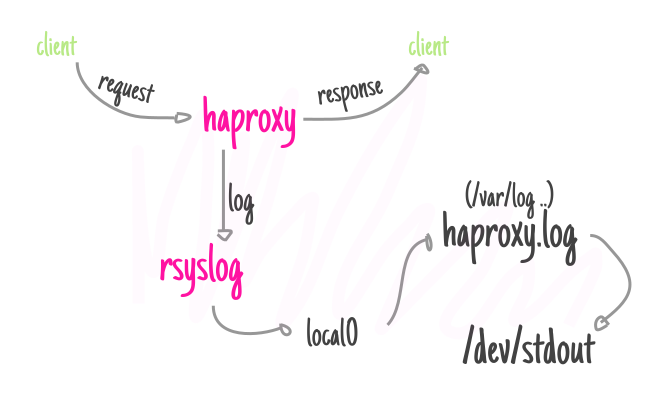
haproxy-rsyslog-architecture-logging-picture

Configuring proper logging for haproxy is always a pain in the ass in Linux, because of rsyslogd various config syntax among versions, because of bugs in OS etc. 
Today we have been given 2 Redhat 8.5 Linux servers where we had a task to start configuring haproxies, to have an idea on what is going on of course we had to enable proper haproxy logging in separate log file under separate local, for the test one can use haproxy's 

log /dev/log local6

config, this is a general way to configure logging which I've described earlier in the article How to enable haproxy logging to a separate log /var/log/haproxy.log / prevent duplicate messages to appear in /var/log/messages
However this time I wanted to not use /dev/log as this device is also used by systemd / journald and theoretically could be used by other services and there might be multiple services logging to the same places possibly leading to some issue, thus I wanted to send and process the haproxy messages directly from rsyslog on RHEL 8.5.

Create a custom file that is loaded with the rest of configuration from /etc/rsyslog.conf with a line like:
 

# Include all config files in /etc/rsyslog.d/
include(file="/etc/rsyslog.d/*.conf" mode="optional")


Create 49_haproxy.conf with below content

[root@haproxy: ~]# vim /etc/rsyslog.d/49_haproxy.conf

$ModLoad imudp
$UDPServerAddress 127.0.0.1
$UDPServerRun 514
#2022/02/02: HAProxy logs to local6, save the messages
local6.*                                                /var/log/haproxy.log
if ($programname == 'haproxy') then -/var/log/haproxy.log
& stop

touch /var/log/haproxy.log
chown haproxy:haproxy /var/log/haproxy.log

In /etc/haproxy/haproxy.cfg under global section to print in verbose mode messages (i.e. check, the haproxy is receiving properly sent traffic) do configure something like:


global
  log          127.0.0.1 local6 debug


Eventually you might want to remove the debug word out of the config, if you don't want to log too much verbosily once everything is properly tested and configured

[root@haproxy: ~]# curl -v -c -k 10.10.192.135:16010
* Rebuilt URL to: 10.10.192.135:15010/
*   Trying 10.10.192.135…
* TCP_NODELAY set
* Connected to 10.10.192.135 (10.10.192.135) port 15010 (#0)
> GET / HTTP/1.1
> Host: 10.10.192.135:15010
> User-Agent: curl/7.61.1
> Accept: */*

* Empty reply from server
* Connection #0 to host 10.10.192.135 left intact
curl: (52) Empty reply from server


In /var/log/haproxy.log you should get some messages like:
 

Feb  3 14:16:44 localhost.localdomain haproxy[25029]: proxy IN_Traffic_Bak has no server available!
Feb  3 14:16:44 localhost.localdomain haproxy[25029]: proxy IN_Traffic_Bak has no server available!
Feb  3 15:59:50 localhost.localdomain haproxy[25029]: [03/Feb/2022:15:59:50.162] 10.44.192.135:1348 -:- IN_Traffic/<NOSRV>:- -1/-1/0 0 SC 1/1/0/0/0 0/0


Fix Out of inodes on Postfix Linux Mail Cluster. How to clean up filesystem running out of Inodes, Filesystem inodes on partition is 100% full

Wednesday, August 25th, 2021

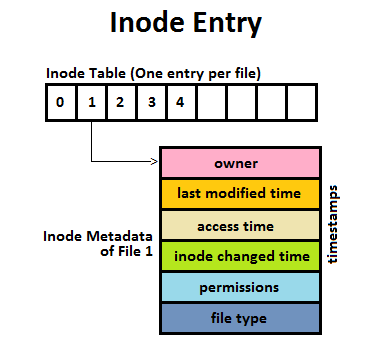
Inode_Entry_inode-table-content

Recently we have faced a strange issue with with one of our Clustered Postfix Mail servers (the cluster is with 2 nodes that each has configured Postfix daemon mail servers (running on an OpenVZ virtualized environment).
A heartbeat that checks liveability of clusters and switches nodes in case of one of the two gets broken due to some reason), pretty much a standard SMTP cluster.

So far so good but since the cluster is a kind of abondoned and is pretty much legacy nowadays and used just for some Monitoring emails from different scripts and systems on servers, it was not really checked thoroughfully for years and logically out of sudden the alarming email content sent via the cluster stopped working.

The normal sysadmin job here  was to analyze what is going on with the cluster and fix it ASAP. After some very basic analyzing we catched the problem is caused by a  "inodes full" (100% of available inodes were occupied) problem, e.g. file system run out of inodes on both machines perhaps due to a pengine heartbeat process  bug  leading to producing a high number of .bz2 pengine recovery archive files stored in /var/lib/pengine>

Below are the few steps taken to analyze and fix the problem.
 

1. Finding out about the the system run out of inodes problem


After logging on to system and not finding something immediately is wrong with inodes, all I can see from crm_mon is cluster was broken.
A plenty of emails were left inside the postfix mail queue visible with a standard command

[root@smtp1: ~ ]# postqueue -p

It took me a while to find ot the problem is with inodes because a simple df -h  was showing systems have enough space but still cluster quorum was not complete.
A bit of further investigation led me to a  simple df -i reporting the number of inodes on the local filesystems on both our SMTP1 and SMTP2 got all occupied.

[root@smtp1: ~ ]# df -i
Filesystem            Inodes   IUsed   IFree IUse% Mounted on
/dev/simfs            500000   500000  0   100% /
none                   65536      61   65475    1% /dev

As you can see the number of inodes on the Virual Machine are unfortunately depleted

Next step was to check directories occupying most inodes, as this is the place from where files could be temporary moved to a remote server filesystem or moved to another partition with space on a server locally attached drives.
Below command gives an ordered list with directories locally under the mail root filesystem / and its respective occupied number files / inodes,
the more files under a directory the more inodes are being occupied by the files on the filesystem.


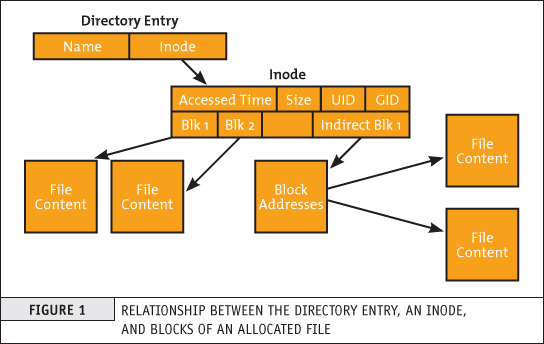
run-out-if-inodes-what-is-inode-find-out-which-filesystem-or-directory-eating-up-all-your-system-inodes-linux_inode_diagram.gif
1.1 Getting which directory consumes most of the inodes on the systems


[root@smtp1: ~ ]# { find / -xdev -printf '%h\n' | sort | uniq -c | sort -k 1 -n; } 2>/dev/null
….
…..

…….
    586 /usr/lib64/python2.4
    664 /usr/lib64
    671 /usr/share/man/man8
    860 /usr/bin
   1006 /usr/share/man/man1
   1124 /usr/share/man/man3p
   1246 /var/lib/Pegasus/prev_repository_2009-03-10-1236698426.308128000.rpmsave/root#cimv2/classes
   1246 /var/lib/Pegasus/prev_repository_2009-05-18-1242636104.524113000.rpmsave/root#cimv2/classes
   1246 /var/lib/Pegasus/prev_repository_2009-11-06-1257494054.380244000.rpmsave/root#cimv2/classes
   1246 /var/lib/Pegasus/prev_repository_2010-08-04-1280907760.750543000.rpmsave/root#cimv2/classes
   1381 /var/lib/Pegasus/prev_repository_2010-11-15-1289811714.398469000.rpmsave/root#cimv2/classes
   1381 /var/lib/Pegasus/prev_repository_2012-03-19-1332151633.572875000.rpmsave/root#cimv2/classes
   1398 /var/lib/Pegasus/repository/root#cimv2/classes
   1696 /usr/share/man/man3
   400816 /var/lib/pengine

Note, the above command orders the files from bottom to top order and obviosuly the bottleneck directory that is over-eating Filesystem inodes with an exceeding amount of files is
/var/lib/pengine
 

2. Backup old multitude of files just in case of something goes wrong with the cluster after some files are wiped out


The next logical step of course is to check what is going on inside /var/lib/pengine just to find a very ,very large amount of pe-input-*NUMBER*.bz2 files were suddenly produced.


[root@smtp1: ~ ]# ls -1 pe-input*.bz2 | wc -l
 400816


The files are produced by the pengine process which is one of the processes that is controlling the heartbeat cluster state, presumably it is done by running process:

[root@smtp1: ~ ]# ps -ef|grep -i pengine
24        5649  5521  0 Aug10 ?        00:00:26 /usr/lib64/heartbeat/pengine


Hence in order to fix the issue, to prevent some inconsistencies in the cluster due to the file deletion,  copied the whole directory to another mounted parition (you can mount it remotely with sshfs for example) or use a local one if you have one:

[root@smtp1: ~ ]# cp -rpf /var/lib/pengine /mnt/attached_storage


and proceeded to clean up some old multitde of files that are older than 2 years of times (720 days):


3. Clean  up /var/lib/pengine files that are older than two years with short loop and find command


First I made a list with all the files to be removed in external text file and quickly reviewed it by lessing it like so

[root@smtp1: ~ ]#  cd /var/lib/pengine
[root@smtp1: ~ ]# find . -type f -mtime +720|grep -v pe-error.last | grep -v pe-input.last |grep -v pe-warn.last -fprint /home/myuser/pengine_older_than_720days.txt
[root@smtp1: ~ ]# less /home/myuser/pengine_older_than_720days.txt


Once reviewing commands I've used below command to delete the files you can run below command do delete all older than 2 years that are different from pe-error.last / pe-input.last / pre-warn.last which might be needed for proper cluster operation.

[root@smtp1: ~ ]#  for i in $(find . -type f -mtime +720 -exec echo '{}' \;|grep -v pe-error.last | grep -v pe-input.last |grep -v pe-warn.last); do echo $i; done


Another approach to the situation is to simply review all the files inside /var/lib/pengine and delete files based on year of creation, for example to delete all files in /var/lib/pengine from 2010, you can run something like:
 

[root@smtp1: ~ ]# for i in $(ls -al|grep -i ' 2010 ' | awk '{ print $9 }' |grep -v 'pe-warn.last'); do rm -f $i; done


4. Monitor real time inodes freeing

While doing the clerance of old unnecessery pengine heartbeat archives you can open another ssh console to the server and view how the inodes gets freed up with a command like:


# check if inodes is not being rapidly decreased

[root@csmtp1: ~ ]# watch 'df -i'


5. Restart basic Linux services producing pid files and logs etc. to make then workable (some services might not be notified the inodes on the Hard drive are freed up)

Because the hard drive on the system was full some services started to misbehaving and /var/log logging was impacted so I had to also restart them in our case this is the heartbeat itself
that  checks clusters nodes availability as well as the logging daemon service rsyslog


# restart rsyslog and heartbeat services
[root@csmtp1: ~ ]# /etc/init.d/heartbeat restart
[root@csmtp1: ~ ]# /etc/init.d/rsyslog restart

The systems had been a data integrity legacy service samhain so I had to restart this service as well to reforce the /var/log/samhain log file to again continusly start writting data to HDD.

# Restart samhain service init script 
[root@csmtp1: ~ ]# /etc/init.d/samhain restart


6. Check up enough inodes are freed up with df

[root@smtp1 log]# df -i
Filesystem Inodes IUsed IFree IUse% Mounted on
/dev/simfs 500000 410531 19469 91% /
none 65536 61 65475 1% /dev


I had to repeat the same process on the second Postfix cluster node smtp2, and after all the steps like below check the status of smtp2 node and the postfix queue, following same procedure made the second smtp2 cluster member as expected 🙂


7. Check the cluster node quorum is complete, e.g. postfix cluster is operating normally


# Test if email cluster is ok with pacemaker resource cluster manager – lt-crm_mon
 

[root@csmtp1: ~ ]# crm_mon -1
============
Last updated: Tue Aug 10 18:10:48 2021
Stack: Heartbeat
Current DC: smtp2.fqdn.com (bfb3d029-89a8-41f6-a9f0-52d377cacd83) – partition with quorum
Version: 1.0.12-unknown
2 Nodes configured, unknown expected votes
4 Resources configured.
============

Online: [ smtp2.fqdn.com smtp1.fqdn.com ]

failover-ip (ocf::heartbeat:IPaddr2): Started csmtp1.ikossvan.de
Clone Set: postfix_clone
Started: [ smtp2.fqdn.com smtp1fqdn.com ]
Clone Set: pingd_clone
Started: [ smtp2.fqdn.com smtp1.fqdn.com ]
Clone Set: mailto_clone
Started: [ smtp2.fqdn.com smtp1.fqdn.com ]


8.  Force resend a few hundred thousands of emails left in the email queue


After some inodes gets freed up due to the file deletion, i've reforced a couple of times the queued mail servers to be immediately resent to remote mail destinations with cmd:


# force emails in queue to be resend with postfix

[root@smtp1: ~ ]# sendmail -q


– It was useful to watch in real time how the queued emails are quickly decreased (queued mails are successfully sent to destination addresses) with:


# Monitor  the decereasing size of the email queue
[root@smtp1: ~ ]# watch 'postqueue -p|grep -i '@'|wc -l'

How to configure bond0 bonding and network bridging for KVM Virtual machines on Redhat / CentOS / Fedora Linux

Tuesday, February 16th, 2021

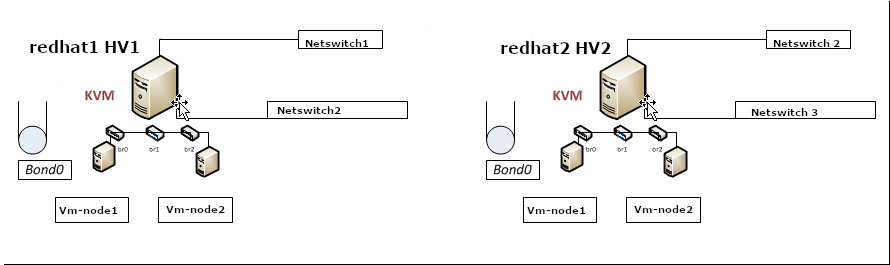
configure-bond0-bonding-channel-with-bridges-on-hypervisor-host-for-guest-KVM-virtual-machines-howto-sample-Hypervisor-Virtual-machines-pic
 1. Intro to Redhat RPM based distro /etc/sysconfig/network-scripts/* config vars shortly explained

On RPM based Linux distributions configuring network has a very specific structure. As a sysadmin just recently I had a task to configure Networking on 2 Machines to be used as Hypervisors so the servers could communicate normally to other Networks via some different intelligent switches that are connected to each of the interfaces of the server. The idea is the 2 redhat 8.3 machines to be used as  Hypervisor (HV) and each of the 2 HVs to each be hosting 2 Virtual guest Machines with preinstalled another set of Redhat 8.3 Ootpa. I've recently blogged on how to automate a bit installing the KVM Virtual machines with using predefined kickstart.cfg file.

The next step after install was setting up the network. Redhat has a very specific network configuration well known under /etc/sysconfig/network-scripts/ifcfg-eno*# or if you have configured the Redhats to fix the changing LAN card naming ens, eno, em1 to legacy eth0, eth1, eth2 on CentOS Linux – e.g. to be named as /etc/sysconfig/network-scripts/{ifcfg-eth0,1,2,3}.

The first step to configure the network from that point is to come up with some network infrastrcture that will be ready on the HV nodes server-node1 server-node2 for the Virtual Machines to be used by server-vm1, server-vm2.

Thus for the sake of myself and some others I decide to give here the most important recognized variables that can be placed inside each of the ifcfg-eth0,ifcfg-eth1,ifcfg-eth2 …

A standard ifcfg-eth0 confing would look something this:
 

[root@redhat1 :~ ]# cat /etc/sysconfig/network-scripts/ifcfg-eth0
TYPE=Ethernet
BOOTPROTO=none
DEFROUTE=yes
IPV4_FAILURE_FATAL=no
IPV6INIT=yes
IPV6_AUTOCONF=yes
IPV6_DEFROUTE=yes
IPV4_FAILURE_FATAL=no
NAME=eth0
UUID=…
ONBOOT=yes
HWADDR=0e:a4:1a:b6:fc:86
IPADDR0=10.31.24.10
PREFIX0=23
GATEWAY0=10.31.24.1
DNS1=192.168.50.3
DNS2=10.215.105.3
DOMAIN=example.com
IPV6_PEERDNS=yes
IPV6_PEERROUTES=yes


Lets say few words to each of the variables to make it more clear to people who never configured Newtork on redhat without the help of some of the console ncurses graphical like tools such as nmtui or want to completely stop the Network-Manager to manage the network and thus cannot take the advantage of using nmcli (a command-line tool for controlling NetworkManager).

Here is a short description of each of above configuration parameters:

TYPE=device_type: The type of network interface device
BOOTPROTO=protocol: Where protocol is one of the following:

  • none: No boot-time protocol is used.
  • bootp: Use BOOTP (bootstrap protocol).
  • dhcp: Use DHCP (Dynamic Host Configuration Protocol).
  • static: if configuring static IP

EFROUTE|IPV6_DEFROUTE=answer

  • yes: This interface is set as the default route for IPv4|IPv6 traffic.
  • no: This interface is not set as the default route.

Usually most people still don't use IPV6 so better to disable that

IPV6INIT=answer: Where answer is one of the following:

  • yes: Enable IPv6 on this interface. If IPV6INIT=yes, the following parameters could also be set in this file:

IPV6ADDR=IPv6 address

IPV6_DEFAULTGW=The default route through the specified gateway

  • no: Disable IPv6 on this interface.

IPV4_FAILURE_FATAL|IPV6_FAILURE_FATAL=answer: Where answer is one of the following:

  • yes: This interface is disabled if IPv4 or IPv6 configuration fails.
  • no: This interface is not disabled if configuration fails.

ONBOOT=answer: Where answer is one of the following:

  • yes: This interface is activated at boot time.
  • no: This interface is not activated at boot time.

HWADDR=MAC-address: The hardware address of the Ethernet device
IPADDRN=address: The IPv4 address assigned to the interface
PREFIXN=N: Length of the IPv4 netmask value
GATEWAYN=address: The IPv4 gateway address assigned to the interface. Because an interface can be associated with several combinations of IP address, network mask prefix length, and gateway address, these are numbered starting from 0.
DNSN=address: The address of the Domain Name Servers (DNS)
DOMAIN=DNS_search_domain: The DNS search domain (this is the search Domain-name.com you usually find in /etc/resolv.conf)

Other interesting file that affects how routing is handled on a Redhat Linux is

/etc/sysconfig/network

[root@redhat1 :~ ]# cat /etc/sysconfig/network
# Created by anaconda
GATEWAY=10.215.105.

Having this gateway defined does add a default gateway

This file specifies global network settings. For example, you can specify the default gateway, if you want to apply some network settings such as routings, Alias IPs etc, that will be valid for all configured and active configuration red by systemctl start network scripts or the (the network-manager if such is used), just place it in that file.

Other files of intesresting to control how resolving is being handled on the server worthy to check are 

/etc/nsswitch.conf

and

/etc/hosts

If you want to set a preference of /etc/hosts being red before /etc/resolv.conf and DNS resolving for example you need to have inside it, below is default behavior of it.
 

root@redhat1 :~ ]#   grep -i hosts /etc/nsswitch.conf
#     hosts: files dns
#     hosts: files dns  # from user file
# Valid databases are: aliases, ethers, group, gshadow, hosts,
hosts:      files dns myhostname

As you can see the default order is to read first files (meaning /etc/hosts) and then the dns (/etc/resolv.conf)
hosts: files dns

Now with this short intro description on basic values accepted by Redhat's /etc/sysconfig/network-scripts/ifcfg* prepared configurations.


I will give a practical example of configuring a bond0 interface with 2 members which were prepared based on Redhat's Official documentation found in above URLs:

https://access.redhat.com/documentation/en-us/red_hat_enterprise_linux/8/html/configuring_and_managing_networking/configuring-network-bonding_configuring-and-managing-networking
 

# Bonding on RHEL 7 documentation
https://access.redhat.com/documentation/en-us/red_hat_enterprise_linux/7/html/networking_guide/sec-network_bonding_using_the_command_line_interface

https://access.redhat.com/documentation/en-us/red_hat_enterprise_linux/7/html/networking_guide/sec-verifying_network_configuration_bonding_for_redundancy

https://access.redhat.com/documentation/en-us/red_hat_enterprise_linux/6/html/deployment_guide/s2-networkscripts-interfaces_network-bridge

# Network Bridge with Bond documentation
https://access.redhat.com/documentation/en-us/red_hat_enterprise_linux/6/html/deployment_guide/sec-Configuring_a_VLAN_over_a_Bond

https://docs.fedoraproject.org/en-US/Fedora/24/html/Networking_Guide/sec-Network_Bridge_with_Bond.html


2. Configuring a single bond connection on eth0 / eth2 and setting 3 bridge interfaces bond -> br0, br1 -> eth1, br2 -> eth2

The task on my machines was to set up from 4 lan cards one bonded interface as active-backup type of bond with bonded lines on eth0, eth2 and 3 other 2 eth1, eth2 which will be used for private communication network that is connected via a special dedicated Switches and Separate VLAN 50, 51 over a tagged dedicated gigabit ports.

As said the 2 Servers had each 4 Broadcom Network CARD interfaces each 2 of which are paired (into a single card) and 2 of which are a solid Broadcom NetXtreme Dual Port 10GbE SFP+ and Dell Broadcom 5720 Dual Port 1Gigabit Network​.

2-ports-broadcom-netxtreme-dual-port-10GBe-spf-plus

On each of server-node1 and server-node2 we had 4 Ethernet Adapters properly detected on the Redhat

root@redhat1 :~ ]# lspci |grep -i net
01:00.0 Ethernet controller: Broadcom Inc. and subsidiaries NetXtreme BCM5720 2-port Gigabit Ethernet PCIe
01:00.1 Ethernet controller: Broadcom Inc. and subsidiaries NetXtreme BCM5720 2-port Gigabit Ethernet PCIe
19:00.0 Ethernet controller: Broadcom Inc. and subsidiaries BCM57412 NetXtreme-E 10Gb RDMA Ethernet Controller (rev 01)
19:00.1 Ethernet controller: Broadcom Inc. and subsidiaries BCM57412 NetXtreme-E 10Gb RDMA Ethernet Controller (rev 01)


I've already configured as prerogative net.ifnames=0 to /etc/grub2/boot.cfg and Network-Manager service disabled on the host (hence to not use Network Manager you'll see in below configuration NM_CONTROLLED="no" is telling the Redhat servers is not to be trying NetworkManager for more on that check my previous article Disable NetworkManager automatic Ethernet Interface Management on Redhat Linux , CentOS 6 / 7 / 8.

3. Types of Network Bonding

mode=0 (balance-rr)

This mode is based on Round-robin policy and it is the default mode. This mode offers fault tolerance and load balancing features. It transmits the packets in Round robin fashion that is from the first available slave through the last.

mode-1 (active-backup)

This mode is based on Active-backup policy. Only one slave is active in this band, and another one will act only when the other fails. The MAC address of this bond is available only on the network adapter part to avoid confusing the switch. This mode also provides fault tolerance.

mode=2 (balance-xor)

This mode sets an XOR (exclusive or) mode that is the source MAC address is XOR’d with destination MAC address for providing load balancing and fault tolerance. Each destination MAC address the same slave is selected.

mode=3 (broadcast)

This method is based on broadcast policy that is it transmitted everything on all slave interfaces. It provides fault tolerance. This can be used only for specific purposes.

mode=4 (802.3ad)

This mode is known as a Dynamic Link Aggregation mode that has it created aggregation groups having same speed. It requires a switch that supports IEEE 802.3ad dynamic link. The slave selection for outgoing traffic is done based on a transmit hashing method. This may be changed from the XOR method via the xmit_hash_policy option.

mode=5 (balance-tlb)

This mode is called Adaptive transmit load balancing. The outgoing traffic is distributed based on the current load on each slave and the incoming traffic is received by the current slave. If the incoming traffic fails, the failed receiving slave is replaced by the MAC address of another slave. This mode does not require any special switch support.

mode=6 (balance-alb)

This mode is called adaptive load balancing. This mode does not require any special switch support.

Lets create the necessery configuration for the bond and bridges

[root@redhat1 :~ ]# cat ifcfg-bond0
DEVICE=bond0
NAME=bond0
TYPE=Bond
BONDING_MASTER=yes
#IPADDR=10.50.21.16
#PREFIX=26
#GATEWAY=10.50.0.1
#DNS1=172.20.88.2
ONBOOT=yes
BOOTPROTO=none
BONDING_OPTS="mode=1 miimon=100 primary=eth0"
NM_CONTROLLED="no"
BRIDGE=br0


[root@redhat1 :~ ]# cat ifcfg-bond0.10
DEVICE=bond0.10
BOOTPROTO=none
ONPARENT=yes
#IPADDR=10.50.21.17
#NETMASK=255.255.255.0
VLAN=yes

[root@redhat1 :~ ]# cat ifcfg-br0
STP=yes
BRIDGING_OPTS=priority=32768
TYPE=Bridge
PROXY_METHOD=none
BROWSER_ONLY=no
BOOTPROTO=none
DEFROUTE=yes
IPV4_FAILURE_FATAL=no
#IPV6INIT=yes
#IPV6_AUTOCONF=yes
#IPV6_DEFROUTE=yes
#IPV6_FAILURE_FATAL=no
#IPV6_ADDR_GEN_MODE=stable-privacy
IPV6_AUTOCONF=no
IPV6_DEFROUTE=no
IPV6_FAILURE_FATAL=no
IPV6_ADDR_GEN_MODE=stable-privacy
NAME=br0
UUID=4451286d-e40c-4d8c-915f-7fc12a16d595
DEVICE=br0
ONBOOT=yes
IPADDR=10.50.50.16
PREFIX=26
GATEWAY=10.50.0.1
DNS1=172.20.0.2
NM_CONTROLLED=no

[root@redhat1 :~ ]# cat ifcfg-br1
STP=yes
BRIDGING_OPTS=priority=32768
TYPE=Bridge
PROXY_METHOD=none
BROWSER_ONLY=no
BOOTPROTO=none
DEFROUTE=no
IPV4_FAILURE_FATAL=no
#IPV6INIT=yes
#IPV6_AUTOCONF=yes
#IPV6_DEFROUTE=yes
#IPV6_FAILURE_FATAL=no
#IPV6_ADDR_GEN_MODE=stable-privacy
IPV6INIT=no
IPV6_AUTOCONF=no
IPV6_DEFROUTE=no
IPV6_FAILURE_FATAL=no
IPV6_ADDR_GEN_MODE=stable-privacy
NAME=br1
UUID=40360c3c-47f5-44ac-bbeb-77f203390d29
DEVICE=br1
ONBOOT=yes
##IPADDR=10.50.51.241
PREFIX=28
##GATEWAY=10.50.0.1
##DNS1=172.20.0.2
NM_CONTROLLED=no

[root@redhat1 :~ ]# cat ifcfg-br2
STP=yes
BRIDGING_OPTS=priority=32768
TYPE=Bridge
PROXY_METHOD=none
BROWSER_ONLY=no
BOOTPROTO=none
DEFROUTE=no
IPV4_FAILURE_FATAL=no
#IPV6INIT=yes
#IPV6_AUTOCONF=yes
#IPV6_DEFROUTE=yes
#IPV6_FAILURE_FATAL=no
#IPV6_ADDR_GEN_MODE=stable-privacy
IPV6INIT=no
IPV6_AUTOCONF=no
IPV6_DEFROUTE=no
IPV6_FAILURE_FATAL=no
IPV6_ADDR_GEN_MODE=stable-privacy
NAME=br2
UUID=fbd5c257-2f66-4f2b-9372-881b783276e0
DEVICE=br2
ONBOOT=yes
##IPADDR=10.50.51.243
PREFIX=28
##GATEWAY=10.50.0.1
##DNS1=172.20.10.1
NM_CONTROLLED=no
NM_CONTROLLED=no
BRIDGE=br0

[root@redhat1 :~ ]# cat ifcfg-eth0
TYPE=Ethernet
NAME=bond0-slaveeth0
BOOTPROTO=none
#UUID=61065574-2a9d-4f16-b16e-00f495e2ee2b
DEVICE=eth0
ONBOOT=yes
MASTER=bond0
SLAVE=yes
NM_CONTROLLED=no

[root@redhat1 :~ ]# cat ifcfg-eth1
TYPE=Ethernet
NAME=eth1
UUID=b4c359ae-7a13-436b-a904-beafb4edee94
DEVICE=eth1
ONBOOT=yes
BRIDGE=br1
NM_CONTROLLED=no

[root@redhat1 :~ ]#  cat ifcfg-eth2
TYPE=Ethernet
NAME=bond0-slaveeth2
BOOTPROTO=none
#UUID=821d711d-47b9-490a-afe7-190811578ef7
DEVICE=eth2
ONBOOT=yes
MASTER=bond0
SLAVE=yes
NM_CONTROLLED=no

[root@redhat1 :~ ]#  cat ifcfg-eth3
TYPE=Ethernet
PROXY_METHOD=none
BROWSER_ONLY=no
#BOOTPROTO=dhcp
BOOTPROTO=none
DEFROUTE=no
IPV4_FAILURE_FATAL=no
#IPV6INIT=yes
#IPV6_AUTOCONF=yes
#IPV6_DEFROUTE=yes
#IPV6_FAILURE_FATAL=no
#IPV6_ADDR_GEN_MODE=stable-privacy
IPV6INIT=no
IPV6_AUTOCONF=no
IPV6_DEFROUTE=no
IPV6_FAILURE_FATAL=no
IPV6_ADDR_GEN_MODE=stable-privacy
BRIDGE=br2
NAME=eth3
UUID=61065574-2a9d-4f16-b16e-00f495e2ee2b
DEVICE=eth3
ONBOOT=yes
NM_CONTROLLED=no

[root@redhat2 :~ ]# cat ifcfg-bond0
DEVICE=bond0
NAME=bond0
TYPE=Bond
BONDING_MASTER=yes
#IPADDR=10.50.21.16
#PREFIX=26
#GATEWAY=10.50.21.1
#DNS1=172.20.88.2
ONBOOT=yes
BOOTPROTO=none
BONDING_OPTS="mode=1 miimon=100 primary=eth0"
NM_CONTROLLED="no"
BRIDGE=br0

# cat ifcfg-bond0.10
DEVICE=bond0.10
BOOTPROTO=none
ONPARENT=yes
#IPADDR=10.50.21.17
#NETMASK=255.255.255.0
VLAN=yes
NM_CONTROLLED=no
BRIDGE=br0

[root@redhat2 :~ ]# cat ifcfg-br0
STP=yes
BRIDGING_OPTS=priority=32768
TYPE=Bridge
PROXY_METHOD=none
BROWSER_ONLY=no
BOOTPROTO=none
DEFROUTE=yes
IPV4_FAILURE_FATAL=no
#IPV6INIT=yes
#IPV6_AUTOCONF=yes
#IPV6_DEFROUTE=yes
#IPV6_FAILURE_FATAL=no
#IPV6_ADDR_GEN_MODE=stable-privacy
IPV6_AUTOCONF=no
IPV6_DEFROUTE=no
IPV6_FAILURE_FATAL=no
IPV6_ADDR_GEN_MODE=stable-privacy
NAME=br0
#UUID=f87e55a8-0fb4-4197-8ccc-0d8a671f30d0
UUID=4451286d-e40c-4d8c-915f-7fc12a16d595
DEVICE=br0
ONBOOT=yes
IPADDR=10.50.21.17
PREFIX=26
GATEWAY=10.50.21.1
DNS1=172.20.88.2
NM_CONTROLLED=no

[root@redhat2 :~ ]#  cat ifcfg-br1
STP=yes
BRIDGING_OPTS=priority=32768
TYPE=Bridge
PROXY_METHOD=none
BROWSER_ONLY=no
BOOTPROTO=none
DEFROUTE=no
IPV4_FAILURE_FATAL=no
#IPV6INIT=no
#IPV6_AUTOCONF=no
#IPV6_DEFROUTE=no
#IPV6_FAILURE_FATAL=no
#IPV6_ADDR_GEN_MODE=stable-privacy
IPV6INIT=no
IPV6_AUTOCONF=no
IPV6_DEFROUTE=no
IPV6_FAILURE_FATAL=no
IPV6_ADDR_GEN_MODE=stable-privacy
NAME=br1
UUID=40360c3c-47f5-44ac-bbeb-77f203390d29
DEVICE=br1
ONBOOT=yes
##IPADDR=10.50.21.242
PREFIX=28
##GATEWAY=10.50.21.1
##DNS1=172.20.88.2
NM_CONTROLLED=no

[root@redhat2 :~ ]# cat ifcfg-br2
STP=yes
BRIDGING_OPTS=priority=32768
TYPE=Bridge
PROXY_METHOD=none
BROWSER_ONLY=no
BOOTPROTO=none
DEFROUTE=no
IPV4_FAILURE_FATAL=no
#IPV6INIT=no
#IPV6_AUTOCONF=no
#IPV6_DEFROUTE=no
#IPV6_FAILURE_FATAL=no
#IPV6_ADDR_GEN_MODE=stable-privacy
IPV6INIT=no
IPV6_AUTOCONF=no
IPV6_DEFROUTE=no
IPV6_FAILURE_FATAL=no
IPV6_ADDR_GEN_MODE=stable-privacy
NAME=br2
UUID=fbd5c257-2f66-4f2b-9372-881b783276e0
DEVICE=br2
ONBOOT=yes
##IPADDR=10.50.21.244
PREFIX=28
##GATEWAY=10.50.21.1
##DNS1=172.20.88.2
NM_CONTROLLED=no

[root@redhat2 :~ ]# cat ifcfg-eth0
TYPE=Ethernet
NAME=bond0-slaveeth0
BOOTPROTO=none
#UUID=ee950c07-7eb2-463b-be6e-f97e7ad9d476
DEVICE=eth0
ONBOOT=yes
MASTER=bond0
SLAVE=yes
NM_CONTROLLED=no

[root@redhat2 :~ ]# cat ifcfg-eth1
TYPE=Ethernet
NAME=eth1
UUID=ffec8039-58f0-494a-b335-7a423207c7e6
DEVICE=eth1
ONBOOT=yes
BRIDGE=br1
NM_CONTROLLED=no

[root@redhat2 :~ ]# cat ifcfg-eth2
TYPE=Ethernet
NAME=bond0-slaveeth2
BOOTPROTO=none
#UUID=2c097475-4bef-47c3-b241-f5e7f02b3395
DEVICE=eth2
ONBOOT=yes
MASTER=bond0
SLAVE=yes
NM_CONTROLLED=no


Notice that the bond0 configuration does not have an IP assigned this is done on purpose as we're using the interface channel bonding together with attached bridge for the VM. Usual bonding on a normal physical hardware hosts where no virtualization use is planned is perhaps a better choice. If you however try to set up an IP address in that specific configuration shown here and you try to reboot the machine, you will end up with inacessible machine over the network like I did and you will need to resolve configuration via some kind of ILO / IDRAC interface.

4. Generating UUID for ethernet devices bridges and bonds

One thing to note is the command uuidgen you might need that to generate UID identificators to fit in the new network config files.

Example:
 

[root@redhat2 :~ ]#uuidgen br2
e7995e15-7f23-4ea2-80d6-411add78d703
[root@redhat2 :~ ]# uuidgen br1
05e0c339-5998-414b-b720-7adf91a90103
[root@redhat2 :~ ]# uuidgen br0
e6d7ff74-4c15-4d93-a150-ff01b7ced5fb


5. How to make KVM Virtual Machines see configured Network bridges (modify VM XML)

To make the Virtual machines installed see the bridges I had to

[root@redhat1 :~ ]#virsh edit VM_name1
[root@redhat1 :~ ]#virsh edit VM_name2

[root@redhat2 :~ ]#virsh edit VM_name1
[root@redhat2 :~ ]#virsh edit VM_name2

Find the interface network configuration and change it to something like:

    <interface type='bridge'>
      <mac address='22:53:00:56:5d:ac'/>
      <source bridge='br0'/>
      <model type='virtio'/>
      <address type='pci' domain='0x0000' bus='0x01' slot='0x00' function='0x0'/>
    </interface>
    <interface type='bridge'>
      <mac address='22:53:00:2a:5f:01'/>
      <source bridge='br1'/>
      <model type='virtio'/>
      <address type='pci' domain='0x0000' bus='0x07' slot='0x00' function='0x0'/>
    </interface>
    <interface type='bridge'>
      <mac address='22:34:00:4a:1b:6c'/>
      <source bridge='br2'/>
      <model type='virtio'/>
      <address type='pci' domain='0x0000' bus='0x08' slot='0x00' function='0x0'/>
    </interface>


6. Testing the bond  is up and works fine

# ip addr show bond0
The result is the following:


4: bond0: <BROADCAST,MULTICAST,MASTER,UP,LOWER_UP> mtu 1500 qdisc noqueue state UP group default qlen 1000
    link/ether 52:54:00:cb:25:82 brd ff:ff:ff:ff:ff:ff


The bond should be visible in the normal network interfaces with ip address show or /sbin/ifconfig


# cat /proc/net/bonding/bond0
Ethernet Channel Bonding Driver: v3.7.1 (April 27, 2011)

Bonding Mode: fault-tolerance (active-backup)
Primary Slave: None
Currently Active Slave: eth0
MII Status: up
MII Polling Interval (ms): 100
Up Delay (ms): 0
Down Delay (ms): 0

Slave Interface: eth2
MII Status: up
Speed: 10000 Mbps
Duplex: full
Link Failure Count: 0
Permanent HW addr: 00:0c:29:ab:2a:fa
Slave queue ID: 0


According to the output eth0 is the active slave.

The active slaves device files (eth0 in this case) is found in virtual file system /sys/

# find /sys -name *eth0
/sys/devices/pci0000:00/0000:00:15.0/0000:03:00.0/net/eth0
/sys/devices/virtual/net/bond0/lower_eth0
/sys/class/net/eth0


You can remove a bond member say eth0 by 


 cd to the pci* directory
Example: /sys/devices/pci000:00/000:00:15.0


# echo 1 > remove


At this point the eth0 device directory structure that was previously located under /sys/devices/pci000:00/000:00:15.0 is no longer there.  It was removed and the device no longer exists as seen by the OS.

You can verify this is the case with a simple ifconfig which will no longer list the eth0 device.
You can also repeat the cat /proc/net/bonding/bond0 command from Step 1 to see that eth0 is no longer listed as active or available.
You can also see the change in the messages file.  It might look something like this:

2021-02-12T14:13:23.363414-06:00 redhat1  device eth0: device has been deleted
2021-02-12T14:13:23.368745-06:00 redhat1 kernel: [81594.846099] bonding: bond0: releasing active interface eth0
2021-02-12T14:13:23.368763-06:00 redhat1 kernel: [81594.846105] bonding: bond0: Warning: the permanent HWaddr of eth0 – 00:0c:29:ab:2a:f0 – is still in use by bond0. Set the HWaddr of eth0 to a different address to avoid conflicts.
2021-02-12T14:13:23.368765-06:00 redhat1 kernel: [81594.846132] bonding: bond0: making interface eth1 the new active one.


Another way to test the bonding is correctly switching between LAN cards on case of ethernet hardware failure is to bring down one of the 2 or more bonded interfaces, lets say you want to switch from active-backup from eth1 to eth2, do:
 

# ip link set dev eth0 down


That concludes the test for fail over on active slave failure.

7. Bringing bond updown (rescan) bond with no need for server reboot

You know bonding is a tedious stuff that sometimes breaks up badly so only way to fix the broken bond seems to be a init 6 (reboot) cmd but no actually that is not so.

You can also get the deleted device back with a simple pci rescan command:

# echo 1 > /sys/bus/pci/rescan


The eth0 interface should now be back
You can see that it is back with an ifconfig command, and you can verify that the bond sees it with this command:

# cat /proc/net/bonding/bond0


That concludes the test of the bond code seeing the device when it comes back again.

The same steps can be repeated only this time using the eth1 device and file structure to fail the active slave in the bond back over to eth0.

8. Testing the bond with ifenslave command (ifenslave command examples)

Below is a set of useful information to test the bonding works as expected with ifenslave command  comes from "iputils-20071127" package

– To show information of all the inerfaces

                  # ifenslave -a
                  # ifenslave –all-interfaces 


– To change the active slave

                  # ifenslave -c bond0 eth1
                  # ifenslave –change-active bond0 eth1 


– To remove the slave interface from the bonding device

                  # ifenslave -d eth1
                  # ifenslave –detach bond0 eth1 


– To show master interface info

                  # ifenslave bond0 


– To set the bond device down and automatically release all the slaves

                  # ifenslave bond1 down 

– To get the usage info

                  # ifenslave -u
                  # ifenslave –usage 

– To set to verbose mode

                  # ifenslave -v
                  # ifenslave –verbose 

9. Testing the bridge works fine

Historically over the years all kind of bridges are being handled with the brctl part of bridge-utils .deb / .rpm installable package.

The classical way to check a bridge is working is to do

# brctl show
# brctl show br0; brctl show br1; brctl show br2

# brctl showmacs br0
 

etc.

Unfortunately with redhat 8 this command is no longer available so to get information about configured bridges you need to use instead:


# bridge link show
3:eth0: <BROADCAST,MULTICAST,UP,LOWER_UP> mtu 1500 master bridge0 state forwarding priority 32 cost 100
4:eth2: <BROADCAST,MULTICAST,UP,LOWER_UP> mtu 1500 master bridge0 state listening priority 32 cost 100


10. Troubleshooting network connectivity issues on bond bridges and LAN cards

Testing the bond connection and bridges can route proper traffic sometimes is a real hassle so here comes at help the good old tcpdump

If you end up with issues with some of the ethernet interfaces between HV1 and HV2 to be unable to talk to each other and you have some suspiciousness that some colleague from the network team has messed up a copper (UTP) cable or there is a connectivity fiber optics issues. To check the VLAN tagged traffic headers on the switch you can listen to each and every bond0 and br0, br1, br2 eth0, eth1, eth2, eth3 configured on the server like so:

# tcpdump -i bond0 -nn -e vlan


Some further investigation on where does a normal ICMP traffic flows once everything is setup is a normal thing to do, hence just try to route a normal ping via the different server interfaces:

# ping -I bond0 DSTADDR

# ping -i eth0 DSTADDR

# ping -i eth1 DSTADDR

# ping -i eth2 DSTADDR


After conducting the ping do the normal for network testing big ICMP packages (64k) ping to make sure there are no packet losses etc., e.g:

# ping -I eth3 -s 64536  DSTADDR


If for 10 – 20 seconds the ping does not return package losses then you should be good.