Posts Tagged ‘filesystem’

How to Make Easy Backups on Linux Using a GUI tools Deja Dup, TimeShift, BackinTime, Grsync, Vorta

Monday, February 2nd, 2026

Backing up your data on Linux doesn’t have to involve complex terminal commands or custom scripts. While the command line is powerful, many users prefer a simple graphical interface (GUI) that just works.

Luckily, Linux offers several excellent GUI-based backup tools that are easy, reliable, and beginner-friendly.

In this article, we’ll look at why backups matter, and then walk through some of the best GUI backup tools for Linux, along with basic setup tips.

Why Backups Are Important (Even on Linux)

Linux systems are known for stability, but unfortunately, no system is immune to:

  • Hard drive failures
  • Accidental file deletion
  • System updates gone wrong
  • Malware or ransomware
  • Laptop theft or damage

A proper backup ensures you can restore your files or even your entire system in minutes instead of losing everything.

What Makes a Good GUI Backup Tool?

For most desktop users, a good backup tool should :

  • Be easy to use (no terminal required)
  • Supports automatic scheduled backups
  • Allow restoring individual files
  • Work with different types of external drives or network storage
  • Be relatively actively maintained
     

Let’s look at the few tools to create backups with lesser effort.

1. Déjà Dup – The Simplest Backup Tool

Best for: Beginners and home users
Available on: Ubuntu, Linux Mint, Fedora, and others

Déjà Dup is one of the most user-friendly backup tools on Linux. It comes preinstalled on Ubuntu and integrates perfectly with the GNOME desktop.

Key Features

  • Very simple interface
  • Automatic scheduled backups
  • Supports local drives, external USB disks, and network locations
  • Optional encryption for security

# apt info deja-dup
Package: deja-dup
Version: 44.0-2
Priority: optional
Section: utils
Maintainer: Debian GNOME Maintainers <pkg-gnome-maintainers@lists.alioth.debian.org>
Installed-Size: 4,851 kB
Depends: duplicity (>= 0.7.14), dconf-gsettings-backend | gsettings-backend, libadwaita-1-0 (>= 1.2), libc6 (>= 2.34), libglib2.0-0 (>= 2.70.0), libgpg-error0 (>= 1.14), libgtk-4-1 (>= 4.0.0), libjson-glib-1.0-0 (>= 1.5.2), libpackagekit-glib2-18 (>= 1.1.0), libpango-1.0-0 (>= 1.18.0), libsecret-1-0 (>= 0.18.6), libsoup-3.0-0 (>= 3.0.3)
Recommends: gvfs-backends, packagekit, policykit-1
Suggests: python3-pydrive2
Homepage: https://launchpad.net/deja-dup
Tag: admin::backup, implemented-in::c, interface::graphical, interface::x11,
 role::program, scope::application, suite::gnome, uitoolkit::gtk,
 x11::application
Download-Size: 693 kB
APT-Sources: http://ftp.debian.org/debian bookworm/main amd64 Packages
Description: Backup utility
 Déjà Dup is a simple backup tool. It hides the complexity of backing up the
 Right Way (encrypted, off-site, and regular) and uses duplicity as the
 backend.
 .
 Features:
  * Support for local, remote, or cloud backup locations such as Nextcloud
  * Securely encrypts and compresses your data
  * Incrementally backs up, letting you restore from any particular backup
  * Schedules regular backups
  * Integrates well into your GNOME desktop

How to Use Déjà Dup

Using it is generally simplistic, you select the data folders to be backupped and then the media where to backup it. The program supports also encryption with a password which is nice if you want to keep the backed-up data secret (especially if you want to store the backup on Google Cloud or Microsoft Azure)

Open “Backups” from your application menu

  1. Choose folders to back up (e.g., Home folder)
  2. Select a backup location (external drive recommended)
  3. Enable automatic backups


Click on Back Up Now button

That’s it. Déjà Dup runs quietly in the background after setup.

Note ! that it is not a good idea to try to backup the whole Linux installation ! with deja-dup, as you will get a lot of issues with improper permissions errors and stuff and the OS backup won't get consistent, however for a basic backups of User Homes, Cictures and some Personal data situated within a single directory it is simple as it is easy to initially setup and run.

# apt install deja-dup

$ sudo deja-dup


deja-dup-backup-gui-tool-linux-screenshot

deja-dup-backup-gui-tool-linux-screenshot2

2. Timeshift – System Snapshots Made Easy

Best for: System recovery
Available on: Most Linux distributions

Timeshift focuses on system backups, not personal files. It creates restore points similar to Windows System Restore.

Key Features

  • Snapshot-based backups
  • Perfect for rolling back failed updates
  • Supports RSYNC and BTRFS
  • Clean and simple GUI
     

When to Use Timeshift

  • Before major system updates
  • After fresh OS installation
  • To recover from broken packages or configs

# apt info timeshift
Package: timeshift
Version: 22.11.2-1+deb12u1
Priority: optional
Section: utils
Maintainer: Yanhao Mo <yanhaocs@gmail.com>
Installed-Size: 3,231 kB
Depends: cron-daemon | cron, pkexec, psmisc, rsync, libc6 (>= 2.34), libcairo2 (>= 1.2.4), libgdk-pixbuf-2.0-0 (>= 2.22.0), libgee-0.8-2 (>= 0.8.3), libglib2.0-0 (>= 2.39.4), libgtk-3-0 (>= 3.16.2), libjson-glib-1.0-0 (>= 1.5.2), libvte-2.91-0, libxapp1 (>= 1.0.4)
Breaks: util-linux (<< 2.37.2~)
Replaces: timeshift-btrfs
Homepage: https://github.com/linuxmint/timeshift
Tag: uitoolkit::gtk
Download-Size: 617 kB
APT-Manual-Installed: yes
APT-Sources: http://ftp.debian.org/debian bookworm/main amd64 Packages
Description: System restore utility
 Timeshift is a system restore utility which takes snapshots
 of the system at regular intervals. These snapshots can be restored
 at a later date to undo system changes. Creates incremental snapshots
 using rsync or BTRFS snapshots using BTRFS tools.

# apt install timeshift

$ sudo timeshift-gtk


https://www.pc-freak.net/images/linux-gui-backup-tools-screenshot/timeshift-rsync-backup-gui-tool-linux-screenshot4

timeshift-rsync-backup-gui-tool-linux-screenshot5

timeshift-rsync-backup-gui-tool-linux-screenshot6

3. Use Timeshift alongside a file backup tool like Déjà Dup as a backup solution for OS and data

a. Set up Timeshift (system snapshots)

What to include

Snapshot type:

  • RSYNC → works on any filesystem (recommended)
  • BTRFS → if your root is BTRFS


timeshift-rsync-backup-gui-tool-linux-screenshot1

Include:

  • / (root filesystem)

Exclude home directories (important!)

In Timeshift settings:

  • Keep /root excluded
  • Do NOT include /home/youruser

timeshift-rsync-backup-gui-tool-linux-screenshot2

Timeshift is not meant to back up your personal files.

Schedule (typical)

  • Daily: 3–5 snapshots
  • Weekly: 2–3 snapshots
  • Monthly: optional

Store snapshots on:

A separate drive or partition if possible

b. Set up Deja Dup (personal backups)

Deja Dup is perfect for:

  • Home directory backups
  • Encryption
  • External drives, NAS, cloud (Google Drive, SFTP, etc.)

Folders to back up

Usually:

~/Documents
~/Pictures
(or similar)
Optional: ~/.config (only if you know why)
~/Videos
~/Projects

In Deja Dup:

Folders to back up → select what you actually care about

Folders to ignore → add

~/.cache
~/.local/share/Trash
~/Downloads
(optional)

Schedule

Daily or weekly backup is usually fine

Keep backups for “forever” or at least several months

c. Prevent overlap (this matters)

To avoid wasting space and time:

Tool

Should back up

Should NOT back up

Timeshift

/, system configs

/home

Deja Dup

/home/youruser

/, system files

Never:

  • Use Deja Dup to back up /
  • Use Timeshift to back up /home

That’s the #1 mistake you could do

d. Real-world recovery scenarios

Scenario 1: Bad update / system won’t boot

  1. Boot from live USB

  2. Restore with Timeshift

  3. System is back exactly as before

  4. Files untouched

Scenario 2: Deleted or corrupted files

  1. Open Deja Dup

  2. Restore specific files/folders

  3. Done

Scenario 3: New machine / fresh install

  1. Install OS

  2. Restore system apps/settings manually or via Timeshift (if compatible)

  3. Restore home data with Deja Dup

e. Optional pro tips (to avoid data loss)

  • Test restores once (seriously)
  • Label backup drives clearly
  • Keep Deja Dup backups offsite if possible
  • After major distro upgrades:
  • Make a Timeshift snapshot
  • Don’t restore old Timeshift snapshots across major versions unless you know it’s safe
     

4. Back In Time – More Control features tool to create GUI-Based backups on Linux

Best for: Advanced users who want flexibility

Available on: Most Linux distributions

Back In Time uses RSYNC but wraps it in a friendly GUI.

Key Features

  • Scheduled snapshots
  • Exclude files and folders easily
  • Restore files from any snapshot
  • Supports local and remote backups
     

# apt-cache search backintime


backintime-common – simple backup/snapshot system (common files)
# apt info backintime-qt
Package: backintime-qt
Version: 1.3.3-4
Priority: optional
Section: utils
Source: backintime
Maintainer: Jonathan Wiltshire <jmw@debian.org>
Installed-Size: 416 kB
Depends: backintime-common (= 1.3.3-4), libnotify-bin, pkexec, polkitd, python3-dbus.mainloop.pyqt5, python3-pyqt5, x11-utils, python3:any
Recommends: python3-secretstorage
Suggests: meld | kompare
Conflicts: backintime-kde4
Breaks: backintime-qt4 (<< 1.2.1-0.1~)
Replaces: backintime-kde4, backintime-qt4 (<< 1.2.1-0.1~)
Homepage: https://github.com/bit-team/backintime
Download-Size: 73.8 kB
APT-Sources: http://ftp.debian.org/debian bookworm/main amd64 Packages
Description: simple backup/snapshot system (graphical interface)
 Back In Time is a framework for rsync and cron for the purpose of
 taking snapshots and backups of specified folders. It minimizes disk space use
 by taking a snapshot only if the directory has been changed, and hard links
 for unmodified files if it has. The user can schedule regular backups using
 cron.
 .
 This is the graphical interface for Back In Time.

backintime-qt – simple backup/snapshot system (graphical interface)

# apt install backintime-qt

$ sudo backintime-qt

backintime-linux-backup-gui-easy-tool-screenshot-options

linux-gui-backup-tools-screenshot/backintime-linux-backup-gui-easy-tool-screenshot-options

backintime-linux-screenshot-options-menu

backintime-linux-screenshot-options3

linux-gui-backup-tools-screenshot

It’s slightly more complex than Déjà Dup, but still very manageable.
 

5. Backing Up your Data on Linux with Grsync (rsync GUI frontend backup tool interface)

Grsync is a simple yet powerful graphical tool for backing up data on Linux. It acts as a front-end for rsync, one of the most trusted file synchronization utilities in the Linux world, but removes the need to remember long command-line options. This makes Grsync ideal for users who want reliable backups without extra complexity.

grsync-gui-backup-rsync-tool-linux-screenshot1

With Grsync, you can easily select a source and destination folder, such as backing up your home directory to an external drive or a network location. It supports incremental backups, meaning only changed files are copied after the first run, which saves both time and disk space. Useful options like preserving file permissions, deleting obsolete files, and excluding specific directories (for example, cache or temporary files) can be enabled with simple checkboxes.

Another advantage of Grsync is its safety features. You can perform a dry run to preview what will be copied or deleted before actually starting the backup. This reduces the risk of accidental data loss and makes it easier to fine-tune your backup settings. For Linux users looking for a practical and dependable backup solution, Grsync offers a great balance between power and ease of use.
 

Best Backup Strategy for Desktop Linux Users

For most users, Deja Dup + TimeShift  combo should works perfectly:

  • Déjà Dup → Personal files (documents, photos, videos)
  • Timeshift → System snapshots

This way, you’re protected from both data loss and system failure.

Final Thoughts

Linux gives you freedom – and that includes freedom to choose how you protect your data.

With modern GUI backup tools, there’s no excuse not to back up regularly. Whether you’re a casual user or a hardcore PC freak, setting up backups takes just a few minutes and can save you hours (or days) of frustration later.

If you’re serious about your Linux system data,
backup early, backup often and you this 

will pay you back.

How to boost Linux Server Speed with tmpfs and few smart Optimization tweaks

Monday, October 20th, 2025

speed-up-accelerate-wordpress-joomla-drupal-cms-and-mysql-server-with-tmpfs_ramfs_decrease-pageload-times-with-ram-caching.png

If you’ve ever managed a busy Linux server, you’ve probably noticed how I/O bottlenecks can make your system feel sluggish – even when CPU and memory usage look fine. I recently faced this problem on a Debian box running Nginx, PHP-FPM, and MySQL / MariaDB. The fix turned out to be surprisingly simple: using tmpfs for temporary directories and tweaking a few kernel parameters.

1. Identify the resource issue Bottleneck

Running iostat -x 1 showed my /var/lib/mysql drive constantly pegged at 100% utilization, while CPU load stayed low. Classic disk-bound performance issue.

I checked swap usage:

# swapon –show

# free -h

The system was swapping occasionally — not good for performance-critical workloads.

2. Use tmpfs for Cache and Temporary Files

Linux allows you to use part of your RAM as a fast, volatile filesystem. Perfect for things like cache and sessions.

I edited /etc/fstab and added:

tmpfs   /tmp            tmpfs   defaults,noatime,mode=1777,size=1G  0  0

tmpfs   /var/cache/nginx tmpfs  defaults,noatime,mode=0755,size=512M 0 0

Then:

# mount -a

Immediately, I noticed fewer disk I/O spikes. Nginx’s cache hits were lightning-fast, and PHP temporary files were written in memory instead of SSD.

3. Tune Kernel Parameters

Adding these lines to /etc/sysctl.conf helped reduce swapping and improve responsiveness:

vm.swappiness=10

vm.vfs_cache_pressure=50

Then apply:

# sysctl -p

4. Use tmpfs for MySQL / MariaDB tmpdir (Optional)

If you have enough RAM, move MySQL’s temporary directory to tmpfs:

# mkdir -p /mnt/mysqltmp

# mount -t tmpfs -o size=512M tmpfs /mnt/mysqltmp

# chown mysql:mysql /mnt/mysqltmp

Then set in /etc/mysql/my.cnf: / /etc/mysql/mariadb.cnf

tmpdir = /mnt/mysqltmp

This dramatically speeds up large sorts and temporary table creation.

5. Monitor the Effects and tune up if necessery

After applying these changes, iostat showed disk utilization dropping from 95% to under 20% under the same workload.
Average response times from Nginx dropped by around 30–40%, and the server felt much more responsive.
However other cases might be different so it is a good idea to play around with tmpfs side according to your CPU / Memory system parameters etc. and find out the best values that would fit your Linux setup best.

Short rephrasal

tmpfs is one of those underused Linux features that can make a real-world difference for sysadmins and self-hosters. Just remember that data in tmpfs disappears after reboot, so only use it for volatile data (cache, temp files, etc.).

If you’re running a VPS or small dedicated box and looking for a quick, low-cost performance boost — give tmpfs a try. You might be surprised how much smoother your system feels.


Recover lost / forgotten root password for CentOS 7 Linux / Boot CentOS 6 into Single User mode to reset admin pass

Friday, September 27th, 2024

centos-community-enterprise-operating-system-logo.

If you have some old CentOS 7 Virtual machine hanging for a long time and you don't remember the root password or you don't remember where you have stored it, but you have something important as data left over, you might need to recover root password for your CentOS 7 Virtual Machine.

I recently had to resolve that issue and here is the few easy steps to take to recover the lost root password.

Assuming you have tried to boot the VM and the VM boots fine and your few attempts to input manually some default passwords of yours failed, next 

1. Reboot the Virtual Machine to the GRUB boot menu


grub.png

The GRUB boot screen should appear and be there for few secs

2. Edit the boot loader kernel options ( add add rd.break enforcing=0 )


How to reset root password on CentOS Linux - Clouvider

Press 'e' to Edit the boot loader and modify the boot commands options passed to the linux kernel.

In GRUB edit mode:

add rd.break enforcing=0


to the end of the line starting with linux at the end of passed parameters list as shown in the picture.

When done editing, press Ctrl-x (Control button x key simultaneously) to boot with changed parameters.

ALTERNATIVE WAY TO BOOT THE SYSTEM INTO ROOT WITHOUT PASSWORD PROMPT:

Alternative options to use instead of add rd.break.enforcing=0 are to substitute the rhgb quiet kernel option with init=/bin/bash

Edit CentOS Grub Boot Menu Entries rhgb quiet options shot

Modify kernel parameters pass init=/bin/bash to kernel to boot emergency mode centos linux


As you might wonder for the meaning of the passed 2 parameters:

rd.break breaks the boot process at initramfs while
enforcing=0 disables the SELinux (which often enabled by default on CentOS).

Another way is to 

3. Boot in CentOS emergency mode and Reset the root password
 

When done editing, press Ctrl-x to boot with changed parameters.

As you might wonder for the meaning of the passed parameters:

rd.break breaks the boot process at initramfs while
enforcing=0 disables the SELinux (which often enabled by default on CentOS).

Whence system boots up with the modified kernel options cmd, the switch_root prompt will appear.
As the emerency mode boots the filesystem into read-only mode under /sysroot default directory, in order to be able to
modify the MD5 root password stored hash inside RO mounted /sysroot/etc/shadow you need to remount the Filesystme
in read-write mode.

To Remount the read-only file system /sysroot in write mode:

# mount -o remount,rw /sysroot

As the /sysroot is not the root directory to be able to use a standard passwd command you need to make /sysroot
as the default root folder for the booted linux by chrooting into it.
 

  • Generate MD5 password manually (for Hardcore masochistic admins 🙂 )

If you're a hard core linux sysadmin of course, generate your own new md5 password and directly modify /etc/shadow copy pasting the md5 string.

If you want to manually generate the md5 string, you can do it depending on the required encryption algorithm with:

For (md5, sha256, sha512) encrypted pass

# openssl passwd -6 -salt xyz  yourpass

For   (md5, sha256, sha512) encrypted pwd

# mkpasswd –method=SHA-512 –stdin

For (des, md5, sha256, sha512) encrypted pw

# perl -e 'print crypt("YourPasswd", "salt", "sha512"),"\n"'


Once the string is generated;

# vim  /etc/shadow


and exchange the old with new string for MD5

  • Change password with chroot (the easy common way)

remount read write the filesystem in emergency single user mode CentOS LINUX

# chroot /sysroot

That should drop you into another shell bash-4.x


Reset root user password in CentOS 7

# passwd
Changing password for user root.
New password:
Retype new password:

We need have to sync the entire filesystem we have to use the sync command, for novice sys admins who never heard about this command, below
short description:

The Linux sync command synchronizes cached data to permanent storage.
This data includes modified superblocks, modified inodes, delayed reads and writes, and others. sync uses several system calls:

sync()
syncfs()
fsync()
fdatasync()


For example, the sync command utilizes the sync() system call to write all buffered modifications to file data and metadata to an underlying storage device.

As a Linux systems administrator or developer, understanding the sync command can be crucial for efficient file synchronization. Additionally, sync can be helpful after crashes or when the file system becomes corrupted.

In this tutorial, we’ll explore the various aspects of the sync command. Also, we’ll see how we can use sync in different scenarios.

# sync

# exec /sbin/init

Try out the root password after booting normally into CentOS and the new set administrator pass should work.


Resetting forgotten (lost) root password on CentOS 6

The process is absolutely the same except on the Step 1 (in the modification of GRUB boot menu by pressing e key), add to

rhgb quiet

at the end one 'S'

This S character means 'boot CentOS into Single user mode'

rhgb quiet S


Go to single user mode on CentOS 6 Linux in boot loader S kernel setting

Then, press ENTER key and press b key to boot CentOS 6 into to single user mode.
 

KVM Creating LIVE and offline VM snapshot backup of Virtual Machines. Restore KVM VM from backup. Delete old KVM backups

Tuesday, January 16th, 2024

kvm-backup-restore-vm-logo

For those who have to manage Kernel-Based Virtual Machines it is a must to create periodic backups of VMs. The backup is usually created as a procedure part of the Update plan (schedule) of the server either after shut down the machine completely or live.

Since KVM is open source the very logical question for starters, whether KVM supports Live backups. The simple answer is Yes it does.

virsh command as most people know is the default command to manage VMs on KVM running Hypervisor servers to manage the guest domains.

KVM is flexible and could restore a VM based on its XML configuration and the VM data (either a static VM single file) or a filesystem laying on LVM filesystem etc.

To create a snapshot out of the KVM HV, list all VMs and create the backup:

# export VM-NAME=fedora;
# export SNAPSHOT-NAME=fedora-backup;
# virsh list –all


It is useful to check out the snapshot-create-as sub arguments


# virsh help snapshot-create-as

 OPTIONS
    [–domain] <string>  domain name, id or uuid
    –name <string>  name of snapshot
    –description <string>  description of snapshot
    –print-xml      print XML document rather than create
    –no-metadata    take snapshot but create no metadata
    –halt           halt domain after snapshot is created
    –disk-only      capture disk state but not vm state
    –reuse-external  reuse any existing external files
    –quiesce        quiesce guest's file systems
    –atomic         require atomic operation
    –live           take a live snapshot
    –memspec <string>  memory attributes: [file=]name[,snapshot=type]
    [–diskspec]  disk attributes: disk[,snapshot=type][,driver=type][,file=name]


# virsh shutdown $VM_NAME
# virsh snapshot-create-as –domain $VM-NAME –name "$SNAPSHOT-NAME"


1. Creating a KVM VM LIVE (running machine) backup
 

# virsh snapshot-create-as –domain debian \
–name "debian-snapshot-2024" \
–description "VM Snapshot before upgrading to latest Debian" \
–live

On successful execution of KVM Virtual Machine live backup, should get something like:

Domain snapshot debian-snapshot-2024 created


2. Listing backed-up snapshot content of KVM machine
 

# virsh snapshot-list –domain debian


a. To get more extended info about a previous snapshot backup

# virsh snapshot-info –domain debian –snapshotname debian-snapshot-2024


b. Listing info for multiple attached storage qcow partition to a VM
 

# virsh domblklist linux-guest-vm1 –details

Sample Output would be like:

 Type   Device   Target   Source
——————————————————————-
 file   disk     vda      /kvm/linux-host/linux-guest-vm1_root.qcow2
 file   disk     vdb      /kvm/linux-host/linux-guest-vm1_attached_storage.qcow2
 file   disk     vdc      /kvm/linux-host/guest01_logging_partition.qcow2
 file   cdrom    sda      –
 file   cdrom    sdb      


3. Backup KVM only Virtual Machine data files (but not VM state) Live


# virsh snapshot-create-as –name "mint-snapshot-2024" \
–description "Mint Linux snapshot" \
–disk-only \
–live
–domain mint-home-desktop


4. KVM restore snapshot (backup)
 

To revert backup VM state to older backup snapshot:
 

# virsh shutdown –domain manjaro
# virsh snapshot-revert –domain manjaro –snapshotname manjaro-linux-back-2024 –running


5. Delete old unnecessery KVM VM backup
 

# virsh snapshot-delete –domain dragonflybsd –snapshotname dragonfly-freebsd


Procedure Instructions to safe upgrade CentOS / RHEL Linux 7 Core to latest release

Thursday, February 13th, 2020

safe-upgrade-CentOS-and_Redhat_Enterprise_Linux_RHEL-7-to-latest-stable-release

Generally upgrading both RHEL and CentOS can be done straight with yum tool just we're pretty aware and mostly anyone could do the update, but it is good idea to do some
steps in advance to make backup of any old basic files that might help us to debug what is wrong in case if the Operating System fails to boot after the routine Machine OS restart
after the upgrade that is usually a good idea to make sure that machine is still bootable after the upgrade.

This procedure can be shortened or maybe extended depending on the needs of the custom case but the general framework should be useful anyways to someone that's why
I decided to post this.

Before you go lets prepare a small status script which we'll use to report status of  sysctl installed and enabled services as well as the netstat connections state and
configured IP addresses and routing on the system.

The script show_running_services_netstat_ips_route.sh to be used during our different upgrade stages:
 

# script status ###
echo "STARTED: $(date '+%Y-%m-%d_%H-%M-%S'):" | tee /root/logs/yumcheckupdate-$(hostname)-$(date '+%Y-%m-%d_%H-%M-%S').out
systemctl list-unit-files –type=service | grep enabled
systemctl | grep ".service" | grep "running"
netstat -tulpn
netstat -r
ip a s
/sbin/route -n
echo "ENDED $(date '+%Y-%m-%d_%H-%M-%S'):" | tee /root/logs/yumcheckupdate-$(hostname)-$(date '+%Y-%m-%d_%H-%M-%S').out
####


– Save the script in any file like /root/status.sh

– Make the /root/logs directoriy.
 

[root@redhat: ~ ]# mkdir /root/logs
[root@redhat: ~ ]# vim /root/status.sh
[root@redhat: ~ ]# chmod +x /root/status.sh


1. Get a dump of CentOS installed version release and grub-mkconfig generated os_probe


[root@redhat: ~ ]# cat /etc/redhat-release  > /root/logs/redhat-release-vorher-$(hostname)-$(date '+%Y-%m-%d_%H-%M-%S').out
[root@redhat: ~ ]# cat /etc/grub.d/30_os-prober > /root/logs/grub2-efi-vorher-$(hostname)-$(date '+%Y-%m-%d_%H-%M-%S').out


2. Clear old versionlock marked RPM packages (if there are such)


On servers maintained by multitude of system administrators just like the case is inside a Global Corporations and generally in the corporate world , where people do access the systems via LDAP and more than a single person
has superuser privileges. It is a good prevention measure to use yum package management  functionality to RPM based Linux distributions called  versionlock.
versionlock for those who hear it for a first time is locking the versions of the installed RPM packages so if someone by mistake or on purpose decides to do something like :

[root@redhat: ~ ]# yum install packageversion

Having the versionlock set will prevent the updated package to be installed with a different branch package version.

Also it will prevent a playful unknowing person who just wants to upgrade the system without any deep knowledge to be able to
run

[root@redhat: ~ ]# yum upgrade

update and leave the system in unbootable state, that will be only revealed during the next system reboot.

If you haven't used versionlock before and you want to use it you can do it with:

[root@redhat: ~ ]# yum install yum-plugin-versionlock

To add all the packages for compiling C code and all the interdependend packages, you can do something like:


[root@redhat: ~ ]# yum versionlock gcc-*

If you want to clear up the versionlock, once it is in use run:

[root@redhat: ~ ]#  yum versionlock clear
[root@redhat: ~ ]#  yum versionlock list


3.  Check RPC enabled / disabled


This step is not necessery but it is a good idea to check whether it running on the system, because sometimes after upgrade rpcbind gets automatically started after package upgrade and reboot. 
If we find it running we'll need to stop and mask the service.


# check if rpc enabled
[root@redhat: ~ ]# systemctl list-unit-files|grep -i rpc
var-lib-nfs-rpc_pipefs.mount                                      static
auth-rpcgss-module.service                                        static
rpc-gssd.service                                                  static
rpc-rquotad.service                                               disabled
rpc-statd-notify.service                                          static
rpc-statd.service                                                 static
rpcbind.service                                                   disabled
rpcgssd.service                                                   static
rpcidmapd.service                                                 static
rpcbind.socket                                                    disabled
rpc_pipefs.target                                                 static
rpcbind.target                                                    static

[root@redhat: ~ ]# systemctl status rpcbind.service
● rpcbind.service – RPC bind service
   Loaded: loaded (/usr/lib/systemd/system/rpcbind.service; disabled; vendor preset: enabled)
   Active: inactive (dead)


[root@redhat: ~ ]# systemctl status rpcbind.socket
● rpcbind.socket – RPCbind Server Activation Socket
   Loaded: loaded (/usr/lib/systemd/system/rpcbind.socket; disabled; vendor preset: enabled)
   Active: inactive (dead)
   Listen: /var/run/rpcbind.sock (Stream)
           0.0.0.0:111 (Stream)
           0.0.0.0:111 (Datagram)
           [::]:111 (Stream)
           [::]:111 (Datagram)


4. Check any previously existing downloaded / installed RPMs (check yum cache)


yum install package-name / yum upgrade keeps downloaded packages via its operations inside its cache directory structures in /var/cache/yum/*.
Hence it is good idea to check what were the previously installed packages and their count.


[root@redhat: ~ ]# cd /var/cache/yum/x86_64/;
[root@redhat: ~ ]# find . -iname '*.rpm'|wc -l


5. List RPM repositories set on the server


 [root@redhat: ~ ]# yum repolist
Loaded plugins: fastestmirror, versionlock
Repodata is over 2 weeks old. Install yum-cron? Or run: yum makecache fast
Determining fastest mirrors
repo id                                                                                 repo name                                                                                                            status
!atos-ac/7/x86_64                                                                       Atos Repository                                                                                                       3,128
!base/7/x86_64                                                                          CentOS-7 – Base                                                                                                      10,019
!cr/7/x86_64                                                                            CentOS-7 – CR                                                                                                         2,686
!epel/x86_64                                                                            Extra Packages for Enterprise Linux 7 – x86_64                                                                          165
!extras/7/x86_64                                                                        CentOS-7 – Extras                                                                                                       435
!updates/7/x86_64                                                                       CentOS-7 – Updates                                                                                                    2,500


This step is mandatory to make sure you're upgrading to latest packages from the right repositories for more concretics check what is inside in confs /etc/yum.repos.d/ ,  /etc/yum.conf 
 

6. Clean up any old rpm yum cache packages


This step is again mandatory but a good to follow just to have some more clearness on what packages is our upgrade downloading (not to mix up the old upgrades / installs with our newest one).
For documentation purposes all deleted packages list if such is to be kept under /root/logs/yumclean-install*.out file

[root@redhat: ~ ]# yum clean all |tee /root/logs/yumcleanall-$(hostname)-$(date '+%Y-%m-%d_%H-%M-%S').out


7. List the upgradeable packages's latest repository provided versions


[root@redhat: ~ ]# yum check-update |tee /root/logs/yumcheckupdate-$(hostname)-$(date '+%Y-%m-%d_%H-%M-%S').out


Then to be aware how many packages we'll be updating:


[root@redhat: ~ ]#  yum check-update | wc -l


8. Apply the actual uplisted RPM packages to be upgraded


[root@redhat: ~ ]# yum update |tee /root/logs/yumupdate-$(hostname)-$(date '+%Y-%m-%d_%H-%M-%S').out


Again output is logged to /root/logs/yumcheckupate-*.out 


9. Monitor downloaded packages count real time


To make sure yum upgrade is not in some hanging state and just get some general idea in which state of the upgrade is it e.g. Download / Pre-Update / Install  / Upgrade/ Post-Update etc.
in mean time when yum upgrade is running to monitor,  how many packages has the yum upgrade downloaded from remote RPM set repositories:


[root@redhat: ~ ]#  watch "ls -al /var/cache/yum/x86_64/7Server/…OS-repository…/packages/|wc -l"


10. Run status script to get the status again


[root@redhat: ~ ]# sh /root/status.sh |tee /root/logs/status-before-$(hostname)-$(date '+%Y-%m-%d_%H-%M-%S').out


11. Add back versionlock for all RPM packs


Set all RPM packages installed on the RHEL / CentOS versionlock for all packages.


#==if needed
# yum versionlock \*


12. Get whether old software configuration is not messed up during the Package upgrade (Lookup the logs for .rpmsave and .rpmnew)


During the upgrade old RPM configuration is probably changed and yum did automatically save .rpmsave / .rpmnew saves of it thus it is a good idea to grep the prepared logs for any matches of this 2 strings :
 

[root@redhat: ~ ]#   grep -i ".rpm" /root/logs/yumupdate-server-host-2020-01-20_14-30-41.out
[root@redhat: ~ ]#  grep -i ".rpmsave" /root/logs/yumupdate-server-host-2020-01-20_14-30-41.out
[root@redhat: ~ ]#  grep -i ".rpmnew" /root/logs/yumupdate-server-host-2020-01-20_14-30-41.out


If above commands returns output usually it is fine if there is is .rpmnew output but, if you get grep output of .rpmsave it is a good idea to review the files compare with the original files that were .rpmsaved with the 
substituted config file and atune the differences with the changes manually made for some program functionality.

What are the .rpmsave / .rpmnew files ?
This files are coded files that got triggered by the RPM install / upgrade due to prewritten procedures on time of RPM build.


If a file was installed as part of a rpm, it is a config file (i.e. marked with the %config tag), you've edited the file afterwards and you now update the rpm then the new config file (from the newer rpm) will replace your old config file (i.e. become the active file).
The latter will be renamed with the .rpmsave suffix.

If a file was installed as part of a rpm, it is a noreplace-config file (i.e. marked with the %config(noreplace) tag), you've edited the file afterwards and you now update the rpm then your old config file will stay in place (i.e. stay active) and the new config file (from the newer rpm) will be copied to disk with the .rpmnew suffix.
See e.g. this table for all the details. 

In both cases you or some program has edited the config file(s) and that's why you see the .rpmsave / .rpmnew files after the upgrade because rpm will upgrade config files silently and without backup files if the local file is untouched.

After a system upgrade it is a good idea to scan your filesystem for these files and make sure that correct config files are active and maybe merge the new contents from the .rpmnew files into the production files. You can remove the .rpmsave and .rpmnew files when you're done.


If you need to get a list of all .rpmnew .rpmsave files on the server do:

[root@redhat: ~ ]#  find / -print | egrep "rpmnew$|rpmsave$


13. Reboot the system 

To check whether on next hang up or power outage the system will boot normally after the upgrade, reboot to test it.


you can :


[root@redhat: ~ ]#  reboot


either

[root@redhat: ~ ]#  shutdown -r now


or if on newer Linux with systemd in ues below systemctl reboot.target.

[root@redhat: ~ ]#  systemctl start reboot.target


14. Get again the system status with our status script after reboot

[root@redhat: ~ ]#  sh /root/status.sh |tee /root/logs/status-after-$(hostname)-$(date '+%Y-%m-%d_%H-%M-%S').out


15. Clean up any versionlocks if earlier set


[root@redhat: ~ ]# yum versionlock clear
[root@redhat: ~ ]# yum versionlock list


16. Check services and logs for problems


After the reboot Check closely all running services on system make sure every process / listening ports and services on the system are running fine, just like before the upgrade.
If the sytem had firewall,  check whether firewall rules are not broken, e.g. some NAT is not missing or anything earlier configured to automatically start via /etc/rc.local or some other
custom scripts were run and have done what was expected. 
Go through all the logs in /var/log that are most essential /var/log/boot.log , /var/log/messages … yum.log etc. that could reveal any issues after the boot. In case if running some application server or mail server check /var/log/mail.log or whenever it is configured to log.
If the system runs apache closely check the logs /var/log/httpd/error.log or php_errors.log for any strange errors that occured due to some issues caused by the newer installed packages.
Usually most of the cases all this should be flawless but a multiple check over your work is a stake for good results.
 

Changing ’33 days has gone without being checked’ automated fsck filesystem check on Debian Linux Desktops – Reduce FS check waiting on Linux notebooks

Saturday, November 17th, 2012

Increasing default setting of automatic disk scheck on Debian Linux to get rid of annoying fsck waiting on boot / Less boot waiting by disabling automated fsck root FS checks

The periodic scheduled file system check that is set as a default behavior in Debian GNU / Linux is something very wise in terms of data security. However in terms of Desktop usability (especially for highly mobile users wtih notebooks like me) it's very inconvenient.

If you're a Linux laptop user with Debian GNU / Linux or other Linux distro, you certainly many times have experienced the long waiting on boot because of the routine scheduled fsck check:

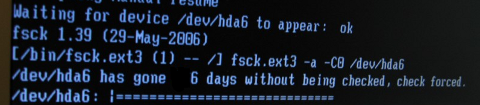
/dev/sda5 has gone 33 days without being checked, check forced
/dev/sda5 |====== .....

In this little article, I will explain how to change the 33 mount times automated fsck filesystem  check on Debian GNU / Linux to avoid frequent fsck waitings. As long as I know this behaviour is better tailored on Ubuntu as Ubuntu developers, make Ubuntu to be targeting users and they have realized the 33 mounts auto check is quite low for 'em.

1. Getting information about current file system partitions with fdisk and mount

a) First it is good practice to check out all present system mountable ex3 / reiserfs file systems, just to give you an idea what you're doing:

noah:~#  fdisk -l

Disk /dev/sda: 160.0 GB, 160041885696 bytes
255 heads, 63 sectors/track, 19457 cylinders
Units = cylinders of 16065 * 512 = 8225280 bytes
Sector size (logical/physical): 512 bytes / 512 bytes
I/O size (minimum/optimal): 512 bytes / 512 bytes
Disk identifier: 0x2d92834c

   Device Boot      Start         End      Blocks   Id  System
/dev/sda1               1         721     5786624   27  Unknown
Partition 1 does not end on cylinder boundary.
/dev/sda2   *         721        9839    73237024    7  HPFS/NTFS
/dev/sda3            9839       19457    77263200    5  Extended
/dev/sda5            9839       12474    21167968+  83  Linux
/dev/sda6           12474       16407    31593208+  83  Linux
/dev/sda7           16407       16650     1950448+  82  Linux swap / Solaris
/dev/sda8           16650       19457    22551448+  83  Linux


Second, find out which one is your primary root filesystem, and  whether the system is partitioned to have /usr , /var and /home in separate partitions or not.

b) finding the root directory mount point ( / ):

noah:~ # mount |head -n 1
/dev/sda8 on / type ext3 (rw,errors=remount-ro)

c) looking up if /usr /var and /home in separate partitions exist or all is on the / partition

noah:~# mount |grep -i -E '/usr|/var/|/home'
/dev/sda5 on /home type ext3 (rw,errors=remount-ro)

2. Getting information about Linux mounted partitions filesystem parameters ( tune2fs )
 

noah:~# /sbin/tune2fs -l /dev/sda8

tune2fs 1.41.12 (17-May-2010)
Filesystem volume name:   <none>
Last mounted on:          <not available>
Filesystem UUID:          8e0901b1-d569-45b2-902d-e159b104e330
Filesystem magic number:  0xEF53
Filesystem revision #:    1 (dynamic)
Filesystem features:      has_journal ext_attr resize_inode dir_index filetype needs_recovery sparse_super large_file
Filesystem flags:         signed_directory_hash
Default mount options:    (none)
Filesystem state:         clean
Errors behavior:          Continue
Filesystem OS type:       Linux
Inode count:              1411680
Block count:              5637862
Reserved block count:     281893
Free blocks:              578570
Free inodes:              700567
First block:              0
Block size:               4096
Fragment size:            4096
Reserved GDT blocks:      1022
Blocks per group:         32768
Fragments per group:      32768
Inodes per group:         8160
Inode blocks per group:   510
Filesystem created:       Sun Jun 22 16:47:48 2008
Last mount time:          Thu Nov 15 14:13:10 2012
Last write time:          Tue Nov 13 13:39:56 2012
Mount count:              6
Maximum mount count:      33
Last checked:             Tue Nov 13 13:39:56 2012
Check interval:           15552000 (6 months)
Next check after:         Sun May 12 14:39:56 2013
Reserved blocks uid:      0 (user root)
Reserved blocks gid:      0 (group root)
First inode:              11
Inode size:              256
Journal inode:            8
First orphan inode:       595996
Default directory hash:   tea
Directory Hash Seed:      2f96db3d-9134-492b-a361-a873a0c8c3c4
Journal backup:           inode blocks


noah:~# /sbin/tune2fs /dev/sda5

tune2fs 1.41.12 (17-May-2010)
Filesystem volume name:   <none>
Last mounted on:          <not available>
Filesystem UUID:          26aa6017-e675-4029-af28-7d346a7b6b00
Filesystem magic number:  0xEF53
Filesystem revision #:    1 (dynamic)
Filesystem features:      has_journal ext_attr resize_inode dir_index filetype needs_recovery sparse_super large_file
Filesystem flags:         signed_directory_hash
Default mount options:    (none)
Filesystem state:         clean
Errors behavior:          Continue
Filesystem OS type:       Linux
Inode count:              1324512
Block count:              5291992
Reserved block count:     264599
Free blocks:              412853
Free inodes:              1247498
First block:              0
Block size:               4096
Fragment size:            4096
Reserved GDT blocks:      1022
Blocks per group:         32768
Fragments per group:      32768
Inodes per group:         8176
Inode blocks per group:   511
Filesystem created:       Thu Jul 15 18:46:03 2010
Last mount time:          Thu Nov 15 14:13:12 2012
Last write time:          Thu Nov 15 14:13:12 2012
Mount count:              12
Maximum mount count:      27
Last checked:             Sat Nov 10 22:43:33 2012
Check interval:           15552000 (6 months)
Next check after:         Thu May  9 23:43:33 2013
Reserved blocks uid:      0 (user root)
Reserved blocks gid:      0 (group root)
First inode:              11
Inode size:              256
Required extra isize:     28
Desired extra isize:      28
Journal inode:            8
First orphan inode:       1032306
Default directory hash:   half_md4
Directory Hash Seed:      8ef0fe5a-43e3-42bf-a1b9-ae6e1606ecd4
Journal backup:           inode blocks
 

As you see from above paste from my notebook, there is a plenty of options you can tweak in a filesystem.. However as the aim of my article is not to be a FS tweaking guide I will stick only to the important for me  which is Mount Count:

noah:~#  tune2fs -l /dev/sda5|grep -i -E 'mount count|Last checked'
Mount count:              12
Maximum mount count:      27
Last checked:             Sat Nov 10 22:43:33 2012

As you see 'Mount Count: 12', indicates there are 12 mounts of filesystem /dev/sda5 since the last time it was fsck-ed.
'Maximum mount count: 27' set for this filesystem indicates that after 27 times mount is done more than 27 times, a fsck check has to be issued. In other words after 27 mounts or re-mounts of /dev/sda5 which mostly occur after system reboot on system boot time.

Restarting system is not a common on servers but with the increased number of mobile devices like notebooks Android tablets whatever 27 restarts until fsck is too low. On the other hand filesystem check every now and then is a necessity as mobility increases the possibility for a physical damage of the Hard Disk Drive.

Thus my person view is increasing 'Maximum mount count:' 27 to 80 is much better for people who move a lot and restart laptop at least few times a day. Increasing to 80 or 100 times, means you will not have to wait for a file system fsck every week (6, 7 days),. for about at 8-10 minutes (whether on newer hard disks notebooks with 500 GB space and more), it might even take 15 – 20 minutes.
I switch on and off my computer 2 to 3 times a day, because I move from location to location. Whether maximum mount count is 80, this means a FSCK will be ensued every 40/2 = 40 days or so which is quite a normal timing for a Scheduled filesystem integrity check.

noah:~# tune2fs -c 80 -i 80 /dev/sda8
tune2fs 1.41.12 (17-May-2010)
Setting maximal mount count to 80
Setting interval between checks to 6912000 seconds
 

-c argument sets (-c max-mount-counts)

-i sets interval betweenchecks (-i  interval-between-checks[d|m|w] - days, months, weeks)

You can consequentially, check approximately, when the next ext3 FS check will happen with:

noah:~# tune2fs -l /dev/sda8 |grep -i 'check'
Last checked:             Tue Nov 13 13:39:56 2012
Check interval:           6912000 (2 months, 2 weeks, 6 days)
Next check after:         Fri Feb  1 13:39:56 2013
 

For people, who want to completely disable periodic Linux FSCK chcks and already use some kind of Backup automated solution (Dropbox, Ubuntu One …), that makes a backup copy of their data on a Cluster / Cloud – as Clusters are fuzzy called nowadays):

noah:~# tune2fs -c 0 -i 0 /dev/sda8
tune2fs 1.41.12 (17-May-2010)
Setting maximal mount count to -1
Setting interval between checks to 0 seconds

Again if you don't do a regular backup of your filesystem NEVER EVER do this BEWARE !

To be 100% sure, /dev/sda8 periodic filesystem will not happen again issue:

tune2fs -l /dev/sda8 |grep -i -E 'mount|check'
Last mounted on:          <not available>
Default mount options:    (none)
Last mount time:          Thu Nov 15 14:13:10 2012
Mount count:              6
Maximum mount count:      -1
Last checked:             Tue Nov 13 13:39:56 2012
Check interval:           0 (<none>)
 

By the way it is intestesting to mention Mount Count and Maximum Mount Count FS variables are set during initial creation of the filesystem with mkfs.ext3, in Debian and derivative distros this is done by the Debian Installer program. On Fedora and CentOS and most of other RPM based distros except SuSE by Anaconda Installer prog.

As of time of writing this article, for custom created filesystems with mkfs.ext3 Maximum mount count is     27.

BTW on CentOS, developers has by default set the Maximum mount count to beset to infinitive value:

/sbin/tune2fs -l /dev/sda1|grep -i 'mount count'
Mount count:              39

Maximum mount count:      -1
The same 'deskop wise' behavior of Maximum mount count: -1 is set by default also on Fedora and RHEL. Meaning RPM distro users are free of this annoyance.

3. Remove fsck filesystem check on boot in /etc/fstab
 

Usually Desktop and laptop Linux users, would not need do that but it is a good information to know.

/etc/fstab by default sets  the filesystems to be checked for bad blocks in case  if the system was shutdown due to electricity failure or hang-up, left without proper un-mounting. Though, sometimes this is very helpful as it fixes improperly complete writing on the HDD, those who administrate servers knows how annoying it is to be asked for a root password input on the physical console, whether the system fails to boot waiting for password input.
In remotely administrated servers it makes things even worser as you have to bother a tech support guy to go to the system and input the root password and type fsck /dev/whatever command manually. With notebooks and other Desktops like my case it is not such a problem to just enter root password but it still takes time. Thus it is much better to just make this fsck test filesystem on errors to be automatically invoked on filesystem errors.

A standard default records in /etc/fstab concerning root filesystem and others is best to be something like this:

/dev/sda8       /               ext3    errors=remount-ro 0       1
UUID=26aa6017-e675-4029-af28-7d346a7b6b00       /home           ext3    errors=remount-ro 0     1

The 1's in the end of each line instruct filesystems to be automatically checked with no need for user interaction in case of FS mount errors.

Some might want to completely disable, remount read only and drop into single user mode though this is usually not a good idea, to do so:

/dev/sda8       /               ext3    errors=remount-ro 0       0
UUID=26aa6017-e675-4029-af28-7d346a7b6b00       /home           ext3    errors=remount-ro 0     0


4. Forcing check on next reboot in case you suspect (bad blocks) or inode problems with filesystem

If you're on Linux hosts which for some reason you have disabled routine fsck it is useful to know about the existence of:

 /forcefcsk file

Scheduling a reboot nomatter, what settings you have for FS can be achieved by simply creating forcefsck in / i.e.:

noah:~# touch /forcefsck


5. Force the server to not fsck on next reboot

noah:~# /sbin/shutdown -rf now

The -f flag  tells to skip the fsck for all file systems defined in /etc/fstab during the next reboot.Unlike using tune2fs to set permanent reboot behavior it only takes effect during next boot. 

What is inode and how to find out which directory is eating up all your filesystem inodes on Linux, Increase inode count on a ext3 ext4 and ufs filesystems

Tuesday, August 20th, 2019

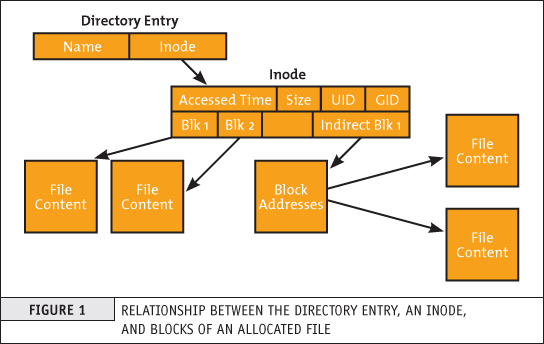
what-is-inode-find-out-which-filesystem-or-directory-eating-up-all-your-system-inodes-linux_inode_diagram

If you're a system administrator of multiple Linux servers used for Web serving delivery / Mail server sysadmin, Database admin or any High amount of Drives Data Storage used for backup servers infra, Data Repository administrator such as Linux hosted Samba / CIFS shares, etc. or using some Linux Hosting Provider to host your website or any other UNIX like Infrastructure servers that demands a storage of high number of files under a Directory  you might end up with the common filesystem inode depletion issues ( Maximum Inode number for a filesystem is predefined, limited and depending on the filesystem configured size).

In case a directory stored files end up exceding the amount of possible addressable inodes could prevent any data to be further assiged and stored on the Filesystem.

When a device runs out of inodes, new files cannot be created on the device, even though there may be plenty free space available and the first time it happened to me very long time ago I was completely puzzled how this is possible as I was not aware of Inodes existence  …

Reaching maximum inodes number (e.g. inode depletion), often happens on Busy Mail servers (receivng tons of SPAM email messages) or Content Delivery Network (CDN – Website Image caching servers) which contain many small files on EXT3 or EXT4 Journalled filesystems. File systems (such as Btrfs, JFS or XFS) escape this limitation with extents or dynamic inode allocation, which can 'grow' the file system or increase the number of inodes.


Hence ending being out of inodes could cause various oddities on how stored data behaves or communicated to other connected microservices and could lead to random application disruptions and odd results costing you many hours of various debugging to find the root cause of inodes (index nodes) being out of order.

In below article, I will try to give an overall explanation on what is an I-Node on a filesystem, how inodes of FS unit could be seen, how to diagnose a possible inode poblem – e.g.  see the maximum amount of inodes available per filesystem and how to prepare (format) a new filesystem with incrsed set of maximum inodes.


What are filesystem i-nodes?


This is a data structure in a Unix-style file system that describes a file-system object such as a file or a directory.
The data structure described in the inodes might vary slightly depending on the filesystem but usually on EXT3 / EXT4 Linux filesystems each inode stores the index to block that contains attributes and disk block location(s) of the object's data.
– Yes for those who are not aware on how a filesystem is structured on *nix it does allocate all stored data in logical separeted structures called data blocks. Each file stored on a local filesystem has a file descriptor, there are virtual unit structures file tables and each of the inodes that are a reference number has a own data structure (inode table).

Inodes / "Index" are slightly unusual on file system structure that stored the access information of files as a flat array on the disk, with all the hierarchical directory information living aside from this as explained by Unix creator and pioneer- Dennis Ritchie (passed away few years ago).
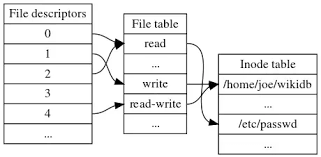
what-is-inode-very-simplified-explanation-diagram-data

Simplified explanation on file descriptors, file table and inode, table on a common Linux filesystem

Here is another description on what is I-node, given by Ken Thompson (another Unix pioneer and father of Unix) and Denis Ritchie, described in their paper published in 1978:

"    As mentioned in Section 3.2 above, a directory entry contains only a name for the associated file and a pointer to the file itself. This pointer is an integer called the i-number (for index number) of the file. When the file is accessed, its i-number is used as an index into a system table (the i-list) stored in a known part of the device on which the directory resides. The entry found thereby (the file's i-node) contains the description of the file:…
    — The UNIX Time-Sharing System, The Bell System Technical Journal, 1978  "


What is typical content of inode and how I-nodes play with rest of Filesystem units?


The inode is just a reference index to a data block (unit) that contains File-system object attributes. It may include metadata information such as (times of last change, access, modification), as well as owner and permission data.


On a Linux / Unix filesystem, directories are lists of names assigned to inodes. A directory contains an entry for itself, its parent, and each of its children.
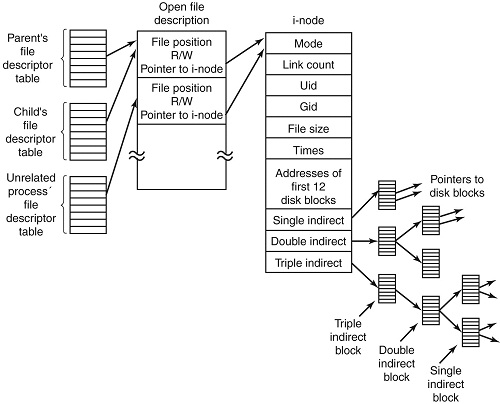
Structure-of-inode-table-on-Linux-Filesystem-diagram


Structure of inode table-on Linux Filesystem diagram (picture source GeeksForGeeks.org)

  • Information about files(data) are sometimes called metadata. So you can even say it in another way, "An inode is metadata of the data."
  •  Inode : Its a complex data-structure that contains all the necessary information to specify a file. It includes the memory layout of the file on disk, file permissions, access time, number of different links to the file etc.
  •  Global File table : It contains information that is global to the kernel e.g. the byte offset in the file where the user's next read/write will start and the access rights allowed to the opening process.
  • Process file descriptor table : maintained by the kernel, that in turn indexes into a system-wide table of files opened by all processes, called the file table .

The inode number indexes a table of inodes in a known location on the device. From the inode number, the kernel's file system driver can access the inode contents, including the location of the file – thus allowing access to the file.

  •     Inodes do not contain its hardlink names, only other file metadata.
  •     Unix directories are lists of association structures, each of which contains one filename and one inode number.
  •     The file system driver must search a directory looking for a particular filename and then convert the filename to the correct corresponding inode number.

The operating system kernel's in-memory representation of this data is called struct inode in Linux. Systems derived from BSD use the term vnode, with the v of vnode referring to the kernel's virtual file system layer.


But enough technical specifics, lets get into some practical experience on managing Filesystem inodes.
 

Listing inodes on a Fileystem


Lets say we wan to to list an inode number reference ID for the Linux kernel (files):


root@linux: # ls -i /boot/vmlinuz-*
 3055760 /boot/vmlinuz-3.2.0-4-amd64   26091901 /boot/vmlinuz-4.9.0-7-amd64
 3055719 /boot/vmlinuz-4.19.0-5-amd64  26095807 /boot/vmlinuz-4.9.0-8-amd64


To list an inode of all files in the kernel specific boot directory /boot:


root@linux: # ls -id /boot/
26091521 /boot/


Listing inodes for all files stored in a directory is also done by adding the -i ls command flag:

Note the the '-1' flag was added to to show files in 1 column without info for ownership permissions


root@linux:/# ls -1i /boot/
26091782 config-3.2.0-4-amd64
 3055716 config-4.19.0-5-amd64
26091900 config-4.9.0-7-amd64
26095806 config-4.9.0-8-amd64
26091525 grub/
 3055848 initrd.img-3.2.0-4-amd64
 3055644 initrd.img-4.19.0-5-amd64
26091902 initrd.img-4.9.0-7-amd64
 3055657 initrd.img-4.9.0-8-amd64
26091756 System.map-3.2.0-4-amd64
 3055703 System.map-4.19.0-5-amd64
26091899 System.map-4.9.0-7-amd64
26095805 System.map-4.9.0-8-amd64
 3055760 vmlinuz-3.2.0-4-amd64
 3055719 vmlinuz-4.19.0-5-amd64
26091901 vmlinuz-4.9.0-7-amd64
26095807 vmlinuz-4.9.0-8-amd64


To get more information about Linux directory, file, such as blocks used by file-unit, Last Access, Modify and Change times, current External Symbolic or Static links for filesystem object:
 

root@linux:/ # stat /etc/
  File: /etc/
  Size: 16384         Blocks: 32         IO Block: 4096   catalog
Device: 801h/2049d    Inode: 6365185     Links: 231
Access: (0755/drwxr-xr-x)  Uid: (    0/    root)   Gid: (    0/    root)
Access: 2019-08-20 06:29:39.946498435 +0300
Modify: 2019-08-14 13:53:51.382564330 +0300
Change: 2019-08-14 13:53:51.382564330 +0300
 Birth: –


Within a POSIX system (Linux-es) and *BSD are more or less such, a file has the following attributes[9] which may be retrieved by the stat system call:

   – Device ID (this identifies the device containing the file; that is, the scope of uniqueness of the serial number).
    File serial numbers.
    – The file mode which determines the file type and how the file's owner, its group, and others can access the file.
    – A link count telling how many hard links point to the inode.
    – The User ID of the file's owner.
    – The Group ID of the file.
    – The device ID of the file if it is a device file.
    – The size of the file in bytes.
    – Timestamps telling when the inode itself was last modified (ctime, inode change time), the file content last modified (mtime, modification time), and last accessed (atime, access time).
    – The preferred I/O block size.
    – The number of blocks allocated to this file.


Getting more extensive information on a mounted filesystem


Most Linuxes have the tune2fs installed by default (in debian Linux this is through e2fsprogs) package, with it one can get a very good indepth information on a mounted filesystem, lets say about the ( / ) root FS.
 

root@linux:~# tune2fs -l /dev/sda1
tune2fs 1.44.5 (15-Dec-2018)
Filesystem volume name:   <none>
Last mounted on:          /
Filesystem UUID:          abe6f5b9-42cb-48b6-ae0a-5dda350bc322
Filesystem magic number:  0xEF53
Filesystem revision #:    1 (dynamic)
Filesystem features:      has_journal ext_attr resize_inode dir_index filetype needs_recovery sparse_super large_file
Filesystem flags:         signed_directory_hash
Default mount options:    (none)
Filesystem state:         clean
Errors behavior:          Continue
Filesystem OS type:       Linux
Inode count:              30162944
Block count:              120648960
Reserved block count:     6032448
Free blocks:              13830683
Free inodes:              26575654
First block:              0
Block size:               4096
Fragment size:            4096
Reserved GDT blocks:      995
Blocks per group:         32768
Fragments per group:      32768
Inodes per group:         8192
Inode blocks per group:   512
Filesystem created:       Thu Sep  6 21:44:22 2012
Last mount time:          Sat Jul 20 11:33:38 2019
Last write time:          Sat Jul 20 11:33:28 2019
Mount count:              6
Maximum mount count:      22
Last checked:             Fri May 10 18:32:27 2019
Check interval:           15552000 (6 months)
Next check after:         Wed Nov  6 17:32:27 2019
Lifetime writes:          338 GB
Reserved blocks uid:      0 (user root)
Reserved blocks gid:      0 (group root)
First inode:              11
Inode size:              256
Required extra isize:     28
Desired extra isize:      28
Journal inode:            8
First orphan inode:       21554129
Default directory hash:   half_md4
Directory Hash Seed:      d54c5a90-bc2d-4e22-8889-568d3fd8d54f
Journal backup:           inode blocks


Important note to make here is file's inode number stays the same when it is moved to another directory on the same device, or when the disk is defragmented which may change its physical location. This also implies that completely conforming inode behavior is impossible to implement with many non-Unix file systems, such as FAT and its descendants, which don't have a way of storing this invariance when both a file's directory entry and its data are moved around. Also one inode could point to a file and a copy of the file or even a file and a symlink could point to the same inode, below is example:

$ ls -l -i /usr/bin/perl*
266327 -rwxr-xr-x 2 root root 10376 Mar 18  2013 /usr/bin/perl
266327 -rwxr-xr-x 2 root root 10376 Mar 18  2013 /usr/bin/perl5.14.2

A good to know is inodes are always unique values, so you can't have the same inode number duplicated. If a directory is damaged, only the names of the things are lost and the inodes become the so called “orphan”, e.g.  inodes without names but luckily this is recoverable. As the theory behind inodes is quite complicated and is complicated to explain here, I warmly recommend you read Ian Dallen's Unix / Linux / Filesystems – directories inodes hardlinks tutorial – which is among the best academic Tutorials explaining various specifics about inodes online.


How to Get inodes per mounted filesystem


root@linux:/home/hipo# df -i
Filesystem       Inodes  IUsed   IFree IUse% Mounted on


dev             2041439     481   2040958   1% /dev
tmpfs            2046359     976   2045383   1% /run
tmpfs            2046359       4   2046355   1% /dev/shm
tmpfs            2046359       6   2046353   1% /run/lock
tmpfs            2046359      17   2046342   1% /sys/fs/cgroup
/dev/sdb5        1221600    2562   1219038   1% /usr/var/lib/mysql
/dev/sdb6        6111232  747460   5363772  13% /var/www/htdocs
/dev/sdc1      122093568 3083005 119010563   3% /mnt/backups
tmpfs            2046359      13   2046346   1% /run/user/1000


As you see in above output Inodes reported for each of mounted filesystems has a specific number. In above output IFree on every mounted FS locally on Physical installed OS Linux is good.


Here is an example on how to recognize a depleted Inodes on a OpenXen Virtual Machine with attached Virtual Hard disks.

linux:~# df -i
Filesystem         Inodes     IUsed      IFree     IUse%   Mounted on
/dev/xvda         2080768    2080768     0      100%    /
tmpfs             92187      3          92184   1%     /lib/init/rw
varrun            92187      38          92149   1%    /var/run
varlock            92187      4          92183   1%    /var/lock
udev              92187     4404        87783   5%    /dev
tmpfs             92187       1         92186   1%    /dev/shm


Finding files with a certain inode


At some cases if you want to check all the copy files of a certain file that have the same i-node pointer it is useful to find them all by their shared inode this is possible with simple find (below example is for /usr/bin/perl binary sharing same inode as perl5.28.1:


ls -i /usr/bin/perl
23798851 /usr/bin/perl*


 find /usr/bin -inum 435308 -print
/usr/bin/perl5.28.1
/usr/bin/perl


Find directory that has a large number of files in it?

To get an overall number of inodes allocated by a certain directory, lets say /usr /var


root@linux:/var# du -s –inodes /usr /var
566931    /usr
56020    /var/

To get a list of directories use by inode for a directory with its main contained sub-directories sorted from 1 till highest number use:
 

du -s –inodes * 2>/dev/null |sort -g


Usually running out of inodes means there is a directory / fs mounts that has too many (small files) that are depleting the max count of possible inodes.

The most simple way to list directories and number of files in them on the server root directory is with a small bash shell loop like so:
 

for i in /*; do echo $i; find $i |wc -l; done


Another way to identify the exact directory that is most likely the bottleneck for the inode depletion in a sorted by file count, human readable form:
 

find / -xdev -printf '%h\n' | sort | uniq -c | sort -k 1 -n


This will dump a list of every directory on the root (/) filesystem prefixed with the number of files (and subdirectories) in that directory. Thus the directory with the largest number of files will be at the bottom.


The -xdev switch is used to instruct find to narrow it's search to only the device where you're initiating the search (any other sub-mounted NAS / NFS filesystems from a different device will be omited).


Print top 10 subdirectories with Highest Inode Usage


Once identifed the largest number of files directories that is perhaps the issue, to further get a list of Top subdirectories in it with highest amount of inodes used, use below cmd:


for i in `ls -1A`; do echo "`find $i | sort -u | wc -l` $i"; done | sort -rn | head -10


To list more than 10 of the top inodes used dirs change the head -10 to whatever num needed.

N.B. ! Be very cautious when running above 2 find commands on a very large filesystems as it will be I/O Excessive and in filesystems that has some failing blocks this could create further problems.

To omit putting a high I/O load on a production filesystem, it is possible to also use du + very complex regular expression:
 

cd /backup
du –inodes -S | sort -rh | sed -n         '1,50{/^.\{71\}/s/^\(.\{30\}\).*\(.\{37\}\)$/\1…\2/;p}'


Results returned are from top to bottom.


How to Increase the amount of Inodes count on a new created volume EXT4 filesystem

Some FS-es XFS, JFS do have an auto-increase inode feature in case if their is physical space, whether otheres such as reiserfs does not have inodes at all but still have a field reported when queried for errors. But the classical Linux ext3 / ext4 does not have a way to increase the inode number on a live filesystem. Instead the way to do it there is to prepare a brand new filesystem on a Disk / NAS / attached storage.

The number of inodes at format-time of the block storage can be as high as 4 billion inodes. Before you create the new FS, you have to partition the new the block storage as ext4 with lets say parted command (or nullify the content of an with dd to clean up any previous existing data on a volume if there was already existing data:
 

parted /dev/sda


dd if=/dev/zero of=/dev/path/to/volume


  then format it with this additional parameter:


mkfs.ext4 -N 3000000000 /dev/path/to/volume


Here in above example the newly created filesystem of EXT4 type will be created with 3 Billion inodes !, for setting a higher number on older ext3 filesystem max inode count mkfs.ext3 could be used instead.

Bear in mind that 3 Billion number is a too high number and if you plan to have some large number of files / directories / links structures just raise it up to your pre-planning requirements for FS. In most cases it will be rarely anyone that want to have this number higher than 1 or 2 billion of inodes.

On FreeBSD / NetBSD / OpenBSD setting inode maximum number for a UFS / UFS2 (which is current default FreeBSD FS), this could be done via newfs filesystem creation command after the disk has been labeled with disklabel:


freebsd# newfs -i 1024 /dev/ada0s1d


Increase the Max Count of Inodes for a /tmp filesystem


Sometimes on some machines it is necessery to have ability to store very high number of small files (e.g. have a very large number of inodes) on a temporary filesystem kept in memory. For example some web applications served by Web Server Apache + PHP, Nginx + Perl-FastCGI are written in a bad manner so they kept tons of temporary files in /tmp, leading to issues with exceeded amount of inodes.
If that's the case to temporary work around you can increase the count of Inodes for /tmp to a very high number like 2 billions using:


mount -o remount,nr_inodes=<bignum> /tmp

To make the change permanent on next boot if needed don't forget to put the nr_inodes=whatever_bignum as a mount option for the temporary fs to /etc/fstab

Eventually, if you face this issues it is best to immediately track which application produced the mess and ask the developer to fix his messed up programs architecture.


Conclusion


It was explained on the very common issue of having maximum amount of inodes on a filesystem depleted and the unpleasent consequences of inability to create new files on living FS.
Then a general overview was given on what is inode on a Linux / Unix filesystem, what is typical content of inode, how inode addressing is handled on a FS. Further was explained how to get basic information about available inodes on a filesystem, how to get a filename/s based on inode number (with find), the well known way to determine inode number of a directory or file (with ls) and get more extensive information on a FS on inodes with tune2fs.
Also was explained how to identify directories containing multitudes of files in order to determine a sub-directories that is consuming most of the inodes on a filesystem. Finally it was explained very raughly how to prepare an ext4 filesystem from scratch with predefined number to inodes to much higher than the usual defaults by mkfs.ext3 / mkfs.ext4 and *bsds newfs as well as how to raise the number of inodes of /tmp tmpfs temporary RAM filesystem.


Why du and df reporting different on a filesystem / How to fix inconsistency between used space on FS and disk showing full strangeness

Wednesday, July 24th, 2019

linux-why-du-and-df-shows-different-result-inconsincy-explained-filesystem-full-oddity

If you're a sysadmin on a large server environment such as a couple of hundred of Virtual Machines running Linux OS on either physical host or OpenXen / VmWare hosted guest Virtual Machine, you might end up sometimes at an odd case where some mounted partition mount point reports its file use different when checked with
df
cmd than when checked with du command, like for example:
 

root@sqlserver:~# df -hT /var/lib/mysql
Filesystem   Type  Size Used Avail Use% Mounted On
/dev/sdb5      ext4    19G  3,4G    14G  20% /var/lib/mysql

Here the '-T' argument is used to show us the filesystem.

root@sqlserver:~# du -hsc /var/lib/mysql
0K    /var/lib/mysql/
0K    total


1. Simple debug on what might be the root cause for df / du inconsistency reporting


Of course the basic thing to do when in that weird situation is to be totally shocked how this is possible and to investigate a bit what is the biggest first level sub-directories that eat up the space on the mounted location, with du:


# du -hkx –max-depth=1 /var/lib/mysql/|uniq|sort -n
4       /var/lib/mysql/test
8       /var/lib/mysql/ezmlm
8       /var/lib/mysql/micropcfreak
8       /var/lib/mysql/performance_schema
12      /var/lib/mysql/mysqltmp
24      /var/lib/mysql/speedtest
64      /var/lib/mysql/yourls
144     /var/lib/mysql/narf
320     /var/lib/mysql/webchat_plus
424     /var/lib/mysql/goodfaithair
528     /var/lib/mysql/moonman
648     /var/lib/mysql/daniel
852     /var/lib/mysql/lessn
1292    /var/lib/mysql/gallery

The given output is in Kilobytes so it is a little bit hard to read, if you're used to Mbytes instead, do


 # du -hmx –max-depth=1 /var/lib/mysql/|uniq|sort -n|less


I've also investigated on the complete /var directory contents sorted by size with:


 # du -akx ./ | sort -n
5152564    ./cache/rsnapshot/hourly.2/localhost
5255788    ./cache/rsnapshot/hourly.2
5287912    ./cache/rsnapshot
7192152    ./cache


Even after finding out the bottleneck dirs and trying to clear up a bit, continued facing that inconsistently shown in two commands and if you're likely to be stunned like me and try … to move some files to a different filesystem to free up space or assigned inodes with a hope that shown inconsitency output will be fixed as it might be caused  due to some kernel / FS caching ?? and this will eventually make the mounted FS to refresh …

But unfortunately, if you try it you'll figure out clearing up a couple of Megas or Gigas will make no difference in cmd output.

In my exact case /var/lib/mysql is a separate mounted ext4 filesystem, however same issue was present also on a Network Filesystem (NFS) and thus, my first thought that this is caused by a network failure problem or NFS bug turned to be wrong.

After further short investigation on the inodes on the Filesystem, it was clear enough inodes are available:
 

# df -i /var/lib/mysql
Filesystem       Inodes  IUsed   IFree IUse% Mounted on
/dev/sdb5      1221600  2562 1219038   1% /var/lib/mysql


So the filled inodes count assumed issue also has been rejected.
P.S. (if you're not well familiar with them read manual, i.e. – man 7 inode).
 

– Remounting the mounted filesystem

To make sure the filesystem shown inconsistency between du and df is not due to some hanging network mount or bug, first logical thing I did is to remount the filesytem showing different in size, in my case this was done with:
 

# mount -o remount,rw -t ext4 /var/lib/mysql

For machines with NFS remote mounted storage locations, used:

# mount -o remount,rw -t nfs /var/www


FS remount did not solved it so I continued to ponder what oddity and of course I thought of a workaround (in case if this issues are caused by kernel bug or OS lib issue) reboot might be the solution, however unfortunately restarting the VMs was not a wanted easy to do solution, thus I continued investigating what is wrong …

Next check of course was to check, what kind of network connections are opened to the affected hosts with:
 

# netstat -tupanl


Did not found anything that might point me to the reported different Megabytes issue, so next step was to check what is the situation with currently opened files by running processes on the weird df / du reported systems with lsof, and boom there I observed oddity such as multiple files


# lsof -nP | grep '(deleted)'

COMMAND   PID   USER   FD   TYPE DEVICE    SIZE NLINK  NODE NAME
mysqld   2588  mysql    4u   REG 253,17      52     0  1495 /var/lib/mysql/tmp/ibY0cXCd (deleted)
mysqld   2588  mysql    5u   REG 253,17    1048     0  1496 /var/lib/mysql/tmp/ibOrELhG (deleted)
mysqld   2588  mysql    6u   REG 253,17       777884290     0  1497 /var/lib/mysql/tmp/ibmDFAW8 (deleted)
mysqld   2588  mysql    7u   REG 253,17       123667875     0 11387 /var/lib/mysql/tmp/ib2CSACB (deleted)
mysqld   2588  mysql   11u   REG 253,17       123852406     0 11388 /var/lib/mysql/tmp/ibQpoZ94 (deleted)


Notice that There were plenty of '(deleted)' STATE files shown in memory an overall of 438:


# lsof -nP | grep '(deleted)' |wc -l
438


As I've learned a bit online about the problem, I found it is also possible to find deleted unlinked files only without any greps (to list all deleted files in memory files with lsof args only):


# lsof +L1|less


The SIZE field (fourth column)  shows a number of files that are really hard in size and that are kept in open on filesystem and in memory, totally messing up with the filesystem. In my case this is temp files created by MYSQLD daemon but depending on the server provided service this might be apache's www-data, some custom perl / bash script executed via a cron job, stalled rsync jobs etc.
 

2. Check all the list open files with the mysql / root user as part of the the server filesystem inconsistency debugging with:


– Grep opened files on server by user

# lsof |grep mysql
mysqld    1312                       mysql  cwd       DIR               8,21       4096          2 /var/lib/mysql
mysqld    1312                       mysql  rtd       DIR                8,1       4096          2 /
mysqld    1312                       mysql  txt       REG                8,1   20336792   23805048 /usr/sbin/mysqld
mysqld    1312                       mysql  mem       REG               8,21      24576         20 /var/lib/mysql/tc.log
mysqld    1312                       mysql  DEL       REG               0,16                 29467 /[aio]
mysqld    1312                       mysql  mem       REG                8,1      55792   14886933 /lib/x86_64-linux-gnu/libnss_files-2.28.so


# lsof | grep root
COMMAND    PID   TID TASKCMD          USER   FD      TYPE             DEVICE   SIZE/OFF       NODE NAME
systemd      1                        root  cwd       DIR                8,1       4096          2 /
systemd      1                        root  rtd       DIR                8,1       4096          2 /
systemd      1                        root  txt       REG                8,1    1489208   14928891 /lib/systemd/systemd
systemd      1                        root  mem       REG                8,1    1579448   14886924 /lib/x86_64-linux-gnu/libm-2.28.so

Other command that helped to track the discrepancy between df and du different file usage on FS is:
 

# du -hxa  / | egrep '^[[:digit:]]{1,1}G[[:space:]]*'


3. Fixing large files kept in memory filesystem problem


What is the real reason for ending up with this file handlers opened by running backgrounded programs on the Linux OS?
It could be multiple  but most likely it is due to exceeded server / client interactions or breaking up RAM or HDD drive with writing plenty of logs on the FS without ending keeping space occupied or Programming library bugs used by hanged service leaving the FH opened on storage.

What is the solution to file system files left in memory problem?

The best solution is to first fix custom script or hanged service and then if possible to simply restart the server to make the kernel / services reload or if this is not possible just restart the problem creation processes.

Once the process is identified like in my case this was MySQL on systemd enabled newer OS distros, just do:


# systemctl restart mysqld.service


or on older init.d system V ones:

# /etc/init.d/service restart


For custom hanged scripts being listed in ps axuwef you can grep the pid and do a kill -HUP (if the script is written in a good way to recognize -HUP and restart the sub-running process properly – BE EXTRA CAREFUL IF YOU'RE RESTARTING BROKEN SCRIPTS as this might cause your running service disruptions …).

# pgrep -l script.sh
7977 script.sh


# kill -HUP PID


Now finally this should either mitigate or at best case completely solve the reported disagreement between df and du, after which the calculated / reported disk space should be back to normal and show up approximately the same (note that size changes a bit as mysql service is writting data) constantly extending the size between the two checks.


# df -hk /var/lib/mysql; du -hskc /var/lib/mysql
Filesystem       Inodes  IUsed   IFree IUse% Mounted on
/dev/sdb5        19097172 3472744 14631296  20% /var/lib/mysql
3427772    /var/lib/mysql
3427772    total


What we learned?

What I've explained in this article is why and how it comes that 'zoombie' files reside on a filesystem
appearing to be eating disk space on a mounted local or network partition, giving strange inconsistent
reports, leading to system service disruptions and impossibility to have correctly shown information on used
disk space on mounted drive.

I went through with some standard logic on debugging service / filesystem / inode issues up explainat, that led me to the finding about deleted files being kept in filesystem and producing the filesystem strange sized / showing not correct / filled even after it was extended with tune2fs and was supposed to have extra 50GBs.

Finally it was explained shortly how to HUP / restart hanging script / service to fix it.

Some few good readings that helped to fix the issue:

What to do when du and df report different usage is here
df in linux not showing correct free space after file removal is here
Why do “df” and “du” commands show different disk usage?