Posts Tagged ‘wrapper’

How to Easily Integrate AI Into Bash on Linux with ollama

Monday, January 12th, 2026

Essential Ollama Commands You Should Know | by Jaydeep Karale | Artificial Intelligence in Plain English

AI is more and more entering the Computer scene and so is also in the realm of Computer / Network management. Many proficient admins already start to get advantage to it.
AI doesn’t need a GUI, or a special cloud dashboard or fancy IDE so for console geeks Sysadmins / System engineers and Dev Ops it can be straightly integrated into the bash / zsh etc. and used to easify a bit your daily sys admin tasks.

If you live in the terminal, the most powerful place to add AI is Bash itself. With a few tools and a couple of lines of shell code, you can turn your terminal into an AI-powered assistant that writes commands, explains errors, and helps automate everyday Linux tasks.

No magic. No bloat. Just Unix philosophy with a brain.

1. AI as a Command-Line Tool

Instead of treating AI like a chatbot, treat it like any other CLI utility:

  • stdin → prompt
  • stdout → response
  • pipes → integration

Hardware Requirements of Ollama Server

2. Minimum VM (It runs, but you’ll hate it)

Only use this to test that things work.

  • vCPU: 2
  • RAM: 4 GB
  • Disk: 20 GB (SSD mandatory)
  • Storage type: ( HDD / network storage = bad )
  • Models: phi3, tinyllama

Expect:

  • Very slow pulls
  • Long startup times
  • Laggy responses

a. Recommended VM (Actually usable)

This is the sweet spot for Bash integration and daily CLI use.

  • vCPU: 4–6 (modern host CPU)
  • RAM: 8–12 GB
  • Disk: 30–50 GB local SSD
  • CPU type: host-passthrough (important!)
  • NUMA: off (for small VMs)

Models that feel okay:

  • phi3
  • mistral
  • llama3:8b (slow but tolerable)
 

b. “Feels Good” VM (CPU-only but not painful)

If you want it to feel responsive.

  • vCPU: 8
  • RAM: 16 GB
  • Disk: NVMe-backed storage
  • CPU flags: AVX2 enabled
  • Hugepages: optional but nice

Models:

  • llama3:8b
  • codellama:7b
  • mixtral (slow, but usable)
 

Hypervisor-Specific Advice (Important)

c. KVM / Proxmox (Best choice)

  • CPU type: host
  • Enable AES-NI, AVX, AVX2
  • Use virtio-scsi
  • Cache: writeback
  • IO thread: enabled

d. If running VM on VMware platform

  • Enable Expose hardware-assisted virtualization
  • Use paravirtual SCSI
  • Reserve memory if possible

e. VirtualBox (Not recommended)

  • Poor CPU feature exposure
  • Weak IO performance

Avoid if you can

f. Local AI With Ollama (Recommended)

If you want privacy, low latency, and no API keys, Ollama is currently the easiest way to run LLMs locally on Linux.

3. Install Ollama

# curl -fsSL https://ollama.com/install.sh | sh


Start the service:

# ollama serve

Pull a model (lightweight and fast):

# ollama pull llama3

Test it:

ollama run llama3 "Explain what the ls command does"

If that works, you’re ready to integrate.

To check whether all is properly setup after installed llama3:

root@haproxy2:~# ollama list
NAME             ID              SIZE      MODIFIED
llama3:latest    365c0bd3c000    4.7 GB    About an hour ago

root@haproxy2:~# systemctl status ollama
● ollama.service – Ollama Service
     Loaded: loaded (/etc/systemd/system/ollama.service; enabled; preset: enabled)
     Active: active (running) since Mon 2026-01-12 16:43:30 EET; 15min ago
   Main PID: 37436 (ollama)
      Tasks: 16 (limit: 6999)
     Memory: 5.0G
        CPU: 13min 5.264s
     CGroup: /system.slice/ollama.service
             ├─37436 /usr/local/bin/ollama serve
             └─37472 /usr/local/bin/ollama runner –model /usr/share/ollama/.ollama/models/blobs/sha256-6a0746a1ec1aef3e7ec53>

яну 12 16:45:34 haproxy2 ollama[37436]: llama_context: Flash Attention was auto, set to enabled
яну 12 16:45:34 haproxy2 ollama[37436]: llama_context:        CPU compute buffer size =   258.50 MiB
яну 12 16:45:34 haproxy2 ollama[37436]: llama_context: graph nodes  = 999
яну 12 16:45:34 haproxy2 ollama[37436]: llama_context: graph splits = 1
яну 12 16:45:34 haproxy2 ollama[37436]: time=2026-01-12T16:45:34.959+02:00 level=INFO source=server.go:1376 msg="llama runner>
яну 12 16:45:34 haproxy2 ollama[37436]: time=2026-01-12T16:45:34.989+02:00 level=INFO source=sched.go:517 msg="loaded runners>
яну 12 16:45:35 haproxy2 ollama[37436]: time=2026-01-12T16:45:35.000+02:00 level=INFO source=server.go:1338 msg="waiting for >
яну 12 16:45:35 haproxy2 ollama[37436]: time=2026-01-12T16:45:35.001+02:00 level=INFO source=server.go:1376 msg="llama runner>
яну 12 16:55:58 haproxy2 ollama[37436]: [GIN] 2026/01/12 – 16:55:58 | 200 |    3.669915ms |       127.0.0.1 | HEAD     "/"
яну 12 16:55:58 haproxy2 ollama[37436]: [GIN] 2026/01/12 – 16:55:58 | 200 |   42.244006ms |       127.0.0.1 | GET      "/api/>
root@haproxy2:~#

4. Turning AI Into a Bash Command

Let’s create a simple AI helper command called ai.

Add this to your ~/.bashrc or ~/.bash_aliases:

ai() {

  ollama run llama3 "$*"

}

Reload your shell:

$ source ~/.bashrc


Now you can do things like:

$ ai "Write a bash command to find large files"


$ ai "Explain this error: permission denied"

$ ai "Convert this sed command to awk"


At this point, AI is already a first-class CLI tool.

5. Using AI to Generate Bash Commands

One of the most useful patterns is asking AI to output only shell commands.

Example:

$ ai "Give me a bash command to recursively find .log files larger than 100MB. Output only the command."

Copy, paste, done.

You can even enforce this behavior with a wrapper:

aicmd() {

  ollama run llama3 "Output ONLY a valid bash command. No explanation. Task: $*"

}

Now:

$ aicmd "list running processes using more than 1GB RAM"

Danger note: always read commands before running them. AI is smart, not trustworthy.

6. AI for Explaining Commands and Logs

This is where AI shines.

Pipe output directly into it:

$ dmesg | tail -n 50 | ai "Explain what is happening here"

Or errors:

$ make 2>&1 | ai "Explain this error and suggest a fix"

You’ve just built a terminal-native debugger.

7. Smarter Bash History Search

You can even use AI to interpret your intent instead of remembering exact commands:

aih() {

  history | ai "From this bash history, find the best command for: $*"

}

Example:

$ aih "compress a directory into tar.gz"

It’s like Ctrl+R, but semantic.

8. Using AI With Shell Scripts

AI can help generate scripts inline:

$ ai "Write a bash script that monitors disk usage and sends a notification when it exceeds 90%"

You’re not replacing scripting skills – you’re accelerating them.

Think of AI as:

  • a junior sysadmin
  • a documentation search engine
  • a rubber duck that talks back

9. Where Ollama Stores Its Data

Depending on how it runs:

System service (most common)

Models live here:

/usr/share/ollama/.ollama/

Inside:

models/

blobs/

User-only install

~/.ollama/

Since you installed as root + systemd, use the first path.

See What’s Taking Space

# du -sh /usr/share/ollama/.ollama/*

Typical output:

  • models/ → metadata
  • blobs/ → the big files (GBs)

10. Remove Unused Models (Safe Way)

List models Ollama knows about:

# ollama list

Remove a model properly:

# ollama rm llama3

This removes metadata and unreferenced blobs.

Always try this first.

11. Full Manual Cleanup (Hard Reset)

If things are broken, stuck, or you want a clean slate:

Stop Ollama

# systemctl stop ollama

Delete all local models and cache

# rm -rf /usr/share/ollama/.ollama/models

# rm -rf /usr/share/ollama/.ollama/blobs

(Optional but safe)

# rm -rf /usr/share/ollama/.ollama/tmp

Start Ollama again

# systemctl start ollama

Ollama will recreate everything automatically.

Verify Cleanup Worked

# du -sh /usr/share/ollama/.ollama

# ollama list

You should see:

  • Very small disk usage
  • Empty model list

Prevent Disk Bloat (Highly Recommended)

Only pull small models on VMs

Stick to:

  • phi3
  • mistral
  • tinyllama

Remove models you don’t use

# ollama rm modelname

Set a custom data directory (optional)

If /usr is small, move Ollama data:

# systemctl stop ollama

# mkdir -p /opt/ollama-data

# chown -R ollama:ollama /opt/ollama-data

Edit service:

# systemctl edit ollama

Add:

[Service]

Environment=OLLAMA_HOME=/opt/ollama-data

Then:

# systemctl daemon-reload

# systemctl start ollama

Quick “Nuke It” One-Liner (Use With Care)

Deletes everything Ollama-related:

# systemctl stop ollama && rm -rf /usr/share/ollama/.ollama && systemctl start ollama

API-Based Option (Cloud Models)

If you prefer cloud models (OpenAI, Anthropic, etc.), the pattern is identical:

  • Use curl
  • Pass prompt
  • Parse output

Once AI returns text to stdout, Bash doesn’t care where it came from.

12. Best Practices how to use shell AI to not overload machine

Before you go wild:

  • Don’t auto-execute AI output
  • Don’t run AI as root
  • Treat responses as suggestions
  • Version-control important scripts
  • Keep prompts specific
     

AI is powerful — but Linux still assumes you know what you’re doing.

Sum it up

Adding AI to Bash isn’t about replacing skills.
It’s about removing friction.

When AI gets easy to use from the command line it is a great convenience for those who don't want to switch to browser all the time and copy / paste like crazy.
AI as a command-line tool fits perfectly into the Linux console:

  • composable
  • scriptable
  • optional
  • powerful

Once you’ve used AI from inside your shell for a few hours, going back to browser-based AI chat stuff like querying ChatGPT feels… slow and inefficient.
However keep in mind that ollama is away from perfect and has a lot of downsides and ChatGPT / Grok / DeepSeek often might give you better results, however as ollama is really isolated and non-depend on external sources your private quries will not get into a public AI historic database and you won't be tracked.
So everything has its Pros and Cons. I'm pretty sure that this tool and free AI tools like those will certainly have a good future and will be heavily used by system admins and
programmers in the coming future.
The terminal just got smarter. And it didn’t need a GUI to do it.

Poderosa a tabbed Terminal Emulator (PuTTY Windows Alternative)

Tuesday, December 6th, 2011

Even though, I rarely use Windows to connect to remote servers using SSH or Telnet protocols in some cases I’m forced to do that (in cases I’m away from my Linux notebook). I’m doing my best to keep away from logging anywhere via SSH using Windows as when using Windows you never know what kind of spyware, malware or Viruses is already on the system, not to mention Microsoft are sniffing a lot if not everything which is typed on the keyboard… Anyways, usually I use Putty as a quick way to access a remote SSH, however pitily PuTTY lacks an embedded functionality for Tabs and each new connection to a server I had to run a new instance of PuTTY. This is okay if you need to access a single server but in some cases where access to multple servers is necessery lacking the tab functionality and starting 10 times putty is really irritating and one forgets what kind of connection is present on which PuTTY instance.

Earlier on, I’ve blogged about the existence of PuTTY Connection Manager PuTTY add-on program which is a PuTTY wrapper which enables PuTTY to be used with Connection Tabs feature, however installing two programs is quite inconvenient, especially if you have to do this every few days (in case if travelling a lot).

Luckily there is another terminal emulator free program for Windows called PodeRoSA which natively supports a tabbed Secure Shell connections.
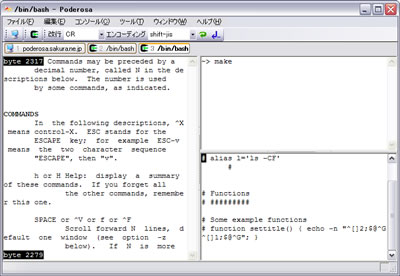
If you want to get some experience with it check out Poderosa’s website , here is also a screenshot of the program running few ssh encrypted connections in tabs on a Windows host.

Poderosa Windows ssh / telnet tabs terminal emulator screenshot
Another good reason that one might consider using Poderosa instead of PuTTY is the Apache License under which Poderosa is developed. Currently the Apache License is compatible with GPL free software license which makes the program fully free software. The PuTTY license is under BSD and MIT and some other weird custom license not 100% compatible with GPL and hence PuTTY can be considered less free software in terms of freedom.

KRaptor a Raptor free software (open source) arcade game clone for GNU / Linux

Monday, January 30th, 2012

Kraptor is another Raptor Shadow of Death free software, open source clone arcade game for GNU/Linux, DOS and Windows (98, XP etc.).

KRaptor main menu game screenshot Linux Debian Squeeze

The game is not under active development anymore since 2004. Kraptor features a powerful engine for creating quickly 2D shooter games, so the game should be a good learning curve for people interested into creation of arcade game shooter games.

The game just like Rafkill is built upon DUMB sound engine.
The game intro is quite entertaining 😉 The intro plays one by one the text:

Near Future:
Blobalization
Imperalizm
Corporations
Megalomaniacs
Money and Power. Slaves of the New Millenium!

KRaptor Bill gates like looking oppressor

After years of oppression, the slaved people of the world have raised against their masters. You, has a mercenary pilot, has been
contacted by the popular rebellion to fight against the forces of oppression.

In the morning, you jump into your cockpit and start up the engines. It's time to get airborne and start the attack. Get ready to
scramble the scum hired by the masters. Murder for freedom is the only way, you're on a mission, don't defraud us...

Like Rafkill, Kraptor is one man masterpiece created by a free software Argentinean geek known under the Kronoman artistic pseudonim. The game is really incredible for a one man work … a true masterpiece.
The game is licensed under MIT License.

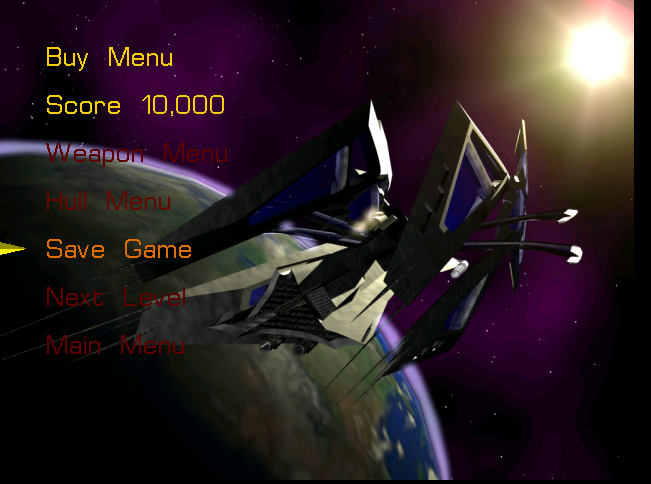
Even though Kraptor is older game than Rafkill, the design is more resembling the original Raptor game. The game music is high quality stereo. Besides that music and fx sound effects are quite awesome. After each level you have a Raptor like weapons "blackmarket", where you can buy new weapons, recharge ship energy, upgrade ship etc.
The blackmarket implementation part of the game is probably the worst moment in the game along with the game menus (in my view).
Talking about graphics Kraptor supports really high number of resolutions ranging from 320×240 to 1280×1024! 640×480 is the standard resolution in which the game is running.

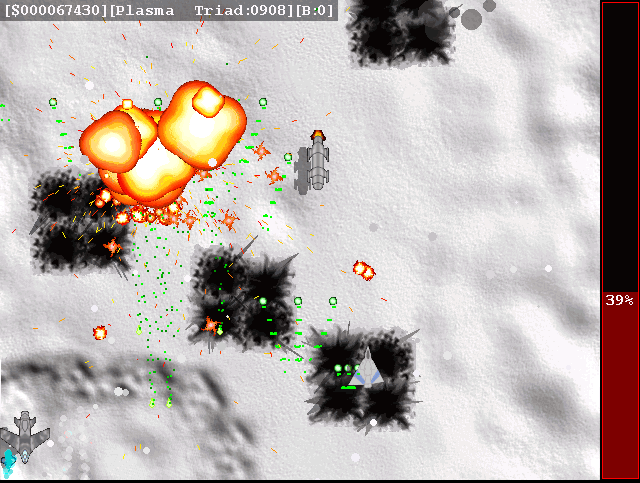
Kraptor raptor like Linux game plasma gun debian screenshot

Something I really like in the game is the number of multiple weapons your ship uses during play. Even if played in Easy mode it is taught.

There are game Saves after each level, so thanksfully you don't have to start again from zero once death.
At the end of each level there is a huge bad BOSS you have to destroy ;).
Kraptor the boss Debian GNU / linux

Installing Kraptor on Debian / Ubuntu and deb derivatives is with:

debian:~# apt-get install kraptor

On most rpm based Linux distributions, you can install the game by converting the deb package to rpm with alien or by building from source from Kraptor's sourceforge page

Its interesting the game name e.g. Kraptor is also a death / grind metal band name, (Maybe Kronoman is metalhead big fan of Kraptor and that's how he came up with the playful name. For all the old school game addicts there is the joystick support. I've tested it with my Genius analogous joystick and it works fine.

The game is lacking .desktop gnome definition and after once installed it only appears through Debian (section) GNOME menus and not in Applications -> Games :

Applications -> Debian -> Games -&act; Action -&t; Kraptor

Just like Rafkill on Debian the game exacutable binary is located in /usr/games/kraptor . Also like with the Rafkill case when launched the game has troubles with choppy sound and music caused by the stupid buggy! pulseaudio

Analogously like with Rafkill's case, the work around to the problematic music en sound is to use a little bash shell script like:

#!/bin/bash
pulseaudio -k;
/usr/games/kraptor
pulseaudio --start;

You can dowload Kraptor fix sound issues wrapper here

To install it on your Debian / Ubuntu and hence make the game sound play good issue with root:

debian:~# cd /usr/bin
debian:/usr/bin# wget https://www.pc-freak.net/bshscr/kraptor.wrapper.sh
...
debian:/usr/bin:# chmod +x kraptor.wrapper.sh
debian:/usr/bin:# mv kraptor.wrapper.sh kraptor


RafKill Raptor Free Software (Open Source) clone for GNU/Linux

Saturday, January 28th, 2012

I've earlier blogged on playing Apogee's Raptor Shadows of Death arcade on GNU / Linux with dosbox

All the old school raptor addicts will be interested to hear Kazzmir (Jon Rafkind) a free software devotee developer has created a small game resembling many aspects of the original Raptor arcade game.
The game is called Rafkill and is aimed to be a sort of Raptor like fork/clone.
Originally the game was also named Raptor like the DOS game, however in year 2006 it was changed to current Rafkill in order to avoid legal issues with Apogee's Raptor.

The game is not anymore in active development, the latest Rafkill release is from January 2007, anyhow even for the 2012 it is pretty entertaining. The sound and music are on a good level for a Linux / BSD shoot'em'up free software game . The graphics are not of a top quality and are too childish, but this is normal, since the game is just one man masterpiece.

Rafkill Level 1 Debian GNU/Linux

Rafkill is developed in C/C++ programming language, the game music engine it uses is called DUMB (Dynamic Universal Bibliotheque). By the way DUMB library is used for music engine in many Linux arcade games. DUMB allows the Linux game developer to develop his game and play a music files within different game levels in "tracked" formats like mod, s3m, xm etc.

The game is available in compiled form for almost all existent GNU/Linux distributions, as well as one can easily port it as it is open source.

To install Rafkill on Debian, Ubuntu, Xubuntu and Linux Mint en other Debian based distros

root@debian:~# apt-get install rafkill

Installing on Fedora and other rpm based is with yum

debian:~# apt-get install rafkill
...

Once rafkill is installed, in order to start it on Debian the only way is using the rafkill (/usr/bin/rafkill) command. It appears the deb package maintainer did not wrote a gnome launcher file like for example /usr/share/applications/rafkill.desktop
Just to explain for all the GNOME noobs, the .desktop files are a description file GNOME reads in order to understand where exactly to place certain application in the (Gnome Applications, Places, System …) menu panel.

Even though it miss the .desktop, it is launchable via Applications menu under the Debian section e.g. to open it from the GNOME menus you will have to navigate to:

Applications -> Debian -> Games -> Action -> Rafkill

This "shortcut" to launch the game is quite long and hard to remember thus it is handy to directly launch it via xterm:

hipo@debian:~$ rafkill

Rafkill raptor like native Linux game main menu screenshot Debian GNU / Linux Squeeze

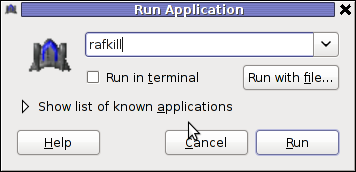
or by pressing ALT+F2 and typing rafkill :

Rafkill Linux game gnome launcher screenshot

Rafkill Debian Linux Level 5 power weaponscreenshot

Starting the game I got some really ugly choppy music / sound issues.
My guess was the fizzling sounds were caused by some bug with the sound portions streamed through pulseaudio sound system.
To test if my presume is correct, stopped pulseaudio and launched rafkill once again:

hipo@debian:~$ pulseaudio -k
hipo@debian:~$ rafkill

This way the game was counting on ALSA to process sound en the sound was playing perfectly fine.

I solved this problem through small wrapper shell script. The script did kill pulseaudio before launching rafkill and that way solve gchoppy sound issues, once the game execution is over the script starts pulseaudio again in order to prevent all other applications working with pulseaudio.

Finally, I've placed the executable script in /usr/bin/rafkill :

Here is the script:

#!/bin/bash
pulseaudio --kill
/usr/games/rafkill
pulseaudio --start

You can download rafkill.wrapper.sh here
Or write in root terminal:

debian:~# cd /usr/bin
debian:/usr/bin:# wget https://www.pc-freak.net/bshscr/rafkill.wrapper.sh
debian:/usr/bin:# mv https://www.pc-freak.net/bshscr/rafkill.wrapper.sh rafkill
debian:/usr/bin:# chmod +x rafkill

Interesting in Ubuntu Linux, rafkill music is okay and I suppose the bug is also solved in newer Linux distributions based on Ubuntu. Probably the Debian Squeeze pulseaudio (0.9.21-4) package version has a bug or smth..

After the change the game music will be playing fine and the game experience is cooler. The game is hard to play. Its really nice the game has game Saves, so once you die you don't have to start from level 1.

Rafkill Load menu screenshot

  I've seen rafkill rolling around on freebsd.org ftps under the ubuntu packages pool, which means rafkill could probably be played easily on FreeBSD and other BSDs.

Enjoy the cool game 😉

Error from park wrapper: mydomain.com is already configured. Sorry, that domain is already setup (remove it from httpd.conf) – How to solve

Monday, July 4th, 2011

If you’re administrating a Cpanel server and you come across an error message while trying to use cpanel’s domain addon menu and you want to fix that you will need to do the following logged in as root over an ssh connection:

1. Remove dns related stuff in /var/named and /var/named/cache cpanel:~# rm -f /var/named/mydomain.com.dbcpanel:~# rm -f /var/named/cache/mydomain.com.db

2. Edit the current used httpd.conf on the server and remove all virtualhost domain definitions

cpanel:~# vim /etc/httpd/conf/httpd.conf
# find the mydomain.com Virtualhost definitions and completely remove them

3. Remove any domain occurance in /var/cpanel/users

cpanel:~# cd /var/cpanel/users/
cpanel:/var/cpanel/users# grep -rli 'mydomain.com' *
/var/cpanel/users/hipo
cpanel:~# vim /var/cpanel/users/hipo
# remove in above file any domain related entries

3. Remove anything related to mydomain.com in /etc/userdomains and /etc/localdomains

cpanel:~# vim /etc/userdomains
cpanel:~# vim /etc/localdomains
# again look inside the two files and remove the occuring entries

4. Edit /etc/named.conf and remove any definitions of mydomain.com

cpanel:~# vim /etc/named.conf
# in above file remove DNS configuration for mydomain.com

5. Run /scripts/updateuserdomains

cpanel:~# /scripts/updateuserdomains

6. Delete any valias configurations

cpanel:~# rm -f /etc/valiases/mydomain.com
cpanel:~# rm -f /etc/vdomainaliases/mydomain.com
cpanel:~# rm -f/etc/vfilters/mydomain.com

7. Remove any occurance of mydomain.com in the user directory which experiences the Error from park wrapper: error

Let’s say the user testuser is experiencing the error, in that case you will have to remove:

cpanel:~# rm -rf /home/testuser/public_html/mydomain.com

8. Restart Cpanel

This step is optional though I think it’s also a good practice as it will at least restart the Cpanel webserver (Apache or Litespeed depending on your conf)

cpanel:~# /etc/init.d/cpanel restart

Now try to add up the domain via the Cpanel domain addon interface, hopefully the issue should be fixed by now. If not you might also check if there is no some record about mydomain.com in the mysql server.
Cheers 😉

How to fix “delivery 1: deferral: Sorry,_message_has_wrong_owner._(#4.3.5)/” qmail mail delivery failure message

Friday, May 20th, 2011

After a failed attempt to enable some wrapper scripts to enable domain keys support in a qmail powered mail server my qmail server suddenly stopped being able to normally send mail.

The exact error message which was logged in /var/log/qmail/current was:

@400000004dd66fcc16a088ac delivery 1: deferral: Sorry,_message_has_wrong_owner._(#4.3.5)/

This qmail messed happened after I substituted /var/qmail/bin/qmail-queue and /var/qmail/bin/qmail-remote with two respective wrapper shell scripts which were calling for the original qmail-queue and qmail-remote binaries under the names qmail-queue.orig and qmail-queue.orig

Restoring back qmail-queue.orig to /var/qmail/bin/qmail-queue and qmail-remote.orig to /var/qmain/bin/qmail-remote and restarting the mail server broke my qmail install.

After a bunch of nerves trying to isolate what is causing the error I found out that by mistake I forgot to copy the qmail-queue and qmail-remote permissions and ownership.

Thus I had to check another qmail working installation’s permissions for both binaries and fix the permissions to be equivalent to the permissions:

debian:~# ls -al /var/qmail/bin/qmail-remote
-rwx–x–x 1 root qmail 50464 2011-05-20 12:56 /var/qmail/bin/qmail-remote*
debian:~# ls -al /var/qmail/bin/qmail-queue
-rws–x–x 1 qmailq qmail 20392 2011-05-20 12:56 /var/qmail/bin/qmail-queue*

The exact chmod and chmod commands I issued to solve the shitty issues were as follows:

First I fixed the qmail-queue and qmail-remote ownership:

debian:~# chown qmailq:qmail /var/qmail/bin/qmail-queue
debian:~# chown root:qmail /var/qmail/bin/qmail-remote

Second I set the proper file permissions:

# make the qmail-queue binary suid
debian:~# chmod u+s /var/qmail/bin/qmail-queue
debian:~# chmod 611 /var/qmail/bin/qmail-queue
debian:~# chmod 611 /var/qmail/bin/qmail-remote

Third and last I did a restart of the qmail server and tested it sends properly

debian:~# /usr/bin/qmailctl stop
Stopping qmail...
qmail-send
qmail-smtpd
debian:~# /usr/bin/qmailctl start
Starting qmail

Finally to test that the qmail server qmail-queue was queing and sending with qmail-remote I used the system mail command like so:

debian:~# mail -s "test email" testuser@www.pc-freak.net
asdfafdsdf
.
Cc:

Afterwards the mail was properly received on my mail account testuser@www.pc-freak.net immediately.

In my /var/log/qmail/current log file all seemed fine:

@400000004dd6702a2eb2b064 starting delivery 1: msg 85281596 to remote testuser@www.pc-freak.net
@400000004dd6702a2eb2b834 status: local 0/20 remote 1/20
@400000004dd6702b34cc809c delivery 1: success: 83.228.93.76_accepted_message./Remote_host_said:_250_ok_
1305899099_qp_65293/
@400000004dd6702b34cc886c status: local 0/20 remote 0/20
@400000004dd6702b34cc8c54 end msg 85281596

The test mail was properly received on my mail account testuser@www.pc-freak.net immediately.

It took me like half an hour to figure out what exactly is wrong with the permissions in situations like this I really wanted to change all my qmail installs with postfix and forget forever I ever used qmail …